
Introduction
The Monoprice Blackbird 4K Pro 1x2 HDMI Splitter 115258 is designed to distribute a single HDMI source to two HDMI displays simultaneously. This device supports advanced video formats up to 4K at 60 frames per second and offers a bandwidth of up to 10.2 Gbps, ensuring high-quality 4K imaging. It is fully compliant with HDMI and HDCP 2.2 specifications, making it suitable for modern home theater and professional AV setups.
Features
- Compliant with the latest HDMI and HDCP 2.2 specifications.
- Supports 3D frame sequential video formats up to 1080p@60Hz.
- Supports video formats up to 4K@30Hz with 24-bit RGB/YCbCr 4:4:4/YCbCr 4:2:2, and up to 4K@60Hz with 12-bit YCbCr 4:2:0.
- Supports LPCM 7.1 channel, Dolby TrueHD, and DTS-HD Master Audio.
- Supports high-resolution VESA mode video formats up to QSXGA@60Hz.
Package Contents
Please ensure all items are present and in good condition. If any items are missing or damaged, contact Monoprice Customer Service.
- 1x Monoprice Blackbird 4K Pro 1x2 HDMI Splitter
- 1x 5V DC Power Adapter
- 1x User Manual (this document)
Product Overview
Familiarize yourself with the ports and indicators on your HDMI splitter.
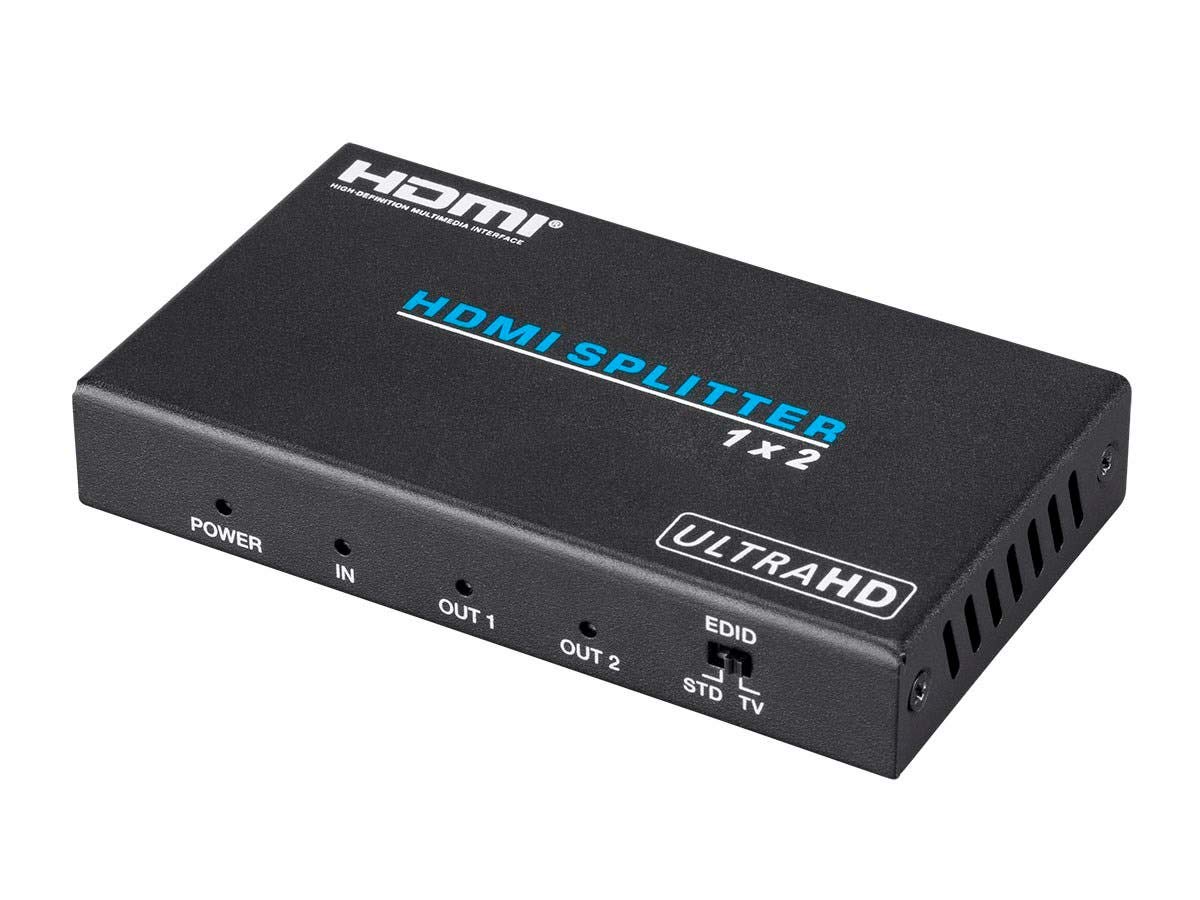
Image 1: Top view of the Monoprice Blackbird 4K Pro 1x2 HDMI Splitter. This image shows the overall design of the splitter, highlighting the "HDMI Splitter 1x2" and "ULTRAHD" labels, along with the power indicator, input, and two output ports.
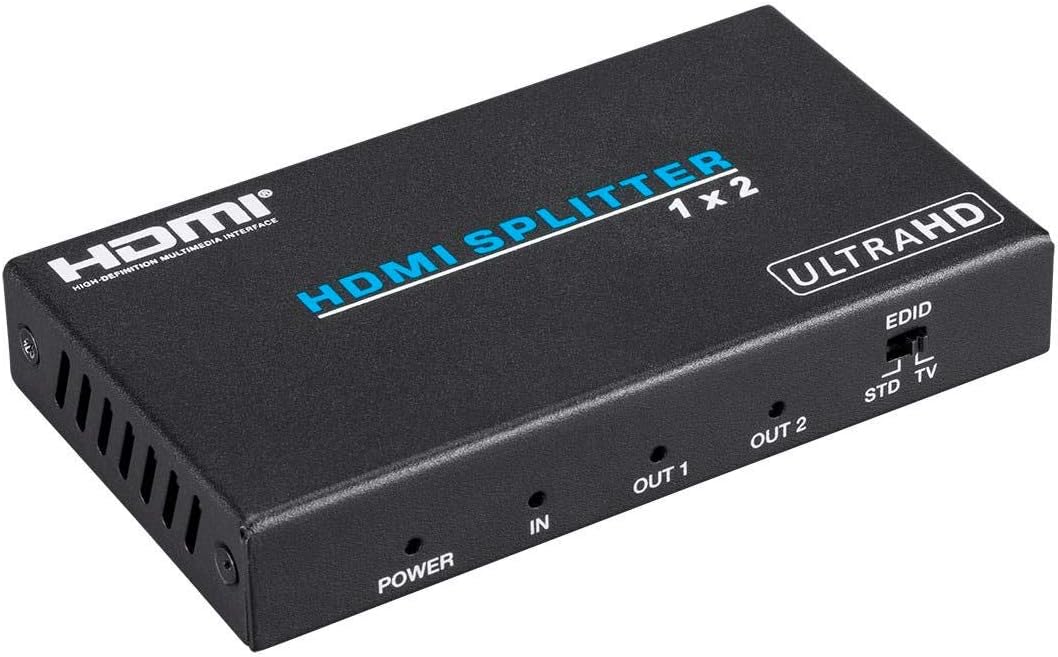
Image 2: Front view of the Monoprice Blackbird 4K Pro 1x2 HDMI Splitter. This image details the front panel, including the "POWER" indicator LED, "IN" for HDMI input, and "OUT 1" and "OUT 2" for HDMI outputs. It also shows the EDID switch with "STD" and "TV" settings.

Image 3: Rear view of the Monoprice Blackbird 4K Pro 1x2 HDMI Splitter. This image displays the actual HDMI ports: "HDMI OUT 2", "HDMI OUT 1", "HDMI IN", and the "DC 5V" power input port. The EDID switch is also visible from this angle.

Image 4: Monoprice Blackbird 4K Pro 1x2 HDMI Splitter shown alongside its included 5V DC power adapter. This illustrates the complete product package, ready for connection.
Setup Instructions
- Power Off Devices: Ensure all HDMI source devices (e.g., Blu-ray player, gaming console) and display devices (e.g., TV, projector) are powered off before making connections.
- Connect HDMI Source: Connect an HDMI cable from your source device to the HDMI IN port on the splitter.
- Connect HDMI Displays: Connect HDMI cables from the HDMI OUT 1 and HDMI OUT 2 ports on the splitter to your respective display devices.
- Connect Power Adapter: Plug the included 5V DC power adapter into the DC 5V port on the splitter, then plug the adapter into a wall outlet. The power indicator LED on the splitter should illuminate.
- Power On Devices: Power on your display devices first, then your HDMI source device.
- Verify Signal: Confirm that the video and audio signals are correctly displayed on both connected screens.
Operating Instructions
The Monoprice Blackbird 4K Pro 1x2 HDMI Splitter operates automatically once connected. The primary operational control is the EDID switch.
EDID Management Switch
The EDID (Extended Display Identification Data) switch allows you to manage how the splitter communicates with your source device regarding display capabilities. This is crucial for ensuring compatibility, especially when connecting displays with different resolutions or audio capabilities.
- STD (Standard) Mode: In this position, the splitter uses its internal, pre-programmed EDID settings. This typically supports a wide range of common resolutions and audio formats. Use this mode if you experience compatibility issues with the TV mode or if both connected displays have similar capabilities.
- TV Mode: In this position, the splitter reads the EDID from the display connected to HDMI OUT 1 and replicates it to the source device. This ensures the source device sends a signal compatible with your primary display. If your displays have different capabilities, the source will output a signal compatible with the lowest common denominator of the two displays, or specifically to the capabilities of the display connected to OUT 1. It is recommended to connect your most capable display to OUT 1 when using TV mode.
Note: Always power cycle the source device after changing the EDID switch position to ensure the new EDID information is properly read.
Maintenance
The Monoprice Blackbird 4K Pro 1x2 HDMI Splitter requires minimal maintenance.
- Cleaning: Use a soft, dry cloth to clean the exterior of the unit. Do not use liquid cleaners or aerosols.
- Storage: Store the device in a cool, dry place away from direct sunlight and extreme temperatures when not in use for extended periods.
- Ventilation: Ensure the unit has adequate ventilation and is not covered, as proper airflow prevents overheating.
Troubleshooting
If you encounter issues with your HDMI splitter, refer to the following common problems and solutions:
No Picture or Intermittent Signal
- Check Connections: Ensure all HDMI cables are securely connected to the input and output ports.
- Power Supply: Verify that the power adapter is correctly connected to the splitter and a working power outlet. The power LED should be on.
- HDMI Cable Quality: Use high-quality, certified HDMI cables, especially for 4K resolutions and longer distances. Poor quality or excessively long cables can cause signal loss.
- Source/Display Compatibility: Ensure your source and display devices support the resolution and refresh rate you are trying to transmit.
- Power Cycle: Disconnect and reconnect the power to the splitter, and power cycle your source and display devices.
HDCP 2.2 Errors or Purple Screen
Some users report HDCP 2.2 errors or a purple screen, particularly with certain 4K streaming devices like Roku Premiere Plus/Ultra, even when source and display are HDCP 2.2 compliant. This can be due to handshake issues.
- EDID Switch: Experiment with the EDID switch (STD/TV modes). Try setting it to "STD" mode. If the issue persists, try "TV" mode with your primary 4K display connected to OUT 1. Remember to power cycle your source device after changing the EDID setting.
- Source Audio Settings: If using a receiver that is not HDCP 2.2 compliant, ensure your source device's audio settings are configured to pass through digital audio (e.g., Dolby Digital, DTS) rather than decoding it internally, if applicable. This can sometimes resolve handshake issues.
- Direct Connection Test: Temporarily connect your source directly to one of your 4K displays to confirm that the source and display are individually capable of 4K and HDCP 2.2 without the splitter.
Resolution or Audio Issues
- EDID Switch: Adjust the EDID switch. If one display is 4K and the other is 1080p, the splitter will typically output the lowest common resolution to both displays. Using "TV" mode with the 4K display on OUT 1 might help, but the source will still negotiate based on the capabilities it detects.
- Source Settings: Check the video and audio output settings on your source device. Ensure they are configured correctly for your displays.
Specifications
| Feature | Specification |
|---|---|
| Model Number | 115258 |
| Brand | Monoprice |
| Color | Black |
| Connector Type | HDMI |
| Compatible Devices | Television, HDMI Source Devices |
| Cable Type | HDMI |
| Number of Ports | 1 Input, 2 Outputs |
| HDMI Compliance | Latest HDMI Specifications |
| HDCP Compliance | HDCP 2.2 |
| Video Resolution Support | Up to 4K@30Hz (24-bit RGB/YCbCr 4:4:4/YCbCr 4:2:2), Up to 4K@60Hz (12-bit YCbCr 4:2:0), 3D frame sequential video up to 1080p@60Hz, VESA modes up to QSXGA@60Hz |
| Audio Support | LPCM 7.1 channel, Dolby TrueHD, DTS-HD Master Audio |
| Bandwidth | Up to 10.2 Gbps |
| Item Weight | 7.7 Ounces (approx. 218 grams) |
| UPC | 889028033487 |
Safety Information
- Do not expose this device to water or excessive moisture.
- Do not attempt to open or service this device. There are no user-serviceable parts inside.
- Use only the provided power adapter. Using an unauthorized power adapter may damage the device and void the warranty.
- Keep the device away from heat sources and direct sunlight.
- Ensure proper ventilation to prevent overheating.
Customer Support
For technical support, product information, or warranty inquiries, please contact Monoprice Customer Service. Refer to the official Monoprice website for the most current contact information.


