
Introduction
The Medion X61072 Lifebeat WLAN Multiroom Speaker is designed to provide a versatile audio experience throughout your home. With 20W RMS output, this speaker connects to your home network via Wi-Fi, allowing you to stream music from various sources. Its multi-room capabilities enable synchronized playback across multiple speakers or different music in each room, offering flexible audio control.

Image: Front view of the Medion X61072 Lifebeat WLAN Multiroom Speaker. The speaker features a black fabric grille and a metallic top panel with control buttons.
What's in the Box
Please check the packaging contents to ensure all items are present:
- Medion Wifi Speaker X61072
- Power Adapter
- Audio Cable (3.5 mm to 3.5 mm)
- User Manual
Setup
1. Initial Power On
Connect the power adapter to the speaker and a power outlet. The speaker will power on automatically or can be turned on using the power button on the top panel.
2. Connecting to Wi-Fi
To connect the speaker to your home Wi-Fi network, you will need the dedicated Medion Lifebeat X app (available for smartphones/tablets). Follow these steps:
- Download and install the Medion Lifebeat X app on your smartphone or tablet.
- Open the app and follow the on-screen instructions to add a new device.
- On the speaker, press and hold the Wi-Fi button (often indicated by a Wi-Fi icon or labeled "WLAN") for approximately 3 seconds to initiate pairing mode. The speaker's indicator light will change to confirm it's in pairing mode.
- Alternatively, you can use WPS (Wi-Fi Protected Setup) for a quick connection if your router supports it. Press the WPS button on your router, then press the WPS button on the speaker (if available, otherwise use the app method).
- Once connected, the speaker's indicator light will show a steady state, and the app will confirm the successful connection.

Image: Angled view of the Medion X61072 speaker's top panel, showing control buttons for playback, volume, and quick selects.
Operating Instructions
1. Streaming Music
Once connected to your Wi-Fi network, you can stream music from various sources:
- Smartphones/Tablets: Use the Medion Lifebeat X app or other compatible streaming apps to send audio to the speaker.
- PCs/Notebooks: Stream music from your computer using compatible software or web services.
- NAS Server: Access music libraries stored on your Network Attached Storage (NAS) server.
- Internet: Stream directly from internet radio services or other online platforms.
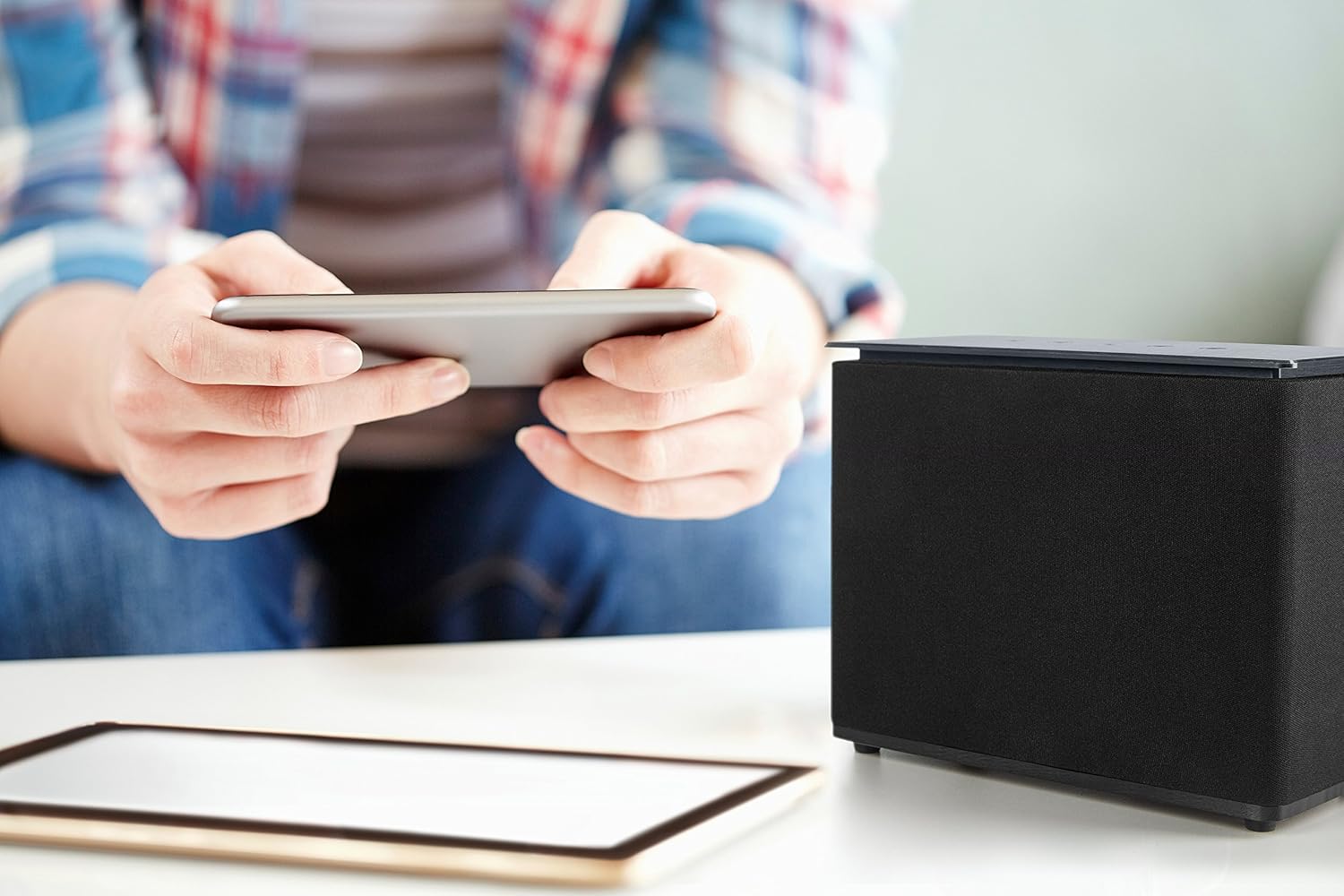
Image: A person holding a smartphone, likely controlling the Medion X61072 speaker visible on a table. This illustrates app-based control and streaming.
2. Multiroom Functionality
If you have multiple Medion multiroom speakers on your network, you can utilize different playback modes:
- Party Mode: Play the same music simultaneously on all connected multiroom speakers, creating a synchronized audio experience across different rooms.
- Multi-Room Mode: Play different audio content on each individual multiroom speaker, allowing for personalized listening in various areas of your home.

Image: The Medion X61072 speaker positioned on a kitchen counter next to a plant, demonstrating its suitability for various room placements in a multiroom setup.
3. Spotify Connect
The speaker is compatible with Spotify Connect. This allows you to control music playback directly from the Spotify app on your device, sending the audio to your Medion speaker without needing to use the Medion Lifebeat X app for playback control.
4. Physical Controls
The top panel of the speaker features several physical controls:
- Play/Pause Button: To start or pause audio playback.
- Volume Up/Down Buttons: To adjust the speaker's volume.
- Quick Select Buttons (1, 2, 3): These buttons allow you to store and quickly access three favorite audio sources or playlists without extensive searching through the app.
Maintenance
To ensure the longevity and optimal performance of your Medion X61072 speaker, follow these maintenance guidelines:
- Cleaning: Use a soft, dry cloth to wipe the speaker's surfaces. Avoid using abrasive cleaners, solvents, or chemical sprays, as these can damage the finish or internal components.
- Placement: Place the speaker on a stable, flat surface. Avoid areas with excessive heat, direct sunlight, high humidity, or dust. Ensure adequate ventilation around the speaker.
- Power: Disconnect the power adapter from the wall outlet during lightning storms or when unused for long periods.
Troubleshooting
| Problem | Possible Cause / Solution |
|---|---|
| Speaker does not power on. | Ensure the power adapter is securely connected to both the speaker and a working power outlet. Check if the power outlet is functional. |
| Cannot connect to Wi-Fi. |
|
| No sound or poor sound quality. |
|
| DLNA (UPnP) streaming not working. |
|
| App is unresponsive or crashes. |
|
Specifications
| Model Number | X61072 |
| Brand | Medion |
| Speaker Type | Multiroom |
| Maximum Output Power | 20 Watt RMS |
| Connectivity Technology | Wi-Fi, AUX (wired) |
| Wireless Communication Technology | Wi-Fi |
| Control Method | App |
| Audio Output Mode | Stereo |
| Compatible Devices | Smartphone, Tablet |
| Product Dimensions | 22 x 10.6 x 17.5 cm |
| Item Weight | 1.5 kg |
| Color | Black |
| Power Source | Battery (implies portable, but specifications also mention power adapter, so it's likely mains powered with battery for portability or backup) |
| Special Features | Wireless |
| Manufacturer | Medion Aktiengesellschaft |
| Country of Origin | China |
Warranty and Support
The Medion X61072 Lifebeat WLAN Multiroom Speaker comes with a limited warranty. For detailed information regarding warranty terms, coverage, and duration, please refer to the warranty card included in your product packaging or visit the official Medion website.
For technical support, troubleshooting assistance beyond this manual, or service inquiries, please contact Medion customer support. Contact details can typically be found on the Medion website or in your product documentation.
