
1. Introduction
The Fusion MS-RA70N is a compact marine stereo system designed to deliver high-quality audio entertainment on your vessel. It features Bluetooth connectivity, AM/FM radio, USB playback, and NMEA2000 integration for seamless control across compatible marine displays. This manual provides essential information for the proper installation, operation, and maintenance of your MS-RA70N unit.
1.1 Package Contents
- Fusion MS-RA70N Marine Stereo Unit
- Power/Speaker Wiring Harness
- Mounting Hardware
- Remote Control (if included with specific model variant)
- User Manual
2. Safety Information
Please read all safety warnings and instructions carefully before installing and operating this device. Failure to do so may result in injury, damage to the device, or property damage.
- Water Exposure: This device is rated IPX7 for water ingress protection. Ensure all connections are properly sealed during installation to maintain this rating. Do not submerge the unit.
- Power Supply: Connect the device only to a 12V DC power supply with a negative ground. Ensure proper fusing is used to prevent electrical damage.
- Installation: Professional installation is recommended. Ensure the mounting location is secure and allows for adequate ventilation. Avoid installing in areas exposed to extreme temperatures or direct sunlight for prolonged periods.
- Hearing Protection: Prolonged exposure to loud audio can cause hearing damage. Adjust volume to a safe level.
3. Setup and Installation
3.1 Mounting the Unit
The MS-RA70N is designed to fit a standard DIN-sized cutout, simplifying installation in many marine dashboards. Ensure there is sufficient space behind the unit for wiring and ventilation.
- Cut a rectangular opening in the mounting surface according to the provided template (if applicable) or standard DIN dimensions (approximately 182mm x 53mm).
- Insert the MS-RA70N into the opening.
- Secure the unit using the supplied mounting brackets and screws. Ensure a tight seal to maintain water resistance.
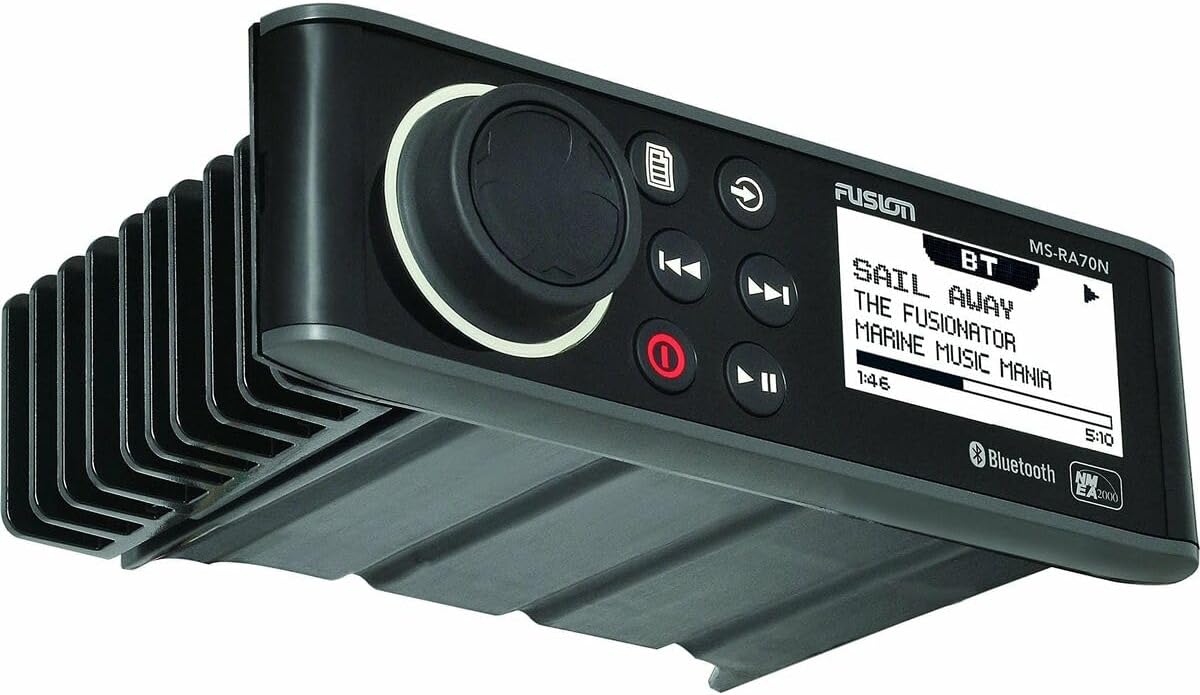
Image: Side view of the Fusion MS-RA70N, highlighting the heat sink fins for thermal management.
3.2 Wiring Connections
Carefully follow the wiring diagram provided with your unit. Incorrect wiring can cause damage to the stereo or your vessel's electrical system.
- Power: Connect the yellow wire to a constant 12V DC power source, the red wire to a switched 12V DC accessory power source, and the black wire to a reliable ground connection.
- Speakers: Connect your marine speakers to the corresponding speaker output wires. The MS-RA70N supports two independent audio zones.
- Antenna: Connect your marine AM/FM antenna to the designated input.
- USB: Connect a USB device for media playback or charging.
- AUX Input: Use the RCA auxiliary input for external audio sources.
- NMEA2000: Connect to an existing NMEA2000 network for integration with compatible chartplotters and remote controls.
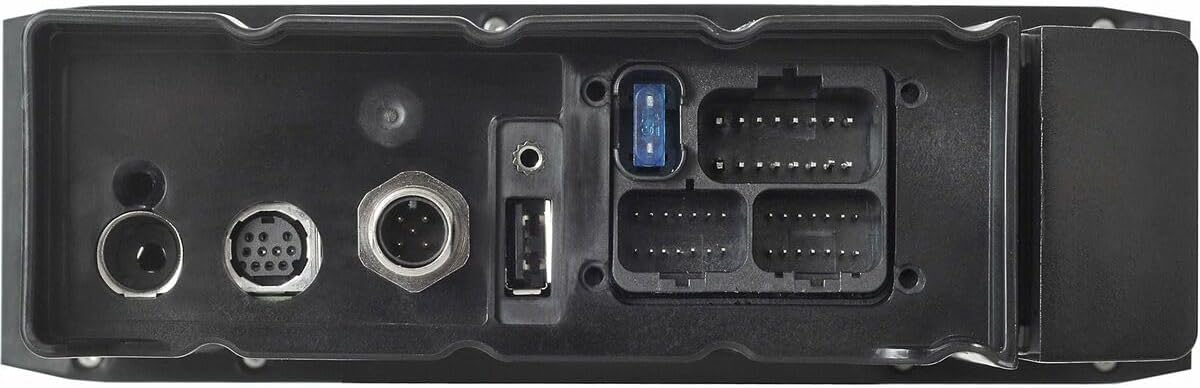
Image: Rear panel of the MS-RA70N, displaying the power, speaker, USB, AUX, and NMEA2000 connection ports.
4. Operating Instructions
4.1 Basic Controls

Image: Front view of the Fusion MS-RA70N, showing the display, rotary encoder, and control buttons.
- Power Button: Press to turn the unit on or off.
- Rotary Encoder: Turn to adjust volume. Press to select menu options.
- Source Button: Press to cycle through available audio sources (Bluetooth, USB, AM/FM, AUX).
- Play/Pause Button: Controls playback for compatible sources.
- Skip/Track Buttons: Skips tracks or tunes radio stations.
4.2 Bluetooth Connectivity
The MS-RA70N allows wireless audio streaming from compatible Bluetooth devices.
- Select Bluetooth as the audio source on the MS-RA70N.
- On your mobile device, enable Bluetooth and search for available devices.
- Select 'Fusion MS-RA70N' from the list to pair.
- Once paired, you can stream audio from your device to the stereo.

Image: The MS-RA70N unit alongside a smartphone running the FUSION-Link app, demonstrating remote control capabilities.
4.3 USB Playback
Connect a USB flash drive containing MP3 audio files to the USB port for playback.
- Ensure your USB device is formatted to FAT32.
- Select USB as the audio source.
- Use the navigation controls to browse and select tracks.
4.4 AM/FM Radio
Tune into your favorite AM or FM radio stations.

Image: The MS-RA70N display showing an FM radio frequency, indicating active radio mode.
- Select AM or FM as the audio source.
- Use the skip buttons to seek for stations or the rotary encoder for manual tuning.
- Save your favorite stations as presets for quick access.
4.5 NMEA2000 and FUSION-Link Integration
The MS-RA70N is NMEA2000 certified and supports FUSION-Link Wired control, allowing integration with compatible Multi-Function Displays (MFDs) and remote controls.
- Connect the MS-RA70N to your vessel's NMEA2000 network.
- Control audio functions directly from your compatible chartplotter or MFD.
- The free FUSION-Link app for Apple® or Android™ devices provides wireless control over zones, track selection, and more.

Image: The MS-RA70N unit positioned next to a Garmin chartplotter, illustrating the integration and control of audio settings via the MFD.
5. Maintenance
Regular maintenance ensures the longevity and optimal performance of your MS-RA70N.
- Cleaning: Clean the unit's exterior with a soft, damp cloth. Avoid abrasive cleaners or solvents.
- Connections: Periodically check all wiring connections for corrosion or looseness. Ensure rubber caps are securely in place on unused ports.
- Software Updates: Check the Fusion website for any available software updates to ensure your unit has the latest features and performance enhancements.
6. Troubleshooting
If you encounter issues with your MS-RA70N, refer to the following common problems and solutions:
| Problem | Possible Cause | Solution |
|---|---|---|
| No power | Blown fuse, incorrect wiring, power switch off | Check fuse, verify wiring connections, ensure power switch is on. |
| No audio output | Incorrect source selected, speaker wires disconnected, volume too low | Select correct source, check speaker connections, increase volume. |
| Bluetooth not pairing | Device too far, Bluetooth off on device, unit in wrong mode | Ensure device is close, Bluetooth is enabled, and MS-RA70N is in pairing mode. |
| Poor radio reception | Antenna not connected, damaged antenna, interference | Check antenna connection, replace damaged antenna, move away from interference sources. |
7. Specifications
| Feature | Detail |
|---|---|
| Model Number | MS-RA70N |
| Dimensions (H x W x D) | 60 x 188 x 124 mm (approx. 2.36 x 7.4 x 4.88 inches) |
| Weight | 997.9 g (approx. 2.2 lbs) |
| Power Output | 200W Max (50W x 4 channels) |
| Audio Channels | 2.0 Stereo |
| Connectivity | Bluetooth, USB, AM/FM Radio, Auxiliary (RCA) |
| NMEA2000 Certified | Yes, FUSION-Link Wired |
| Water Protection | IPX7 (front panel when properly installed) |
| Compatible Devices | iPod, iPhone, MP3 players, Android devices |
| Control Method | Unit controls, Remote control, FUSION-Link App, MFD |
| Audio Encoding | Stereo |
| Supported Formats | WMA (via USB) |
8. Warranty and Support
8.1 Product Warranty
This Fusion MS-RA70N product is covered by a European warranty. For specific terms and conditions, please refer to the warranty documentation included with your purchase or contact Fusion customer support.
8.2 Customer Support
For technical assistance, troubleshooting beyond this manual, or warranty claims, please contact Fusion customer support through their official website or authorized service centers. Have your product model number and purchase details ready when contacting support.


