
Introduction
This manual provides essential information for setting up, operating, maintaining, and troubleshooting your HP Envy Phoenix 860-030 Desktop. Designed for high performance, this desktop features an Intel Core i7 processor and AMD Radeon R9 graphics, running on Windows 10 Home.
Please read these instructions carefully to ensure optimal performance and longevity of your device.
Package Contents
Before proceeding with the setup, ensure all components are present in the package:
- HP Envy Phoenix 860-030 Desktop Tower
- Power Cable
- HP Keyboard
- HP Mouse
- Documentation (this manual, warranty information)
Setup Instructions
1. Unpacking and Placement
Carefully remove the desktop from its packaging. Place the desktop tower on a stable, flat surface with adequate ventilation. Ensure that the air vents are not obstructed to prevent overheating.
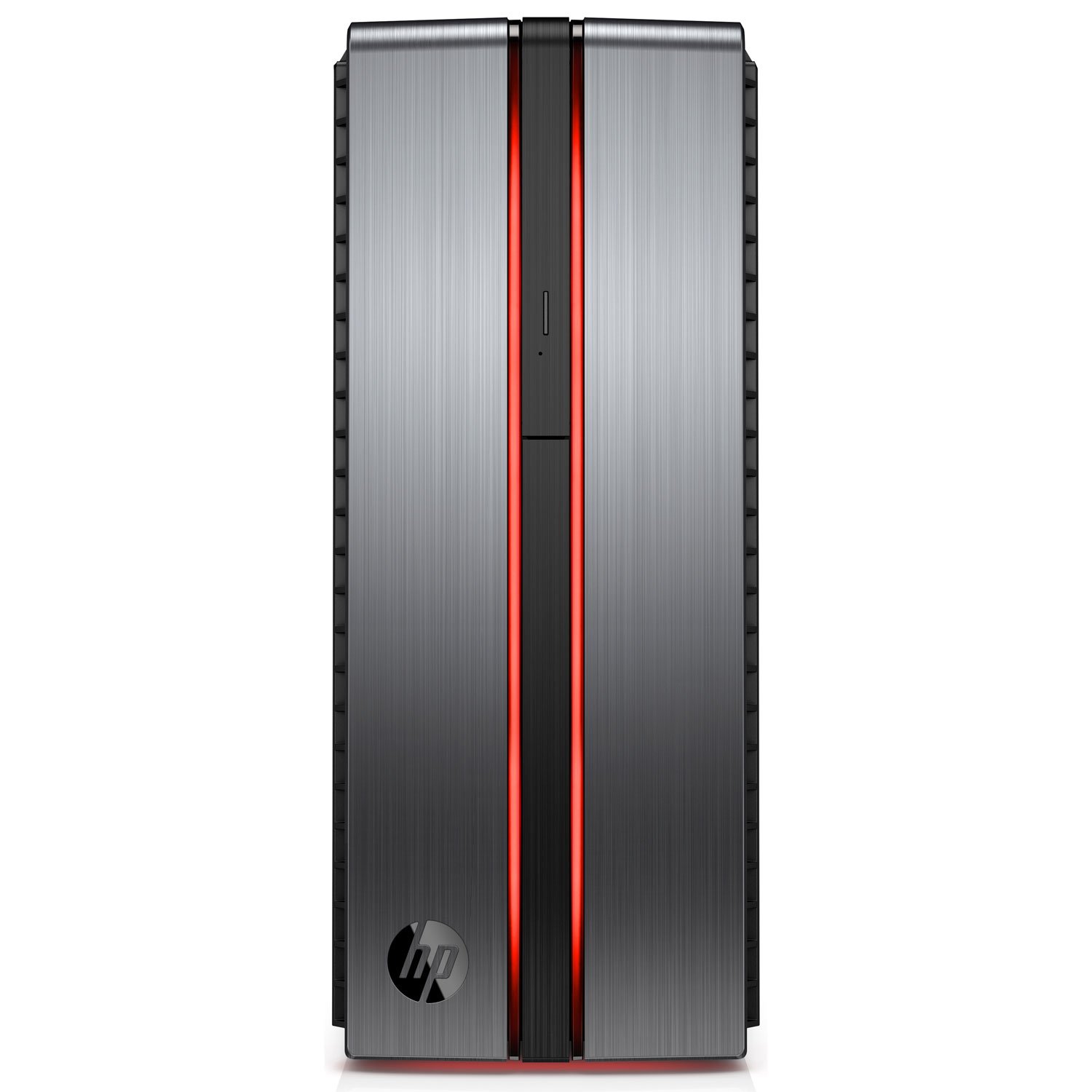
Image: Front view of the HP Envy Phoenix 860-030 Desktop tower, showcasing its sleek design with illuminated vertical accents.
2. Connecting Peripherals
- Connect the Monitor: Use an HDMI or DisplayPort cable to connect your monitor to the appropriate port on the back of the desktop.
- Connect the Keyboard and Mouse: Plug the USB keyboard and mouse into any available USB ports on the desktop.
- Connect to Power: Plug the power cable into the power port on the back of the desktop, then plug the other end into a wall outlet or surge protector.
- Network Connection (Optional): For wired internet, connect an Ethernet cable to the LAN port. For wireless, ensure your Wi-Fi network is available during initial setup.

Image: Side view of the HP Envy Phoenix 860-030 Desktop, highlighting the ventilation grilles and the HP logo.
3. Initial Power On and Windows Setup
Press the power button located on the front of the desktop. The system will boot up and guide you through the Windows 10 Home setup process. Follow the on-screen instructions to configure your language, region, network, and user account.
During setup, you may encounter options to install additional software. You can choose to deselect any programs you do not wish to install by selecting the 'advanced settings' route if available, or uninstall them later via Windows settings.
Operating Instructions
General Usage
Your HP Envy Phoenix 860-030 Desktop is equipped with an Intel Core i7-6700K processor and AMD Radeon R9 390X graphics, providing robust performance for gaming, multimedia, and demanding applications. The system runs on Windows 10 Home, offering a familiar and intuitive user experience.
Audio Features
Experience enhanced audio quality with Bang & Olufsen sound integration. This system is designed to deliver superior audio output, especially when paired with external satellite speakers, optimizing your computing and gaming experience.
Performance Indicator Lighting
The front panel of the desktop features LED illumination that indicates system performance. The color changes based on the machine's workload:
- Blue: Indicates stable, normal operation.
- Red: Indicates peak performance or high system load, signifying intensive tasks like gaming or video editing.
Video: An overview of the HP Envy Phoenix 860-030 Desktop, showcasing its design, features, and performance indicator lighting. This video highlights the aesthetic and functional aspects of the desktop tower.
Maintenance
Cleaning
To maintain optimal performance and appearance, regularly clean the exterior of your desktop with a soft, dry cloth. Avoid using liquid cleaners directly on the device. Ensure air vents are clear of dust and debris to facilitate proper airflow for the air cooling system.
Software Updates
Keep your operating system and drivers updated. Windows Update will automatically manage OS updates. For graphics drivers and other HP-specific software, check the HP support website or use the pre-installed HP support tools.
Troubleshooting
Common Issues and Solutions
- System Not Powering On: Ensure all power cables are securely connected to both the desktop and the power outlet. Verify the power outlet is functional.
- Display Issues: Check that the monitor cable is firmly connected to both the desktop and the monitor. Ensure the monitor is powered on and set to the correct input source.
- Performance Lag: Close unnecessary applications. Ensure your system drivers and Windows are up to date. Check for adequate ventilation around the desktop.
- Unexpected Glitches: If the system exhibits unexpected behavior, try restarting the computer. If issues persist, consider performing a system restore to a previous point or contacting HP support.
For more detailed troubleshooting or persistent issues, refer to the HP support website or contact HP customer service.
Specifications
| Feature | Detail |
|---|---|
| Brand | HP |
| Model Number | 860-030 |
| Operating System | Windows 10 Home |
| CPU Model | Intel Core i7-6700K |
| CPU Speed | 4 GHz |
| Graphics Card | AMD Radeon R9 390X (16357 MB GDDR5) |
| RAM Memory | 16 GB DDR4-2133 SDRAM (Max 64 GB) |
| Storage | 128 GB SSD + 2 TB 7200 RPM Serial ATA HDD |
| Optical Drive | DVD+RW |
| USB Ports | 6 Total |
| HDMI Ports | 1 Total |
| Connectivity | Bluetooth, USB, 802.11b/g/n Wireless |
| Cooling Method | Air |
| Dimensions (LxWxH) | 16.54 x 6.5 x 15.79 inches |
| Weight | 23.2 Pounds |
| Color | Black |
Warranty and Support
Your HP Envy Phoenix 860-030 Desktop comes with a standard manufacturer's warranty. For specific warranty terms and conditions, please refer to the documentation included with your product or visit the official HP support website. HP provides comprehensive customer support, including online resources, driver downloads, and technical assistance.
For support, visit: www.hp.com/support

