
Tecknet UM013
TeckNet UM013 2.4G Pro S2 Hi Performance Mouse
User Instruction Manual
1. Introduction
Thank you for choosing the TeckNet UM013 2.4G Pro S2 Hi Performance Mouse. This wired optical mouse is designed for comfortable and efficient use, featuring adjustable DPI settings and convenient back and forward buttons. Please read this manual carefully to ensure proper setup and operation of your new mouse.

Image: The TeckNet UM013 mouse, showcasing its ergonomic design and wired connection.
2. Product Overview
2.1 Components
- Left Click Button: Standard primary mouse button.
- Right Click Button: Standard secondary mouse button.
- Scroll Wheel: For vertical scrolling and middle-click functionality.
- DPI Adjustment Button: Allows switching between different sensitivity levels.
- Forward Button: Navigates forward in web browsers or file explorers.
- Back Button: Navigates backward in web browsers or file explorers.
- USB-A Cable: For connecting the mouse to your computer.
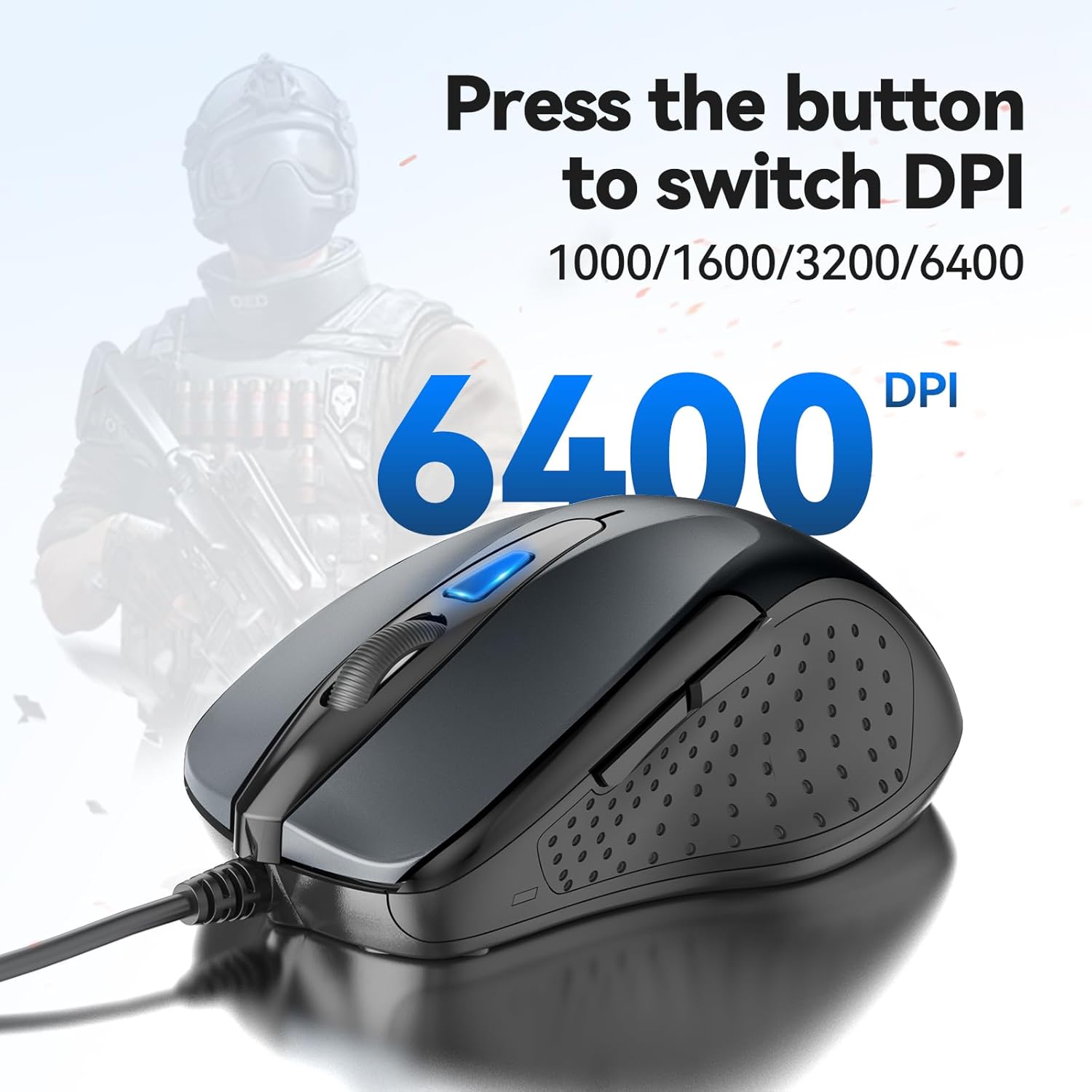
Image: The TeckNet UM013 mouse, illustrating the location of the DPI adjustment button.
3. Setup
The TeckNet UM013 mouse is designed for simple plug-and-play installation, requiring no additional drivers for basic functionality on compatible operating systems.
3.1 Connecting the Mouse
- Locate an available USB-A port on your computer.
- Insert the USB-A connector of the mouse cable firmly into the USB-A port.
- Your operating system should automatically detect and install the necessary drivers. The mouse will be ready for use within a few seconds.

Image: The TeckNet UM013 mouse connected to a desktop computer, demonstrating its plug-and-play functionality with a 1.5m USB cable.
4. Operating Instructions
4.1 Basic Operation
- Clicking: Use the left and right buttons for standard click functions.
- Scrolling: Rotate the scroll wheel up or down to navigate through documents and web pages. Press the scroll wheel for middle-click functionality (e.g., opening links in new tabs).
4.2 Adjusting DPI Sensitivity
The DPI (Dots Per Inch) button allows you to instantly switch between different cursor speeds to suit your preference or task. The UM013 mouse supports multiple DPI levels:
- 1000 DPI
- 1600 DPI
- 3200 DPI
- 6400 DPI
Press the DPI button, located behind the scroll wheel, to cycle through these settings. Each press will change the sensitivity, allowing for precise control or faster movement as needed.
4.3 Using Back and Forward Buttons
The dedicated back and forward buttons, located on the side of the mouse, provide quick navigation in web browsers, file explorers, and other applications that support these functions. Press the front button to go forward and the rear button to go back.
4.4 Ergonomic Design for Comfort
The TeckNet UM013 mouse features an ergonomic design intended to provide all-day comfort, reducing potential strain on your wrist and shoulder during extended use. Its contoured shape fits naturally in the hand.

Image: An illustration comparing a standard mouse grip that may cause wrist fatigue with an ergonomic mouse grip that enhances comfort and relieves strain.
5. Maintenance
5.1 Cleaning
To maintain optimal performance and hygiene, regularly clean your mouse. Use a soft, slightly damp cloth to wipe the surface. Avoid using harsh chemicals or abrasive materials, as these can damage the mouse's finish or internal components.
5.2 Durability
The TeckNet UM013 mouse is built for enduring usage, having undergone extensive keystroke tests to ensure long-term reliability. The buttons are rated for over 6 million clicks.

Image: A hand operating the TeckNet UM013 mouse, emphasizing its durability with a '6 Million Times Keystroke Test' claim.
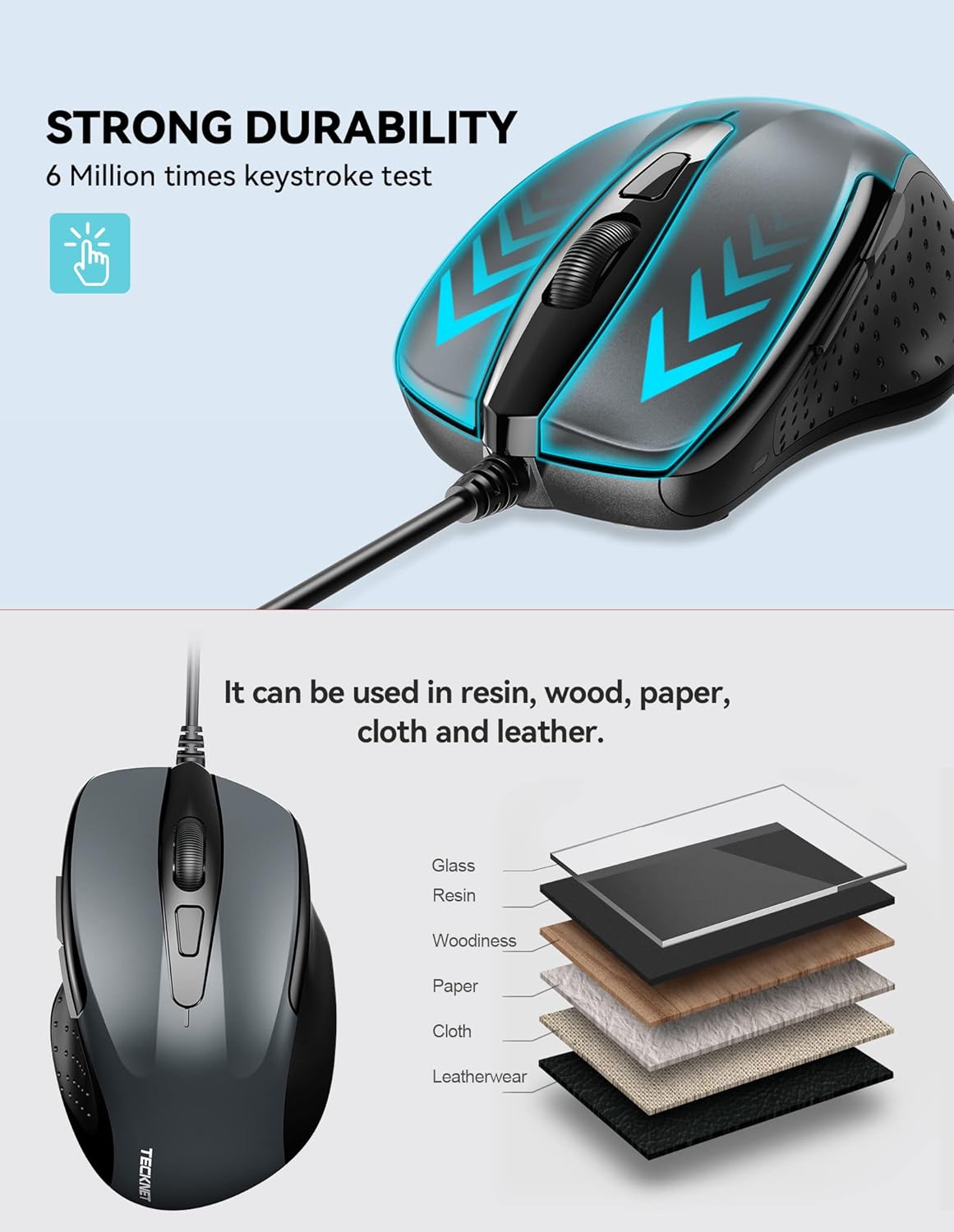
Image: The TeckNet UM013 mouse highlighting its strong durability and compatibility with various surfaces like resin, wood, paper, cloth, and leather.
6. Troubleshooting
If you encounter issues with your TeckNet UM013 mouse, please refer to the following common problems and solutions:
- Mouse not responding:
- Ensure the USB cable is securely plugged into a working USB port on your computer.
- Try plugging the mouse into a different USB port.
- Restart your computer.
- Erratic cursor movement:
- Clean the optical sensor on the underside of the mouse with a soft, dry cloth.
- Ensure you are using the mouse on a clean, non-reflective, and uniform surface.
- Try adjusting the DPI setting to a lower level.
- Buttons not working:
- Ensure no debris is lodged under the buttons.
- Test the mouse on another computer to rule out software or system issues.
If problems persist, please contact TeckNet customer support for further assistance.
7. Specifications
Detailed technical specifications for the TeckNet UM013 2.4G Pro S2 Hi Performance Mouse:
| Feature | Specification |
|---|---|
| Brand | Tecknet |
| Model Number | TK-EMS014 (UM013) |
| Connectivity Technology | USB Wired |
| Movement Detection Technology | Optical |
| DPI Levels | 1000, 1600, 3200, 6400 |
| Buttons | Left, Right, Scroll Wheel, DPI, Back, Forward |
| Keystroke Test | Over 6 Million Times |
| Color | Black/Grey |
| Product Dimensions (LxWxH) | 6.8 x 3.8 x 10.3 cm |
| Item Weight | 109 g |
| Cable Length | Approx. 1.5 meters (4.9 ft) |
| Hardware Platform | Personal Computer |
| Operating System Compatibility | Windows 2000 and later (Plug & Play) |

Image: The TeckNet UM013 mouse displaying its portable size with dimensions of 105mm length, 58mm width, and 35mm height.
8. Warranty and Support
For information regarding product warranty, returns, or technical support, please refer to the official TeckNet website or contact their customer service directly. Keep your purchase receipt as proof of purchase for any warranty claims.
Online Support: Visit the official TeckNet support page for FAQs, driver downloads, and contact options.
Email Support: Refer to your product packaging or the official website for the customer support email address.
Related documentsUM013


Ask a question about this manual
Ask about setup, troubleshooting, compatibility, parts, safety, or missing instructions. Manuals+ will review the question and use this page’s manual context to help answer it.