
Introduction
Welcome to the user manual for your Samsung SHS-P510 Push & Pull Smart Door Lock. This manual provides essential information for the safe and efficient use of your digital door lock, including setup, operation, maintenance, and troubleshooting. Please read this manual thoroughly before installation and use to ensure optimal performance and security.
Important Safety Information
To prevent injury, electric shock, fire, or product damage, please adhere to the following safety guidelines:
- Do not attempt to disassemble, repair, or modify the lock yourself. This may cause electric shock, fire, or damage to the product and will void the warranty.
- Keep the product away from water or liquids. Exposure to water may cause electric shock, fire, or malfunction.
- Do not use excessive force when operating the lock.
- Ensure batteries are inserted with correct polarity. Incorrect insertion can lead to leakage or explosion.
- Replace all batteries at the same time. Do not mix old and new batteries or different types of batteries.
- Keep all key tags and PIN codes secure. Do not share your PIN code with unauthorized individuals.
Product Overview
The Samsung SHS-P510 is a digital door lock designed for convenience and enhanced security. Its unique Push & Pull handle allows for intuitive and effortless operation.
Key Features
- Push & Pull Handle: Designed for easy entry by pulling the handle from the outside and easy exit by pushing the handle from the inside.
- Multiple Access Modes: Supports secure access using a registered PIN code or convenient KeyTags.
- Easy Installation: Engineered to replace most existing door knobs without requiring additional drilling or piercing of the door.
- Included KeyTags: Comes with 6 KeyTags for immediate use, including 2 Keychain Type, 2 Sticker Type, and 2 Card Type.
Components
The product package typically includes the main lock unit (comprising the front and rear bodies), a strike plate, mounting hardware, and the 6 KeyTags.

Setup
Installation Guide
The Samsung SHS-P510 is designed for straightforward installation, typically replacing an existing door knob. No additional drilling or piercing of the door is required for standard installations.
- Preparation: Ensure your door meets the required thickness and backset specifications. Remove your existing door knob or lock.
- Mounting the Front Body: Install the front body of the lock onto the exterior side of the door.
- Mounting the Rear Body: Install the rear body on the interior side, connecting the necessary cables according to the detailed installation manual.
- Secure Fasteners: Tighten all screws to secure both bodies firmly to the door.
- Install Strike Plate: Install the strike plate on the door frame, ensuring it aligns correctly with the lock's bolt.
- Battery Installation: Insert the required batteries into the battery compartment on the rear body, observing correct polarity.

Initial Programming
After installation, you must set up your master PIN code and register KeyTags for secure access.
- Master PIN Code Registration: Open the battery cover on the rear body. Press the [Registration] button. Enter your desired 4-12 digit master PIN code on the front keypad, then press the [*] button to confirm.
- KeyTag Registration: After registering the master PIN, press the [Registration] button again. Place each KeyTag (card, sticker, or keychain type) on the card reader area of the front body until a confirmation sound is heard. Repeat this process for all KeyTags you wish to register.

Operating the Lock
Opening from the Outside
To unlock the door from the exterior:
- Using PIN Code: Touch the keypad to activate it. Enter your registered PIN code followed by the [*] button. The lock will unlock, and you can then pull the handle to open the door.
- Using KeyTag: Place your registered KeyTag on the card reader area on the front body. The lock will unlock, and you can then pull the handle to open the door.
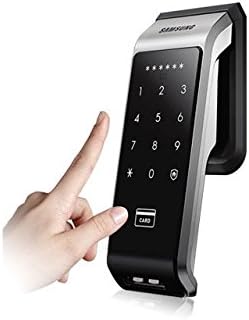
Exiting from the Inside
To exit from the interior, simply push the handle. The lock will automatically disengage, allowing you to open the door.

Manual Locking / Privacy Function
The interior unit may feature a manual lock or privacy switch. When activated, this function prevents entry from the outside, even with a valid PIN or KeyTag, providing an additional layer of security.

Maintenance
Battery Replacement
The lock operates on AA batteries (typically 4 or 8, refer to your specific model's battery compartment). When the battery level is low, the lock will provide an audible or visual warning.
- Open the battery cover on the interior unit.
- Remove all old batteries.
- Insert new batteries, ensuring correct polarity (+/-) as indicated in the compartment.
- Close the battery cover securely.
Warning: Always replace all batteries at once with new, identical batteries. Do not mix old and new batteries or different types of batteries, as this can cause leakage or damage.
Cleaning
To clean the lock, wipe the surfaces with a soft, dry cloth. Do not use abrasive cleaners, solvents, or chemical sprays, as these can damage the finish or electronic components of the lock.
Troubleshooting
Common Issues and Solutions
| Problem | Possible Cause | Solution |
|---|---|---|
| Lock does not respond to PIN/KeyTag. | Low batteries; incorrect PIN entered; KeyTag not registered or damaged. | Replace batteries. Re-enter PIN carefully. Re-register KeyTag if necessary. Ensure KeyTag is placed correctly on the reader. |
| Door does not open even after unlocking. | Misalignment of lock/strike plate; internal mechanism issue; door frame obstruction. | Check door alignment and strike plate for obstructions. Ensure the door closes smoothly. If the problem persists, contact customer support. |
| Lock makes unusual sounds. | Internal component issue or obstruction. | Contact customer support for assistance. Do not attempt to repair the internal mechanism yourself. |
| Lock does not fit standard American doors. | This model is designed for specific door configurations, which may differ from common American door standards. | Consult the detailed installation guide for precise measurements and compatibility requirements. Professional installation may be required for door modifications. |
Specifications
Technical Specifications
| Feature | Detail |
|---|---|
| Brand | Samsung |
| Model Number | SHS-P510 |
| Lock Type | Keypad, Digital |
| Access Modes | PIN (1 Master, up to 20 User), KeyTag (up to 20) |
| Included Components | 6 KeyTags (2 Keychain Type, 2 Sticker Type, 2 Card Type) |
| Material | Metal |
| Special Features | Push Button, Push & Pull Handle |
| Recommended Uses | Home |
| Controller Type | SmartThings (when integrated with a compatible hub) |
| Control Method | Touch |
| Connectivity Protocol | Wi-Fi (via SmartThings hub) |
Warranty and Support
Warranty Information
This Samsung SHS-P510 Smart Door Lock is covered by Samsung's standard product warranty. Please refer to the warranty card included with your purchase or visit the official Samsung website for detailed terms, conditions, and warranty period information applicable to your region.
Customer Support
For technical assistance, troubleshooting not covered in this manual, or warranty claims, please contact Samsung customer support. Contact information, including phone numbers and online support resources, can be found on the official Samsung website or in your product packaging.


