
1. Introduction
This manual provides detailed instructions for the installation, operation, maintenance, and troubleshooting of your MSI GT 710 2GD3H LP Graphics Card. Please read this manual thoroughly before installing and using the product to ensure proper functionality and to prevent damage.
2. Product Overview
The MSI GT 710 2GD3H LP is a low-profile graphics card designed for general computing tasks, multimedia playback, and light gaming. It features passive cooling for silent operation and supports multiple display outputs.
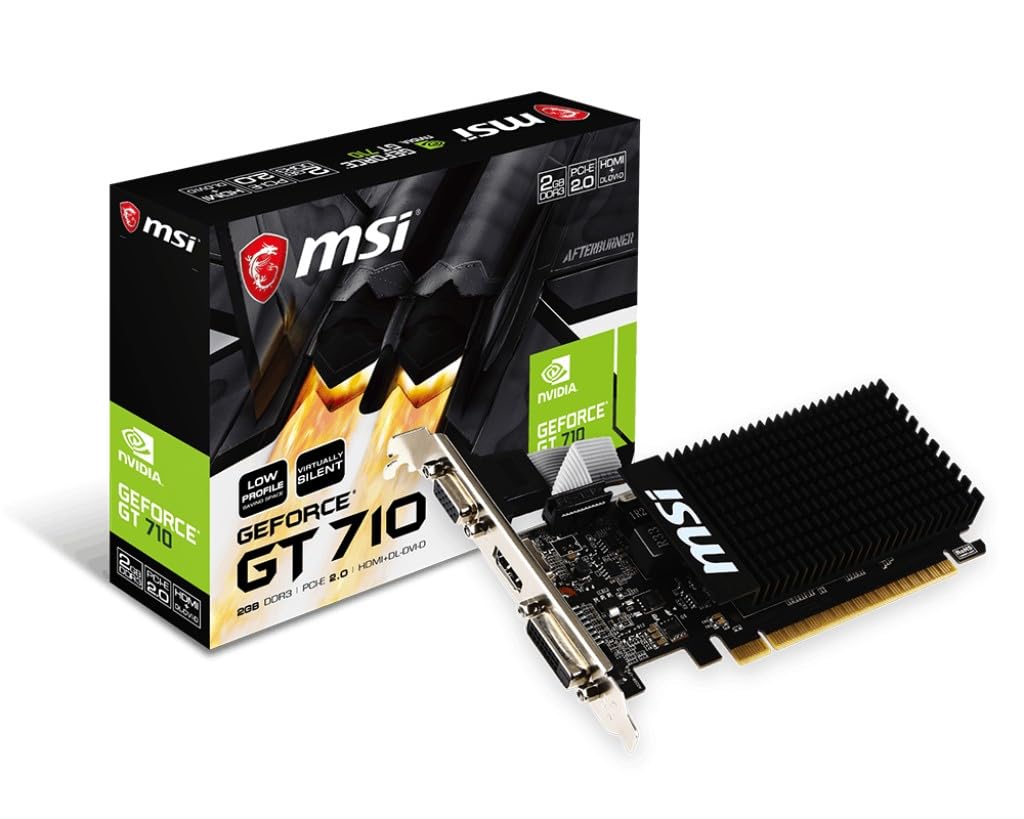
Figure 2.1: Top view of the MSI GT 710 2GD3H LP graphics card, showcasing its compact design and passive heatsink for silent operation.

Figure 2.2: Angled view of the graphics card, highlighting the low-profile bracket and the MSI branding on the heatsink.

Figure 2.3: Rear angled view of the graphics card, showing the PCB and the connection for the low-profile bracket.

Figure 2.4: Close-up of the display output ports, including VGA, HDMI, and DVI-D, providing versatile connectivity options.
3. Setup and Installation
3.1 System Requirements
- PCI Express x16 slot (compatible with x8, x4, x1 slots for physical fit, but operates at x8 or lower electrical speed).
- Minimum 300W power supply (check your system's power supply for adequate wattage).
- Compatible operating system (Windows 10/8.1/8/7, Linux).
- At least 2GB of system memory.
3.2 Hardware Installation
- Power Off and Disconnect: Shut down your computer completely and disconnect the power cable from the wall outlet.
- Open Computer Case: Remove the side panel of your computer case to access the motherboard.
- Locate PCI Express Slot: Identify an available PCI Express x16 slot on your motherboard. If replacing an existing graphics card, carefully remove it.
- Remove Slot Cover: Remove the metal slot cover from the back of the computer case corresponding to the chosen PCI Express slot.
- Insert Graphics Card: Align the graphics card with the PCI Express slot and press down firmly until it is securely seated. A click may be heard.
- Secure Card: Fasten the graphics card to the computer case using the screw or retention clip.
- Close Case: Replace the computer case side panel.
- Connect Displays: Connect your monitor(s) to the appropriate output ports (VGA, HDMI, or DVI-D) on the graphics card.
- Reconnect Power: Reconnect the power cable to the wall outlet and power on your computer.
4. Operating Instructions
4.1 Driver Installation
After hardware installation, you must install the graphics drivers for optimal performance.
- Boot System: Start your computer. The operating system may automatically detect new hardware and install basic drivers, or it may display a low-resolution image.
- Download Drivers: Visit the official MSI website (www.msi.com) or NVIDIA's official website (www.nvidia.com/drivers).
- Select Product: Navigate to the support or driver download section. Select "Graphics Cards," then "GeForce 700 Series," and finally "GeForce GT 710." Choose your operating system.
- Install Drivers: Download the latest stable driver package. Run the installer and follow the on-screen prompts. It is recommended to perform a "Clean Installation" if available.
- Restart Computer: After the installation is complete, restart your computer as prompted.
4.2 Connecting Multiple Displays
The MSI GT 710 2GD3H LP supports multiple displays. Connect your monitors to the available VGA, HDMI, and DVI-D ports. Once connected, you can configure display settings through your operating system's display settings or the NVIDIA Control Panel (installed with the drivers).
5. Maintenance
- Keep Drivers Updated: Regularly check the MSI or NVIDIA website for the latest driver updates to ensure optimal performance and compatibility.
- Dust Removal: Periodically clean dust from the graphics card's heatsink using compressed air. Ensure the computer is powered off and unplugged before cleaning.
- Ensure Proper Airflow: Maintain good airflow within your computer case to prevent overheating.
6. Troubleshooting
6.1 No Display Output
- Ensure the monitor cable is securely connected to both the graphics card and the monitor.
- Verify the monitor is powered on and set to the correct input source.
- Check if the graphics card is fully seated in the PCI Express slot.
- Test with a different display cable or monitor if possible.
6.2 Driver Installation Issues
- Ensure you have downloaded the correct drivers for your operating system and graphics card model.
- Temporarily disable antivirus software during driver installation.
- Try performing a "Clean Installation" of the drivers.
- If upgrading from a different graphics card, use a driver uninstaller utility (e.g., Display Driver Uninstaller - DDU) to remove old drivers before installing new ones.
6.3 System Instability or Crashes
- Ensure your power supply unit (PSU) meets the minimum wattage requirement.
- Check for proper ventilation within your computer case to prevent overheating.
- Verify that the graphics card drivers are up to date.
- Run system diagnostics to check for other hardware conflicts.
7. Specifications
| Feature | Detail |
|---|---|
| Graphics Coprocessor | NVIDIA GeForce GT 710 |
| Brand | MSI |
| Graphics RAM Size | 2 GB |
| Graphics RAM Type | GDDR3 |
| GPU Clock Speed | 0.95 GHz |
| Memory Clock Speed | 1600 MHz |
| Video Output Interface | VGA, HDMI, DVI-D |
| Display Resolution Maximum | 4096x2160 |
| Graphics Card Interface | PCI Express |
| Compatible Devices | Desktop |
| Model Name | FBA_GT 710 2GD3H LP |
| Item Weight | 7.06 Ounces |
| Manufacturer | MSI |
8. Warranty and Support
For warranty information, please refer to the warranty card included with your product or visit the official MSI website. Technical support and further assistance can be found on the MSI support page:
Please have your product model name (GT 710 2GD3H LP) and serial number ready when contacting support.


