
Introduction
This manual provides detailed instructions for the setup, operation, maintenance, and troubleshooting of your Master Lock 4400D Indoor Personal Use Bluetooth Padlock. Please read this manual thoroughly before using your new padlock to ensure proper functionality and security.
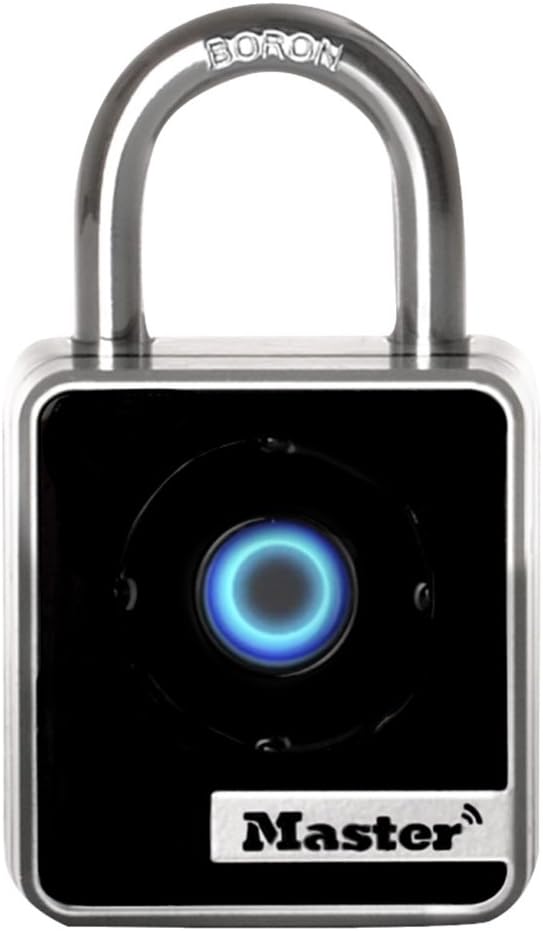
Figure 1: Master Lock 4400D Bluetooth Padlock
Package Contents
- Master Lock 4400D Bluetooth Padlock
- 1 Lithium Metal Battery (pre-installed)
- Quick Start Guide (refer to this manual for full details)
Setup Instructions
- Download the Master Lock Vault Home App: Search for "Master Lock Vault Home" in your device's app store (available for Android and iOS). Install the application.
- Create an Account: Open the app and follow the on-screen prompts to create a new user account or log in if you already have one.
- Pair Your Padlock:
- Ensure Bluetooth is enabled on your smartphone.
- In the Master Lock Vault Home app, select the option to add a new lock.
- Follow the app's instructions to pair your 4400D padlock. This typically involves pressing the center button on the padlock to activate its Bluetooth signal.
- Set Up Directional Code: During the initial setup in the app, you will be prompted to create a directional code. This code serves as a backup entry method using the padlock's keypad, allowing access even without your smartphone.
- Configure Locker Mode (Optional): If you intend to store your smartphone inside a locker secured by the padlock, enable "Locker Mode" through the app. This mode allows you to operate the padlock using only the directional code, as Bluetooth connectivity will be unavailable.
- Share Access (Optional): The app allows you to grant temporary or permanent access to other users via Bluetooth or by sharing the directional code. Manage guest access through the app's interface.

Figure 2: Padlock paired with smartphone via Bluetooth
Operating Instructions
Unlocking the Padlock
- Using Your Smartphone (Bluetooth):
- Ensure your smartphone is within Bluetooth range of the padlock.
- Open the Master Lock Vault Home app.
- Select your 4400D padlock from the list of devices.
- Press the "Unlock" button within the app or the center button on the padlock itself (if configured for proximity unlock). The padlock will unlock.
- Using the Directional Code (Keypad Backup):
- Press the center button on the padlock to activate the keypad.
- Enter your pre-set directional code by pressing the center button in the corresponding directions (Up, Down, Left, Right).
- The padlock will unlock upon correct code entry.
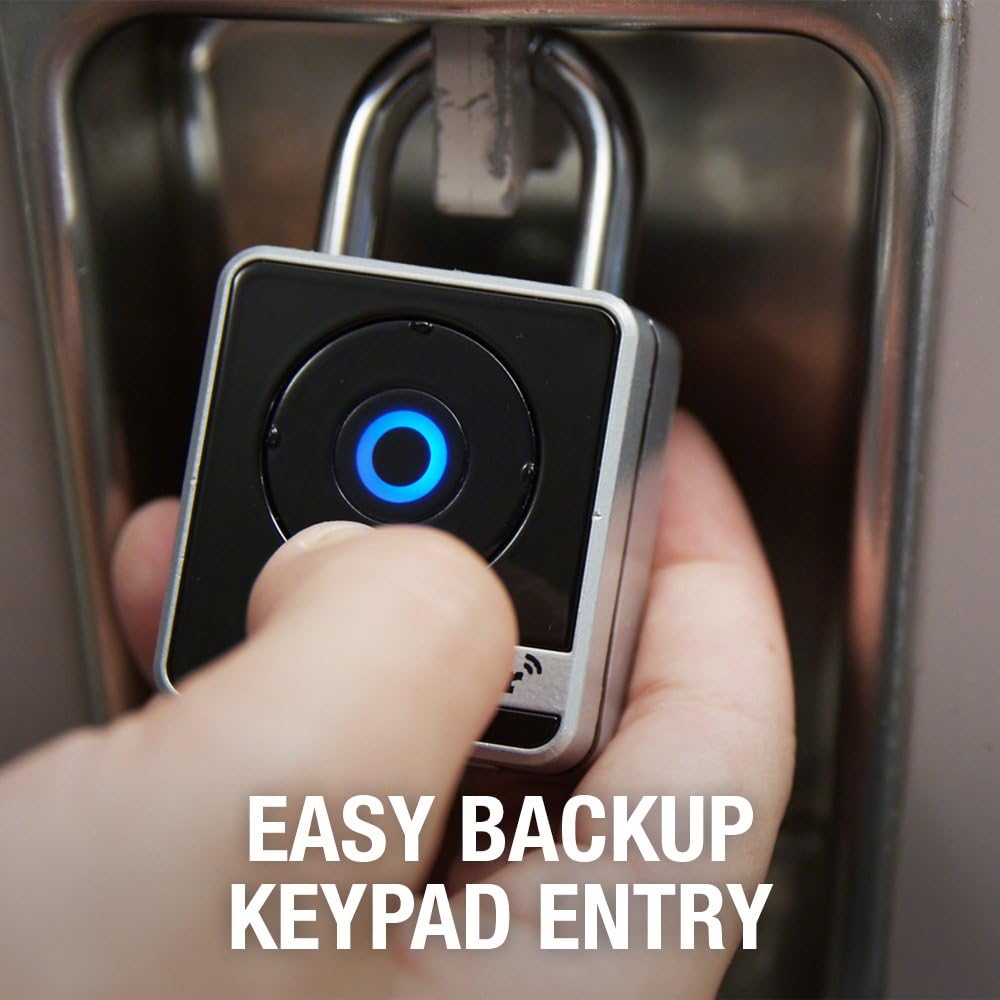
Figure 3: Backup keypad entry in progress
Locking the Padlock
To lock the padlock, simply close the shackle firmly. The padlock will automatically re-lock. Ensure you hear a click to confirm it is securely locked.
Monitoring and Alerts
The Master Lock Vault Home app provides features to monitor activity logs, receive tamper alerts, and get notifications for low battery status. Regularly check the app for these updates to maintain optimal security and functionality.

Figure 4: Sharing access functionality
Maintenance
- Battery Replacement: The padlock uses one Lithium Metal battery. When the battery is low, the app will notify you, and the padlock's indicator light may change. To replace the battery, refer to the specific instructions provided with your padlock or on the Master Lock support website. Ensure proper polarity during installation.
- Cleaning: Clean the padlock body with a soft, dry cloth. Avoid using abrasive cleaners or solvents, as these can damage the finish or internal components.
- Firmware Updates: Periodically check the Master Lock Vault Home app for any available firmware updates for your padlock. Keeping the firmware updated ensures optimal performance and security features.
Troubleshooting
| Problem | Possible Cause | Solution |
|---|---|---|
| Padlock does not respond to app or button press. | Low or dead battery. Padlock is out of Bluetooth range. App not connected. | Replace the battery. Move closer to the padlock. Ensure Bluetooth is on and the app is open and connected. |
| Directional code not working. | Incorrect code entered. Padlock not activated for keypad entry. | Verify the directional code. Press the center button to activate keypad entry before entering the code. |
| Padlock not locking securely. | Shackle not fully closed. Internal mechanism issue. | Ensure the shackle is pushed down completely until it clicks. If the issue persists, contact Master Lock support. |
| App connectivity issues. | Bluetooth interference. Outdated app version. | Move away from other Bluetooth devices. Update the Master Lock Vault Home app to the latest version. Restart your smartphone. |
Specifications
- Model: 4400D
- Brand: Master Lock
- Lock Type: Bluetooth, Keypad
- Material: Metal body, Boron Carbide shackle
- Color: Silver and Black
- Dimensions (L x W x H): 3.2 x 2 x 1.4 inches (8.1 x 5.1 x 3.6 cm)
- Item Weight: 8.1 ounces (0.23 kg)
- Shackle Dimensions:
- Diameter: 9/32 inches (0.71 cm)
- Length: 7/8 inches (2.22 cm)
- Width: 13/16 inches (2.06 cm)
- Lock Body Width: 1-29/32 inches (4.84 cm)
- Battery Type: 1 Lithium Metal (Lithium Manganese Dioxide)
- Connectivity: Bluetooth, Wi-Fi (for app communication)
- Controller Compatibility: Android, iOS
- Special Features: Keyless, Military-grade Bluetooth authentication and encryption, Anti-shim locking mechanism
- Intended Use: Indoor, personal use (school, employee, athletic, indoor storage lockers)

Figure 5: Padlock dimensions diagram
Warranty Information
The Master Lock 4400D Bluetooth Padlock comes with a Limited 1 Year Warranty. For specific terms and conditions, please refer to the warranty documentation included with your product or visit the official Master Lock website.
Support
For further assistance, technical support, or to access additional resources, please visit the official Master Lock website or contact their customer service department. You can also find helpful information and FAQs within the Master Lock Vault Home app.
Master Lock Website: www.masterlock.com


