
1. Product Overview
The Master Lock 4401DLH Bluetooth Outdoor Padlock provides advanced security and convenient access control for various outdoor applications. This padlock combines robust metal construction with smart technology, allowing you to manage access via a smartphone app or a directional keypad.

Figure 1: Master Lock 4401DLH Bluetooth Outdoor Padlock, front view.
Key Features:
- Dual Access: Unlock using your smartphone via Bluetooth or by entering a directional code on the integrated keypad.
- Durable Construction: Features a 2-7/32 inch (56mm) wide metal body and an 11/32 inch (9mm) diameter boron alloy shackle for enhanced resistance to cutting and sawing.
- Access Sharing: Share temporary or permanent access with invited guests through the Master Lock Vault eLocks app.
- Activity Monitoring: Receive tamper and low-battery alerts, and monitor lock activity directly from the app.
- Weather Resistance: Designed for indoor and outdoor use, including a 2-piece weather cover for protection.
- Anti-Shim Technology: Enhanced security against shimming attempts.
2. Safety Information
Please read and understand all safety instructions before operating the Master Lock 4401DLH Bluetooth Padlock. Failure to follow these instructions may result in property damage or injury.
- Do not attempt to disassemble or modify the padlock. This may void the warranty and compromise security.
- Ensure the padlock is securely closed and the shackle is fully engaged before relying on its security.
- Keep the keypad clean and free from debris to ensure proper operation.
- Dispose of batteries according to local regulations.
- While designed for outdoor use, extreme weather conditions (e.g., prolonged submersion, extreme cold) may affect performance.
3. Setup and Initial Configuration
Follow these steps to set up your Master Lock Bluetooth Padlock for the first time:
- Download the App: Download the free Master Lock Vault eLocks app from the Apple App Store (for iOS) or Google Play Store (for Android).
- Create an Account: Open the app and follow the prompts to create a new account or log in if you already have one.
- Add Your Padlock: In the app, select the option to add a new lock. The app will guide you through the pairing process. Ensure Bluetooth is enabled on your smartphone.
- Initial Unlock: The padlock comes with a pre-set temporary directional code. Use this code on the padlock's keypad to perform the initial unlock as instructed by the app.
- Set Up Backup Code: The app will prompt you to set up a personalized directional backup code for keypad entry. Choose a memorable sequence of up, down, left, and right movements.
- Battery Installation: The padlock comes with 1 Lithium Metal battery included and pre-installed. If replacement is needed, refer to the Maintenance section.

Figure 2: Unlocking the padlock using the Master Lock Vault eLocks app on a smartphone.
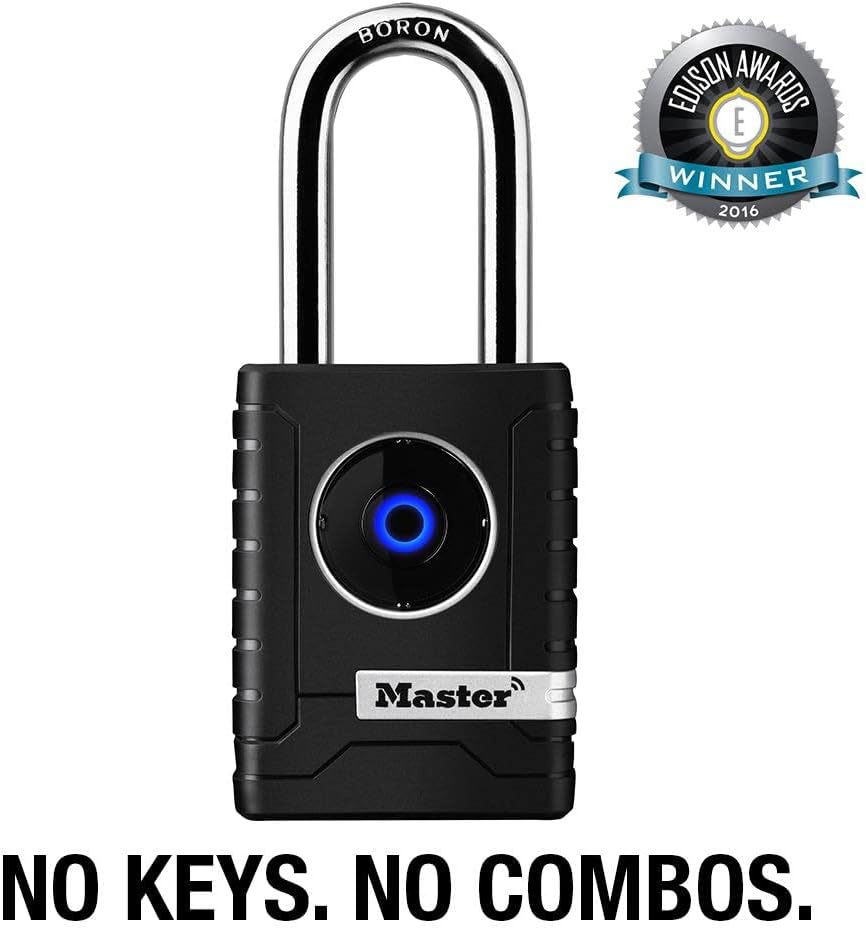
Figure 3: The padlock offers keyless and combination-free access.
4. Operating Instructions
4.1. Unlocking via Bluetooth (Smartphone)
- Ensure Bluetooth is enabled on your smartphone and the Master Lock Vault eLocks app is running.
- Approach the padlock with your smartphone. The app will automatically detect the lock.
- Tap the "Unlock" button within the app. The padlock's indicator light will change, and you will hear a click, indicating it is unlocked.
- Pull the shackle to open the padlock. The padlock will automatically re-lock after a set period (default is 5 seconds) or when the shackle is pushed back into place.
4.2. Unlocking via Keypad Entry (Backup)
This method is useful when your smartphone is not available or its battery is low.
- Locate the directional keypad on the front of the padlock.
- Enter your personalized directional backup code (e.g., Up, Up, Down, Left, Right).
- If the code is correct, the padlock's indicator light will change, and you will hear a click.
- Pull the shackle to open the padlock.

Figure 4: The app allows sharing temporary or permanent access.
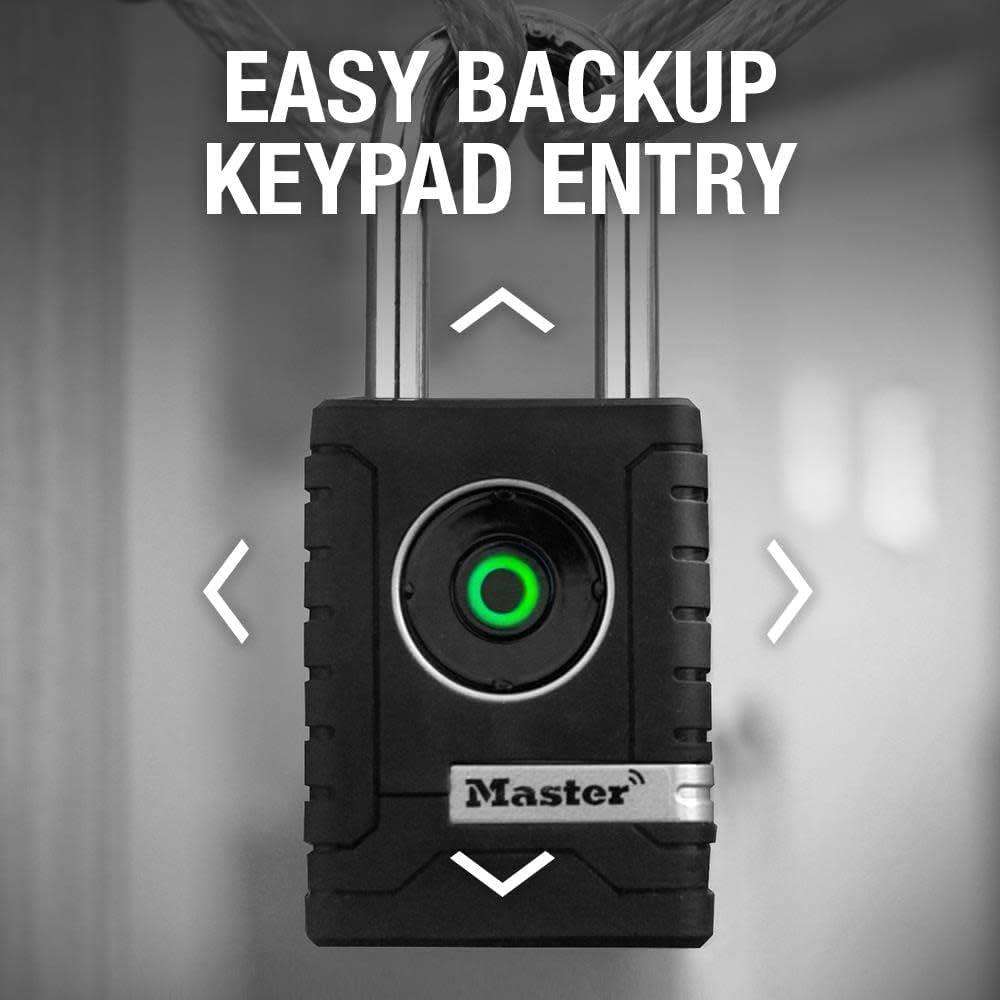
Figure 5: Using the directional keypad for backup entry.
4.3. Sharing Access
- Open the Master Lock Vault eLocks app and select the padlock you wish to manage.
- Navigate to the "Guest Access" or "Share Access" section.
- Follow the prompts to invite a new user. You can set temporary or permanent access, and even schedule access times.
- Invited users will need to download the app and create an account to accept the invitation.
4.4. Monitoring Activity
- Within the Master Lock Vault eLocks app, select your padlock.
- Access the "Activity Log" or "History" section to view a record of unlocks, attempted unlocks, and other events.
- The app will also send notifications for tamper alerts and low battery warnings.
5. Maintenance
5.1. Battery Replacement
The Master Lock 4401DLH uses 1 Lithium Metal battery (included). The app will notify you when the battery is low.
- To replace the battery, locate the battery compartment cover, typically on the bottom or back of the padlock.
- Use a small screwdriver or coin to open the compartment.
- Remove the old battery and insert a new one, ensuring correct polarity.
- Securely close the battery compartment cover.
5.2. Cleaning and Care
- Wipe the padlock body with a soft, damp cloth to remove dirt and grime.
- Avoid using abrasive cleaners or solvents, as these can damage the finish or internal components.
- Ensure the keypad area is kept clean for optimal responsiveness.
- While weather-resistant, it is recommended to use the included 2-piece weather cover for prolonged exposure to harsh elements.
6. Troubleshooting
If you encounter issues with your Master Lock Bluetooth Padlock, try the following solutions:
- Padlock Not Unlocking via Bluetooth:
- Ensure Bluetooth is enabled on your smartphone.
- Check if the padlock's battery is low. Replace if necessary.
- Make sure you are within Bluetooth range of the padlock.
- Close and reopen the Master Lock Vault eLocks app.
- Restart your smartphone.
- Keypad Entry Not Working:
- Verify you are entering the correct directional backup code.
- Ensure the keypad is clean and free of obstructions.
- Check the battery level.
- Padlock Not Responding:
- The battery may be completely drained. Replace the battery.
- If the issue persists after battery replacement, contact Master Lock customer support.
For more detailed troubleshooting and technical support, please refer to the official User Guide (PDF) available online.
7. Product Specifications

Figure 6: Key dimensions of the Master Lock 4401DLH padlock.
| Feature | Detail |
|---|---|
| Model Number | 4401DLHMX |
| Brand | Master Lock |
| Lock Type | Keypad, Bluetooth |
| Material | Metal (Body), Boron Alloy (Shackle) |
| Item Dimensions (L x W x H) | 5.28 x 2.2 x 1.2 inches (13.4 x 5.6 x 3.0 cm) |
| Shackle Diameter | 11/32 inches (9 mm) |
| Shackle Vertical Clearance | 2 inches (51 mm) |
| Item Weight | 12.3 ounces (0.35 kg) |
| Connectivity Protocol | Bluetooth |
| Controller Type | Android, iOS (via Master Lock Vault eLocks App) |
| Battery Type | 1 Lithium Metal battery (included) |
| Special Features | Alarm, Keyless, Anti-shim technology, Weather cover |
| Recommended Uses | Residential gates, sheds, garages, outdoor storage lockers, tool chests |
8. Warranty and Support
8.1. Warranty Information
The Master Lock 4401DLH Bluetooth Outdoor Padlock comes with a Limited 1 Year Warranty. This warranty covers defects in materials and workmanship under normal use. Please retain your proof of purchase for warranty claims.
For full details regarding the warranty terms and conditions, please refer to the documentation included with your product or visit the official Master Lock website.
8.2. Customer Support
If you require further assistance, have questions, or need to report an issue, please contact Master Lock customer support. You can find contact information on the official Master Lock website or refer to the User Guide (PDF) for additional resources.
For frequently asked questions, firmware updates, and technical support, consult the "User Guide" in the technical specifications section of the product page or the Master Lock support portal.

