
1. Introduction
The Acer Predator XB321HK is a 32-inch IPS UHD (3840 x 2160) widescreen display designed for gaming. It features NVIDIA G-Sync technology to reduce screen tearing and stuttering, providing a smoother visual experience. Key specifications include a 4ms response time, 350 cd/m² brightness, and multiple input ports.
2. Package Contents
Verify that all items are present in the package:
- Display
- Stand
- Power cord
3. Setup
3.1 Assembling the Monitor Stand
Carefully remove the monitor from its packaging. Attach the stand base to the stand neck, then secure the assembled stand to the back of the monitor. Ensure all screws are tightened appropriately.

Image: Rear view of the monitor with the stand attached.

Image: Rear view of the monitor, showing the mounting points for the stand.
3.2 Connecting the Monitor
Connect the power cord to the monitor and a power outlet. Use either an HDMI or DisplayPort cable to connect the monitor to your computer's graphics card. For additional connectivity, utilize the available USB 3.0 ports.
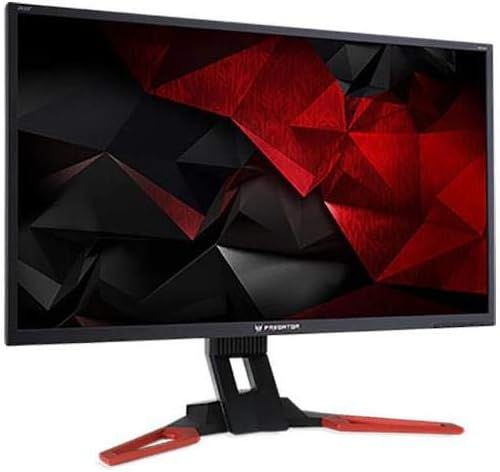
Image: Front view of the Acer Predator XB321HK monitor.
3.3 Video Overview
Watch this official video for an overview of the Acer Predator XB1 Series, highlighting key features and design elements.
Video: Official Acer Predator XB1 Series overview, showcasing ZeroFrame design, IPS technology, and NVIDIA G-SYNC capabilities.
4. Operating the Monitor
4.1 Power On/Off
Press the power button located on the monitor's bezel to turn the display on or off. The power indicator light will illuminate when the monitor is active.
4.2 On-Screen Display (OSD) Menu
The OSD menu allows you to adjust various monitor settings. Use the control buttons, typically located on the rear or bottom right of the monitor, to navigate through the menu options. Common adjustments include brightness, contrast, color settings, input selection, and gaming features.
4.3 NVIDIA G-Sync Technology
This monitor supports NVIDIA G-Sync, which synchronizes the display's refresh rate with the GPU's frame rate. This eliminates screen tearing and minimizes display stutter and input lag, providing a smoother gaming experience. Ensure your NVIDIA graphics card drivers are up to date and G-Sync is enabled in the NVIDIA Control Panel.
4.4 IPS Panel Benefits
The In-Plane Switching (IPS) panel technology provides wide viewing angles and consistent, accurate color reproduction, ensuring a high-quality visual experience from various perspectives.
5. Maintenance
5.1 Cleaning the Screen
To clean the screen, gently wipe it with a soft, lint-free cloth. For stubborn marks, lightly dampen the cloth with water or a non-abrasive screen cleaner. Avoid using harsh chemicals or abrasive materials that could damage the screen surface.
5.2 General Care
Keep the monitor in a well-ventilated area. Avoid exposing it to direct sunlight, high humidity, or extreme temperatures. Do not place heavy objects on the monitor or its cables.
6. Troubleshooting
6.1 No Image on Screen
- Ensure the power cable is securely connected to both the monitor and the power outlet.
- Verify that the video cable (HDMI or DisplayPort) is firmly connected to both the monitor and your computer.
- Check if the correct input source is selected in the monitor's OSD menu.
- Confirm that your computer is powered on and not in sleep mode.
6.2 Screen Flickering or Stuttering
- Ensure NVIDIA G-Sync is properly configured and enabled in your graphics card settings.
- Update your graphics card drivers to the latest version.
- Check for any external interference from other electronic devices.
- Try a different video cable or port.
6.3 Poor Picture Quality
- Adjust brightness, contrast, and color settings via the OSD menu.
- Ensure the display resolution is set to its native 3840 x 2160 in your computer's display settings.
- Check the video cable for damage or loose connections.
7. Specifications
| Model Number | XB321HK bmiphz |
| Series | UM.JX1AA.001 |
| Screen Size | 32 Inches |
| Resolution | 3840 x 2160 (UHD 2160p) |
| Aspect Ratio | 1.78:1 |
| Response Time | 4ms |
| Tilt Angle | -5° to 25° |
| Pixel Pitch | 0.185mm |
| Brightness | 350 cd/m² |
| Signal Inputs | 1 x HDMI, 1 x Display Port (v1.2) |
| USB Ports | 4 x USB 3.0 |
| Speakers | 2 x 2W Speakers |
| Color | Black |
| Item Weight | 24.9 pounds |
| Product Dimensions (LxWxH) | 12.2 x 29 x 17.1 inches |
| Manufacturer | Acer Computer |
| Special Features | NVIDIA G-Sync, Flicker-less Technology |
8. Warranty and Support
8.1 Warranty Information
This product typically comes with a manufacturer's warranty. Please refer to the warranty card included with your product or visit the official Acer website for detailed warranty terms and conditions specific to your region.
8.2 Technical Support
For technical assistance, troubleshooting beyond this manual, or service inquiries, please contact Acer customer support. Contact information can usually be found on the Acer official website or in your product documentation.


