
1. Introduction
Thank you for purchasing the PXN 6603 Bluetooth Gamepad. This MFi certified wireless game controller is designed to enhance your gaming experience on iOS devices, including iPhone, iPad, iPod, and Apple TV. Please read this manual carefully before use to ensure proper operation and to maximize the lifespan of your device.
2. Package Contents
Please check the package contents upon opening. If any items are missing or damaged, contact your retailer.
- PXN 6603 Bluetooth Gamepad
- Adjustable Clamp Holder
- USB Charging Cable
- User Manual
3. Product Overview
Familiarize yourself with the various components of your PXN 6603 Gamepad.
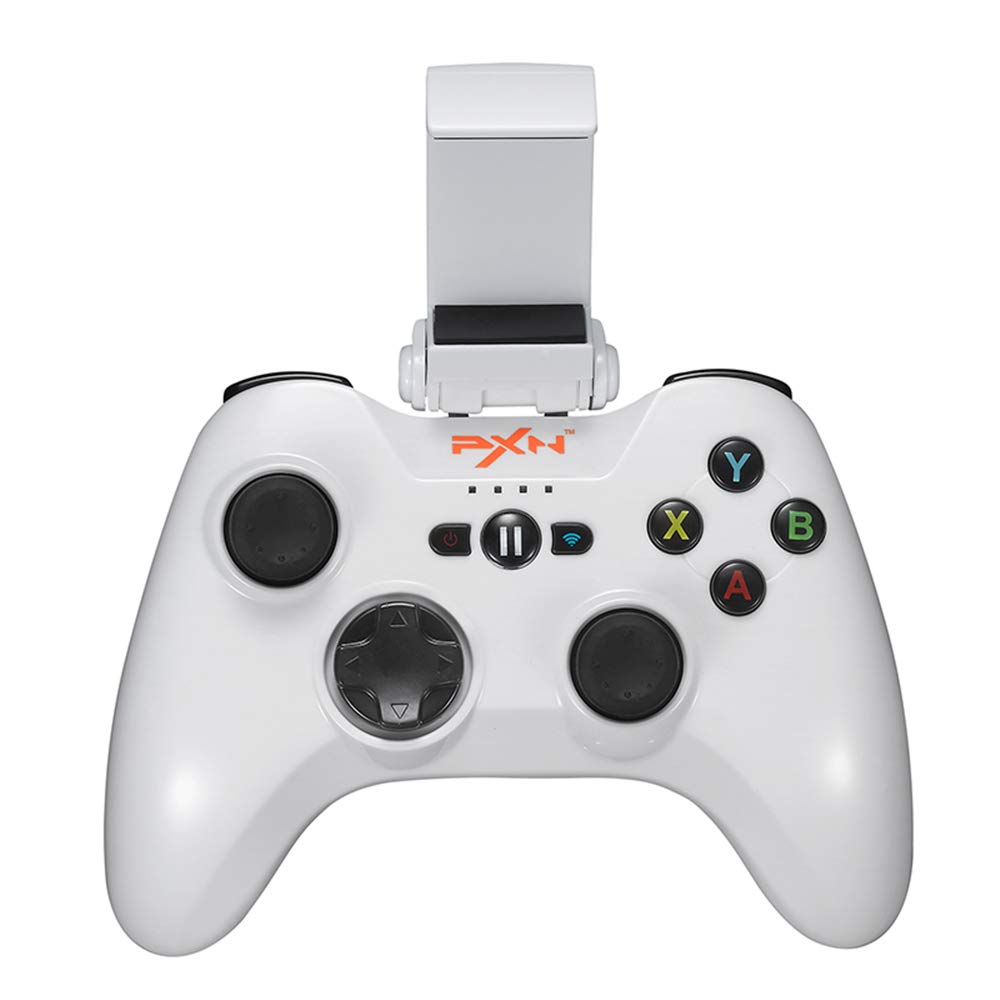
Image 1: PXN 6603 Bluetooth Gamepad. This image shows the front view of the orange gamepad with its dual analog sticks, D-pad, action buttons (A, B, X, Y), shoulder buttons (L1, R1, L2, R2), and the adjustable phone clamp holder attached.
3.1 Controller Layout
- Left Analog Stick: For directional control.
- Right Analog Stick: For camera or additional directional control.
- D-Pad (Directional Pad): For precise directional input.
- Action Buttons (A, B, X, Y): For in-game actions.
- Shoulder Buttons (L1, R1): Top triggers.
- Trigger Buttons (L2, R2): Bottom triggers.
- HOME Button: Powers on/off the controller and returns to iOS home screen.
- PAUSE Button: Pauses gameplay.
- Battery Indicator Lights: Shows battery status and connection.
- Charging Port: Micro USB port for charging.
4. Setup
4.1 Charging the Controller
- Connect the small end of the USB charging cable to the charging port on the controller.
- Connect the large end of the USB charging cable to a USB power source (e.g., computer USB port, USB wall adapter).
- The battery indicator lights will show charging status. Once fully charged, the lights will indicate a full battery or turn off.
- A full charge typically takes approximately 2-3 hours.
4.2 Attaching the Adjustable Clamp Holder
- Locate the slot on the top of the PXN 6603 Gamepad.
- Slide the adjustable clamp holder onto the slot until it clicks securely into place.
- Adjust the angle of the holder as needed.
- Carefully place your iOS device into the clamp, ensuring it is held firmly without obstructing any buttons or ports.
4.3 Bluetooth Pairing with iOS Devices
- Ensure the controller is charged.
- On your iOS device, go to Settings > Bluetooth and turn Bluetooth ON.
- Press and hold the HOME button on the PXN 6603 Gamepad for 3 seconds to power it on. The indicator lights will flash, indicating it is in pairing mode.
- On your iOS device, look for "PXN 6603" or a similar name in the list of available devices.
- Tap on "PXN 6603" to pair. The indicator lights on the controller will become solid, indicating a successful connection.
- Once paired, the controller will automatically connect to your iOS device when powered on and Bluetooth is enabled on the device.
5. Operating Instructions
5.1 Power On/Off
- Power On: Press and hold the HOME button for 3 seconds.
- Power Off: Press and hold the HOME button for 5 seconds until the indicator lights turn off. The controller will also automatically power off after 10 minutes of inactivity to conserve battery.
5.2 Playing Games
The PXN 6603 is an MFi certified controller, meaning it is designed to work seamlessly with games that support MFi controllers on iOS. Many games in the App Store will automatically detect and utilize the controller once connected.
- Launch a compatible game on your iOS device.
- The game should recognize the controller automatically. Refer to the game's settings for controller mapping or customization options.
5.3 Battery Status Indication
The LED indicator lights on the controller provide information about the battery status:
- Flashing LEDs: Low battery or pairing mode.
- Solid LEDs: Connected and sufficient battery.
- Charging: LEDs will cycle or show progress.
- Fully Charged: LEDs will turn off or show a steady full indicator.
6. Maintenance
6.1 Cleaning
- Use a soft, dry cloth to wipe the surface of the controller.
- For stubborn dirt, slightly dampen the cloth with water. Do not use harsh chemicals or abrasive cleaners.
- Avoid getting liquid into the buttons, joysticks, or charging port.
6.2 Storage
- Store the controller in a cool, dry place away from direct sunlight and extreme temperatures.
- Avoid placing heavy objects on the controller.
- If storing for an extended period, charge the controller periodically (e.g., every 3 months) to maintain battery health.
6.3 Battery Care
- Do not attempt to replace the internal battery yourself. Contact support if battery issues arise.
- Avoid fully discharging the battery frequently, as this can reduce its lifespan.
- Use only the provided USB charging cable or a certified equivalent.
7. Troubleshooting
If you encounter issues with your PXN 6603 Gamepad, please refer to the following common solutions:
7.1 Controller Not Connecting/Pairing
- Check Battery: Ensure the controller is sufficiently charged. Connect it to a power source.
- Bluetooth On: Verify that Bluetooth is enabled on your iOS device.
- Re-pair: Go to your iOS device's Bluetooth settings, forget "PXN 6603" if it's listed, then attempt to pair again as described in Section 4.3.
- Restart Devices: Try restarting both your iOS device and the PXN 6603 controller.
- Interference: Move away from other wireless devices that might cause interference.
7.2 Buttons/Joysticks Not Responding
- Game Compatibility: Ensure the game you are playing supports MFi controllers. Not all games do.
- Reconnection: Disconnect and reconnect the controller via Bluetooth.
- Restart: Power off and on the controller, then restart the game.
- Physical Obstruction: Check for any debris or physical obstruction around the buttons or joysticks.
7.3 Charging Issues
- Cable Check: Ensure the USB charging cable is securely connected to both the controller and the power source. Try a different USB cable if available.
- Power Source: Try a different USB power source (e.g., a different USB port on your computer or a different wall adapter).
- Port Cleanliness: Check the controller's charging port for any dust or debris.
8. Specifications
| Model Number | PXN-6603 |
| Connectivity | Bluetooth |
| Compatibility | iOS (iPhone, iPad, iPod, Apple TV) |
| Dimensions | 7.09 x 5.79 x 3.11 inches |
| Weight | 1.1 pounds |
| Certification | MFi Certified |
| Power Source | Rechargeable Battery (via USB) |
9. Warranty and Support
PXN products are designed for reliability and performance. For specific warranty information, please refer to the warranty card included with your product or visit the official PXN website. Keep your purchase receipt as proof of purchase for warranty claims.
If you require technical support or have questions not covered in this manual, please contact PXN customer service through their official website or the contact information provided in your product packaging.
