
1. Safety Information
Please read these safety instructions carefully before using your monitor. Keep this manual for future reference.
- Do not place the monitor on an unstable cart, stand, or table.
- Do not block ventilation openings.
- Do not use near water or in high humidity environments.
- Use only the power cord and adapter provided by the manufacturer.
- Refer all servicing to qualified service personnel.
2. What's in the Box
Verify that all components are present:
- Acer Predator Z35 bmiphz Display
- Monitor Stand (Base and Neck)
- Power Cord
- DisplayPort Cable
- HDMI Cable
- USB 3.0 Upstream Cable
3. Setup
3.1. Assembling the Monitor Stand
Carefully remove the monitor and stand components from the packaging. Attach the stand neck to the display panel, then secure the base to the neck. Ensure all screws are tightened securely.
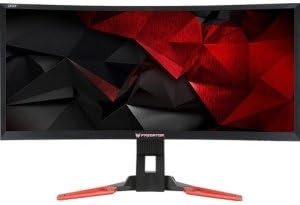
Image: Side view of the Acer Predator Z35 monitor, illustrating the attached stand.
3.2. Connecting the Monitor
Connect the necessary cables to the monitor and your computer. The Acer Predator Z35 bmiphz features multiple input options.

Image: Rear view of the Acer Predator Z35 monitor, highlighting the various input ports for connectivity.
- Power Connection: Connect the power cord to the monitor's power input and then to a power outlet.
- Video Connection:
- For optimal performance, especially for 200Hz refresh rate, connect using the DisplayPort 1.2 cable.
- Alternatively, connect using the HDMI 1.4 cable.
- USB Connection: Connect the USB 3.0 upstream cable from the monitor to your computer to enable the monitor's USB 2.0 ports.
4. Operation
4.1. Power On/Off
Press the power button located on the monitor to turn it on or off. The power indicator light will illuminate when the monitor is active.
4.2. On-Screen Display (OSD) Navigation
Use the buttons on the monitor's bezel to access and navigate the On-Screen Display (OSD) menu. This menu allows you to adjust various settings such as brightness, contrast, color, and input source.
4.3. Key Features and Settings
- NVIDIA G-SYNC Technology: This monitor supports NVIDIA G-SYNC, which synchronizes the display's refresh rate to the GPU's frame rate. This eliminates screen tearing and minimizes display stutter and input lag, providing a smoother gaming experience. Ensure your graphics card supports G-SYNC and the feature is enabled in your NVIDIA control panel.
- High Refresh Rate: The monitor offers a native refresh rate of 144Hz and can be overclocked to 200Hz when connected via DisplayPort. This higher refresh rate provides fluid motion and reduced input lag, beneficial for fast-paced gaming.
- Gaming Modes (GameView): The monitor includes three customizable gaming modes (G1, G2, G3) that allow you to save and quickly switch between preferred display settings optimized for different game genres. These modes can be accessed via the OSD.
- Dark Boost: Adjust the black level settings to enhance visibility in dark scenes, allowing you to spot details that might otherwise be hidden.
- Aim Points: Selectable on-screen aim points can be enabled through the GameView settings to assist with targeting in games.
- DTS Sound Speakers: Integrated DTS Sound speakers provide immersive audio directly from the monitor.
Video: An overview of the Acer Predator Z35 bmiphz monitor's key features, including G-SYNC, refresh rate, gaming modes, and DTS Sound speakers.
5. Maintenance
To ensure the longevity and optimal performance of your monitor, follow these maintenance guidelines:
- Cleaning the Screen: Gently wipe the screen with a soft, lint-free cloth. For stubborn marks, lightly dampen the cloth with water or a screen-specific cleaning solution. Avoid harsh chemicals.
- Cleaning the Casing: Use a soft, dry cloth to clean the monitor's casing.
- Ventilation: Ensure the ventilation openings on the monitor are not obstructed to prevent overheating.
- Power Off When Not in Use: Turn off the monitor when not in use to conserve energy and extend its lifespan.
6. Troubleshooting
If you encounter issues with your monitor, refer to the following common problems and solutions:
- No Power:
- Check if the power cord is securely connected to both the monitor and the power outlet.
- Verify the power outlet is functioning by plugging in another device.
- No Image/Black Screen:
- Ensure the video cable (DisplayPort or HDMI) is securely connected to both the monitor and your computer's graphics card.
- Check if the correct input source is selected in the monitor's OSD menu.
- Restart your computer.
- Image Flickering/Tearing:
- Ensure NVIDIA G-SYNC is enabled in your NVIDIA control panel and the monitor's OSD.
- Verify your graphics drivers are up to date.
- Check the video cable for damage or loose connections.
- No Sound:
- Check the volume settings on both the monitor and your computer.
- Ensure the audio output is correctly routed to the monitor in your computer's sound settings.
7. Specifications

Image: Front view of the Acer Predator Z35 monitor, showcasing its curved ultrawide display.
| Feature | Description |
|---|---|
| Model Number | Z35 bmiphz |
| Screen Size | 35 Inches |
| Panel Type | Curved UltraWide |
| Resolution | 2560 x 1080 (Full HD) |
| Aspect Ratio | 21:9 |
| Refresh Rate | 144Hz (Up to 200Hz Overclock via DisplayPort) |
| Response Time | 4ms |
| Synchronization Technology | NVIDIA G-SYNC |
| Video Inputs | 1 x DisplayPort 1.2, 1 x HDMI 1.4 |
| USB Ports | 4 x USB 2.0 Ports |
| Audio | Integrated DTS Sound Speakers |
| Dimensions (LxWxH) | 33.2 x 11.8 x 21.8 inches |
| Weight | 16.76 pounds |
8. Warranty and Support
This Acer product comes with a standard manufacturer's warranty. For detailed warranty terms and conditions, please refer to the warranty card included with your product or visit the official Acer support website.
For technical assistance, troubleshooting beyond this manual, or to inquire about service, please contact Acer customer support through their official channels. Keep your product's serial number and proof of purchase readily available when contacting support.


