
Trust 21071
Trust Gaming GXT 628 Tytan 2.1 PC Gaming Speaker System User Manual
Model: 21071
1. Introduction
Thank you for purchasing the Trust Gaming GXT 628 Tytan 2.1 PC Gaming Speaker System. This manual provides detailed instructions for setting up, operating, and maintaining your speaker system to ensure optimal performance and longevity. Please read this manual thoroughly before use.
2. Package Contents
Verify that all items listed below are included in your package:
- Subwoofer
- 2 Satellite Speakers
- Wired Remote Control
- Power Cable (UK Plug)
- Audio Cable (3.5mm Jack)
- User Guide (this manual)
- Gaming Sticker

Image: The Trust Gaming GXT 628 Tytan 2.1 Speaker System, showing the subwoofer, two satellite speakers, and the wired remote control.
3. Product Overview
Familiarize yourself with the main components and their functions.
3.1 Subwoofer
The subwoofer provides deep bass frequencies and houses the main controls and connections.

Image: Front view of the subwoofer, highlighting the central speaker with blue LED illumination.
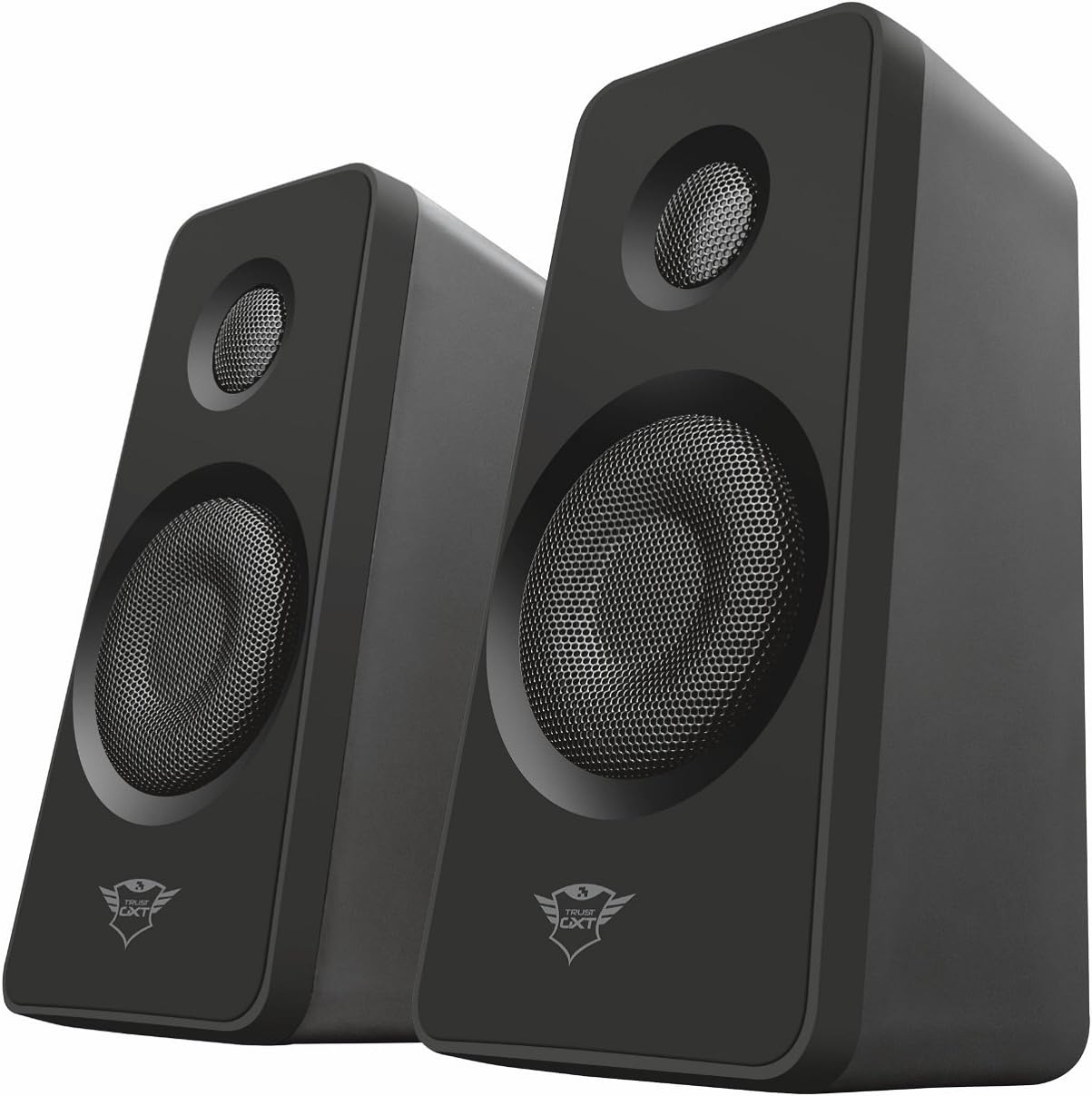
Image: Rear panel of the subwoofer, displaying the ECO mode switch, RCA inputs, volume and bass controls, power switch, and power input.
- Front Panel: Features a 7-inch woofer with blue LED illumination.
- Rear Panel: Includes RCA input jacks for satellite speakers, audio input, power switch, power cable input, and ECO mode switch.
- Controls: Separate knobs for volume and bass adjustment.
3.2 Satellite Speakers
The two satellite speakers provide clear mid-range and high-frequency audio.

Image: A pair of satellite speakers, showing their compact design and speaker grilles.
- Compact design for easy placement.
- Connect directly to the subwoofer via RCA cables.
3.3 Wired Remote Control
The wired remote provides convenient access to essential functions.
- Volume Control: Large dial for easy volume adjustment.
- Headphone Jack: For private listening.
- Line-in Connection: Additional audio input for external devices.
4. Setup Instructions
Follow these steps to set up your Trust Gaming GXT 628 Tytan speaker system.
- Placement:
- Place the subwoofer on the floor or a sturdy surface near your computer or gaming console.
- Position the satellite speakers on either side of your monitor or TV, ensuring they are equidistant from your listening position for optimal stereo sound.
- Connect Satellite Speakers:
- Connect the RCA cables from the satellite speakers to the corresponding RCA output jacks on the rear panel of the subwoofer. Ensure the left speaker connects to the left output and the right speaker to the right output.
- Connect Audio Source:
- Connect the included 3.5mm audio cable from your computer, laptop, smart TV, smartphone, tablet, or gaming console to the 3.5mm audio input on the rear panel of the subwoofer. Alternatively, you can use the line-in connection on the wired remote control.
- Connect Wired Remote Control:
- Plug the wired remote control cable into the dedicated port on the subwoofer.
- Power Connection:
- Connect the power cable to the power input on the rear of the subwoofer.
- Plug the power cable into a wall outlet.
- Power On:
- Flip the power switch on the rear of the subwoofer to the "ON" position. The blue LED illumination on the subwoofer will light up.

Image: The speaker system set up next to a computer monitor, demonstrating a typical usage scenario.
5. Operating Instructions
5.1 Basic Operation
- Volume Adjustment: Use the large dial on the wired remote control to increase or decrease the overall volume.
- Bass Adjustment: Use the dedicated bass knob on the rear of the subwoofer to adjust the bass level to your preference.
- Headphone Use: Plug your headphones into the headphone jack on the wired remote control for private listening. This will mute the speakers.
- Secondary Audio Input: Connect an additional audio device to the line-in connection on the wired remote control.
5.2 ECO Mode (Smart Power Management)
The GXT 628 Tytan features smart power management to conserve energy.
- Locate the "ECO mode" switch on the rear panel of the subwoofer.
- When enabled (switch in "ON" position), the speaker set will automatically enter standby mode after approximately one hour of inactivity (no audio input).
- To reactivate the speakers from standby, simply play audio from your connected device.
- If you prefer to keep the speakers active at all times, set the "ECO mode" switch to the "OFF" position.
6. Maintenance
Proper care will extend the life of your speaker system.
- Cleaning: Use a soft, dry cloth to clean the surfaces of the speakers and subwoofer. Do not use liquid cleaners or abrasive materials.
- Ventilation: Ensure the subwoofer's rear panel and any ventilation ports are not obstructed to prevent overheating.
- Environment: Avoid placing the speakers in direct sunlight, near heat sources, or in excessively humid environments.
- Handling: Handle the speakers and cables with care to prevent damage.
7. Troubleshooting
If you encounter issues with your speaker system, refer to the following common problems and solutions:
| Problem | Possible Cause | Solution |
|---|---|---|
| No sound |
|
|
| Distorted sound / Crackling |
|
|
| Subwoofer LED not lighting up |
|
|
| Speakers enter standby mode too quickly |
|
|
8. Specifications
| Feature | Detail |
|---|---|
| Model Name | Tytan |
| Model Number | 21071 |
| Speaker Type | 2.1 Speaker System with Subwoofer |
| Total Peak Power | 120 Watts |
| RMS Power | 60 Watts |
| Subwoofer Diameter | 7 Inches |
| Connectivity Technology | Wired (3.5mm audio input, RCA outputs) |
| Compatible Devices | Laptop, Television, Tablet, Smartphone, PC, Gaming Consoles |
| Power Source | Corded Electric (UK Plug) |
| Material | Wood (subwoofer), Metal |
| Color | Black |
| Item Weight | 5.3 kg |
| Special Feature | LED Light (blue illumination on subwoofer) |
| Mounting Type | Tabletop |
9. Warranty Information
This product comes with a limited warranty. For detailed information regarding warranty terms and conditions, please refer to the warranty card included in your package or visit the official Trust Gaming website.
Warranty Type: Limited
10. Customer Support
For further assistance, technical support, or to view frequently asked questions, please visit the official Trust Gaming support page:
You can also refer to the brand's Amazon store for more information:
Related documents21071


Ask a question about this manual
Ask about setup, troubleshooting, compatibility, parts, safety, or missing instructions. Manuals+ will review the question and use this page’s manual context to help answer it.