
iPega PG-9023
iPega PG-9023 Wireless Bluetooth Game Controller User Manual
Model: PG-9023 | Brand: iPega
1. Introduction
Thank you for purchasing the iPega PG-9023 Wireless Bluetooth Game Controller. This device is designed to enhance your mobile gaming experience by providing precise control and comfortable ergonomics. It features a telescopic stand to accommodate various smartphone and tablet sizes, offering broad compatibility with Android and iOS devices, as well as Windows PCs.
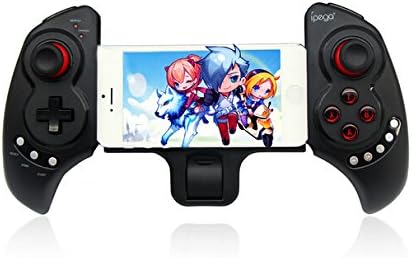
Figure 1.1: The iPega PG-9023 controller with a smartphone securely mounted in its telescopic holder, ready for gaming.
2. Key Features
- Wireless Bluetooth 3.0 Connectivity: Provides a stable connection up to 8 meters (26 feet) without the need for drivers.
- Telescopic Stand: Adjustable holder supports smartphones and tablets from 5 to 10 inches in size.
- Broad Compatibility: Supports Android 3.2+, iOS 4.3+, Windows 7/8, and Android TV Boxes with Bluetooth functionality.
- Built-in Rechargeable Battery: 380mAh lithium battery offers up to 20 hours of continuous play on a single charge.
- Ergonomic Design: Engineered for comfortable and extended gaming sessions.
- Multiple Operating Modes: Supports Gamepad Mode, Keyboard Mode, and Mouse Mode for versatile use.
3. Package Contents
Please check the package for the following items:
- iPega PG-9023 Wireless Bluetooth Game Controller
- USB Charging Cable
- User Manual

Figure 3.1: The iPega PG-9023 controller, its USB charging cable, and the included user manual as found in the product packaging.
4. Setup and Connection
4.1 Charging the Controller
Before first use, fully charge the controller. Connect the supplied USB cable to the controller's charging port and the other end to a USB power source (e.g., computer USB port, USB wall adapter). The LED indicator will show charging status and turn off when fully charged.
4.2 Powering On and Pairing
The PG-9023 supports different modes for various operating systems. To enter pairing mode, press and hold the corresponding button combination until the LED indicator flashes rapidly.
- Android Gamepad Mode: Press and hold "X" + "HOME". The Gamepad LED will flash.
- Android Keyboard Mode: Press and hold "A" + "HOME". The Keyboard LED will flash.
- Android Mouse Mode: Press and hold "B" + "HOME". The Mouse LED will flash.
- iOS Gamepad Mode: Press and hold "Y" + "HOME". The Gamepad LED will flash.
Once the LED is flashing, enable Bluetooth on your device (smartphone, tablet, PC) and search for "PG-9023". Select it to pair. The LED will become solid when successfully connected.
4.3 Attaching Your Device
The controller features a telescopic stand that can extend to securely hold your smartphone or tablet.
- Gently pull the two halves of the controller apart to extend the telescopic arm.
- Carefully place your smartphone or tablet into the holder, ensuring it is centered and secure. The holder supports devices from 5 to 10 inches.
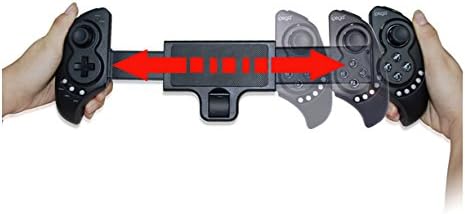
Figure 4.1: The telescopic mechanism of the iPega PG-9023, demonstrating how it expands to accommodate different device sizes.

Figure 4.2: The iPega PG-9023 controller holding a tablet, illustrating its capability to support larger devices for an immersive gaming experience.
5. Operating Instructions
5.1 Game Compatibility
The iPega PG-9023 supports a wide range of games. Game compatibility may vary depending on the operating system and the game itself. Many games offer native gamepad support, while others may require mapping or specific modes.
- iOS Games: Compatible with games such as Gunman Clive, Helium Boy, League of Evil 1 & 2, Muffin Knight Free, Stardash, Temple Run, etc.
- Android Games: Compatible with games such as Wild Blood, Dungeon Hunter, Zombie, FC simulator, Shadow Gun, Riptide GP, etc.
- Mouse Mode Games: Suitable for games like Fruit Ninja, Flappy Bird, Angry Bird, Sky Force, etc., where touch or mouse input is primary.
5.2 Using Mouse Mode (Android Only)
In Android Mouse Mode (activated by "B" + "HOME"), the left analog stick controls the mouse cursor, and the A/B/X/Y buttons act as mouse clicks. This mode is useful for navigating menus or playing games that primarily rely on touch input.
5.3 Power Saving Mode
The controller will automatically enter power-saving mode if it remains disconnected or inactive for a period of time. To reactivate, press the "HOME" button.
6. Maintenance and Care
- Keep the controller dry. Avoid exposure to moisture or liquids.
- Do not expose the controller to extreme temperatures.
- Clean the controller with a soft, dry cloth. Do not use harsh chemicals or abrasive cleaners.
- Store the controller in a cool, dry place when not in use.
- Avoid dropping or subjecting the controller to strong impacts.
7. Troubleshooting
7.1 Controller Not Connecting
- Ensure the controller is fully charged.
- Verify that Bluetooth is enabled on your device.
- Make sure the controller is in the correct pairing mode for your operating system (refer to Section 4.2).
- Forget "PG-9023" from your device's Bluetooth settings and attempt to re-pair.
- Restart both the controller and your device.
7.2 Buttons or Joysticks Not Responding
- Ensure the controller is properly connected and in the correct operating mode for the game.
- Check if the game itself supports gamepad input. Some games may require specific settings or may not support external controllers.
- Try restarting the controller and the game application.
7.3 Short Battery Life
- Ensure the controller is fully charged before use.
- The battery life can be affected by usage patterns and environmental factors.
- If the issue persists, the battery may be degrading.
8. Specifications
| Feature | Detail |
|---|---|
| Model | PG-9023 |
| Connectivity | Bluetooth 3.0 |
| Wireless Range | 6-8 meters (approx. 20-26 feet) |
| Battery Capacity | 380mAh Lithium Battery |
| Play Time | Up to 20 hours (continuous) |
| Charging Time | Approximately 2 hours |
| Supported Device Size | 5-10 inches (telescopic holder) |
| Supported OS | Android 3.2+, iOS 4.3+, Win7/Win8, Android TV Box |
9. Warranty and Support
This product is manufactured by iPega. For warranty information and technical support, please refer to the contact details provided with your purchase documentation or visit the official iPega website. Keep your proof of purchase for warranty claims.
For further assistance, please contact your retailer or the manufacturer's customer service.
Related documentsPG-9023


Ask a question about this manual
Ask about setup, troubleshooting, compatibility, parts, safety, or missing instructions. Manuals+ will review the question and use this page’s manual context to help answer it.