
Excelvan EHD11
Excelvan EHD11 Mini LED Projector User Manual
Model: EHD11
1. Introduction
This manual provides detailed instructions for the setup, operation, and maintenance of your Excelvan EHD11 Mini LED Projector. Please read this manual thoroughly before using the projector to ensure proper operation and to extend the product's lifespan. Keep this manual for future reference.
2. Important Safety Instructions
To prevent fire or electric shock, do not expose this appliance to rain or moisture. Observe the following safety precautions:
- Do not block any ventilation openings. Ensure adequate space around the projector for proper airflow.
- Do not place the projector on an unstable cart, stand, or table.
- Do not operate the projector near water or moisture.
- Use only attachments/accessories specified by the manufacturer.
- Unplug this projector during lightning storms or when unused for long periods.
- Refer all servicing to qualified service personnel.
- Avoid looking directly into the projector lens when the lamp is on.
3. Package Contents
Please check that all items are present and in good condition:
- Excelvan EHD11 Projector
- Power Cable
- Remote Control
- AV Cable
- User Manual
4. Product Overview
4.1 Projector Front and Top View

Image 4.1: Front and top view of the Excelvan EHD11 projector, showing the lens, ventilation, and control buttons (Source, Menu).
4.2 Projector Rear View and Ports

Image 4.2: Rear view of the Excelvan EHD11 projector, highlighting the dual built-in speakers and various input/output ports including USB, HDMI, VGA, AV, and audio out.
4.3 Connectivity Options

Image 4.3: Diagram illustrating the wide range of devices compatible with the projector, such as PCs, smartphones, USB storage, TV set-top boxes, game consoles, DVD players, digital cameras, and external speakers.
5. Setup
5.1 Placement and Projection Distance
Position the projector on a stable, flat surface. The projection distance directly affects the screen size. Refer to the diagram below for recommended distances and corresponding screen sizes.

Image 5.1: Chart detailing the relationship between projection distance (in meters) and screen size (in inches) for a 16:9 aspect ratio, ranging from 32 inches at 1.2 meters to 200 inches at 6 meters.
5.2 Power Connection
Connect the power cable to the projector's power input and then to a power outlet. The power indicator light will illuminate.
5.3 Connecting Input Sources
The projector supports multiple input sources. Connect your desired device (e.g., PC, DVD player, game console, USB drive) to the corresponding port on the rear of the projector using the appropriate cable (HDMI, VGA, AV, USB).
5.4 Focus and Keystone Adjustment
After powering on, adjust the focus ring around the lens until the image is clear. If the image appears trapezoidal, use the keystone correction dial to square the image. The projector supports a ±15° keystone adjustment.
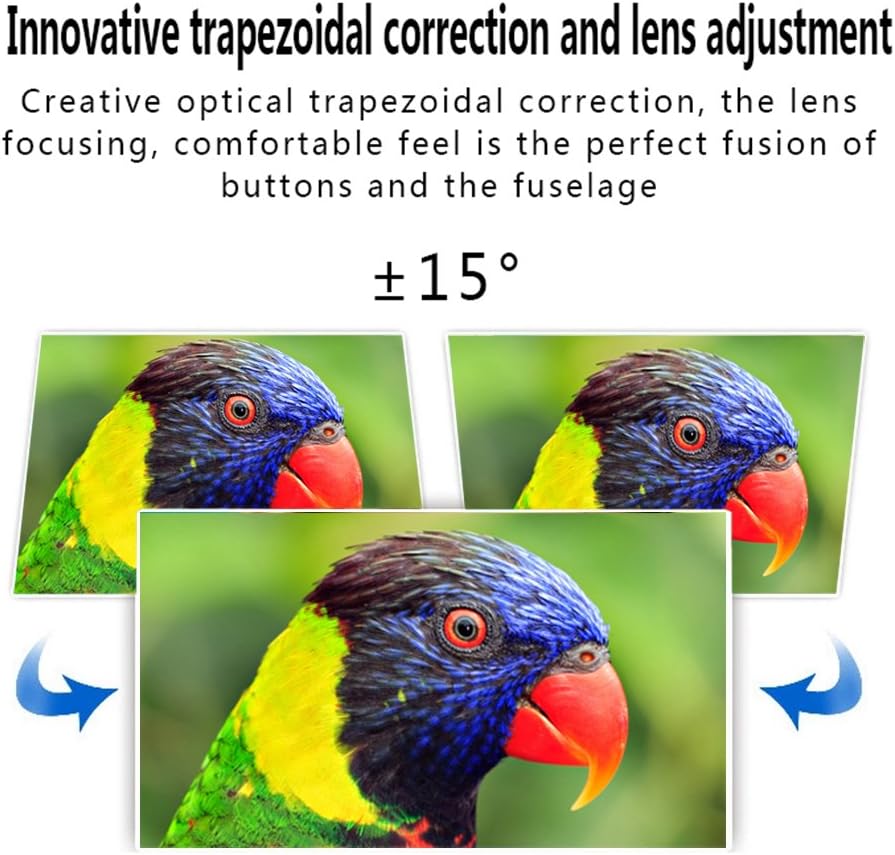
Image 5.4: Visual representation of the ±15° trapezoidal correction and lens adjustment feature, showing how to correct distorted images.
6. Operating Instructions
6.1 Power On/Off
Press the power button on the projector or the remote control to turn the unit on or off.
6.2 Source Selection
Press the 'Source' button on the projector or remote control to cycle through available input sources (HDMI1, HDMI2, USB1, USB2, VGA, AV, YPbPr, TV/DTV). Select the input corresponding to your connected device.
6.3 Menu Navigation
Press the 'Menu' button to access the projector's settings. Use the arrow keys on the projector or remote to navigate, and 'OK' or 'Enter' to confirm selections. Adjust settings such as picture mode, aspect ratio, sound mode, and language.
6.4 Audio Output
The projector features built-in speakers. For enhanced audio, connect external speakers to the 'Audio Out' port using a 3.5mm audio cable.
7. Maintenance
7.1 Lens Cleaning
Use a soft, lint-free cloth and a specialized lens cleaning solution to gently wipe the projector lens. Avoid abrasive materials or excessive pressure.
7.2 Ventilation
Regularly check that the projector's ventilation openings are clear of dust and debris. Blocked vents can lead to overheating and affect performance. Do not place the projector on soft surfaces that may obstruct airflow.
8. Troubleshooting
| Problem | Possible Cause | Solution |
|---|---|---|
| No image on screen | Power cable disconnected; Incorrect input source selected; Input device not powered on or connected properly. | Check power connection; Select correct input source; Ensure input device is on and cables are secure. |
| Image is blurry | Focus not adjusted. | Adjust the focus ring on the projector lens. |
| Image is distorted (trapezoidal) | Keystone not adjusted. | Adjust the keystone correction dial. |
| No sound | Volume too low; Audio cables not connected; Incorrect audio output selected on source device; External speakers not connected or powered. | Increase volume; Check audio cable connections; Ensure source device is outputting audio; Connect external speakers if desired. |
| Input source needs to be set every time | Projector defaults to a specific input or does not save last setting. | Manually select the desired input source after powering on. Check menu settings for an 'Auto Source' or 'Last Input' option if available. |
9. Specifications
- Brand: Excelvan
- Model: EHD11 (FBA_151224-F6)
- Display Type: LCD
- Display Resolution: 1920 x 1080 (Full HD supported)
- Connectivity Technology: HDMI, USB, VGA, AV
- Special Feature: 3D-Ready, Portable
- Item Weight: 6.49 pounds
- Package Dimensions: 16.9 x 13.1 x 8.5 inches
- Manufacturer: Excelvan
- Date First Available: November 8, 2014
10. Warranty and Support
For warranty information or technical support, please refer to the documentation provided at the time of purchase or contact your retailer. Keep your purchase receipt as proof of purchase.
Ask a question about this manual
Ask about setup, troubleshooting, compatibility, parts, safety, or missing instructions. Manuals+ will review the question and use this page’s manual context to help answer it.