
1. Introduction
This manual provides detailed instructions for the Redragon K552P Mechanical Gaming Keyboard. Please read this manual thoroughly to ensure proper setup, operation, and maintenance of your device. Retain this manual for future reference.
2. Product Overview
Key Features
- Compact TKL Design: 87-key layout maximizes desk space.
- Customizable RGB Backlight: 18 preset modes, 9 colors, 5 brightness levels, and adjustable speed/direction.
- Durable Construction: Robust metal frame, spill-resistant design, and double-shot PBT keycaps.
- Hot-Swappable Switches: Compatible with 3-pin switches for easy customization.
- N-Key Rollover: Ensures every keystroke is registered accurately.
- Software Programmable: Access macros and advanced settings via Redragon software.
- Multimedia Keys: Dedicated functions via FN key combinations.
What's in the Box
- Redragon K552P Mechanical Gaming Keyboard
- Keycap Puller
- USB Cable

Image 2.1: The Redragon K552P Mechanical Gaming Keyboard, showcasing its compact 87-key layout and RGB backlighting.
3. Setup
- Unpack the Keyboard: Carefully remove the keyboard and its accessories from the packaging.
- Connect to Computer: Plug the USB cable from the keyboard into an available USB port on your computer. The keyboard is plug-and-play and does not require additional drivers for basic functionality.
- Initial Power-On: The keyboard's backlight will illuminate upon successful connection.
- Software Installation (Optional): For advanced customization, including macros and detailed RGB settings, download the official Redragon software from redragon.com. Follow the on-screen instructions for installation.
4. Operating Instructions
Key Functions and Combinations
The Redragon K552P keyboard features various function key combinations to control multimedia, lighting, and system functions.
- FN + F1-F12: Access multimedia controls (e.g., volume, playback, email, calculator).
- FN + WIN: Lock/unlock the Windows key to prevent accidental presses during gaming.
- FN + Arrow Keys (↑/↓): Adjust backlight brightness.
- FN + Arrow Keys (←/→): Adjust backlight speed or direction for certain modes.
RGB Backlight Modes
The keyboard offers 18 preset RGB backlight modes. Use the following key combinations to cycle through and customize them:
- FN + INS: Cycle through various dynamic backlight modes.
- FN + HOME: Cycle through various static backlight modes.
- FN + PGUP: Cycle through various reactive backlight modes.
- FN + DEL: Cycle through various wave backlight modes.
- FN + END: Cycle through various breathing backlight modes.
- FN + PGDN: Cycle through various ripple backlight modes.

Image 4.1: Illustration of the 87-key layout with various RGB backlight modes, demonstrating customization options.
Hot-Swappable Switches
The Redragon K552P features hot-swappable switches, allowing users to change switches without soldering. This keyboard supports 3-pin switches.
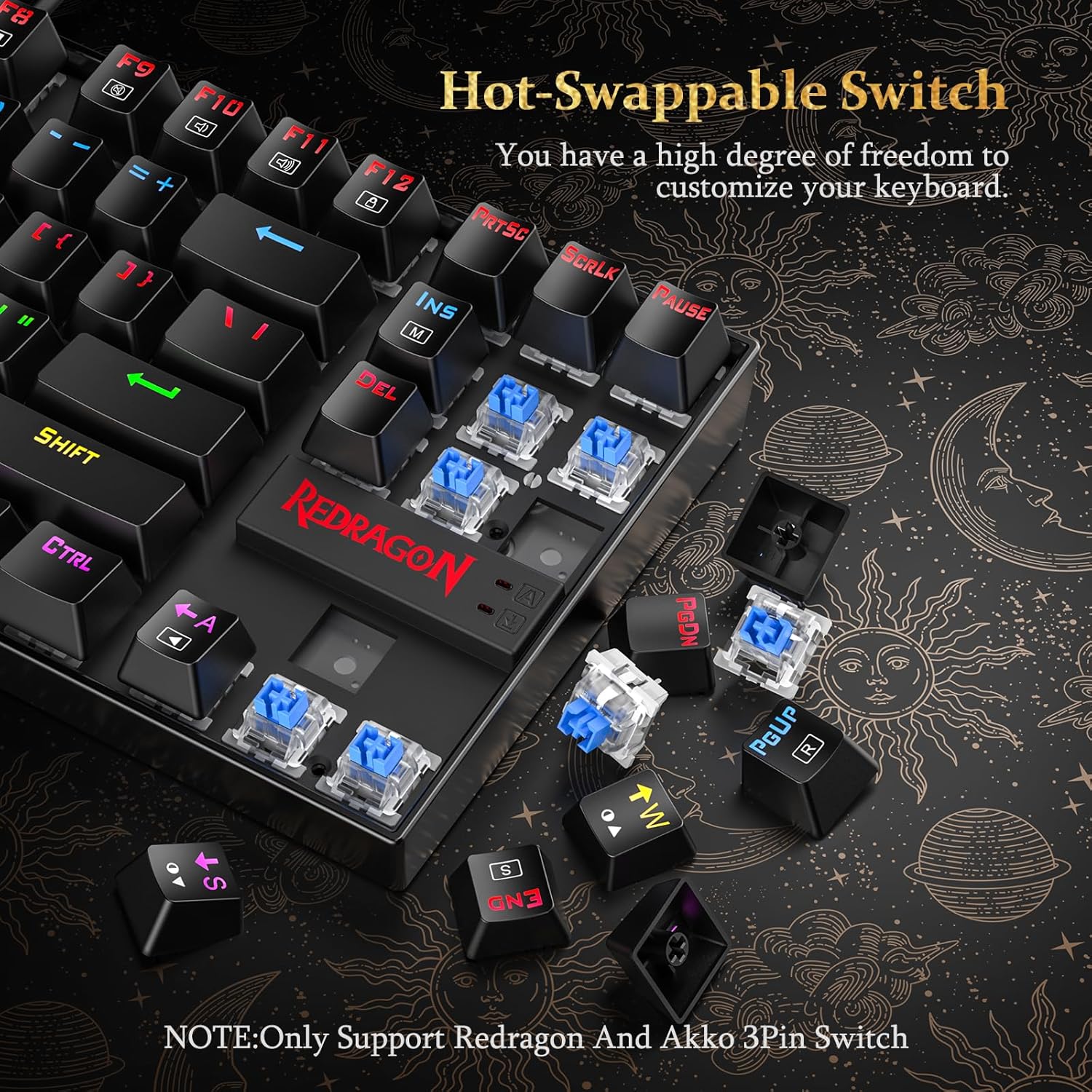
Image 4.2: Close-up view of the hot-swappable switch sockets and an Outemu blue switch, demonstrating the ease of switch replacement.
N-Key Rollover
The N-Key Rollover (NKRO) feature ensures that every key press is registered, even when multiple keys are pressed simultaneously. This is crucial for fast-paced typing and gaming scenarios.

Image 4.3: Depiction of the WASD keys, highlighting their importance in gaming and the anti-ghosting feature.
5. Maintenance
Cleaning the Keyboard
To maintain optimal performance and appearance, regular cleaning is recommended:
- Disconnect the keyboard from your computer before cleaning.
- Use the included keycap puller to carefully remove keycaps for thorough cleaning.
- Wipe the keycaps and keyboard surface with a soft, damp cloth. Avoid excessive moisture.
- Use compressed air to remove dust and debris from between the keys.
- Ensure all components are dry before reattaching keycaps and reconnecting the keyboard.

Image 5.1: Visual representation of the keyboard's spill-resistant design, showing water droplets on the keys.
Replacing Switches
Due to the hot-swappable design, individual switches can be replaced if they become faulty or if you wish to customize the typing feel. Use a switch puller (not included) to gently remove the switch and insert a new 3-pin compatible switch, ensuring the pins align correctly with the sockets.
6. Troubleshooting
If you encounter issues with your Redragon K552P keyboard, refer to the following common problems and solutions:
- Keyboard Not Responding:
- Ensure the USB cable is securely connected to both the keyboard and the computer.
- Try connecting the keyboard to a different USB port.
- Restart your computer.
- Test the keyboard on another computer to rule out system-specific issues.
- Backlight Not Working or Incorrect:
- Check backlight brightness using FN + Arrow Up (↑).
- Cycle through backlight modes using FN + INS/HOME/PGUP/DEL/END/PGDN.
- Ensure the Redragon software is not overriding settings if installed.
- Keys Not Registering or Double-Typing:
- Clean the affected key and switch area for any debris.
- If the issue persists, consider replacing the individual switch due to its hot-swappable design.
- Windows Key Locked:
- Press FN + WIN to toggle the Windows key lock.
For further assistance, please visit the Redragon support website or contact customer service.
7. Specifications
| Feature | Detail |
|---|---|
| Model Number | K552-RGB |
| Layout | 87-Key (Tenkeyless - TKL) |
| Switches | Hot-Swappable Blue Switches (3-pin compatible) |
| Backlighting | RGB (18 modes, 9 colors, 5 brightness levels) |
| Connectivity | USB Wired |
| N-Key Rollover | Supported |
| Material | Metal frame, Double-shot PBT keycaps |
| Product Dimensions | 13.94 x 4.86 x 1.46 inches (35.4 x 12.3 x 3.7 cm) |
| Item Weight | 1.98 pounds (0.9 kg) |
| Compatible Devices | PC, Laptop, Gaming Console, Tablet |
| Operating System Support | Windows, Vista, Windows XP (Limited Mac OS support) |

Image 7.1: The compact size of the Redragon K552P keyboard, illustrating its portability and space-saving design.
8. Warranty and Support
For warranty information, product registration, and technical support, please visit the official Redragon website:
Please have your product model number (K552P) and purchase details available when contacting support.


