
Infinix X180
Infinix X180 Mobile Phone User Manual
Model: X180
1. Product Overview
The Infinix X180 is a compact and reliable feature phone designed for essential communication. It supports dual SIM functionality, allowing you to manage two phone numbers simultaneously. This manual provides detailed instructions to help you get the most out of your device.

Figure 1: Infinix X180 Mobile Phone - Front, Back, and Side Views. This image displays the phone from various angles, highlighting its compact design, physical keypad, and rear camera.
Key Features:
- Dual SIM Support: Use two SIM cards simultaneously.
- Compact Design: Lightweight and easy to handle.
- 1.77-inch Display: Clear screen for basic navigation.
- 2 MP Rear Camera: For capturing basic photos.
- 1000 mAh Battery: Provides extended talk time.
- Expandable Storage: Supports MicroSD (TransFlash) cards.
- Bluetooth 4.0: For wireless connectivity.
2. Setup
2.1 Package Contents
Before you begin, ensure your package contains the following items:
- Infinix X180 Mobile Phone
- Battery (1 Lithium ion battery)
- Charger
- Earphones
- User Manual
2.2 Installing SIM Cards and MicroSD Card
- Remove the Back Cover: Gently pry open the back cover of the phone from the notch usually located at the bottom or side.
- Insert Battery: Place the battery into its compartment, ensuring the gold contacts align with the phone's terminals.
- Insert SIM Cards: Locate the SIM card slots. The Infinix X180 supports two standard SIM cards. Insert your SIM cards into the designated slots with the gold contacts facing down.
- Insert MicroSD Card (Optional): If you wish to expand storage, insert a MicroSD (TransFlash) card into the dedicated slot.
- Replace Back Cover: Carefully align and press the back cover until it clicks into place.
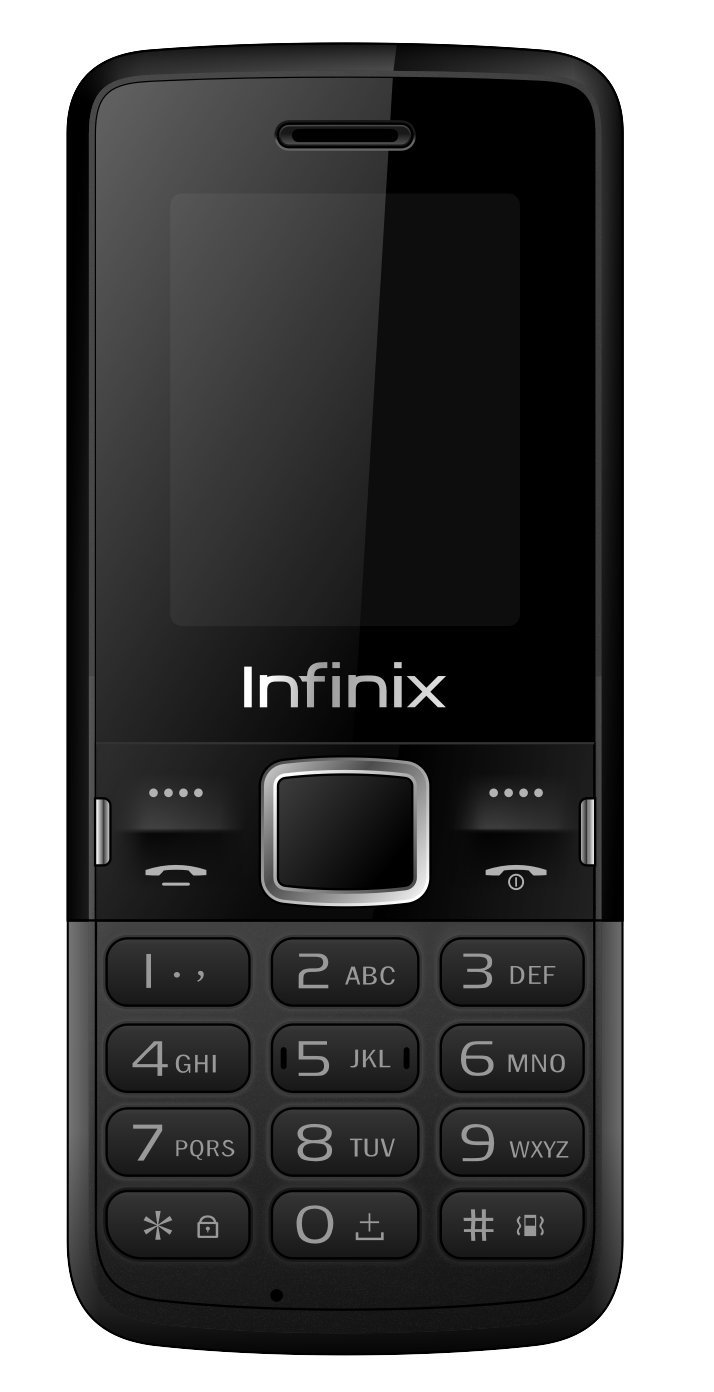
Figure 2: Back View of Infinix X180 Mobile Phone. This image shows the rear of the phone, indicating the location of the camera, speaker, and the Infinix branding, where the back cover can be removed to access SIM and battery compartments.
2.3 Charging the Battery
Before first use, fully charge the phone's battery.
- Connect the charger to the phone's Micro USB port.
- Plug the charger into a power outlet.
- The charging indicator on the phone will show the charging status. Disconnect the charger once the battery is full.
2.4 Powering On/Off
- To Power On: Press and hold the Power/End Call button until the screen lights up.
- To Power Off: Press and hold the Power/End Call button until the power-off options appear, then select "Power Off".
3. Operating Instructions
3.1 Basic Navigation
Use the physical keypad and navigation buttons to interact with the phone.
- Navigation Keys: Use the directional keys (Up, Down, Left, Right) to scroll through menus.
- Center Key: Press the center key to select an option.
- Left/Right Soft Keys: Functions vary depending on the screen, indicated by text above the keys.
- Call Key: Press to make a call or answer an incoming call.
- End Call/Power Key: Press to end a call or return to the home screen. Long press to power on/off.
3.2 Making and Receiving Calls
- To Make a Call: Enter the phone number using the keypad and press the Call key. If using Dual SIM, you may be prompted to select which SIM to use.
- To Answer a Call: When a call comes in, press the Call key.
- To End a Call: Press the End Call key.
3.3 Messaging (SMS)
The phone supports sending and receiving SMS messages. Note that SMS storage is limited to 50 messages on the phone and 50 per SIM card.
- Navigate to the "Messages" menu.
- Select "Write Message" to compose a new SMS.
- Enter the recipient's number and your message.
- Select "Send".
3.4 Contacts
Store frequently used numbers in your phone's contacts. The phone can store up to 200 contacts, and each SIM card can store up to 250 contacts.
- Go to the "Contacts" menu.
- Select "Add New Contact" to save a number.
- You can choose to save contacts to the phone memory or a specific SIM card.
3.5 Camera Functionality
The Infinix X180 features a 2 MP rear camera for basic photography and video recording.
- Access the camera from the main menu.
- Use the center key to take a photo.
- Video recording resolution is 128 x 160 pixels.
Note: The actual photo resolution may be limited to 128x160 pixels, despite the 2MP sensor specification. This is typical for entry-level feature phones.
3.6 Bluetooth Connectivity
The phone supports Bluetooth 4.0 for connecting to compatible devices like headsets or for file transfer.
- Go to "Settings" and then "Bluetooth".
- Turn Bluetooth on and search for available devices.
- Select the device you wish to pair with and follow the on-screen prompts.
4. Maintenance
4.1 Battery Care
- Avoid exposing the battery to extreme temperatures.
- Do not puncture or damage the battery.
- Use only the original or approved charger.
- If the phone will not be used for an extended period, charge it partially before storing.
4.2 Cleaning Your Phone
- Use a soft, dry cloth to clean the phone's screen and body.
- Avoid using liquid cleaners or abrasive materials.
- Ensure no moisture enters the charging port or headphone jack.
4.3 Storage
Store the phone in a cool, dry place away from direct sunlight and extreme temperatures.
5. Troubleshooting
If you encounter issues with your Infinix X180, refer to the following common solutions:
5.1 Phone Does Not Power On
- Ensure the battery is correctly installed and charged.
- Connect the charger and try powering on again.
- Check if the battery contacts are clean.
5.2 No Network Signal
- Check if the SIM card(s) are correctly inserted.
- Ensure you are in an area with network coverage.
- Restart the phone.
- Verify with your mobile provider if there are any network issues in your area.
5.3 Cannot Make or Receive Calls/SMS
- Check your SIM card balance or subscription status.
- Ensure the phone is not in airplane mode (if applicable).
- Verify that the recipient's number is correct.
- Check if any call barring or message blocking features are enabled.
5.4 Limited Storage Capacity
- The phone has 32 MB internal memory. Consider installing a MicroSD card to expand storage for photos and other media.
- Regularly delete old messages, photos, or files you no longer need.
6. Specifications
| Feature | Detail |
|---|---|
| Model Name | X180 |
| Brand | Infinix |
| Display Size | 1.77 Inches |
| Display Resolution | 128 x 160 Pixels |
| RAM Memory | 32 MB |
| Storage Capacity | 32 MB |
| Rear Camera Sensor Resolution | 2 MP |
| Video Recording Resolution | 128 x 160 Pixels |
| Battery | 1 Lithium Ion (included) |
| Talk Time | 3 Hours |
| Connectivity | Bluetooth 4.0, USB (Micro USB Type B) |
| Cellular Technology | 2G (GSM 900/DCS 1800 MHz) |
| SIM Card Slots | Dual SIM |
| Compatible Devices | MicroSD (TransFlash) |
| Product Dimensions | 7.3 x 1 x 14.5 cm; 75 g |
| Operating System | Proprietary (Note: Not Android 9.0 as sometimes listed, which is likely an error for this feature phone.) |
| Water Resistance Level | Not Water Resistant |
| Headphone Jack | 1 |
Note: Specifications are subject to change without prior notice.
7. Warranty and Support
7.1 Warranty Information
Your Infinix X180 mobile phone is covered by a limited manufacturer's warranty. Please refer to the warranty card included in your product packaging for specific terms and conditions, including warranty period and coverage details. Keep your purchase receipt as proof of purchase.
7.2 Customer Support
For technical assistance, troubleshooting beyond this manual, or warranty claims, please contact Infinix customer support. Contact details can typically be found on the manufacturer's official website or on the warranty card.
Manufacturer: Infinix
Website: www.infinixmobility.com (Note: This is a general link and may not be specific to your region.)
Related documentsX180


Ask a question about this manual
Ask about setup, troubleshooting, compatibility, parts, safety, or missing instructions. Manuals+ will review the question and use this page’s manual context to help answer it.