
1. Important Safety Instructions
Please read this manual thoroughly before installation and operation. Keep this manual for future reference.
- Electrical Safety: Ensure the power supply matches the screen's requirements. Do not operate with damaged cords or plugs. Disconnect power before cleaning or maintenance.
- Installation: The screen must be securely mounted to a sturdy wall or ceiling structure. Improper installation can lead to product damage or injury. Consult a professional if unsure.
- Operation: Keep hands and objects clear of the screen during operation. Do not attempt to manually force the screen up or down.
- Environment: Avoid exposing the screen to extreme temperatures, high humidity, or direct sunlight for prolonged periods.
- Children: This product is not a toy. Keep children away from the screen and controls during operation.
2. Package Contents
Verify that all components are present and undamaged before proceeding with installation.
- Maclean MC-552 Electric Projector Screen
- Remote Control Unit
- Wall Control Unit
- Power Cable
- Mounting Hardware (screws, anchors)
- User Manual
3. Specifications
| Feature | Specification |
|---|---|
| Model Number | MC-552 |
| Screen Diagonal | 150 inches |
| Aspect Ratio | 4:3 |
| Screen Surface Dimensions (W x H) | 300 cm x 220 cm (approx. 3m x 2.2m) |
| Total Length (Housing) | 3480 mm (3.48m) |
| Mounting Type | Wall or Ceiling Mount |
| Screen Material | Special Fabric, Matt White |
| Gain | 1.0 G (typical for Matt White) |
| Weight | 13 kg |
| Operating Mode | Automatic (Electric) |
| Features | Black frame, stepless height adjustment, automatic lock spring mechanism |
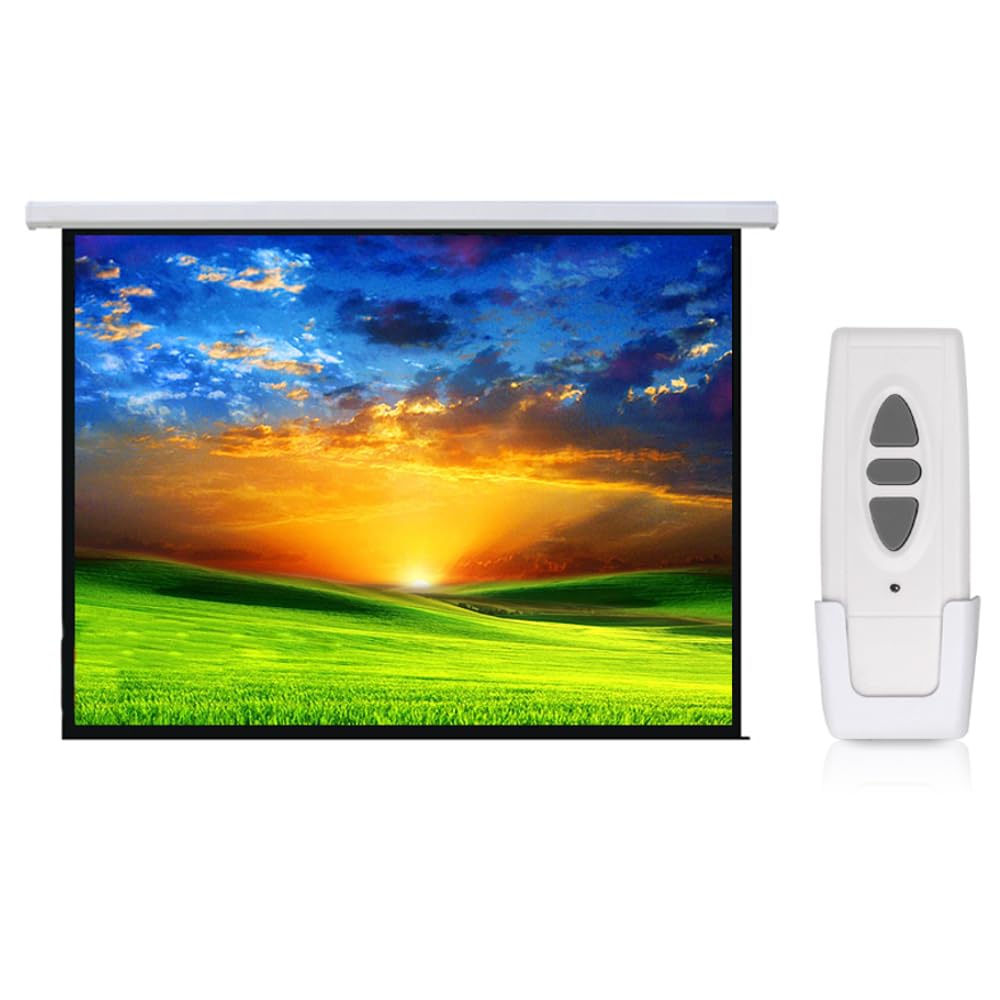
Image 3.1: Maclean MC-552 Electric Projector Screen with its remote control unit.

Image 3.2: Detailed view of the Maclean MC-552 screen showing its dimensions and the remote control for operation.
4. Setup and Installation
Proper installation is crucial for the safe and optimal performance of your projector screen.
4.1 Mounting Location
- Choose a location with a sturdy wall or ceiling capable of supporting the screen's weight (13 kg).
- Ensure there is a power outlet nearby for the screen's electrical connection.
- Consider the projection distance and viewing angles for optimal image quality.
4.2 Mounting the Screen
- Measure and Mark: Hold the screen in the desired position and mark the drilling points for the mounting brackets. Ensure the marks are level.
- Drill Holes: Drill pilot holes at the marked locations. Use an appropriate drill bit size for the provided anchors and screws.
- Insert Anchors: Insert wall anchors into the drilled holes if mounting into drywall or hollow walls.
- Secure Brackets: Attach the mounting brackets to the wall/ceiling using the screws. Ensure they are firmly secured.
- Hang Screen: Carefully lift the projector screen and hook it onto the installed mounting brackets. Ensure it is seated securely.
4.3 Electrical Connection
- Connect the screen's power cable to the wall control unit.
- Plug the wall control unit into a standard electrical outlet.
- Ensure all connections are secure before operating the screen.

Image 4.1: Installation diagram illustrating the wiring and mounting process for the electric projector screen.
5. Operating Instructions
The Maclean MC-552 screen can be operated using the included remote control or the wall control unit.
5.1 Remote Control Operation
The remote control allows for convenient operation from a distance.
- UP Button (▲): Press to raise the screen.
- DOWN Button (▼): Press to lower the screen.
- STOP Button (■): Press to stop the screen at any desired position.
5.2 Wall Control Operation
The wall control unit provides a fixed control point for the screen.
- The wall control unit features identical UP, DOWN, and STOP buttons as the remote.
- Press the corresponding button to control the screen's movement.
5.3 Automatic Lock and Stepless Adjustment
The screen features a spring mechanism with an automatic lock, allowing for stepless height adjustment. You can stop the screen at any point during its extension or retraction by pressing the STOP button.

Image 5.1: The remote control and wall control units for the Maclean MC-552 projector screen.
6. Maintenance
Regular maintenance ensures the longevity and optimal performance of your projector screen.
- Cleaning the Screen Surface: Use a soft, damp cloth with mild soap and water to gently wipe the screen surface. Do not use abrasive cleaners, solvents, or harsh chemicals, as these can damage the Matt White surface. Allow the screen to air dry completely before retracting.
- Cleaning the Housing: Wipe the screen housing with a dry or slightly damp cloth to remove dust.
- Motor and Mechanism: The electric motor and spring mechanism are designed for maintenance-free operation. Do not attempt to lubricate or disassemble these components.
- Power Cord: Periodically inspect the power cord for any signs of damage. If damaged, discontinue use and contact customer support.
7. Troubleshooting
If you encounter issues with your Maclean MC-552 projector screen, refer to the following common problems and solutions.
| Problem | Possible Cause | Solution |
|---|---|---|
| Screen does not move. | No power supply. Remote control batteries are dead. Motor malfunction. | Check if the power cable is securely plugged in and the outlet is functional. Replace batteries in the remote control. If using wall control, check if it works. If not, contact support. |
| Remote control is unresponsive. | Dead batteries. Obstruction between remote and receiver. Remote not paired (if applicable). | Replace remote control batteries. Ensure a clear line of sight to the screen's receiver. Refer to specific pairing instructions if provided with your model (not typically required for basic IR remotes). |
| Screen stops intermittently. | Overheating protection activated. Obstruction in screen path. | Allow the screen motor to cool down for 15-20 minutes. Inspect the screen's path for any foreign objects or obstructions. |
| Image appears distorted or wavy. | Screen not fully flat. Projector not aligned correctly. | Ensure the screen is fully extended and has settled. Minor waves may disappear over time. Adjust projector position and keystone correction. |
If the problem persists after attempting these solutions, please contact Maclean customer support.
8. Warranty and Support
Maclean products are designed for reliability and performance. For warranty information and technical support, please refer to the warranty card included with your product or visit the official Maclean website.
When contacting support, please have your model number (MC-552) and purchase information readily available.

Image 8.1: Maclean brand logo.