
1. Product Overview
The Safescan TP-230 is a compact and robust thermal receipt printer designed to seamlessly integrate with various Safescan money counters. It enables automatic printing of detailed reports for counting results, including denominations and total amounts, making it an ideal solution for administrative processes and daily cash reports.
Utilizing modern thermal printing technology, the TP-230 operates quickly and quietly, producing clear and crisp printouts. It is lightweight, compact, and uses standard 58mm thermal paper, which is widely available.
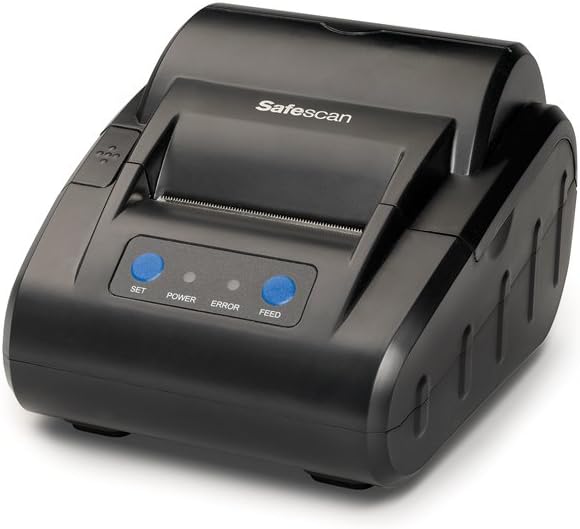
Front view of the Safescan TP-230 Thermal Receipt Printer, showcasing its compact design and control buttons.
Key Features:
- Detailed Reports: Optimizes cash administration processes by generating detailed printouts of counting results from compatible Safescan money counters.
- Practical Design: Features a compact and lightweight design, making it easy to use anywhere. It prints on standard 58mm thermal paper for convenience.
- Optimal Compatibility: Compatible with a wide range of Safescan money counters, including models 1250, 1450, 2265, 2465-S, 2665-S, 2685-S, 2865-S, 2985-SX, 2995-SX, 6165, and 6185.
2. Package Contents
Before setting up your Safescan TP-230, please verify that all components are present in the box:
- Safescan TP-230 Thermal Receipt Printer
- Power Adapter
- USB Printer Cable
- Thermal Print Paper (1 roll)

Image showing the Safescan TP-230 printer along with its power adapter, USB cable, and a roll of thermal paper.
3. Setup
3.1 Connecting the Printer
- Connect the provided USB printer cable to the USB port on the back of the TP-230 printer.
- Connect the other end of the USB cable to the compatible Safescan money counter.
- Plug the power adapter into the power input port on the back of the printer.
- Plug the power adapter into a suitable electrical outlet.

Rear view of the Safescan TP-230, highlighting the power input, USB port, and serial port for connectivity.
3.2 Loading Thermal Paper
- Gently press the lid release button (if present) or lift the top cover of the printer to open the paper compartment.
- Insert the thermal paper roll into the compartment, ensuring the paper feeds from the bottom of the roll and the leading edge extends slightly out of the printer slot.
- Close the top cover firmly until it clicks into place. Ensure the paper is properly aligned and not jammed.

Top view of the Safescan TP-230 with the paper compartment open, showing a thermal paper roll correctly inserted.
4. Operating Instructions
4.1 Powering On/Off
Locate the power switch on the side or back of the printer. Flip the switch to the 'ON' position to power on the device. The 'POWER' indicator light on the front panel should illuminate. To power off, flip the switch to the 'OFF' position.
4.2 Printing Reports
Once the TP-230 is connected to a compatible Safescan money counter and powered on, it is ready to print. The printing process is initiated directly from the connected money counter's interface. Refer to your specific Safescan money counter's user manual for detailed instructions on how to generate and print counting reports.
The TP-230 will automatically receive data from the counter and print a detailed report of the counted denominations and total amounts. You can use the FEED button on the printer's front panel to advance the paper manually.

The Safescan TP-230 printer positioned next to a Safescan banknote counter, demonstrating its intended use for printing counting results.

The Safescan TP-230 printer shown alongside a Safescan coin counter, illustrating its compatibility with various money counting devices.
5. Maintenance
5.1 Cleaning
To ensure optimal performance and longevity of your Safescan TP-230, regular cleaning is recommended:
- Exterior: Wipe the exterior of the printer with a soft, dry, lint-free cloth. For stubborn marks, a slightly damp cloth with mild detergent can be used, ensuring no liquid enters the device.
- Print Head: The thermal print head should be cleaned periodically to maintain print quality. Use a specialized thermal printer cleaning pen or a cotton swab lightly dampened with isopropyl alcohol. Gently wipe the print head surface. Allow it to dry completely before use.
Caution: Never use abrasive cleaners, solvents, or spray directly onto the printer.
5.2 Paper Replacement
Always use high-quality standard 58mm thermal paper rolls for the Safescan TP-230. Using incorrect paper types can lead to poor print quality, damage to the print head, or paper jams. Replace the paper roll as described in Section 3.2 when the current roll is depleted.
6. Troubleshooting
This section addresses common issues you might encounter with your Safescan TP-230 printer.
| Problem | Possible Cause | Solution |
|---|---|---|
| No Power | Power cable not connected; Power outlet faulty; Printer power switch off. | Ensure power cable is securely connected to printer and outlet. Test outlet with another device. Flip power switch to 'ON'. |
| No Print Output | Printer not connected to money counter; Paper roll empty or incorrectly loaded; Print head dirty; 'ERROR' light illuminated. | Verify USB connection. Load new paper roll correctly (refer to Section 3.2). Clean print head (refer to Section 5.1). Check money counter settings for printing. |
| Poor Print Quality | Thermal paper loaded incorrectly; Print head dirty; Low quality thermal paper. | Ensure paper is loaded with the thermal side facing the print head. Clean print head (refer to Section 5.1). Try a new roll of high-quality thermal paper. |
| Paper Jam | Paper not loaded straight; Foreign object in paper path. | Open the paper compartment and carefully remove any jammed paper. Ensure paper is loaded straight and aligned. Remove any foreign objects. |
| 'ERROR' Light On | Paper out; Lid open; Print head overheating. | Check if paper roll is empty and replace if necessary. Ensure the lid is fully closed. If the light persists after checking these, power off the printer, wait a few minutes, and power it back on. |
7. Specifications
Detailed technical specifications for the Safescan TP-230 Thermal Receipt Printer:
| Feature | Specification |
|---|---|
| Model Number | TP-230 |
| Brand | Safescan |
| Print Technology | Thermal |
| Connectivity Technology | USB |
| Printer Output | Monochrome |
| Max Monochrome Print Speed | 10 Pages per minute |
| Product Dimensions (L x W x H) | 13.8 x 12 x 20 cm |
| Weight | 380 g |
| Power Consumption | 10 Watt |
| Included Components | Adapter, USB Printer Cable, Thermal Print Paper (1 roll) |
| Warranty Type | 3 years |
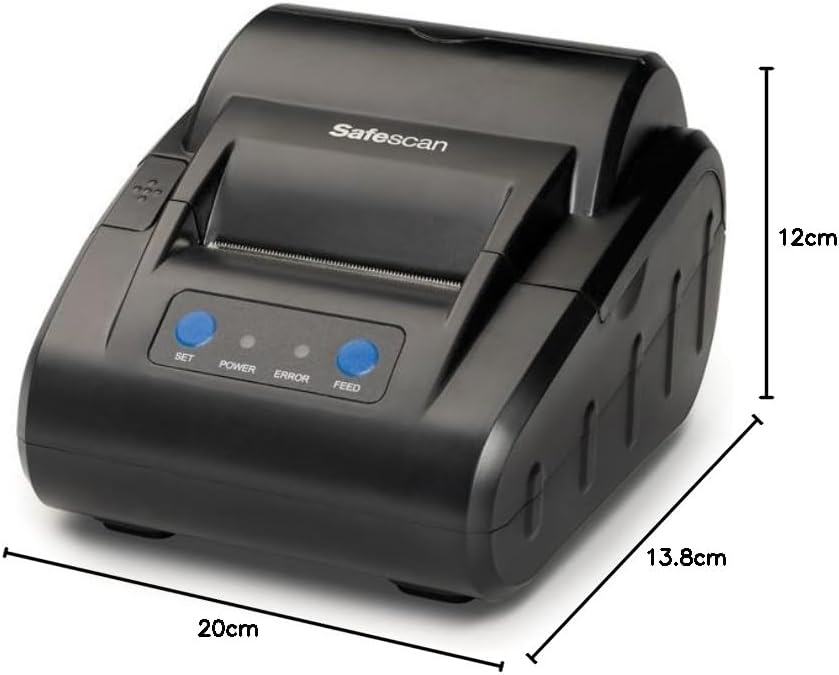
Diagram illustrating the dimensions of the Safescan TP-230 printer: 20cm (length), 13.8cm (width), and 12cm (height).
8. Warranty and Support
8.1 Warranty Information
The Safescan TP-230 Thermal Receipt Printer comes with a 3-year warranty from the date of purchase. This warranty covers defects in materials and workmanship under normal use. Please retain your proof of purchase for warranty claims.
8.2 Customer Support
For technical assistance, troubleshooting beyond this manual, or warranty inquiries, please contact Safescan customer support. Refer to the official Safescan website or your product packaging for the most up-to-date contact information and support resources.
You can also visit the Safescan Brand Store for more product information and support.


