
Introduction
Welcome to the user manual for your HP 14-AC108TU laptop. This guide provides essential information for setting up, operating, maintaining, and troubleshooting your device. Please read this manual thoroughly to ensure proper use and to maximize the lifespan of your laptop.
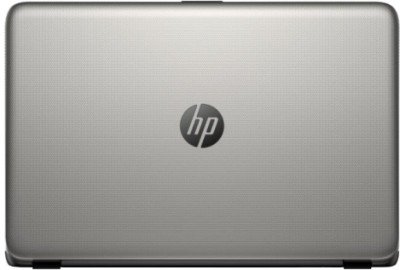
Front view of the HP 14-AC108TU laptop, showcasing its silver finish and 14-inch display.
Initial Setup
Follow these steps to set up your new HP 14-AC108TU laptop:
- Unpacking: Carefully remove the laptop and all included accessories from the packaging. Ensure all components are present.
- Power Connection: Connect the power adapter to the laptop's power port and then to a functional electrical outlet. Allow the laptop's Lithium Ion battery to charge fully before its first use. The battery provides an average life of 4 hours on standby.
- First Boot: Press the power button to turn on the laptop. The system will guide you through the initial setup of the Windows 10 operating system. This process includes configuring user accounts, connecting to a network, and setting up basic preferences.
- Connecting Peripherals: Utilize the available USB 2.0 (two ports) and USB 3.0 (one port) for connecting external devices such as a mouse, external keyboard, or external storage drives.
Basic Operation
Understanding the basic functions of your laptop is key to efficient use:
- Power On/Off: To power on, press the power button. To shut down, navigate to the Start menu, select the Power icon, and choose "Shut down."
- Keyboard and Touchpad: The laptop is equipped with a standard keyboard for typing and an integrated touchpad for cursor control and navigation.
- Display: The 14-inch LED display offers a native resolution of 1366 x 768 pixels, suitable for everyday viewing.
- Optical Drive: This model includes a built-in DVD/CD ROM writer, allowing you to read and write various optical media formats.
- Connectivity:
- Wi-Fi: Connect to wireless networks using the integrated Wi-Fi technology.
- Ethernet: For a stable wired network connection, use the Ethernet port.
- Video Output: Extend your display to external monitors or projectors using the HDMI port or the VGA port.
- Audio: Connect headphones or external speakers to the audio output jack.
- Storage: The laptop features a 1TB Serial ATA hard drive operating at 5400 RPM, providing ample space for documents, media, and applications.
- Performance: Your laptop is powered by a 5th Generation Intel Core i3-5005U processor (2 GHz, 3 MB Smart Cache) and 4GB of DDR3L-1600 RAM, designed to handle daily computing tasks efficiently.
Care and Maintenance
Proper care ensures the longevity and optimal performance of your laptop:
- Cleaning: Use a soft, lint-free cloth to gently clean the screen and exterior surfaces. Avoid using harsh chemicals, abrasive cleaners, or solvents, as these can damage the finish.
- Battery Care: To maximize battery lifespan, avoid exposing the laptop to extreme temperatures. It is also beneficial to allow the battery to partially discharge before recharging it.
- Software Updates: Regularly update your Windows 10 operating system and device drivers. These updates often include performance enhancements, security patches, and bug fixes.
- Storage Management: Periodically review and manage the files stored on your 1TB hard drive. Deleting unnecessary files and uninstalling unused applications can help maintain system responsiveness.
Troubleshooting
This section addresses common issues you might encounter:
- No Power: Ensure the power adapter is securely connected to both the laptop and a working power outlet. If the battery is completely drained, allow it to charge for at least 15-30 minutes before attempting to power on the device.
- Slow Performance: If your laptop is running slowly, try closing unnecessary applications and checking for background processes. While the laptop has 4GB RAM, upgrading to the maximum supported 8GB can improve performance for demanding tasks. The 5400 RPM hard drive may also contribute to slower data access compared to solid-state drives.
- Display Problems: If the screen remains blank or shows distorted images, try connecting an external monitor via the HDMI or VGA port. This can help determine if the issue is with the laptop's internal display or the graphics output.
- Audio Issues: If there is no sound, check the volume settings in Windows and ensure that any external headphones or speakers are properly connected. Verify that audio drivers are up to date. Note that some users have reported the integrated speakers' sound quality as poor.
- Connectivity Problems: For Wi-Fi issues, restart your wireless router and the laptop. For wired Ethernet connections, ensure the cable is securely plugged into both the laptop and the network port.
Technical Specifications
Key specifications for the HP 14-AC108TU laptop:
| Feature | Specification |
|---|---|
| Brand | HP |
| Model Name | P3C95PA ACJ |
| Screen Size | 14 Inches |
| Colour | Turbo Silver Colour with Diamond & Cross Brush Pattern |
| Processor | 5th Gen Intel Core i3-5005U (2 GHz, 3 MB Smart Cache) |
| RAM Memory | 4 GB DDR3L-1600 (expandable to 8 GB) |
| Hard Disk Size | 1 TB Serial ATA (5400 RPM) |
| Operating System | Windows 10 |
| Display Resolution | 1366 x 768 pixels |
| Graphics Processor | Intel HD Graphics 5500 |
| Item Weight | 2.9 kg |
| Network Connectivity | Wi-Fi, Ethernet |
| Hardware Interfaces | 2x USB 2.0, 1x USB 3.0, HDMI, VGA, Headphone Jack |
| Battery Type | Lithium Ion (4 hours average standby life) |
| Optical Drive | DVD/CD ROM Writer |
Warranty and Support
For detailed warranty information regarding your HP 14-AC108TU laptop, please refer to the official HP warranty document. A copy of this document can be accessed via the following link:
View Warranty Information (PDF)
For further technical assistance, troubleshooting not covered in this manual, or customer service inquiries, please visit the official HP support website or contact their customer support channels directly.


