
Introduction
The HP Roar Mini Wireless Speaker delivers exceptional, size-defying audio. This compact speaker allows you to stream music and calls wirelessly. Its distinctive triangular design not only provides a unique aesthetic but also helps amplify sound for an enhanced listening experience.
What's in the Box
- HP Blue Roar Mini Wireless Speaker
- Carrying Case
- USB Cable
- Quick Start Guide and Warranty Card
Setup
Charging the Speaker
Before initial use, fully charge your HP Roar Mini Speaker. Connect the supplied USB cable to the Micro USB port on the speaker and the other end to a USB power source (e.g., computer USB port, USB wall adapter). The charging indicator light will illuminate during charging and turn off when fully charged. A full charge provides up to 28 hours of playback time.
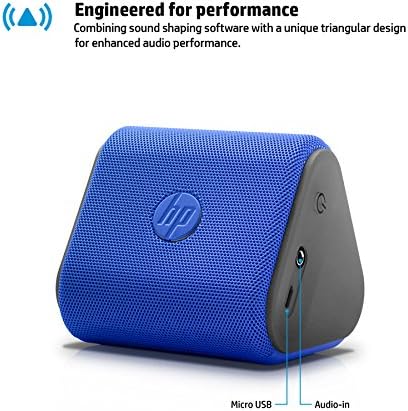
Image: Side view of the HP Roar Mini Speaker, highlighting the Micro USB charging port and the Audio-in port.
Bluetooth Pairing
- Ensure the speaker is charged and powered on.
- Activate Bluetooth on your device (smartphone, tablet, laptop).
- Search for available Bluetooth devices. The speaker will appear as "HP Roar Mini" or similar.
- Select the speaker from the list to pair. A confirmation sound or indicator light will signal successful pairing.
The HP Roar Mini Speaker offers cable-free Bluetooth connectivity up to 33 feet (10 meters). It can also sync to two Bluetooth devices simultaneously, allowing for seamless switching between audio sources.
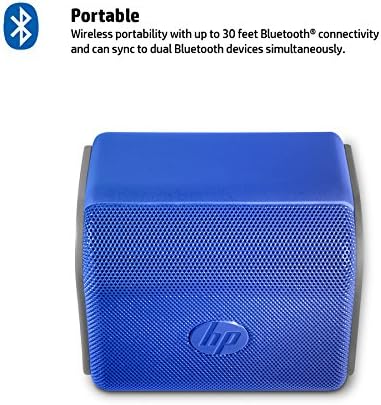
Image: Front view of the HP Roar Mini Speaker, showcasing its portable design and the HP logo on the grille.
Operating the Speaker
Controls
The speaker features raised touch buttons for easy control, located on one end of the triangular body.
- Power Button: Press and hold to turn the speaker on or off.
- Volume Up/Down: Press the '+' or '-' buttons to adjust the playback volume.
- Phone Button: Press to answer or end calls when connected to a smartphone.
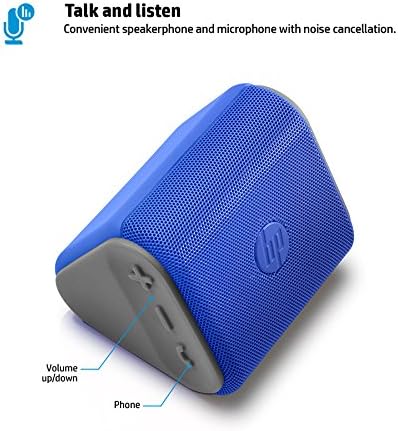
Image: Top-down view of the HP Roar Mini Speaker, illustrating the location of the volume up/down and phone call control buttons.
Speakerphone Functionality
With its convenient speakerphone and noise-cancellation microphone, the HP Roar Mini Speaker allows you to take calls directly through the device. When a call comes in, press the Phone button to answer. Press it again to end the call.
Audio Performance
The speaker is engineered for performance with an internal passive radiator that enhances bass. Its distinctive triangular design contributes to amplifying the sound, providing a rich audio experience for its compact size.
Maintenance
Cleaning
To clean the speaker, use a soft, dry cloth. Avoid using abrasive cleaners, solvents, or harsh chemicals, as these can damage the surface or internal components.
Battery Care
To prolong battery life, avoid fully discharging the speaker frequently. If storing the speaker for an extended period, charge it to approximately 50% and store it in a cool, dry place. Recharge every few months to prevent deep discharge.
Troubleshooting
Speaker Does Not Turn On
- Ensure the battery is charged. Connect the speaker to a power source using the USB cable and allow it to charge for at least 30 minutes before attempting to power on.
- Press and hold the power button firmly for a few seconds.
Cannot Pair via Bluetooth
- Ensure the speaker is in pairing mode (often indicated by a blinking LED).
- Make sure Bluetooth is enabled on your device and it is within 33 feet (10 meters) of the speaker.
- If previously paired, try unpairing the speaker from your device's Bluetooth settings and then re-pairing.
- Restart both the speaker and your Bluetooth device.
No Sound or Low Volume
- Check the volume levels on both the speaker and your connected device.
- Ensure the speaker is properly paired and connected to your device.
- If using the Audio-in port, ensure the cable is securely connected and the audio source is playing.
Charging Light Behavior
If the charging light turns off quickly after plugging in, it may indicate that the speaker is already near full charge. If the speaker does not power on despite this, refer to the 'Speaker Does Not Turn On' section.
Specifications
| Feature | Detail |
|---|---|
| Model Name | NAE-HP-P6N17AA |
| Speaker Type | Bookshelf |
| Special Feature | Lightweight |
| Recommended Uses | Music |
| Compatible Devices | Smartphone, Tablet, Laptop |
| Color | Blue |
| Product Dimensions | 2.85"D x 3.06"W x 3.14"H |
| Item Weight | 0.55 Pounds (8.8 ounces) |
| Maximum Range | 33 Feet (Bluetooth) |
| Control Method | Touch |
| Wireless Communication Technology | Bluetooth |
| Power Source | Battery Powered (1 Lithium Ion battery included) |
| Average Battery Life | 28 Hours |
| Speaker Maximum Output Power | 3 Watts |
| Shape | Triangular Prism |

Image: The HP Roar Mini Speaker with its dimensions (2.85"D x 3.06"W x 3.14"H) clearly indicated.
Product Overview Video
Video: An official overview of the HP Roar Mini Bluetooth Wireless Speaker series, demonstrating its features, design, and portability. This video provides a visual guide to the product's capabilities.
Warranty and Support
This product comes with a standard manufacturer's warranty. Please refer to the warranty card included in your product packaging for specific terms and conditions. For technical support, service, or additional information, please visit the official HP support website or contact their customer service.
HP Support Website: www.hp.com/support
