
1. Introduction
The NETGEAR Nighthawk X4S AC2600 Smart WiFi Router (R7800) is designed to provide high-performance wireless connectivity for demanding home networks. Featuring 160MHz, MU-MIMO, and Quad Stream technology, it delivers WiFi to multiple devices simultaneously for faster speeds. This router supports 4K content streaming with 160MHz support and offers ultimate WiFi speeds of up to 2.53Gbps, powered by a robust 1.7GHz dual-core processor. Dynamic QoS ensures smoother streaming and gaming by prioritizing application and device traffic. The Nighthawk X4S R7800 is suitable for very large homes, offering extensive WiFi coverage.
2. Package Contents
Verify that your package contains the following items:
- NETGEAR Nighthawk X4S AC2600 Smart WiFi Router (R7800)
- Ethernet cable
- Quick start guide
- Power adapter (localized to country of sale)
3. Physical Overview
The Nighthawk X4S R7800 router features a sleek design with multiple ports and indicators for easy setup and monitoring.
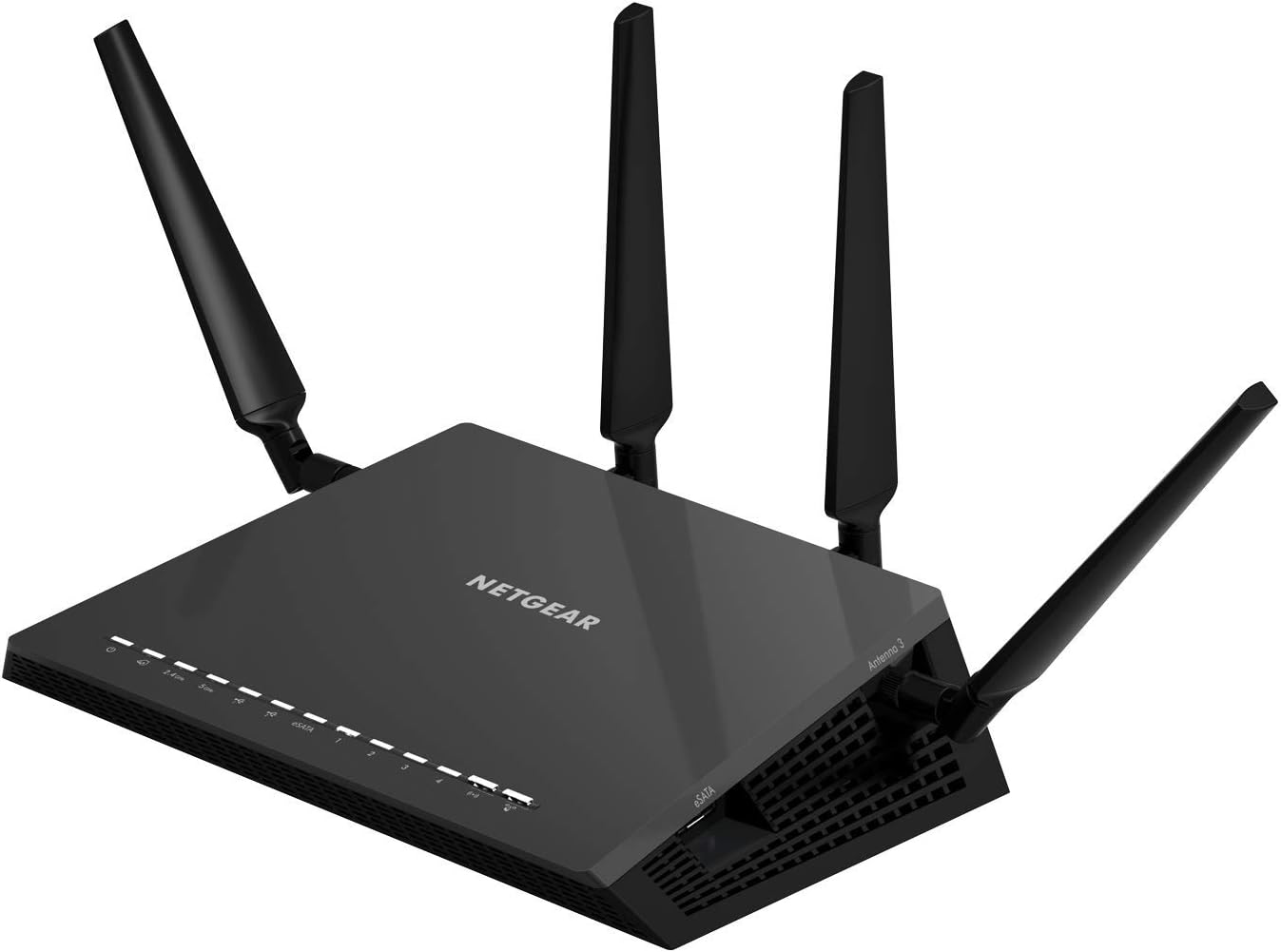
Image: Front and side view of the NETGEAR Nighthawk X4S R7800 router, showing its four external antennas and front panel indicator lights.
Front Panel Indicators:
- Power LED: Indicates power status.
- Internet LED: Indicates internet connection status.
- 2.4 GHz WiFi LED: Indicates 2.4 GHz wireless activity.
- 5 GHz WiFi LED: Indicates 5 GHz wireless activity.
- Ethernet Port LEDs (1-4): Indicate activity on the wired LAN ports.
- USB 3.0 Port LEDs: Indicate activity on the USB ports.
- eSATA Port LED: Indicates activity on the eSATA port.
Rear Panel Ports:
- Internet Port (Yellow): Connects to your modem.
- Ethernet Ports (1-4, Black): Connect wired devices like computers or game consoles.
- USB 3.0 Ports (x2): Connect USB storage devices or printers.
- eSATA Port (x1): Connect eSATA storage devices.
- Power On/Off Button: Turns the router on or off.
- Power Connector: Connects to the power adapter.
- Reset Button: Restores factory default settings (use a paperclip).
4. Setup Instructions
Follow these steps to set up your NETGEAR Nighthawk X4S R7800 router:

Image: A smartphone screen displaying the Nighthawk app with three simple setup steps: plug in Ethernet, app guides setup, connect devices.
- Connect the Router:
- Power off your modem.
- Connect one end of the provided Ethernet cable to the yellow Internet port on your router.
- Connect the other end of the Ethernet cable to your modem's Ethernet port.
- Power on your modem and wait for it to fully boot up (usually indicated by stable lights).
- Connect the power adapter to the router and plug it into a power outlet. Press the Power On/Off button if necessary.
- Wait for the router's Power LED to turn solid white.
- Connect to the Router's WiFi Network:
- On your computer or mobile device, find the WiFi network name (SSID) and password printed on the router's label.
- Connect to this WiFi network.
- Complete Setup using the Nighthawk App or Web Interface:
- Recommended: Download the NETGEAR Nighthawk app from your mobile device's app store. Follow the on-screen instructions to complete the setup.
- Alternatively: Open a web browser on a connected device and go to www.routerlogin.net. Follow the prompts to configure your router.
Once setup is complete, you can customize your WiFi network name and password.
5. Operating Instructions
The Nighthawk X4S R7800 offers various features to enhance your home network experience.

Image: Diagram highlighting additional features of the R7800, including 4 High-Speed Ethernet Ports, 2.0 USB Port, Guest WiFi Access, Secure Remote Access, and Parental Controls.
5.1. WiFi Connections
The router supports dual-band WiFi (2.4 GHz and 5 GHz) for optimal performance. Connect your devices to the appropriate band based on distance and speed requirements. The 5 GHz band offers faster speeds over shorter distances, while the 2.4 GHz band provides better range.

Image: An illustration of a multi-story house showing the router's WiFi coverage extending up to 2500 sq. ft. and supporting up to 45 devices.
5.2. Guest WiFi Access
Create a separate and secure WiFi network for your guests. This allows guests to access the internet without gaining access to your main network resources or connected devices.
- Log in to the router's web interface (www.routerlogin.net).
- Navigate to the Guest Network settings.
- Enable the guest network and configure its name (SSID) and password.
5.3. USB Storage and Printer Sharing
Utilize the two USB 3.0 ports and one eSATA port to connect external storage drives or printers. This allows you to share files across your network or print from any connected device.
- Connect your USB or eSATA storage device to the corresponding port on the router.
- Access the router's web interface to configure ReadySHARE (for storage) or ReadySHARE Printer (for printers).
5.4. Parental Controls
Manage and filter internet content for devices on your network. This feature allows you to block specific websites, set time limits, and pause internet access for individual devices or profiles.

Image: A split image showing 'Secure WiFi Connections' with WPA/WPA2 security and firewall protection, and 'Easy Parental Controls' with options to manage website access, web filtering, and pause WiFi per device.
- Access Parental Controls through the Nighthawk app or the router's web interface.
- Configure rules based on users, devices, or content categories.
5.5. Dynamic QoS
Dynamic Quality of Service (QoS) automatically prioritizes internet traffic for applications and devices, ensuring smoother streaming and gaming experiences by reducing lag and buffering.
5.6. Secure Remote Access
Access your home network and connected devices securely from anywhere using the NETGEAR ReadyCLOUD feature. This allows you to manage files on your USB storage or control your network remotely.
6. Maintenance
6.1. Firmware Updates
Regularly update your router's firmware to ensure optimal performance, security, and access to new features. You can check for updates via the Nighthawk app or the router's web interface under the 'Advanced' settings.
6.2. Factory Reset
If you encounter persistent issues or wish to clear all settings, you can perform a factory reset. With the router powered on, use a paperclip to press and hold the Reset button on the rear panel for about 7-10 seconds until the Power LED blinks. The router will restart with default settings.
7. Troubleshooting
This section addresses common issues you might encounter with your Nighthawk X4S R7800 router.
- No Internet Connection:
- Check if the Internet LED on the router is solid white. If not, ensure the Ethernet cable from the modem is securely connected to the yellow Internet port.
- Restart your modem and then your router.
- Verify your internet service provider (ISP) connection is active.
- Slow WiFi Speed:
- Ensure your devices are connected to the 5 GHz band for faster speeds, especially for close-range connections.
- Reduce interference by moving the router away from other electronic devices.
- Check for firmware updates.
- Consider the number of devices and usage patterns. The router supports up to 45 devices for optimal performance.
- Cannot Connect to WiFi:
- Double-check the WiFi network name (SSID) and password.
- Ensure WiFi is enabled on your device and the router.
- Try restarting the router.
8. Specifications
Below are the technical specifications for the NETGEAR Nighthawk X4S AC2600 Smart WiFi Router (R7800).
| Feature | Specification |
|---|---|
| Model Name | R7800 |
| Wireless Type | 802.11ac |
| Frequency Band Class | Dual-Band (2.4 GHz & 5 GHz) |
| Wireless Speed | AC2600 (up to 800 Mbps on 2.4 GHz + 1733 Mbps on 5 GHz) |
| Processor | 1.7 GHz Dual-Core Processor |
| Ethernet Ports | 4 x 1 Gigabit Ethernet LAN Ports |
| USB Ports | 2 x USB 3.0 Ports |
| eSATA Port | 1 x eSATA Port |
| Dimensions (LxWxH) | 11.22 x 7.26 x 1.97 inches |
| Item Weight | 3.5 pounds |
| Operating System Compatibility | Microsoft Windows 7, 8, 10, Vista, XP, 2000, Mac OS, UNIX, or Linux |
| Recommended Uses | Gaming, Home |

Image: A table showing recommended usage scenarios for the router, including for 3 BHK or up to 1800 sqft (up to 15 devices) for very heavy usage like audio/HD video streaming, heavy gaming, work from home, heavy downloads, and connected smart home devices.
9. Warranty and Support
For detailed warranty information, technical support, and additional resources, please visit the official NETGEAR support website. You can find FAQs, troubleshooting guides, and contact information for customer service.
NETGEAR Support Website: www.netgear.com/support/


