
Introduction
Thank you for purchasing the iMounTEK Multi-Functional Laptop Table. This manual provides detailed instructions for the setup, operation, maintenance, and troubleshooting of your new laptop table. Please read this manual thoroughly before use to ensure proper function and longevity of the product. Keep this manual for future reference.
Product Overview
The iMounTEK Multi-Functional Laptop Table is designed for versatile use, offering a comfortable and ergonomic workspace. Key features include an adjustable laptop stand, an integrated cooling fan, an LED desk lamp, a 4-port USB hub, and independent trays for a mouse or other accessories.

Figure 1: Overview of the iMounTEK Multi-Functional Laptop Table, highlighting its various features and usage scenarios.
Components:
- Adjustable Laptop Stand
- Integrated Cooling Fan
- LED Desk Lamp (Triple LED)
- 4-Port USB 2.0 Hub
- Independent Mouse Pad Tray
- Adjustable Height Legs
- Two Loose-Leaf Baffles (for securing laptop/book)
- Pen Compartment
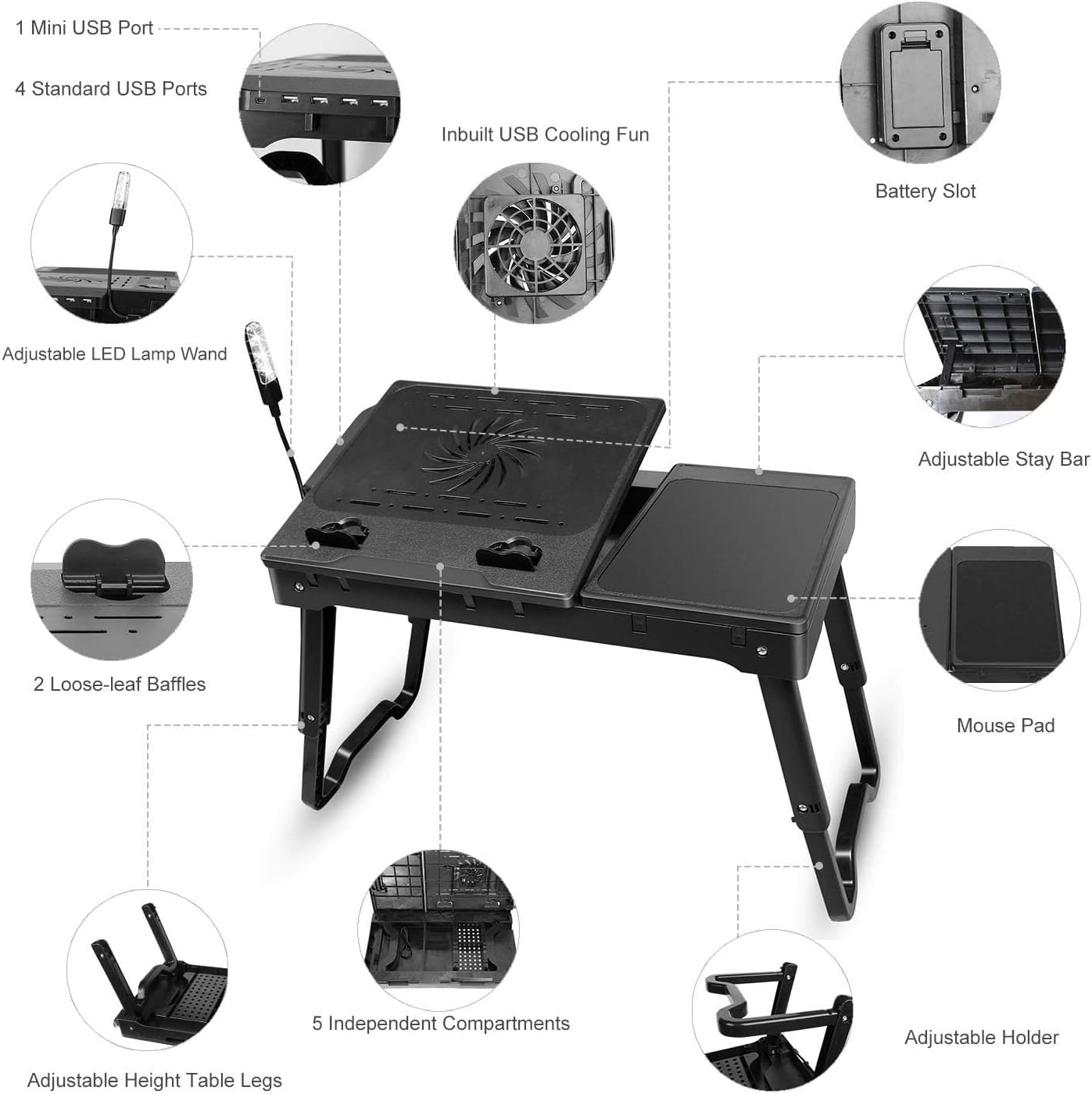
Figure 2: Labeled diagram illustrating the main components of the laptop table.
Setup
- Unfold the Legs: Gently pull the foldable legs outwards until they lock into position. The legs can be adjusted for height.
- Adjust Height: Press the release buttons on the side of each leg to extend or retract them to your desired height. Ensure both legs are set to the same height for stability.
- Position the Laptop Stand: The main laptop surface can be tilted. Lift the front edge of the laptop stand and adjust it to your preferred viewing angle. Secure it using the adjustable stay bar.
- Attach Baffles: Place the two loose-leaf baffles into the designated slots at the bottom edge of the tilted laptop stand to prevent your laptop or book from sliding off.
- Connect USB Power: Connect the table's USB cable to a power source (e.g., your laptop's USB port or a USB wall adapter) to power the cooling fan, LED lamp, and USB hub.
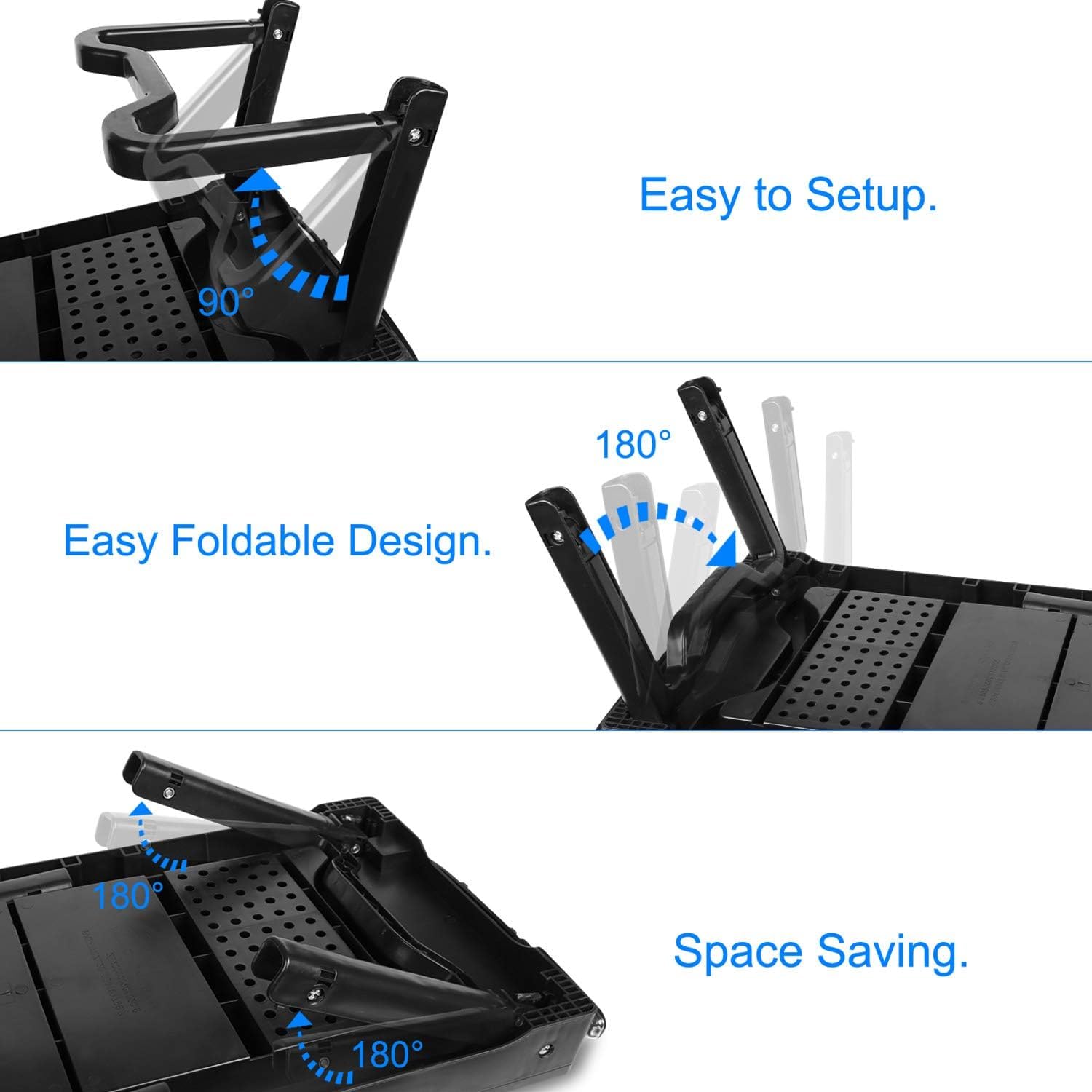
Figure 3: Illustration of the easy setup and folding mechanism of the table legs.
Operating Instructions
1. Using the Adjustable Laptop Stand
The main surface for your laptop can be adjusted to various angles for ergonomic viewing. Lift the front edge of the platform and use the support bar to select your desired tilt. Ensure the baffles are in place to secure your device.
2. Cooling Fan Operation
The integrated cooling fan helps dissipate heat from your laptop, preventing overheating and extending its lifespan. Once the table is connected to a USB power source, the fan will operate automatically. Ensure the fan vents are not obstructed.
3. LED Desk Lamp
The triple LED desk lamp provides focused illumination for reading or working in low-light conditions. The lamp wand is flexible and can be adjusted to direct light where needed. Connect the table to a USB power source for the lamp to function.
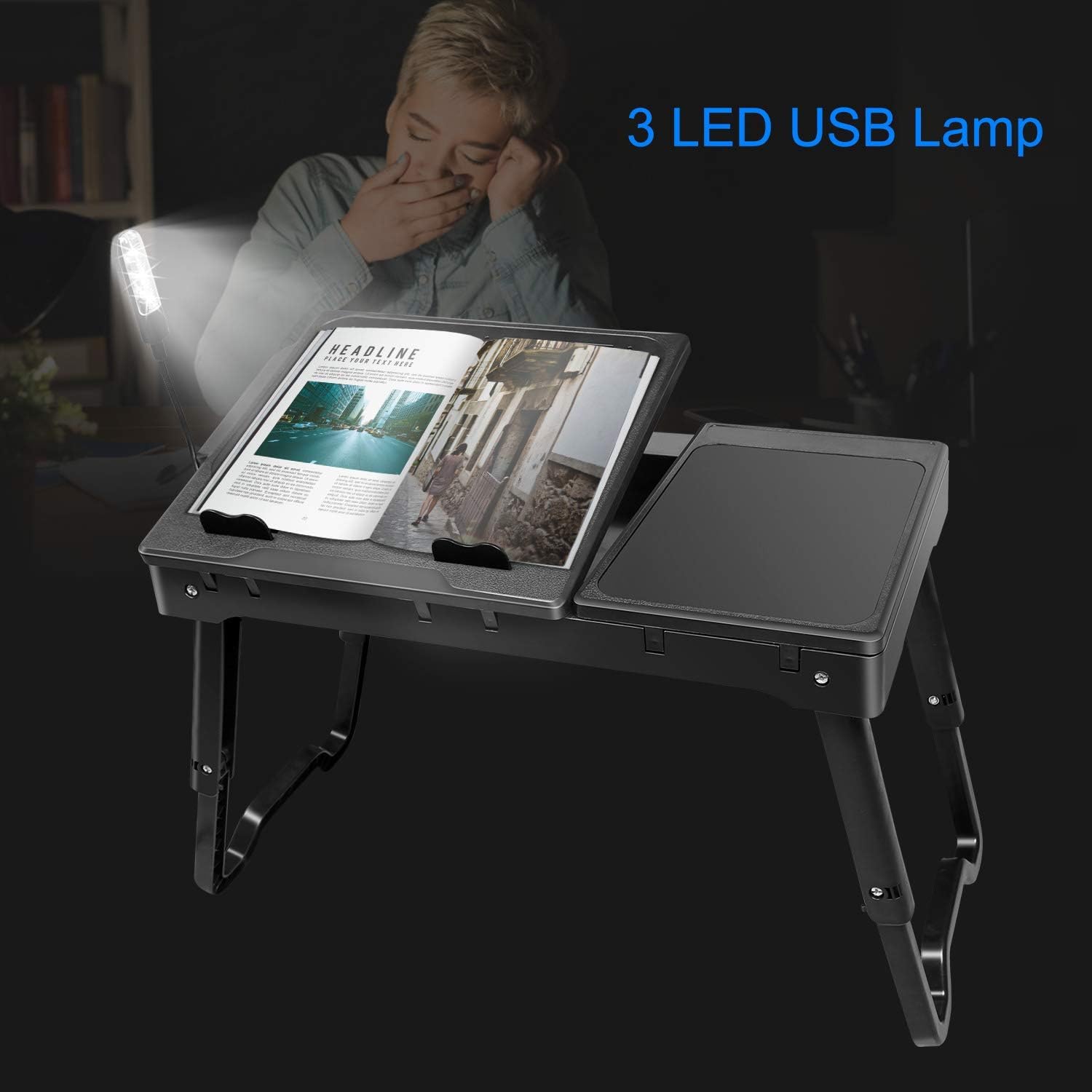
Figure 4: The LED desk lamp providing illumination for reading.
4. 4-Port USB Hub
The built-in 4-port USB 2.0 hub allows you to connect multiple USB devices (e.g., mouse, keyboard, external drive) to your laptop through a single connection from the table. Ensure the table is powered via its USB cable.
5. Independent Trays
The table features two independent trays. The larger tray is for your laptop, and the smaller, fixed tray serves as a mouse pad or a space for other small items. The loose-leaf baffles can be flattened when not needed, allowing the surface to be used for activities like eating, reading, or writing.
Maintenance
- Cleaning: Wipe the table surfaces with a soft, damp cloth. Avoid abrasive cleaners or solvents that may damage the plastic.
- Storage: When not in use, fold the legs flat for compact storage. Store in a cool, dry place away from direct sunlight.
- Fan Care: Periodically check the cooling fan for dust accumulation. Use compressed air to gently clean the fan blades and vents if necessary.
- USB Ports: Keep USB ports free from dust and debris.
Troubleshooting
- Problem: Cooling fan or LED lamp is not working.
- Solution: Ensure the table's USB cable is securely connected to a powered USB port on your laptop or a wall adapter. Check if the power source is active.
- Problem: Laptop slides off the tilted surface.
- Solution: Ensure the two loose-leaf baffles are correctly inserted into the slots at the bottom edge of the laptop stand to secure your device.
- Problem: Table feels unstable.
- Solution: Verify that both legs are fully extended and locked into position at the same height. Ensure the table is placed on a flat, stable surface.
Specifications
| Feature | Detail |
|---|---|
| Brand | iMounTEK |
| Model | B018WNXPEE |
| Material | Plastic |
| Product Dimensions (Folded) | 11.81"D x 20.87"W x 2.56"H (Approx. 30cm D x 53cm W x 6.5cm H) |
| Special Feature | Adjustable Height & Angle, Foldable, Integrated Cooling Fan, LED Lamp, USB Hub |
| USB Ports | 4 x USB 2.0 |
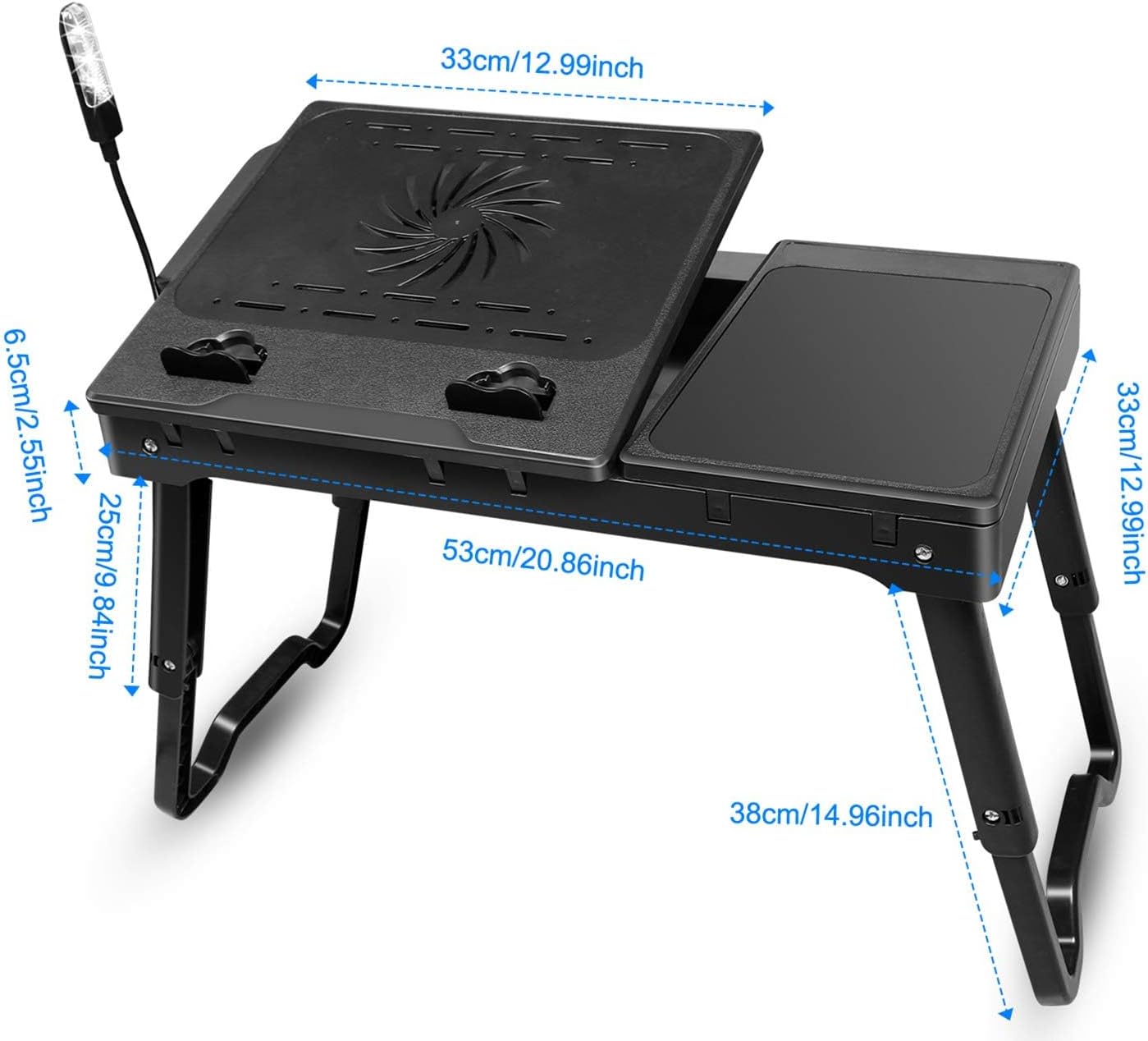
Figure 5: Detailed dimensions of the iMounTEK Multi-Functional Laptop Table.
Safety Information
- Do not overload the table beyond its intended capacity.
- Ensure the table is placed on a stable, level surface to prevent tipping.
- Keep liquids away from the electronic components (cooling fan, USB hub, LED lamp).
- Do not attempt to disassemble or modify the product.
- Keep out of reach of small children.
Warranty and Support
For warranty information or customer support, please refer to the contact details provided with your purchase or visit the official iMounTEK website. Please have your model number (B018WNXPEE) and purchase date available when contacting support.
Note: The manufacturer reserves the right to make changes to product design and specifications without prior notice.