Introduction
This manual provides essential information for the proper setup, operation, and maintenance of your Lenovo 4XD0K25030 Stereo Analog Headset. Please read these instructions carefully before using the product to ensure optimal performance and longevity.
Product Overview
Key Features
- Dual Connectivity: Supports both Bluetooth wireless and 3.5mm wired connections for versatile use.
- Stereo Audio Output: Delivers immersive stereo sound for various audio experiences.
- Lightweight Design: Constructed for comfortable wear over extended periods.
- Integrated Microphone: Features a boom microphone for clear voice communication.
- In-line Controls: Equipped with media control buttons for easy audio management.
What's in the Box
- Lenovo 4XD0K25030 Stereo Analog Headset
- Audio Cable (3.5mm)

Figure 1: Front view of the Lenovo 4XD0K25030 Stereo Analog Headset.

Figure 2: Side view of the headset, showing the adjustable headband and microphone arm.
Product Video
Video 1: An overview of the Lenovo Stereo Analog Headset, highlighting its features and design.
Setup
Wired Connection (3.5mm Jack)
- Locate the 3.5mm audio jack on your computer, music player, or telephone.
- Insert the 3.5mm connector of the headset cable firmly into the audio jack.
- Adjust the headset for a comfortable fit.
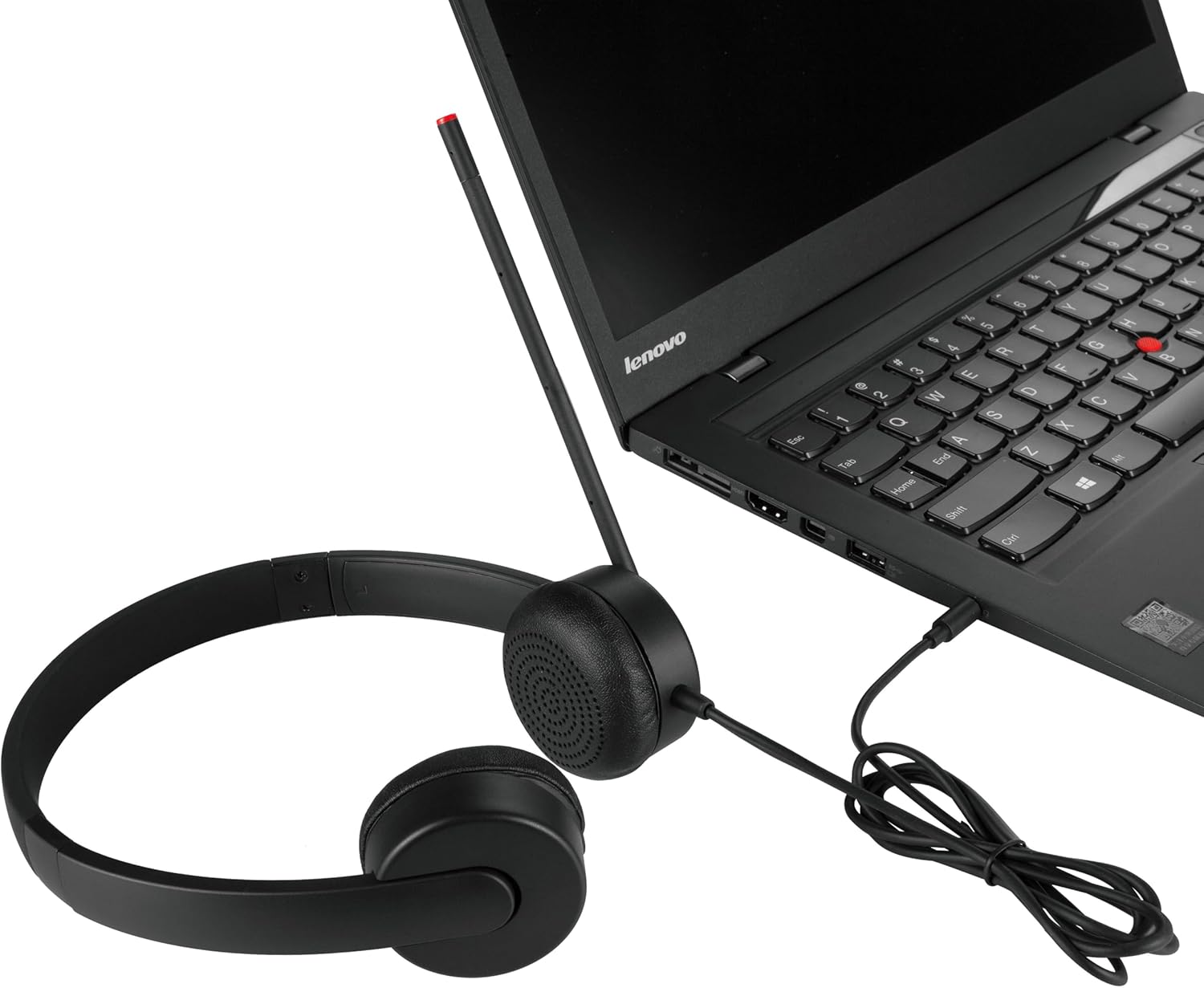
Figure 3: Headset connected to a laptop via the 3.5mm audio jack.
Bluetooth Wireless Connection
- Ensure the headset is charged (if applicable, though this model is primarily wired with Bluetooth support).
- Turn on the headset's Bluetooth function (refer to the headset's specific power/pairing button if available, as detailed instructions are not provided in product data).
- On your device (computer, smartphone), navigate to Bluetooth settings.
- Enable Bluetooth and search for available devices.
- Select "Lenovo 4XD0K25030" or a similar name from the list of found devices to pair.
- Once paired, the headset will connect automatically when in range and Bluetooth is enabled on both devices.
Operating Instructions
Audio Playback
- Connect the headset to your audio source using either the 3.5mm cable or Bluetooth.
- Start playing audio from your device.
- Adjust the volume using the in-line media controls on the headset or your connected device.
Microphone Usage
- Position the microphone boom appropriately near your mouth for clear voice capture.
- Ensure the microphone is not muted (if an in-line mute function is present).
- For optimal performance, ensure your device's audio settings recognize the headset's microphone as the input source.
In-line Controls
The headset features in-line media controls. Specific functions may vary slightly depending on the connected device and operating system, but typically include:
- Volume Up/Down: Adjusts audio output level.
- Play/Pause: Controls media playback.
- Track Skip: Skips to the next or previous track.
- Call Answer/End: Manages phone calls.
Maintenance
- Cleaning: Use a soft, dry cloth to clean the headset. Avoid using harsh chemicals or abrasive materials.
- Storage: Store the headset in a cool, dry place away from direct sunlight and extreme temperatures.
- Cable Care: Avoid sharp bends or excessive pulling on the cable to prevent damage.
- Ear Cushions: Periodically check ear cushions for wear and tear.
Troubleshooting
No Sound
- Check Connection: Ensure the 3.5mm cable is fully inserted or Bluetooth is properly paired.
- Volume Levels: Verify that the volume on both the headset and the connected device is turned up and not muted.
- Audio Output Settings: Confirm that the headset is selected as the default audio output device in your computer or device settings.
- Test with Another Device: Try connecting the headset to a different device to rule out an issue with the original audio source.
Microphone Not Working
- Microphone Position: Ensure the microphone boom is correctly positioned.
- Mute Function: Check if the microphone is muted via an in-line control or software setting on your device.
- Audio Input Settings: Confirm that the headset's microphone is selected as the default audio input device in your computer or device settings.
- Application Settings: Some applications (e.g., video conferencing software) have their own microphone settings; check these as well.
Bluetooth Pairing Issues
- Headset in Pairing Mode: Ensure the headset is in discoverable pairing mode.
- Device Bluetooth On: Verify that Bluetooth is enabled on your device.
- Distance: Make sure the headset is within the effective range of your Bluetooth device.
- Interference: Move away from other wireless devices that might cause interference.
- Forget Device: On your device, try forgetting the headset from the Bluetooth list and then re-pairing.
Specifications
| Brand | Lenovo |
| Model Number | 4XD0K25030 |
| Connectivity Technology | Wired, Bluetooth |
| Headphones Jack | 3.5 mm Jack |
| Ear Placement | Over Ear |
| Item Weight | 8 ounces (approximately 227 grams) |
| Product Dimensions | 7.09 x 7.28 x 2.17 inches |
| Material | Leather (ear cushions) |
| Control Type | Media Control, Remote |
| Compatible Devices | Computers, Music Players, Telephones |
| Special Feature | Lightweight |
Warranty and Support
For warranty information and technical support, please refer to the documentation included with your purchase or visit the official Lenovo support website. You can typically find support resources, FAQs, and contact information for customer service there.
Lenovo Support Website: support.lenovo.com


