
TP-Link Archer C1900
TP-Link AC1900 High Power Wireless Wi-Fi Gigabit Router User Manual
Model: Archer C1900
Introduction
The TP-Link Archer C1900 is a high-power wireless Wi-Fi Gigabit router designed to provide a reliable and blazing-fast network experience. Utilizing 802.11ac technology and dual-band capabilities, it offers superior Wi-Fi coverage, making it ideal for demanding applications such as 4K Ultra HD video streaming and online gaming. Its advanced features, including dual USB ports for file sharing and beamforming technology, enhance connectivity and network performance.
Package Contents
Verify that all items are present in your package:
- AC1900 High Power Wireless Dual Band Gigabit Router Archer C1900
- 3 detachable antennas
- Power supply unit
- Resource CD
- Ethernet Cable
- Quick Installation Guide
Product Overview
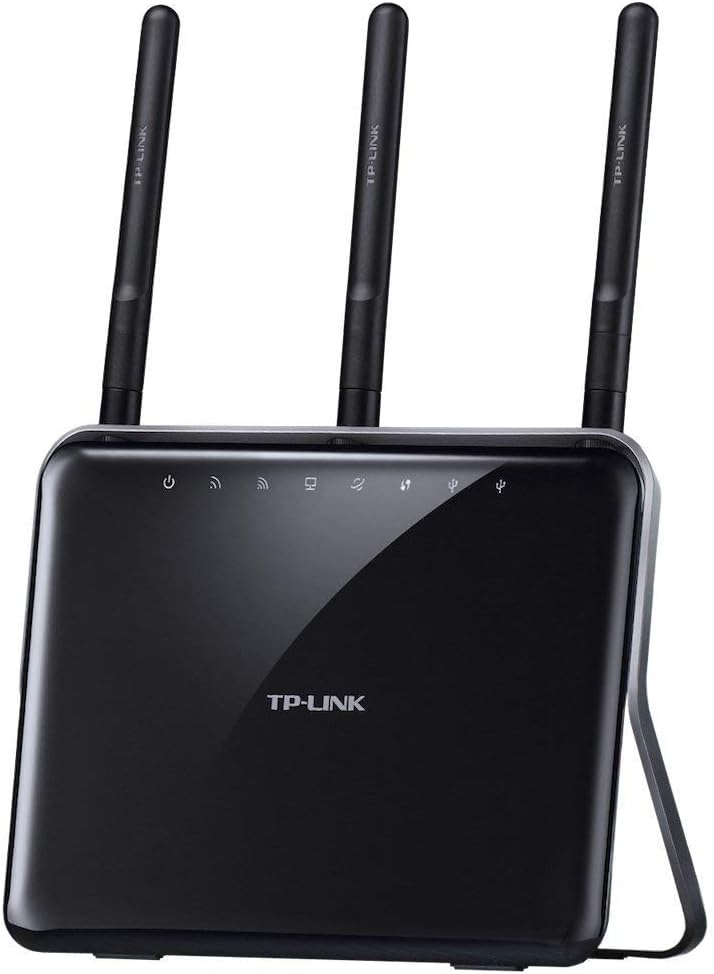
Figure 1: Front View of Archer C1900 Router. Shows the power, internet, Wi-Fi, and USB indicator lights.
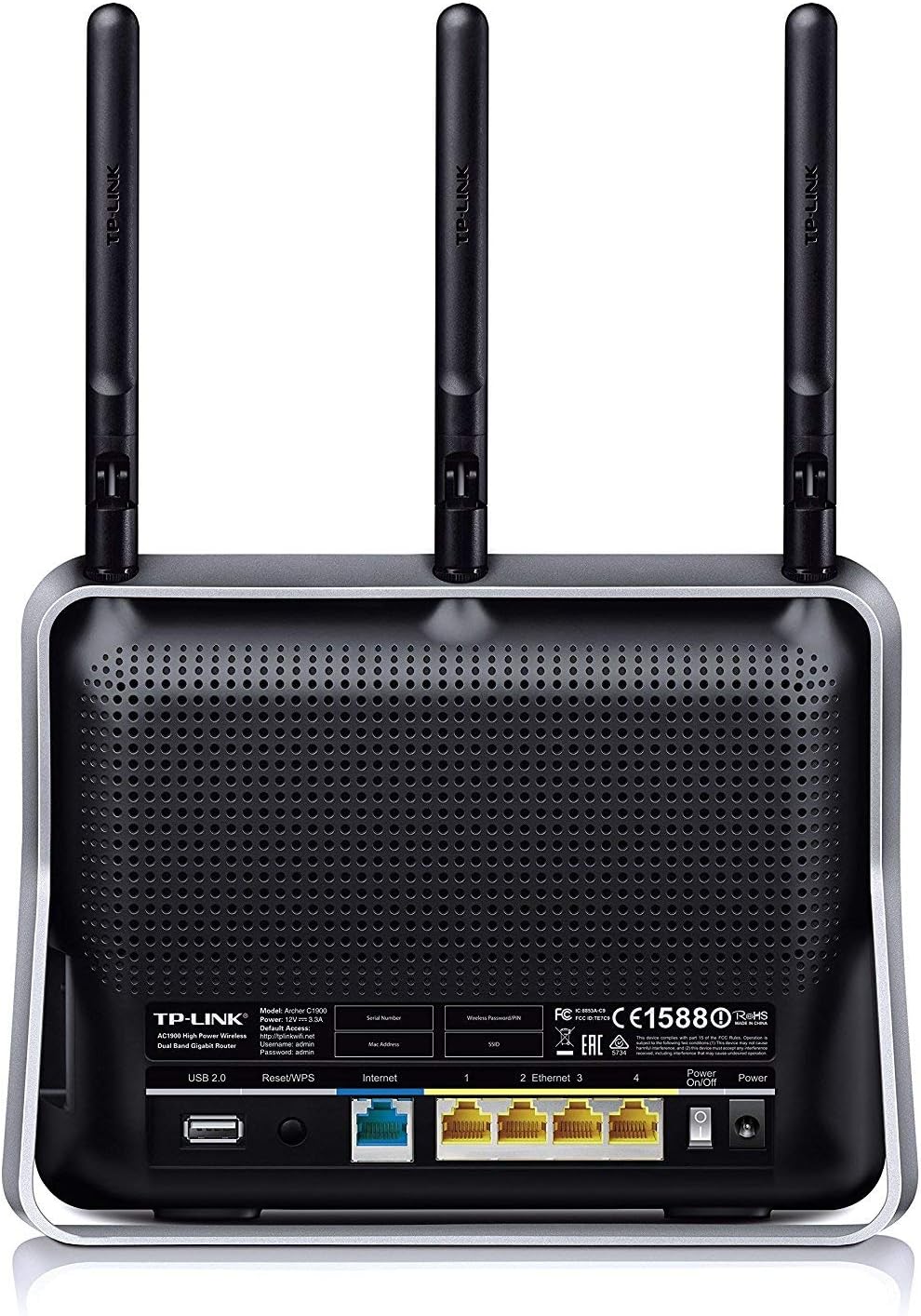
Figure 2: Rear View of Archer C1900 Router. Displays USB 2.0 port, Reset/WPS button, Internet (WAN) port, four Ethernet (LAN) ports, Power On/Off button, and Power input.
Key Features
- Game online and stream 4K video with 1900Mbps of total available bandwidth.
- Simultaneous WiFi dual band networks with 2.4GHz (600Mbps) and 5GHz (1300Mbps).
- Supercharge your WiFi coverage thanks to three dual band antennas with 900mW high powered amplifiers.
- 1GHz dual core Processor handles simultaneous wired and wireless connections without interruption.
- Lightning fast wired connections using four Gigabit Ethernet ports.
- Dual USB ports (1x USB 3.0 + 1x USB 2.0) for easy file sharing.
- Beamforming technology for strengthened connections to Wi-Fi devices.
Setup Guide
1. Hardware Connection
- Power Off: Disconnect the power from your modem and router (if applicable).
- Connect Antennas: Screw the three detachable antennas firmly into the connectors on the back of the router.
- Connect Modem: Connect your modem's Ethernet cable to the Internet (WAN) port on the Archer C1900 router.
- Connect Power: Connect the power adapter to the router's power input and plug it into a power outlet. Press the Power On/Off button if necessary.
- Power On: Power on your modem first, then wait for it to fully boot up (usually indicated by stable lights). Then, power on the Archer C1900 router.
- Verify LEDs: Check the LED indicators on the front of the router. The Power, Internet, 2.4GHz Wi-Fi, and 5GHz Wi-Fi LEDs should be solid, indicating a successful connection.
2. Network Configuration
You can configure the router via a wired or wireless connection.
Wired Connection:
- Connect your computer to one of the Ethernet (LAN) ports on the router using an Ethernet cable.
Wireless Connection:
- Locate the Wi-Fi Network Name (SSID) and Wireless Password/PIN printed on the label at the bottom of the router.
- On your wireless device (laptop, smartphone, tablet), select the appropriate SSID (e.g., TP-Link_XXXX or TP-Link_XXXX_5G) and enter the Wireless Password/PIN to connect.
3. Quick Setup via Web Browser
- Open a web browser (e.g., Chrome, Firefox, Edge).
- In the address bar, type
http://tplinkwifi.netor192.168.0.1and press Enter. - A login window will appear. The default username and password are
admin(all lowercase). - Follow the on-screen Quick Setup Wizard to configure your Internet connection and wireless settings. It is highly recommended to change the default login password for security.
Operating Instructions
Wireless Network Usage
The Archer C1900 operates on both 2.4GHz and 5GHz bands simultaneously. The 2.4GHz band is suitable for general internet use like web browsing and email, offering wider coverage. The 5GHz band provides faster speeds and is ideal for bandwidth-intensive activities such as online gaming and HD video streaming, with less interference.
Connecting Devices:
- On your device, search for available Wi-Fi networks.
- Select the SSID corresponding to the desired band (e.g., "TP-Link_XXXX" for 2.4GHz or "TP-Link_XXXX_5G" for 5GHz).
- Enter the wireless password you configured during setup.
USB Sharing Features
The router features one USB 3.0 port and one USB 2.0 port, allowing you to share files, media, and even a printer across your network.
Storage Sharing:
- Plug a USB storage device (e.g., flash drive, external hard drive) into either USB port.
- Access the router's web management interface (
http://tplinkwifi.net). - Navigate to the USB Sharing settings to configure access permissions and sharing methods (e.g., Samba/Windows Sharing, FTP Server).
Printer Sharing:
- Connect a compatible USB printer to one of the USB ports.
- Install the TP-Link USB Printer Controller Utility on your computers to enable network printing. Refer to the Resource CD or TP-Link's official website for the utility.
Advanced Settings
The web management interface provides access to advanced settings for network customization, including:
- Parental Controls: Manage and restrict internet access for specific devices.
- Guest Network: Create a separate Wi-Fi network for guests, keeping your main network secure.
- QoS (Quality of Service): Prioritize network traffic for specific applications or devices (e.g., gaming, video streaming).
- Security Settings: Configure firewall, access control, and VPN server settings.
- Firmware Upgrade: Keep your router's software up-to-date for optimal performance and security.
Maintenance
Regular maintenance helps ensure the longevity and optimal performance of your Archer C1900 router.
- Firmware Updates: Periodically check the TP-Link official website for the latest firmware updates. Updating firmware can improve performance, add new features, and fix security vulnerabilities.
- Rebooting: If you experience network slowdowns or connectivity issues, try rebooting the router by unplugging the power adapter for 10 seconds and then plugging it back in.
- Physical Cleaning: Keep the router in a clean, dust-free environment. Gently wipe the exterior with a soft, dry cloth. Ensure ventilation holes are not obstructed.
- Optimal Placement: Place the router in a central location, away from obstructions, large metal objects, and devices that emit strong electromagnetic interference (e.g., microwaves, cordless phones) to maximize Wi-Fi coverage.
- Password Security: Regularly change your Wi-Fi password and router login password to strong, unique combinations.
Troubleshooting
This section provides solutions to common issues you might encounter.
No Internet Access
- Check Connections: Ensure all cables are securely connected to the correct ports (Ethernet cable from modem to router's WAN port, power cables).
- Modem Status: Verify that your modem is working correctly and has an active internet connection.
- Reboot Devices: Power cycle your modem, then the router, and then your computer/device.
- Router LEDs: Check the Internet LED on the router. If it's off or red, there might be an issue with your ISP connection or modem.
- Clone MAC Address: Some ISPs require MAC address cloning. Access the router's web management interface and look for MAC Clone settings under Network > Internet.
Poor Wi-Fi Signal or Dropped Connections
- Router Placement: Move the router to a central location, away from obstacles and interference sources (e.g., microwaves, large metal objects).
- Antenna Orientation: Adjust the antennas for optimal signal strength.
- Channel Interference: In the router's wireless settings, try changing the Wi-Fi channel (e.g., 1, 6, or 11 for 2.4GHz; 36, 40, 44, 48 for 5GHz) to avoid interference from neighboring networks.
- Firmware Update: Ensure your router's firmware is up to date.
- Beamforming: Verify that Beamforming is enabled in the wireless settings, as it helps focus the Wi-Fi signal towards connected devices.
Cannot Access Router's Web Management Page
- Correct Address: Ensure you are typing
http://tplinkwifi.netor192.168.0.1correctly in the browser's address bar. - IP Settings: Ensure your computer is set to obtain an IP address automatically (DHCP).
- Firewall/Antivirus: Temporarily disable any firewall or antivirus software on your computer that might be blocking access.
- Reset Router: If you forgot the login password, perform a factory reset by pressing and holding the Reset/WPS button on the back of the router for about 10 seconds until the LEDs flash. This will revert all settings to factory defaults, including the login credentials (admin/admin).
Technical Specifications
| Feature | Detail |
|---|---|
| Wireless Standards | IEEE 802.11ac/n/a 5GHz, IEEE 802.11b/g/n 2.4GHz |
| Wireless Type | 802.11ac |
| Frequency | 2.4GHz and 5GHz (Dual-Band) |
| Data Rates | Up to 600Mbps (2.4GHz), Up to 1300Mbps (5GHz) |
| Processor | 1GHz Dual Core Processor |
| Antennas | 3x High Powered Dual Band External Antennas |
| Ethernet Ports | 4x 10/100/1000Mbps LAN Ports, 1x 10/100/1000Mbps WAN Port |
| USB Ports | 1x USB 3.0 Port, 1x USB 2.0 Port |
| Dimensions (LxWxH) | 3.4 x 8.7 x 6.6 inches |
| Weight | 2.75 pounds |
| Operating System Support | Microsoft Windows 98SE, NT, 2000, XP, Vista, Windows 7, Windows 8/8.1/10, MAC OS, NetWare, UNIX or Linux |
| Protocols Supported | IPv4 and IPv6 |
| Special Features | Beamforming, WPS |
Warranty and Support
Warranty Information
The TP-Link Archer C1900 router comes with an industry-leading 2-year warranty from the date of purchase. This warranty covers defects in materials and workmanship under normal use. Please retain your proof of purchase for warranty claims.
Technical Support
TP-Link provides 24/7 premium technical support for this product. For assistance with setup, configuration, troubleshooting, or any other inquiries, please contact TP-Link support through their official website or the contact information provided in the Quick Installation Guide.
You can also find additional resources, FAQs, and the latest drivers/firmware on the official TP-Link support website.
For the full user manual in PDF format, please refer to: TP-Link Archer C1900 User Manual (PDF)
Legal Disclaimer
Maximum wireless transmission rates are the physical rates derived from IEEE Standard 802.11 specifications. Range and coverage specifications along with the number of connected devices were defined according to test results under normal usage conditions. Actual wireless transmission rate, wireless coverage, and number of connected devices are not guaranteed, and will vary as a result of 1) environmental factors, including building materials, physical objects and obstacles, 2) network conditions, including local interference, volume and density of traffic, product location, network complexity, and network overhead and 3) client limitations, including rated performance, location, connection quality, and client condition. As compared to warranty duration and tech support services that other leading networking and consumer electronics companies provide.
Related documentsArcher C1900


Ask a question about this manual
Ask about setup, troubleshooting, compatibility, parts, safety, or missing instructions. Manuals+ will review the question and use this page’s manual context to help answer it.