
1. Product Overview
The Parrot Bebop 2 is a second-generation quadcopter drone designed for enhanced flight performance and high-quality aerial photography. It features a durable design, extended flight time, and advanced camera capabilities. When paired with the Black Skycontroller, it offers an extended range and precise control for an immersive flying experience.
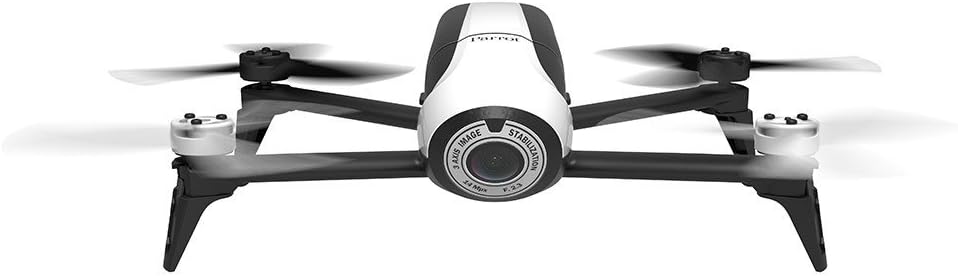
Image 1.1: Parrot Bebop 2 drone and Skycontroller in its retail packaging.
Key Features:
- Enhanced 14 Megapixel Fish-Eye Lens: Offers 1080p video recording and high-quality image capture.
- Extended Flight Time: Up to 25 minutes of flight thanks to a powerful 2700 mAh battery.
- Powerful Motors and Rear Flash LED: Designed for stable flight at various altitudes and improved visibility.
- Parrot Skycontroller: Connects to your phone or tablet, providing two joysticks for easy piloting and a Wi-Fi extender for increased range up to 1.25 miles.
- 3-Axis Digital Stabilization: Ensures a fixed angle of view regardless of flight conditions.
2. What's in the Box
Your Parrot Bebop 2 + Black Skycontroller package includes the following components:
- 1 x Parrot Bebop 2 Drone
- 1 x Black Skycontroller
- 2 x Batteries (for drone)
- 1 x USB Cable
- 8 x Propellers (4 installed, 4 spares)
- 1 x Propeller Assembly Tool
- 1 x Charger with Cable and Universal Adapters
- 1 x Neckstrap (for Skycontroller)
- 1 x Adapter for iPad Mini
- 1 x Adapter for 7-inch Tablets
- 1 x Sunshade Cover (for tablet/smartphone)
- 2 x Quick Start Guides
3. Setup Guide
This section provides step-by-step instructions for setting up your Parrot Bebop 2 drone for its first flight. For a visual guide, please refer to the official setup video below.
Video 3.1: Official Parrot Bebop 2 Setup Tutorial. This video demonstrates propeller installation, battery insertion, app download, Wi-Fi connection, firmware update, and magnetometer calibration.
3.1. Propeller Installation
- Carefully place each propeller onto its corresponding motor.
- Ensure that the polarized propellers are correctly matched to their motors (white propellers on white motor caps, black propellers on black motor caps).
- Use the supplied mounting tool to securely lock the propellers in place.
3.2. Battery Insertion
- Insert the charged battery into the drone's battery compartment.
- Slide the battery forward until it latches securely into place. You should hear a distinct clicking sound.
3.3. Powering On the Drone
- Press the on/off button located on the back of the Bebop 2 drone. The LED indicator will illuminate.
3.4. App Download and Connection
- Download the FreeFlight 3 app from your tablet or smartphone's app store.
- Go to your device's settings and activate Wi-Fi.
- Select the Wi-Fi network corresponding to your Bebop 2 drone (e.g., "Bebop2-I000371").
- Launch the FreeFlight 3 app. The app will connect to your drone.
3.5. Firmware Update
- Upon connecting, the app will check for firmware updates. Ensure your Bebop 2 is running the latest firmware.
- If an update is available, follow the on-screen instructions within the app to download and install it.
- After the update, you will be prompted to restart your drone. The reboot process typically takes about two minutes.
3.6. Magnetometer Calibration
- Before the first flight, especially outdoors, you will need to calibrate the drone's magnetometer.
- Follow the visual instructions provided by the FreeFlight 3 app, rotating the drone along its Z, Y, and X axes as indicated.
3.7. FAA Registration
Please note that the Parrot Bebop 2 requires registration with the FAA (Federal Aviation Administration) for outdoor flight in the United States. Visit the FAA website for more information on how to register your drone and comply with local regulations.
4. Operation
Once setup is complete, you are ready to operate your Parrot Bebop 2 drone. The FreeFlight 3 app provides intuitive controls for flight and camera functions.

Image 4.1: The Parrot Bebop 2 drone in flight.
4.1. Basic Flight Controls
- Take-off/Landing: Use the dedicated 'Take Off' and 'Landing' buttons within the FreeFlight 3 app.
- Directional Control: Use the virtual joysticks on your tablet/smartphone screen or the physical joysticks on the Skycontroller to control the drone's movement (forward, backward, left, right).
- Altitude Control: Adjust the altitude using the vertical control on the app or Skycontroller.
- Stability: The drone's advanced stabilization system helps maintain steady flight.
4.2. Camera Operation
- Video Recording: Initiate 1080p video recording directly from the FreeFlight 3 app interface.
- Photo Capture: Capture 14-megapixel still images during flight.
- Field of View: The 186° fish-eye lens provides a wide perspective.
- Live Streaming: View live video feed from the drone on your connected device.
4.3. Skycontroller Usage
The Black Skycontroller enhances the flight experience by providing physical controls and extending the Wi-Fi range.
- Extended Range: The Skycontroller acts as a Wi-Fi extender, significantly increasing the drone's operational range.
- Precise Control: Physical joysticks offer more tactile and precise control compared to touch-screen controls.
- Device Mounting: Use the provided adapters to securely mount your tablet or smartphone to the Skycontroller for FPV (First Person View) flying.
5. Maintenance
Regular maintenance ensures the longevity and optimal performance of your Parrot Bebop 2 drone.
- Battery Care: Always use the official charger. Store batteries in a cool, dry place and avoid overcharging or fully discharging them.
- Propeller Inspection: Regularly check propellers for any signs of damage (cracks, bends, chips). Replace damaged propellers immediately using the propeller assembly tool.
- Cleaning: Gently clean the drone's body and camera lens with a soft, dry cloth. Avoid using harsh chemicals or abrasive materials.
- Software Updates: Keep the FreeFlight 3 app and drone firmware updated to ensure access to the latest features and performance improvements.
6. Troubleshooting
If you encounter issues with your Parrot Bebop 2, refer to the following common troubleshooting tips:
- Connection Issues: Ensure both the drone and your controlling device (tablet/smartphone) have Wi-Fi enabled and are connected to the correct drone network. Try restarting both devices.
- Drone Not Responding: Check battery levels on both the drone and Skycontroller. Ensure all propellers are securely attached.
- Poor Video Quality: Clean the camera lens. Ensure you are flying in good lighting conditions. Check for firmware updates.
- Unstable Flight: Perform a magnetometer calibration. Ensure propellers are not damaged and are correctly installed.
- App Crashes: Ensure your FreeFlight 3 app is updated. Try clearing the app's cache or reinstalling it.
7. Specifications
Detailed technical specifications for the Parrot Bebop 2 drone:
| Feature | Specification |
|---|---|
| Brand | Parrot |
| Model Name | Bebop 2 |
| Model Number | PF726103 |
| Color | White / Black |
| Material | Plastic |
| Item Weight | 1.1 Pounds |
| Video Capture Resolution | 1080p |
| Effective Still Resolution | 14 Megapixels |
| Optical Sensor Technology | CMOS |
| Connectivity Technology | Wi-Fi |
| Remote Control Technology | Wi-Fi |
| Control Type | Remote Control (Skycontroller) |
| Maximum Range | 1.25 Miles (with Skycontroller) |
| Battery Capacity | 2700 Milliamp Hours |
| Battery Cell Composition | Lithium Ion |
| Media Type | Micro SDHC |
8. Warranty and Support
8.1. Warranty Information
The Parrot Bebop 2 drone comes with a one-year manufacturer's warranty. This warranty covers defects in materials and workmanship under normal use. Please retain your proof of purchase for warranty claims.
8.2. Customer Support
For further assistance, technical support, or to inquire about replacement parts, please visit the official Parrot support website or contact their customer service. Detailed contact information can typically be found on the Parrot website or in the quick start guides included with your product.


