1. Introduction
The Lenovo ThinkPad P50 20EN0013US is a powerful 15.6-inch mobile workstation designed for demanding professional tasks. It features robust hardware, including an Intel Core i7-6700HQ processor, NVIDIA Quadro M1000M dedicated graphics, and a durable chassis. This manual provides essential information to help you get started and make the most of your device.

Figure 1: Front view of the Lenovo ThinkPad P50 laptop with its screen displaying a graphical map.
2. Initial Setup
2.1 Unpacking and Connecting Power
Carefully remove the laptop and all accessories from the packaging. Connect the AC adapter to the power connector on the laptop and then to a power outlet. The laptop is designed to operate on 240 Volts.
2.2 First Boot and Operating System Configuration
Press the power button to turn on your ThinkPad P50. The laptop comes with Windows 7 Professional 64-bit preinstalled, with downgrade rights from Windows 10 Pro. Follow the on-screen prompts to complete the initial operating system setup, including language selection, user account creation, and network connection.
2.3 Connecting Peripherals
Utilize the available ports to connect external devices such as a mouse, external keyboard, or monitor. The ThinkPad P50 features multiple USB 3.0 ports, a Thunderbolt 3 port, HDMI, and Mini DisplayPort for versatile connectivity.

Figure 2: Left side view of the ThinkPad P50, highlighting the various ports for peripheral connections.
3. Key Features and Components
3.1 Design and Build
The ThinkPad P50 features a robust, matte black chassis, weighing approximately 8.85 pounds and measuring over an inch thick. This design prioritizes durability and functionality, providing ample space for powerful components and extensive port selection.

Figure 3: Angled view of the ThinkPad P50, illustrating its professional and robust design.
3.2 Display
The laptop is equipped with a 15.6-inch LED display with a native resolution of 1920 x 1080 pixels (1080p). It features a non-gloss finish, which helps reduce reflections and eye strain during prolonged use.
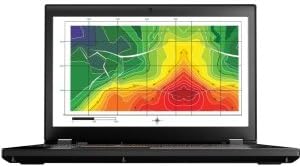
Figure 4: Close-up of the ThinkPad P50's 15.6-inch display.
3.3 Keyboard and Pointing Devices
The ThinkPad P50 features a full-size, backlit QWERTY keyboard with a dedicated numeric keypad. The keys offer significant key travel for a comfortable and tactile typing experience. For navigation, it includes both a responsive touchpad and the classic ThinkPad TrackPoint.
3.4 Connectivity
The laptop offers extensive connectivity options:
- 4 x USB 3.0 ports
- 1 x Thunderbolt 3 port
- HDMI output
- Mini DisplayPort
- RJ-45 Ethernet port
- Bluetooth and Wi-Fi (Intel 8260)
- Headphone/microphone combo jack
3.5 Battery
The ThinkPad P50 is powered by a 6-cell Lithium Polymer battery with a 90 Watt-Hour energy content. This battery is user-replaceable, allowing for extended usage with spare batteries.
3.6 Security Features
For enhanced security, the laptop includes a Fingerprint Recognition biometric security feature.
3.7 Integrated Webcam
A 720P HD camera is integrated for video conferencing and other applications.
4. Operating Your ThinkPad P50
4.1 Power On/Off
To power on the laptop, press the power button located above the keyboard. To shut down, click the Start button in Windows, then select Power > Shut down.
4.2 Using the Keyboard and Pointing Devices
The keyboard provides a comfortable typing experience. Utilize the touchpad for cursor control and gestures, or the TrackPoint (red dot in the center of the keyboard) for precise navigation. The dedicated numeric keypad simplifies data entry.
4.3 Adjusting Display Settings
Display brightness can be adjusted using the function keys (Fn + F5/F6) or through Windows display settings. Ensure your display drivers are up to date for optimal functionality.
4.4 Function Keys
The function keys (F1-F12) provide quick access to various system functions when pressed in combination with the Fn key. These include volume control, screen brightness, Wi-Fi toggle, and more. If function keys are not responding as expected, ensure the appropriate Lenovo hotkey drivers are installed and updated.
5. Maintenance and Upgrades
5.1 Cleaning Your Laptop
Regularly clean the screen with a soft, lint-free cloth and a screen-safe cleaning solution. Use a soft brush or compressed air to clear dust from the keyboard and ventilation grilles to maintain optimal airflow and prevent overheating.
5.2 Battery Care
While the battery is user-replaceable, proper care can extend its lifespan. Avoid extreme temperatures and fully discharging the battery frequently. If you experience significantly reduced battery life, consider replacing the battery with an official Lenovo part.
5.3 RAM Upgrades
The ThinkPad P50 has 4 SO-DIMM memory slots, allowing for significant RAM upgrades beyond the standard 8GB. Two slots are typically located under the keyboard, and two are accessible from the bottom panel. Refer to the detailed service manual for specific instructions on accessing and upgrading memory modules.
5.4 Storage Upgrades
The laptop comes with a 500GB 7200rpm Hard Drive. It supports multiple storage configurations, including 2.5-inch drives and up to two M.2 SSDs. An adapter may be required for additional M.2 drives. Consult the service manual for safe installation procedures.
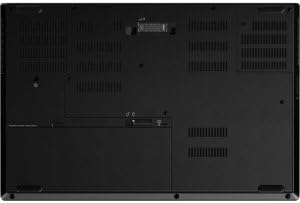
Figure 5: Bottom view of the ThinkPad P50, indicating user-accessible areas for maintenance and upgrades.
6. Troubleshooting Common Issues
6.1 Display Brightness or Function Key Issues
If display brightness cannot be adjusted or function keys are unresponsive, ensure all system drivers, especially display and hotkey drivers, are updated to the latest versions from the Lenovo support website. A BIOS update may also resolve such issues.
6.2 Bluetooth Connectivity Problems
If Bluetooth devices frequently disconnect or the Bluetooth hardware disappears from Device Manager, try updating your Bluetooth drivers. Restarting the Bluetooth service or the laptop can also help. Ensure no physical obstructions are interfering with the signal.
6.3 Sluggish Performance or Fan Noise
Sluggish performance can be caused by outdated drivers, excessive background processes, or insufficient RAM/storage. Ensure your operating system and drivers are updated. If the fan is constantly spinning at high RPMs and the laptop feels hot, check for dust accumulation in the vents and clean them. Monitor CPU usage to identify any runaway processes.
6.4 External Monitor Issues
If you encounter difficulties with external monitors, ensure the correct display drivers are installed. Verify the cable connections (HDMI, Mini DisplayPort, Thunderbolt 3). The ThinkPad P50 supports external displays, but specific configurations might require driver updates or adjustments in display settings.
6.5 Laptop Not Sleeping Properly
If the laptop does not enter sleep mode when the lid is closed or overheats in its case, check your power management settings in Windows. Ensure that closing the lid is configured to initiate sleep. Update BIOS and power management drivers.
7. Technical Specifications
| Feature | Specification |
|---|---|
| Brand | Lenovo |
| Model Name | ThinkPad P50 |
| Model Number | 20EN0013US |
| Screen Size | 15.6 Inches |
| Native Resolution | 1920 x 1080 pixels (1080p) |
| CPU Model | Intel Core i7-6700HQ (Quad-core 2.60 GHz) |
| RAM Memory Installed Size | 8 GB DDR4 (4x SO-DIMM slots available) |
| Hard Disk Size | 500 GB (7200 RPM, Serial ATA-600) |
| Graphics Coprocessor | NVIDIA Quadro M1000M (2GB GDDR5 Dedicated) |
| Operating System | Windows 7 Professional (64-bit, preinstalled via downgrade rights from Windows 10 Pro) |
| Special Features | Backlit Keyboard, Finger Print Reader |
| Total USB Ports | 4 |
| Total Thunderbolt Ports | 1 |
| Total HDMI Ports | 1 |
| Battery Type | 6-cell Lithium Polymer (90 Watt Hours) |
| Webcam Capability | 720P HD |
| Item Weight | 8.85 Pounds |
8. Product Overview Video
Watch this video for a visual overview of the Lenovo ThinkPad P50's design, features, and connectivity options.
Video: A visual demonstration of the Lenovo ThinkPad P50 laptop, highlighting its physical attributes and key functionalities.
9. Warranty and Support
9.1 Warranty Information
The Lenovo ThinkPad P50 20EN0013US comes with a 3-year limited depot warranty. Please retain your proof of purchase for warranty claims.
9.2 Customer Support
For further assistance, technical support, or to download the latest drivers and manuals, please visit the official Lenovo support website. You can also find information regarding service centers and contact options there.