
Introduction
This manual provides comprehensive instructions for the setup, operation, and maintenance of your Zelotes T90 Professional 9200 DPI High Precision USB Wired Gaming Mouse. Please read this manual thoroughly before using the product to ensure optimal performance and longevity.

Figure 1: Zelotes T90 Professional Gaming Mouse, showcasing its ergonomic design and LED lighting.
Package Contents
- 1 x Zelotes T90 Gaming Mouse
- 1 x Instruction Manual (this document)
Setup
System Requirements
- Operating System: Windows 98/ 2000/ ME/ NT / XP/ win 7/ win 8/ win 10/ Mac OS and other OS
- Interface: USB Port
Installation
- Unpack the Mouse: Carefully remove the Zelotes T90 Gaming Mouse from its packaging.
- Remove Protective Film: Before use, please remove the foot pad protective film located on the underside of the mouse.
- Connect to Computer: Plug the USB connector of the mouse into an available USB port on your computer. The mouse is plug-and-play and does not require additional driver installation for basic functionality.
Operating Instructions
Button Functions
The Zelotes T90 mouse features 8 programmable buttons designed for enhanced gaming and productivity.
- Left Click Button
- Right Click Button
- Middle Button / Scroll Wheel
- Forward Button: Quick forward function when browsing the web or navigating folders.
- Backward Button: Quick backward function when browsing the web or navigating folders.
- DPI Button: Adjusts the mouse sensitivity (DPI).
- Fire Key: Configurable for rapid actions.
- Light Mode Switch: Controls the LED lighting effects.
Adjusting DPI (Sensitivity)
The mouse supports 6-speed DPI adjustment, allowing you to customize sensitivity for different tasks or games. Press the DPI button to cycle through the following settings:
- 1000 DPI: Indicated by red light flashing 3 times.
- 1600 DPI: Indicated by orange light.
- 2400 DPI: Indicated by green light.
- 3200 DPI: Indicated by light blue light.
- 5500 DPI: Indicated by blue light.
- 9200 DPI: Indicated by purple light.

Figure 2: Location of DPI and Fire Key buttons on the Zelotes T90 mouse.
Fire Key Function
- Short Press: Performs a double click.
- Long Press (more than 2 seconds): Switches to triple click mode. The light will flash 3 times to confirm the successful switch.
Light Mode Switch
The Zelotes T90 features various LED lighting modes:
- Short Press: Cycles through 7-color breathing, 6 single-color breathing, and 6 single-color constant light modes (13 modes total).
- Long Press (more than 2 seconds): Turns off the LED lights.

Figure 3: The Zelotes T90 mouse showcasing its 7-color cycle breathing and single-color lighting options.
Weight Tuning System
The mouse includes 8 removable 2.5-gram weights, allowing you to customize the mouse's weight and balance for improved stability and control, especially during fast movements.
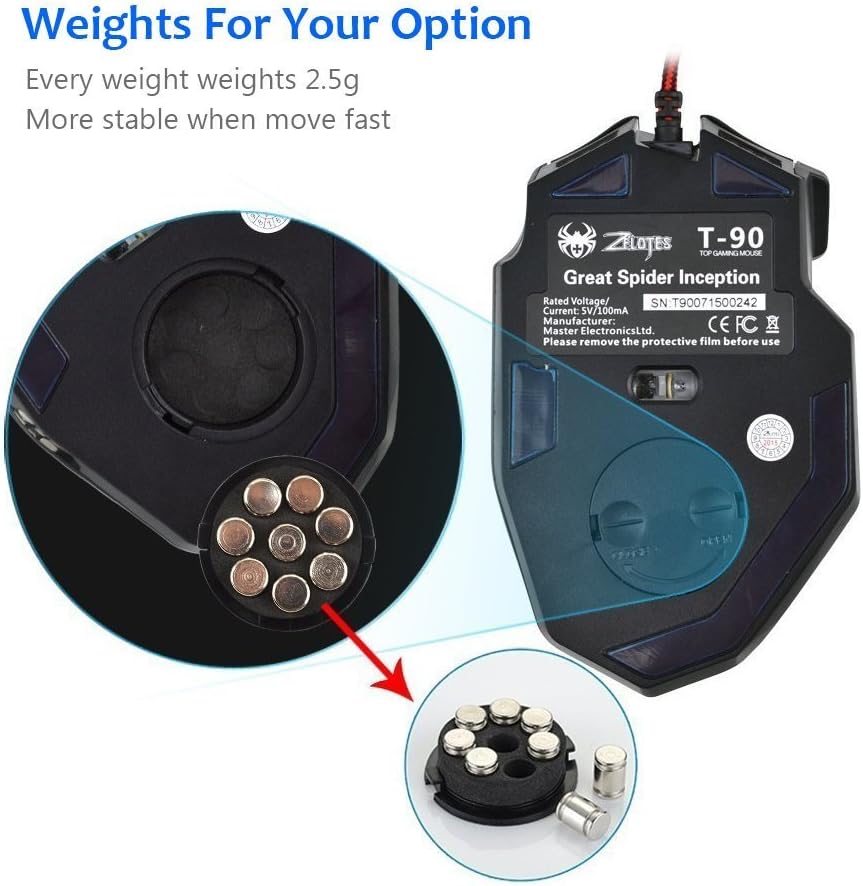
Figure 4: Location of the weight tuning system on the underside of the Zelotes T90 mouse.
Maintenance
Cleaning
- Use a soft, dry cloth to clean the surface of the mouse.
- For stubborn dirt, slightly dampen the cloth with water or a mild cleaning solution. Avoid harsh chemicals.
- Do not immerse the mouse in water or any liquid.
Storage
Store the mouse in a cool, dry place away from direct sunlight and extreme temperatures when not in use for extended periods.
Troubleshooting
| Problem | Possible Cause | Solution |
|---|---|---|
| Mouse not responding | Loose USB connection, faulty USB port, system error. | Ensure the USB cable is securely plugged into the computer. Try a different USB port. Restart your computer. |
| LED lights not working | Lights turned off, software issue. | Short press the Light Mode Switch button to cycle through modes. Long press the Light Mode Switch button for more than 2 seconds to turn lights on if they were off. |
| DPI setting not changing | DPI button not pressed correctly. | Ensure you are pressing the dedicated DPI button. Observe the light flashes to confirm DPI changes. |
| Mouse cursor erratic or jumpy | Dirty optical sensor, unsuitable mouse pad surface. | Clean the optical sensor on the underside of the mouse. Use a clean, uniform mouse pad surface. |
| Mouse settings reset | Accidental factory reset. | Press the left and right buttons simultaneously for more than 2 seconds to restore factory settings. If settings are reset, reconfigure them as desired. |
Specifications
| Model | T90 |
| Dimensions (LxWxH) | 130mm x 81mm x 40mm (5.12 x 3.19 x 1.57 inches) |
| Weight | 145g ± 5g (excluding cable) |
| Counterweight | 8 x 2.5 Gram tuning weights |
| DPI Settings | 1000/1600/2400/3200/5500/9200 DPI |
| FPS | 6666 |
| Acceleration | 23G |
| Polling Rate | 500Hz |
| Switch Life | 800 million times |
| Buttons | 8 |
| USB Cable Length | 1.8M braided-fiber cable |
| Interface | USB |
| Optical Type | Red wave |
| Compatibility | Windows 98/ 2000/ ME/ NT / XP/ win 7/ win 8/ win 10/ Mac OS and other OS |
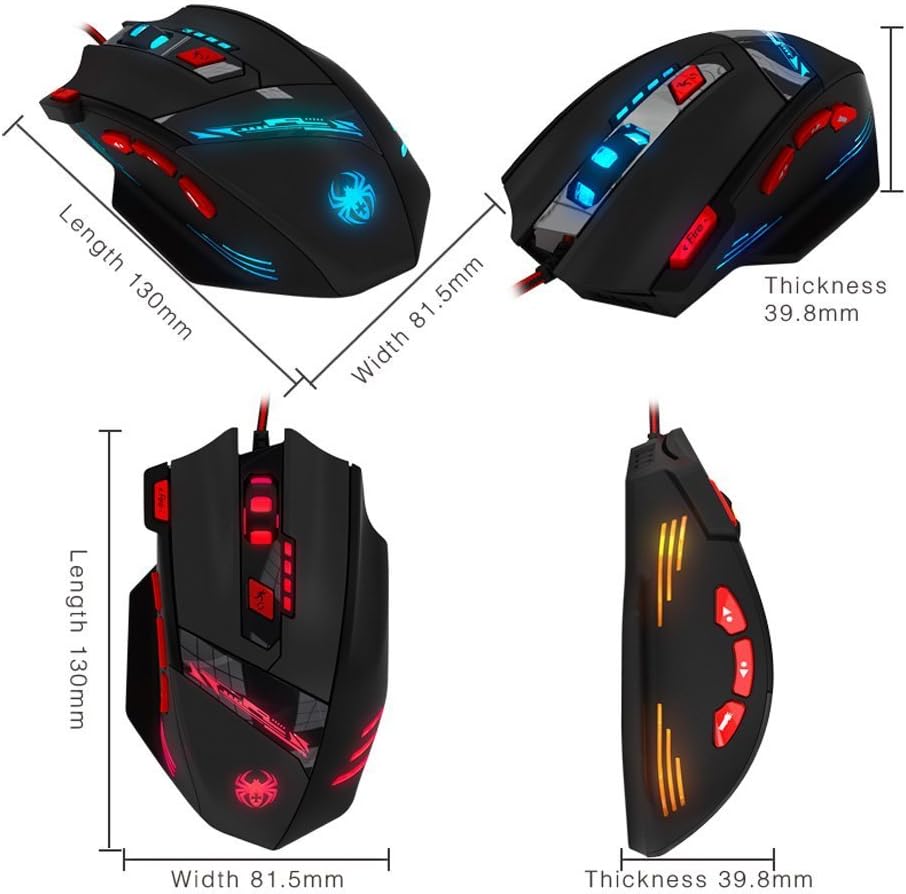
Figure 5: Detailed dimensions of the Zelotes T90 Professional Gaming Mouse.
Ergonomic Design
The Zelotes T90 mouse is designed with ergonomics in mind, providing a comfortable fit for both fingertip and claw-style grips. This design aims to reduce fatigue during long periods of use.

Figure 6: Ergonomic design of the Zelotes T90 mouse, showing a comfortable hand grip.
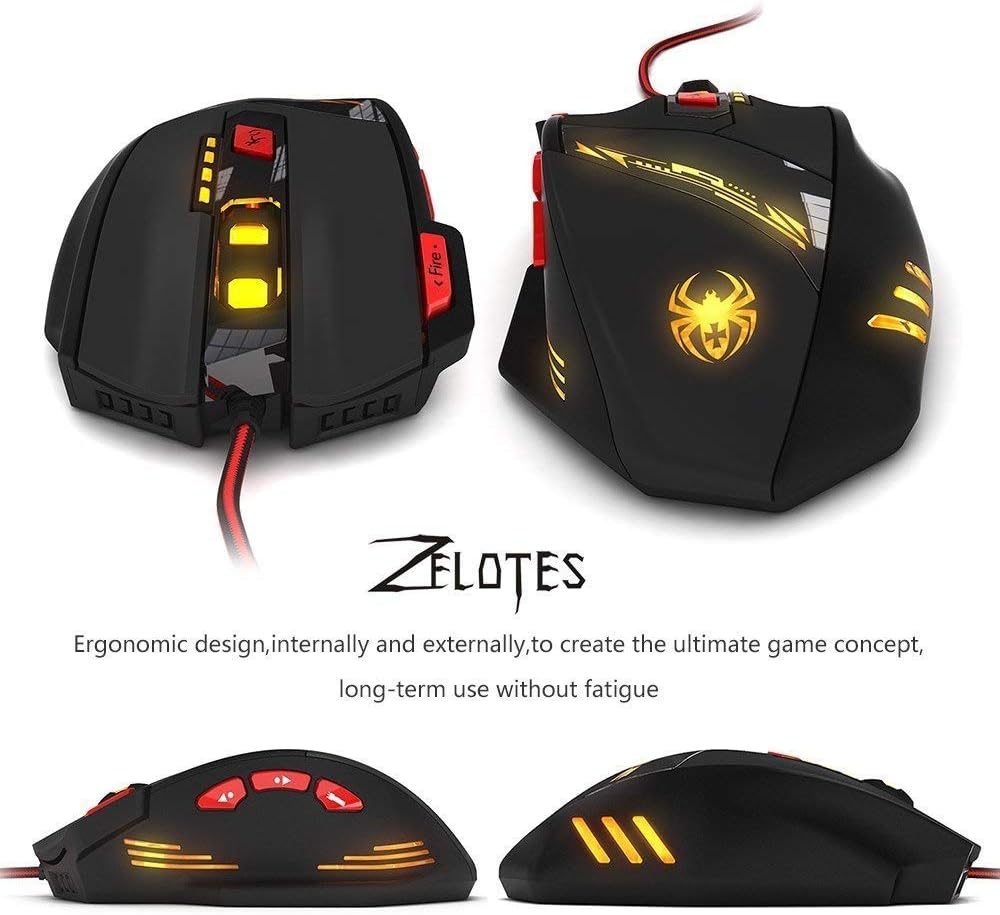
Figure 7: Various views highlighting the ergonomic contours of the Zelotes T90 mouse.
Important Notes
- Always remove the foot pad protective film before using the mouse.
- To restore the mouse to factory settings, press and hold the left and right mouse buttons simultaneously for more than 2 seconds.

