
Zmodo ZM-W0002-4
Zmodo Outdoor Security Camera System (Model ZM-W0002-4) Instruction Manual
Comprehensive guide for setup, operation, and maintenance.
1. Introduction
This manual provides detailed instructions for the installation, operation, and maintenance of your Zmodo Outdoor Security Camera System, Model ZM-W0002-4. This system offers 1080p Full HD surveillance for your property, featuring night vision, motion detection, and weatherproof construction.
2. Package Contents
Verify that all items are present in your package:
- 4 x Zmodo Outdoor Security Cameras
- 4 x Power Supplies
- 1 x Quick Guide
3. Setup and Installation
Follow these steps to set up your Zmodo security cameras:
3.1. Camera Placement
Select optimal locations for your cameras. Consider areas that provide a clear view of entry points or critical zones. Ensure the chosen location is within range of your Wi-Fi network and has access to a power outlet.

Image: Zmodo outdoor security camera mounted on a wall, illustrating its weatherproof design and typical installation scenario.
3.2. Power Connection
Connect each camera to its respective power supply and plug it into a standard electrical outlet. The camera will power on automatically.
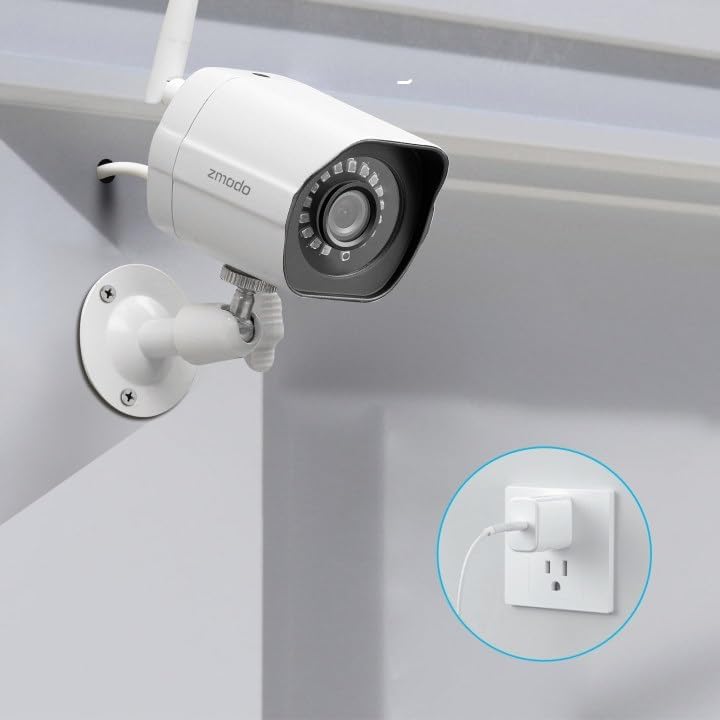
Image: A Zmodo outdoor security camera with its power cable plugged into a wall outlet, demonstrating the power connection process.
3.3. App Download and Account Creation
Download the Zmodo app from your smartphone's app store (iOS or Android). Create a new account or log in if you already have one.
3.4. Camera Pairing
Follow the in-app instructions to add your cameras. Zmodo cameras typically use QR code pairing technology for straightforward setup. Ensure your smartphone is connected to the 2.4GHz Wi-Fi network that the cameras will use.

Image: A set of four Zmodo outdoor security cameras, illustrating the product's appearance and external antenna design for enhanced Wi-Fi signal.
4. Operation
Once your cameras are set up, you can access and manage them through the Zmodo app.
4.1. Live View
Open the Zmodo app to view live 1080p Full HD video streams from your cameras. You can monitor up to four camera feeds simultaneously on one screen.

Image: A smartphone screen showing a four-panel live video feed from multiple Zmodo cameras, demonstrating the multi-camera viewing feature.
4.2. Motion Detection and Alerts
The cameras are equipped with motion detection. When motion is detected, you will receive instant alerts on your smartphone. Review recorded clips via the app.

Image: A smartphone displaying a push notification for motion detected by a Zmodo camera, indicating the alert system.

Image: A Zmodo camera with an illustration of AI-powered motion detection, highlighting its ability to accurately detect and identify humans, pets, and vehicles.
4.3. Night Vision
The cameras feature adjustable night vision with built-in IR lights, providing clear images up to 65 feet in low-light conditions.
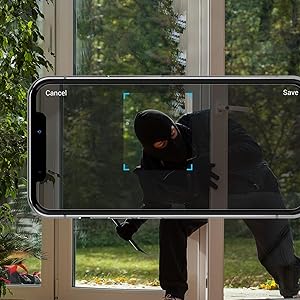
Image: A Zmodo camera mounted outdoors at night, with its red IR lights active, demonstrating its night vision capability.
4.4. Cloud Storage
Zmodo offers a cloud service for secure storage of your video footage. A subscription plan is required for this feature. This ensures continuous recording and access to past events.
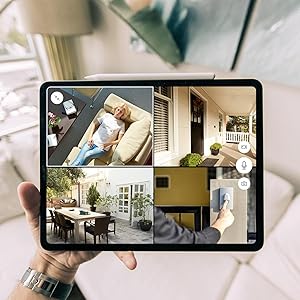
Image: An abstract graphic depicting a secure cloud with a padlock icon, symbolizing the bank-level encryption used for Zmodo's cloud storage service.
4.5. Alexa Integration
The cameras are compatible with Amazon Alexa. Use voice commands like "Alexa, show me the front door" to view live streams on compatible Alexa-enabled devices.

Image: An Amazon Echo Show device displaying a live feed from a Zmodo camera, illustrating the Alexa integration feature.
5. Maintenance
Regular maintenance helps ensure optimal performance and longevity of your cameras.
- Lens Cleaning: Periodically clean the camera lens with a soft, damp cloth to remove dust, dirt, or water spots that may affect image clarity. Avoid abrasive cleaners.
- Power Connection Check: Ensure power cables are securely connected and free from damage.
- Mounting Stability: Verify that the cameras remain securely mounted to prevent accidental dislodgement.
- Software Updates: Keep the Zmodo app updated to the latest version for new features and security enhancements.
6. Troubleshooting
If you encounter issues with your Zmodo cameras, refer to the following common solutions:
- Camera Offline:
- Check the power connection to ensure the camera is receiving power.
- Verify your Wi-Fi network is operational and the camera is within range.
- Restart the camera by unplugging and replugging its power supply.
- Ensure your router's 2.4GHz Wi-Fi band is enabled and the camera is connected to it.
- Poor Image Quality:
- Clean the camera lens.
- Ensure there are no obstructions in the camera's field of view.
- Check your Wi-Fi signal strength; a weak signal can affect video streaming quality.
- Motion Detection Not Working:
- Verify motion detection settings are enabled in the Zmodo app.
- Adjust motion sensitivity settings if necessary.
- Ensure the camera's view is not obstructed.
- No Alerts Received:
- Check your smartphone's notification settings for the Zmodo app.
- Ensure your phone has an active internet connection.
7. Specifications
Key technical specifications for the Zmodo Outdoor Security Camera System (Model ZM-W0002-4):
| Feature | Detail |
|---|---|
| Model Name | ZM-W0002-4 |
| Video Capture Resolution | 1080p Full HD |
| Indoor/Outdoor Usage | Outdoor |
| Connectivity Technology | Wi-Fi (2.4GHz) |
| Night Vision Range | Up to 65 feet |
| Weather Resistance | IP66 (Weatherproof) |
| Motion Detection | Yes (Motion Only, AI-powered) |
| Compatible Devices | Smartphone, Amazon Alexa, Google Assistant |
| Power Source | Corded Electric (12 Volts, 5 Watts) |
| Dimensions (L x W x H) | 2.2 x 2.1 x 3.4 inches |
| Item Weight | 3.04 pounds (per camera) |
| Frame Rate | 25 fps |
| Material | Plastic |
8. Warranty Information
For specific warranty details regarding your Zmodo Outdoor Security Camera System, please refer to the warranty card included in your product packaging or visit the official Zmodo website. Protection plans may also be available for extended coverage.
9. Customer Support
If you require further assistance or have questions not covered in this manual, please contact Zmodo customer support through their official website or the Zmodo app. Support resources, including FAQs and troubleshooting guides, are often available online.
Zmodo Official Website: www.zmodo.com
Related documentsZM-W0002-4


Ask a question about this manual
Ask about setup, troubleshooting, compatibility, parts, safety, or missing instructions. Manuals+ will review the question and use this page’s manual context to help answer it.