
1. Introduction
The CoolStream CarPro is a Bluetooth adapter designed to enable wireless music streaming in vehicles equipped with a factory-installed 30-pin iPod/iPhone cable. This device allows you to stream audio from your iPhone or Android device directly to your car's stereo system, utilizing the existing 30-pin music interface cable.
Key Features:
- Wireless music streaming from iPhone and Android phones.
- Displays song information (for music saved on iPhone).
- Supports steering wheel controls for volume, pause, and track selection (for music saved on phone).
- Automatic reconnection to your mobile device after initial pairing.
What's in the Box:
- 1 x CoolStream CarPro Bluetooth Adapter (Model: BTR104)
- Note: The 30-pin iPod/iPhone cable is NOT included and must be present in your vehicle.

Image: The CoolStream CarPro Bluetooth Adapter, a compact black device with the "CarPro" logo.
2. Important Notes Before Use

Image: A warning sign with text "ATTENTION PLEASE" and important notes.
- Your phone must have at least one song you own or have purchased downloaded and saved to its music library. This is essential for the CarPro to be recognized by your car's stereo system.
- Compatibility is NOT guaranteed for all vehicles. Please check the compatibility lists provided in this manual prior to purchase and use.
- When paired to the CarPro, the pause button on your phone may be disabled. Use the steering wheel or stereo buttons to pause your music.
- The iPod cable is NOT included with the CoolStream CarPro.
3. Compatibility
The CoolStream CarPro is designed for specific vehicle models and requires a factory-installed 30-pin iPod/iPhone cable. It is primarily compatible with BMW and Mini Cooper vehicles, as well as certain models from other manufacturers.
3.1 Compatible Vehicles

Image: Chart detailing compatible car and motorcycle models with CoolStream CarPro.
The CarPro is compatible with various models from manufacturers such as Acura, Aston Martin, Bentley, Cadillac, BMW, Can Am, Chevrolet, Dodge, Ferrari, Ford, Harley Davidson, Honda, Infiniti, Jaguar, Itasca, Jeep, Kawasaki, Lamborghini, Land Rover, Lexus, Maserati, Mazda, Nissan, Polaris, Porsche, Subaru, Toyota, Victory, Volvo, and Yamaha. Please refer to the detailed chart above for specific model years and notes.
Note: Some vehicles may require the addition of the Xtension Aftermarket Replacement 12V to 5V Charging Converter Adapter. Some may have Premium Grade Head Unit with iPod connectivity. Some may lack Acura Play. Some may lack Steering Wheel Control and Display Functionality. Some may work with the GM PAL (Personal Auto Link).
3.2 Incompatible Vehicles and Cables

Image: Chart detailing car and motorcycle models NOT compatible with CoolStream CarPro, with a large red 'X' over it.
The CarPro is NOT compatible with certain models from Cadillac, Dodge, Ford, GMC, Harley, Honda, Hyundai, Infiniti, Jaguar, Jeep, Land Rover, Lexus, Mazda, Nissan, Porsche, Suzuki, Toyota, Victory, and Volvo. Please refer to the detailed chart above for specific incompatible models and years.
The CoolStream CarPro is NOT compatible with USB Cables. It requires a 30-pin iPod/iPhone cable.

Image: A USB cable with a red circle and line through it, indicating incompatibility.
Furthermore, the CarPro is not compatible with most after-market iPod car cables such as Denison Gateway, Griffin AutoPilot, iSimple, Pioneer AVIC F700BT, Sony WXGTYYU1, USA-Spec PA15-HON2Y, USA-Spec PA15-NIS, USA-Spec PA15-TOY.
4. Setup and Installation
Follow these steps to set up and install your CoolStream CarPro Bluetooth adapter:
- Locate the factory-installed 30-pin iPod/iPhone cable in your vehicle (typically in the glove box or center console).
- Carefully plug the CoolStream CarPro adapter into the 30-pin connector of the cable. Ensure a secure connection.
- Turn on your car's ignition. The CarPro adapter should display a blinking blue light, indicating it is ready to pair.
- On your mobile device (iPhone or Android), go to the Bluetooth settings.
- Look for a device named "CarPro" in the list of available Bluetooth devices and select it to pair. If prompted for a PIN, enter 0000.
- Once paired, the blue light on the CarPro will become solid.
- Set your car's stereo to iPod Mode (or SAT1/AUX depending on your vehicle's system).
- Ensure you have at least one song saved in your phone's music library for the CarPro to be recognized by the stereo.
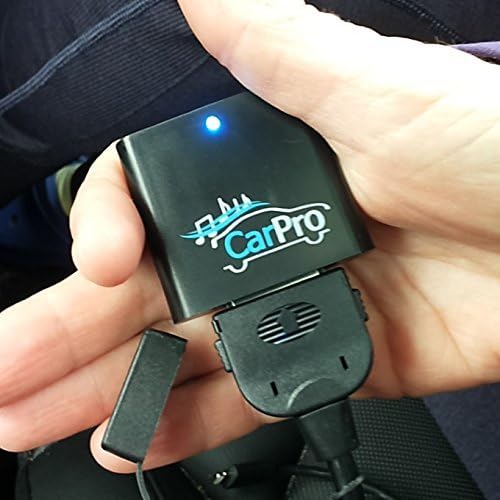
Image: A hand holding the CoolStream CarPro adapter, showing it connected to a 30-pin cable with a blue indicator light.
4.1 Setup Demonstration Video
Video: A demonstration of setting up and using the CoolStream CarPro in a 2008 Lexus ES350. It shows plugging in the device, pairing via Bluetooth, and controlling music through the car's stereo and steering wheel controls.
5. Operating Instructions
Once the CoolStream CarPro is successfully paired and connected, you can begin streaming music wirelessly.
- Music Playback: Open your preferred music application on your mobile device (e.g., Spotify, Pandora, Apple Music, YouTube, Audible) and start playing audio. The sound will be routed through your car's stereo system.
- Steering Wheel Controls: For music saved directly to your phone's music library, you can use your steering wheel buttons to control volume, pause/play, and skip tracks.
- App Control: Steering wheel controls typically do not work for browsing or controlling music within streaming applications like Spotify or Apple Music. You will need to control these directly from your mobile device.
- Automatic Reconnection: After the first successful pairing, the CarPro will automatically reconnect to your mobile device when you start your car, provided Bluetooth is enabled on your phone.
- Phone Calls: The CarPro is designed for music streaming only and does NOT support phone calls. If a call comes in while music is playing, the music will automatically mute, and the call will be handled by your phone or your car's native Bluetooth phone system (if available). Music will resume after the call ends.
5.1 Usage Examples

Image: The CoolStream CarPro adapter connected and in use within a Victory Motorcycle's dashboard.

Image: The CoolStream CarPro adapter connected and in use near the steering wheel of a BMW.
6. Maintenance
The CoolStream CarPro is a low-maintenance device. To ensure its longevity and optimal performance:
- Keep the device clean and free from dust and debris. Use a soft, dry cloth for cleaning.
- Avoid exposing the device to extreme temperatures, direct sunlight for prolonged periods, or moisture.
- Do not attempt to disassemble or repair the device yourself. This will void the warranty.
- Handle the 30-pin connector carefully to prevent damage to the pins.
7. Troubleshooting
If you encounter issues with your CoolStream CarPro, refer to the following troubleshooting tips:
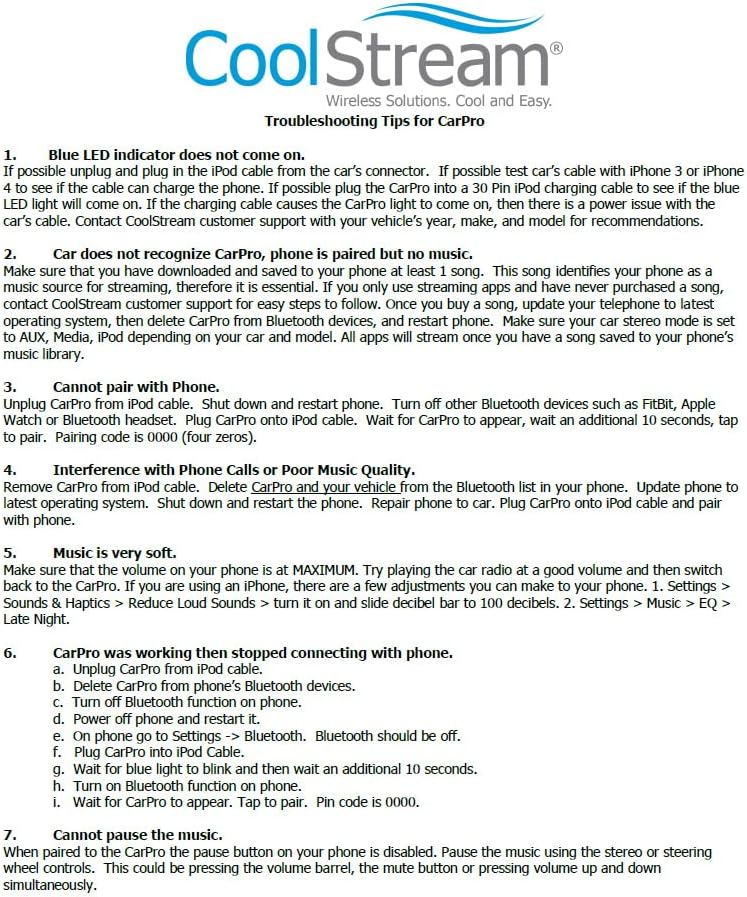
Image: A list of troubleshooting tips for the CoolStream CarPro.
- Blue LED indicator does not come on.
- Possible: Unplug and plug in the iPod cable from the car's connector.
- Possible: If possible, plug the CarPro into a 30 Pin iPod charging cable to see if the blue LED light will come on.
- If the charging cable causes the CarPro light to come on, then there is a power issue with the car's cable. Contact CoolStream customer support for guidance.
- Car does not recognize CarPro, phone is paired but no music.
- Make sure that you have downloaded and saved to your phone at least one song. This song identifies your phone as a music source for streaming, therefore it is essential.
- If you only use streaming apps and have never purchased a song, contact CoolStream customer support for easy steps to follow.
- Once you buy a song, update your telephone to the latest operating system, then delete CarPro from Bluetooth devices, and restart phone.
- Make sure your car stereo mode is set to AUX, Media, iPod depending on your car and model. All apps will stream once you have a song saved to your phone's music library.
- Cannot pair with Phone.
- Unplug CarPro from iPod cable. Shut down and restart phone.
- Turn off other Bluetooth devices such as FitBit, Apple Watch or Bluetooth headset.
- Plug CarPro onto iPod cable. Wait for CarPro to appear, wait an additional 10 seconds, tap to pair. Pairing code is 0000 (four zeros).
- Interference with Phone Calls or Poor Music Quality.
- Remove CarPro from iPod cable.
- Delete CarPro and your vehicle from the Bluetooth list in your phone.
- Update phone to latest operating system.
- Shut down and restart the phone.
- Repair phone to car.
- Plug CarPro onto iPod cable and pair with phone.
- Music is very soft.
- Make sure that the volume on your phone is at MAXIMUM.
- Try playing the car radio at a good volume and then switch back to the CarPro.
- If you are using an iPhone, there are a few adjustments you can make to your phone:
- Settings > Sounds & Haptics > Reduce Loud Sounds > turn it on and slide decibel bar to 100 decibels.
- Settings > Music > EQ > Late Night.
- CarPro was working then stopped connecting with phone.
- Unplug CarPro from iPod cable.
- Delete CarPro from phone's Bluetooth devices.
- Turn off Bluetooth function on phone.
- Power off phone and restart it.
- On phone go to Settings -> Bluetooth. Bluetooth should be off.
- Plug CarPro into iPod Cable.
- Wait for blue light to blink and then wait an additional 10 seconds.
- Turn on Bluetooth function on phone.
- Wait for CarPro to appear. Tap to pair. Pin code is 0000.
- Cannot pause the music.
- When paired to the CarPro the pause button on your phone is disabled.
- Pause the music using the stereo or steering wheel controls. This could be pressing the volume barrel, the mute button or pressing volume up and down simultaneously.
8. Specifications
| Feature | Detail |
|---|---|
| Product Dimensions | 4.1 x 3 x 0.9 inches |
| Item Weight | 0.352 ounces |
| Model Number | BTR104 |
| Wireless Communication Technologies | Bluetooth |
| Connectivity Technologies | Bluetooth, Auxiliary, USB (via 30-pin cable) |
| Color | Black |
| Manufacturer | CoolStream |
| Specific Uses For Product | Car Stereo |
| Connector Type | 30 Pin Connector |
9. Warranty and Support
For warranty information or technical support, please contact CoolStream customer service. They can provide assistance with troubleshooting, compatibility questions, and any other product-related inquiries.
Visit the official CoolStream Store for more information and contact details: CoolStream Store on Amazon
