
Introduction
This manual provides essential instructions for the safe and efficient use of your Pioneer AVH-X2800BS In-Dash DVD Receiver. Please read this manual thoroughly before operating the unit to ensure proper installation, setup, and functionality. Keep this manual for future reference.
Safety Information
- Always operate the vehicle in a safe manner. Do not allow the use of this product to distract you while driving.
- Ensure the parking brake is engaged when performing certain operations, such as watching DVDs or accessing specific settings, to comply with safety regulations.
- Consult a professional for installation to prevent damage to the unit or vehicle.
- Do not disassemble or modify the unit. This may result in electric shock, fire, or other accidents.
Package Contents
Verify that all items are present in the package:
- Pioneer AVH-X2800BS In-Dash DVD Receiver
- Remote Control (CXE5116)
- Wiring Harness
- Microphone
- Mounting Screws
- User Manual (this document)

Image: Pioneer AVH-X2800BS unit, remote control, and external microphone.

Image: Rear view of the receiver displaying various audio, video, and power connection ports.
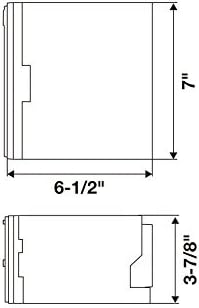
Image: Diagram illustrating the dimensions of the receiver for installation planning.
Setup
1. Installation
The Pioneer AVH-X2800BS is designed for in-dash installation. Due to the complexity of vehicle wiring and dashboard modifications, professional installation is highly recommended. Ensure the vehicle's battery is disconnected before beginning any electrical work.
- Mounting: Securely mount the unit in a double-DIN opening using the provided mounting screws and brackets.
- Wiring: Connect the wiring harness to your vehicle's electrical system. Pay close attention to power, ground, speaker, and accessory wires.
- Parking Brake Wire: The parking brake wire must be connected and the parking brake engaged for certain functions (e.g., DVD playback) to operate.
- Microphone: Connect the external microphone for hands-free calling and voice commands. Position it in a location that provides clear audio pickup, such as on the sun visor or near the rearview mirror.
- USB Port: Connect your smartphone via the USB port for Apple CarPlay or Android Auto functionality (if supported by your device and the unit's firmware).
- Rear View Camera: If installing a rear view camera, connect it to the dedicated input.
2. Initial Power-On and Settings
After installation, reconnect the vehicle's battery. The unit will power on. Follow the on-screen prompts for initial setup.
- Language Selection: Choose your preferred language.
- Time and Date: Set the correct time and date.
- Audio Settings: Adjust basic audio settings like fader, balance, and equalizer presets.
Operating Instructions
1. Basic Controls
- Power On/Off: Press the SRC button to turn the unit on. Press and hold SRC to turn it off.
- Volume: Use the VOLUME + and VOLUME - buttons on the remote or the touchscreen controls to adjust the volume.
- Source Selection: Press the SRC button repeatedly to cycle through available sources (Radio, CD/DVD, USB, Bluetooth Audio, AUX, SiriusXM, etc.).
- Mute: Press the MUTE button to temporarily silence audio.

Image: The receiver's display showing the radio tuning interface.
2. Touchscreen Interface
The 6.2-inch touchscreen allows for intuitive control of the unit's functions.
- Home Screen: Access various functions and applications from the customizable home screen.
- Navigation: Swipe left/right to navigate through different screens or menus. Tap icons to select functions.
- Settings: Access the system settings menu via the gear icon on the home screen to customize display, audio, Bluetooth, and other preferences.

Image: The receiver's display showing a screen with various application icons.
3. Bluetooth Connectivity
Pair your Bluetooth-enabled device for hands-free calling and audio streaming.
- Pairing: Go to the Bluetooth settings on the receiver and your device. Select the Pioneer unit from your device's Bluetooth list and confirm the pairing code.
- Hands-Free Calling: Once paired, you can make and receive calls directly through the receiver's interface using the external microphone.
- Audio Streaming: Stream music and other audio from your paired device to the receiver.
Image: The receiver's display showing an active Bluetooth phone call screen.
4. Media Playback
- CD/DVD: Insert a disc into the slot. The unit will automatically switch to the CD/DVD source and begin playback.
- USB: Connect a USB storage device or compatible smartphone to the USB port. Select the USB source to browse and play media files.
- Radio: Select the Radio source. Use the touchscreen to tune to AM/FM stations or select presets.
- SiriusXM: If a SiriusXM tuner is connected (sold separately), select the SiriusXM source to access satellite radio channels.
Maintenance
- Screen Cleaning: Use a soft, dry cloth to gently wipe the touchscreen. For stubborn smudges, slightly dampen the cloth with water or a screen-safe cleaner. Avoid harsh chemicals.
- Software Updates: Periodically check the Pioneer website for firmware updates for your model. Updates can improve performance and add new features. Follow the instructions provided with the update carefully.
- Fuse Replacement: If the unit loses power, check the vehicle's fuse box and the fuse located on the unit's wiring harness. Replace with a fuse of the same amperage rating.
Troubleshooting
If you encounter issues with your AVH-X2800BS, refer to the following common solutions:
- No Power: Check all power connections and fuses. Ensure the vehicle's ignition is on.
- No Sound: Verify speaker connections, volume level, and mute status. Check audio source selection.
- Bluetooth Connection Issues: Ensure Bluetooth is enabled on both the receiver and your device. Try unpairing and re-pairing the device.
- Touchscreen Unresponsive: Try resetting the unit (refer to the full manual for reset procedure, usually a small reset button).
- DVD Playback Restricted: Ensure the parking brake is fully engaged. This is a safety feature.
For more detailed troubleshooting steps, please consult the comprehensive user manual available on the Pioneer support website.
Specifications
| Feature | Specification |
|---|---|
| Brand | PIONEER |
| Model Number | AVH-X2800BS |
| Screen Size | 6.2 Inches |
| Display Type | LCD |
| Media Type | CD, DVD |
| Connectivity Technology | Bluetooth |
| Compatible Devices | Smartphones |
| Item Dimensions (L x W x H) | 11"L x 9.5"W x 6"H |
| Item Weight | 3.7 Pounds |
| UPC | 783761467694, 884938315340 |
Warranty Information
Pioneer products are covered by a manufacturer's limited warranty. The specific terms and duration of the warranty may vary by region and product. Please refer to the warranty card included with your product or visit the official Pioneer website for detailed warranty information and registration procedures.
Customer Support
For technical assistance, product inquiries, or service requests, please contact Pioneer customer support:
- Online Support: Visit the official Pioneer website (www.pioneerelectronics.com/PUSA/Support) for FAQs, downloads, and contact options.
- Telephone Support: Refer to your product's warranty card or the Pioneer website for regional contact numbers.