
1. Product Overview
The MakeTheOne Wireless WiFi Repeater is designed to extend the coverage of your existing wireless network, eliminating Wi-Fi dead zones. It supports both Repeater and Access Point (AP) modes, providing flexible solutions for enhancing your network signal throughout your home or office. With a transmission rate of up to 300Mbps, it ensures stable and fast internet access for your devices.

Image: Front view of the MakeTheOne Wireless WiFi Repeater, a compact white device with a black stripe and WPS button.
2. Key Features
- Easy Installation: Supports WPS function for quick connection to your router.
- High Speed: Provides up to 300Mbps transmission rates, compliant with IEEE 802.11b/g/n standards.
- Universal Compatibility: Works with any standard router or gateway on the 2.4 GHz band.
- Secure Network: Supports WPA2 PSK, WPA PSK, and WEP encryption modes to protect your network.
- Dual Modes: Functions as both a Wireless Repeater and a Standard AP (Access Point).
- Ethernet Port: Includes one 10/100Mbps fast Auto-Negotiation Ethernet LAN port.
3. Product Specifications
| Specification | Value |
|---|---|
| Wireless Type | 802.11n, 802.11b, 802.11g |
| Data Transfer Rate | 300 Megabits Per Second |
| Frequency Band Class | 2.4 GHz (as per feature bullets, though spec sheet says Dual-Band, 2.4GHz is the primary advertised band) |
| Item Model Number | RJ-45 |
| Item Weight | 4 ounces |
| Product Dimensions (LxWxH) | 7.2 x 4.8 x 2.7 inches |
| Special Features | Wireless Repeater Mode, Standard AP Mode |
4. Device Layout
Familiarize yourself with the indicators and buttons on your MakeTheOne WiFi Repeater:
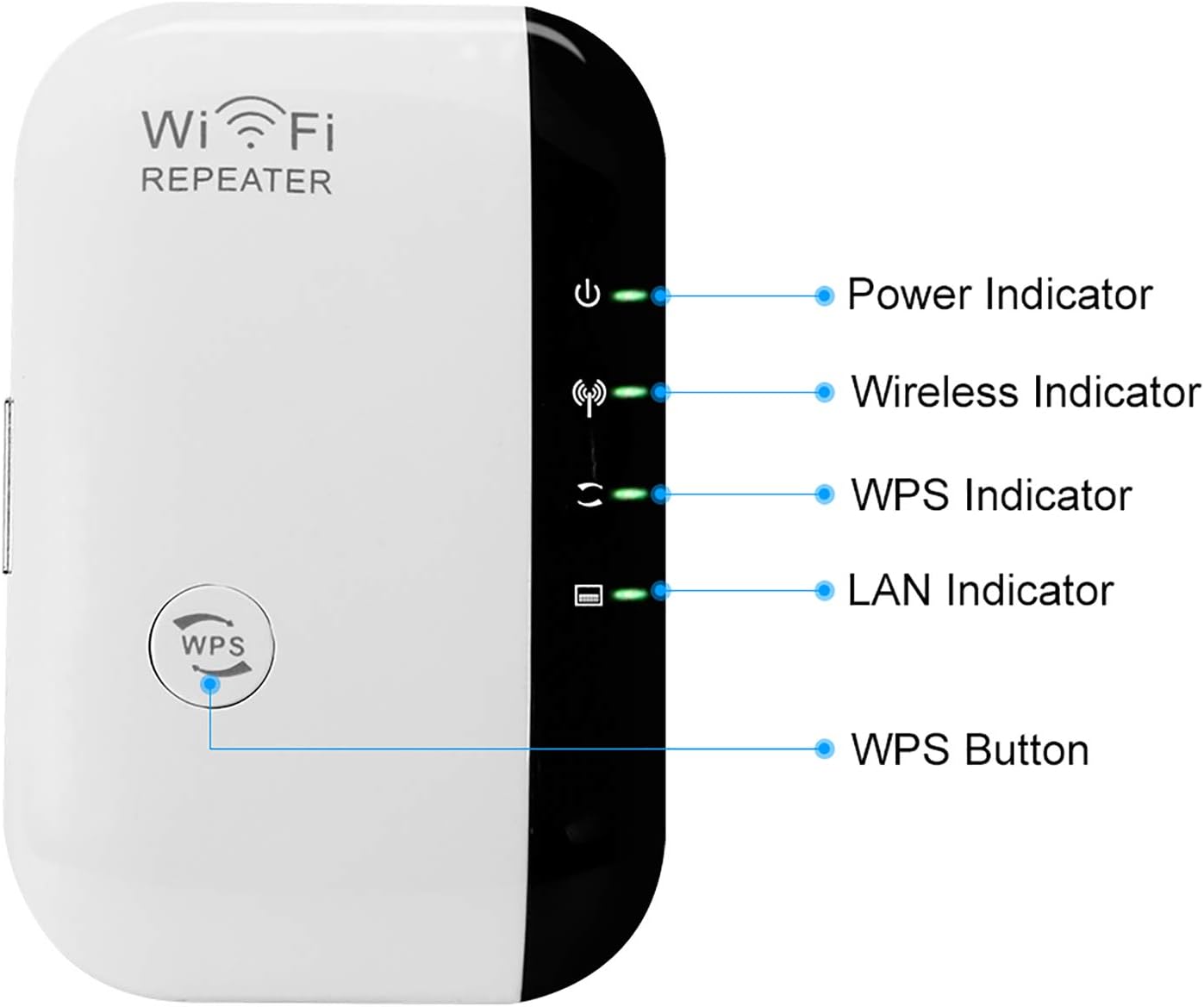
Image: Diagram showing the Power Indicator, Wireless Indicator, WPS Indicator, LAN Indicator, and WPS Button on the device.
- Power Indicator: Illuminates when the device is powered on.
- Wireless Indicator: Shows the status of the wireless connection.
- WPS Indicator: Indicates WPS function activity.
- LAN Indicator: Shows activity on the Ethernet LAN port.
- WPS Button: Used for quick setup with WPS-enabled routers.
- LAN Port: For wired connections.
- Reset Button: Located on the side, used to restore factory settings.
5. Setup Guide
There are two primary methods to set up your MakeTheOne WiFi Repeater: using the WPS button or through the web interface.
5.1. WPS (Wi-Fi Protected Setup) Method
- Plug the WiFi Repeater into a power outlet near your main router.
- Press your router's WPS button for 1-2 seconds.
- Within 2 minutes, press the WPS button on the MakeTheOne WiFi Repeater for 1-2 seconds.
- The WPS indicator on the repeater will flash and then become solid, indicating a successful connection.

Image: Diagram illustrating the WPS one-key connection process between a router and the WiFi Repeater.
5.2. Web Interface Setup (Recommended for detailed configuration)
This method allows for more control over your repeater's settings. You can use a smartphone, tablet, or computer.
- Plug In and Reset: Plug the repeater into a power socket. If it's not new or you've used it before, press and hold the reset button for 10 seconds to restore factory settings.
- Connect to Repeater's Wi-Fi: On your device (phone/laptop), open your Wi-Fi settings. Find and connect to the network named "WiFi-Repeater". This network will not have internet access initially.
- Access Web Interface: Open a web browser (e.g., Chrome, Safari) and enter
192.168.10.1in the address bar. - Login: Both the username and password are defaulted as
admin. Enter these credentials and click submit. - Select Repeater Mode: Once logged in, you will see a dashboard. Click on the "Repeater" option.
- Choose Existing Wi-Fi: The repeater will scan for available Wi-Fi networks. Select your existing home Wi-Fi network from the list.
- Enter Password: The SSID will be defaulted as "WiFi-Repeater". Enter the security key (password) of your existing home Wi-Fi network. This password must be exactly the same as your main Wi-Fi password.
- Apply Settings: Click "Apply" or "Submit" to save the configuration. The device will then process the settings.
- Wait for Configuration: Wait for approximately 2 minutes for the configuration to complete. A progress bar might be displayed. Once complete, click "Close" or exit the browser.
- Reconnect to Extended Wi-Fi: Go back to your device's Wi-Fi settings. You should now see a new network, typically named with your original Wi-Fi name followed by "_EXT" or "WiFi-Repeater". Connect to this network using your original Wi-Fi password.
Video: Official MakeTheOne Wireless N Wifi Repeater Setup Tutorial. This video demonstrates the step-by-step process of setting up the repeater using a mobile phone and a laptop, including connecting to the repeater's default network, accessing the web interface (192.168.10.1), logging in, selecting repeater mode, and entering the existing Wi-Fi password.
6. Operating Modes
The MakeTheOne WiFi Repeater supports two main operating modes:
6.1. Repeater Mode
In Repeater Mode, the device extends the range of your existing Wi-Fi network. It receives the wireless signal from your main router and re-broadcasts it, effectively expanding your Wi-Fi coverage to areas with weak or no signal. This is ideal for eliminating dead zones and improving signal strength in larger homes or offices.
6.2. AP (Access Point) Mode
In AP Mode, the device connects to your wired network (via the LAN port) and transforms it into a wireless access point. This is useful if you have a wired internet connection but need to provide Wi-Fi access to wireless devices in a specific area. It essentially creates a new Wi-Fi hotspot from a wired connection.

Image: Diagram illustrating the functionality of Repeater Mode (extending existing Wi-Fi) and AP Mode (creating Wi-Fi from a wired connection).
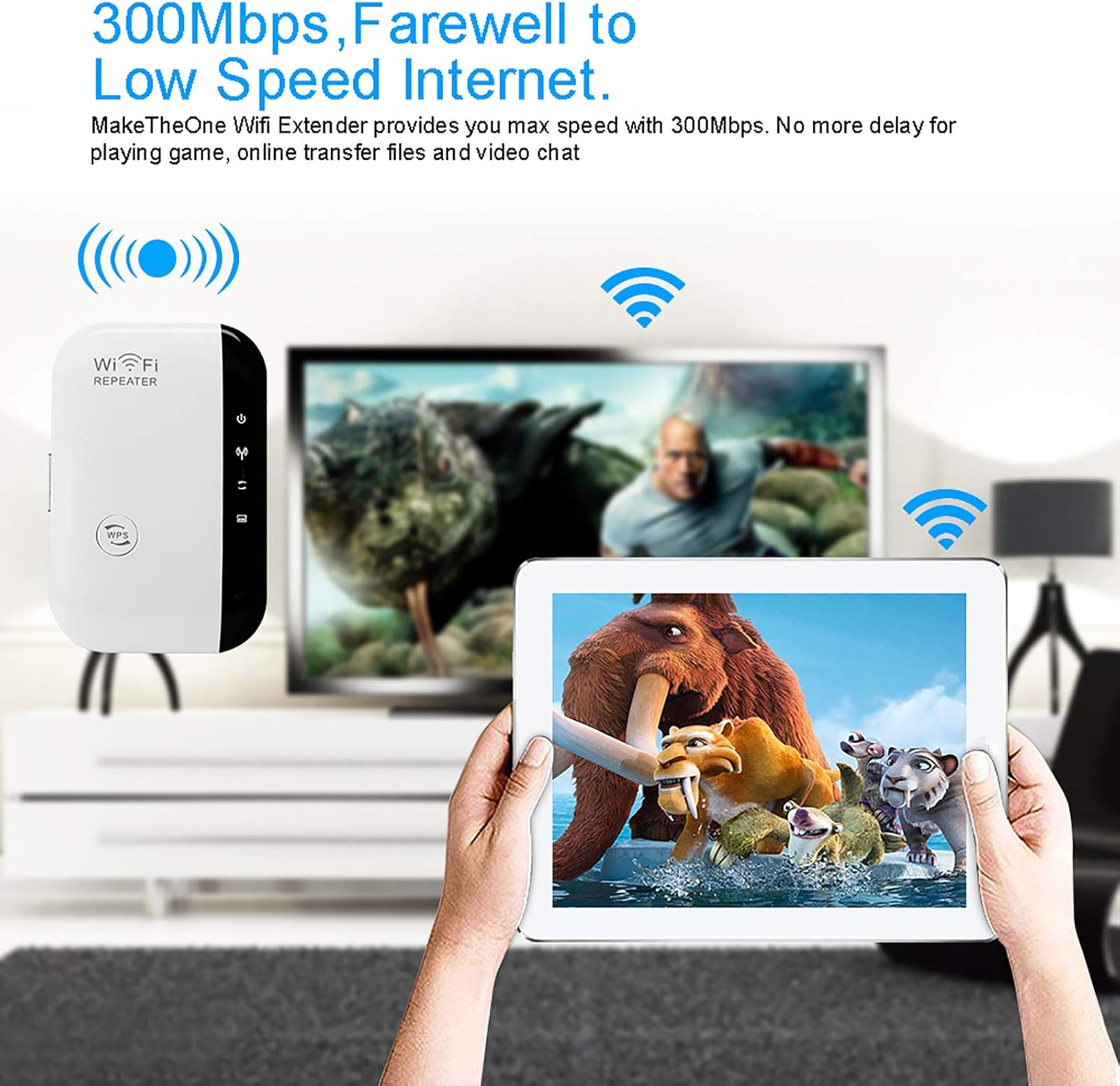
Image: Illustration showing the MakeTheOne WiFi Repeater providing up to 300Mbps speed for streaming and online activities, eliminating low-speed internet issues.
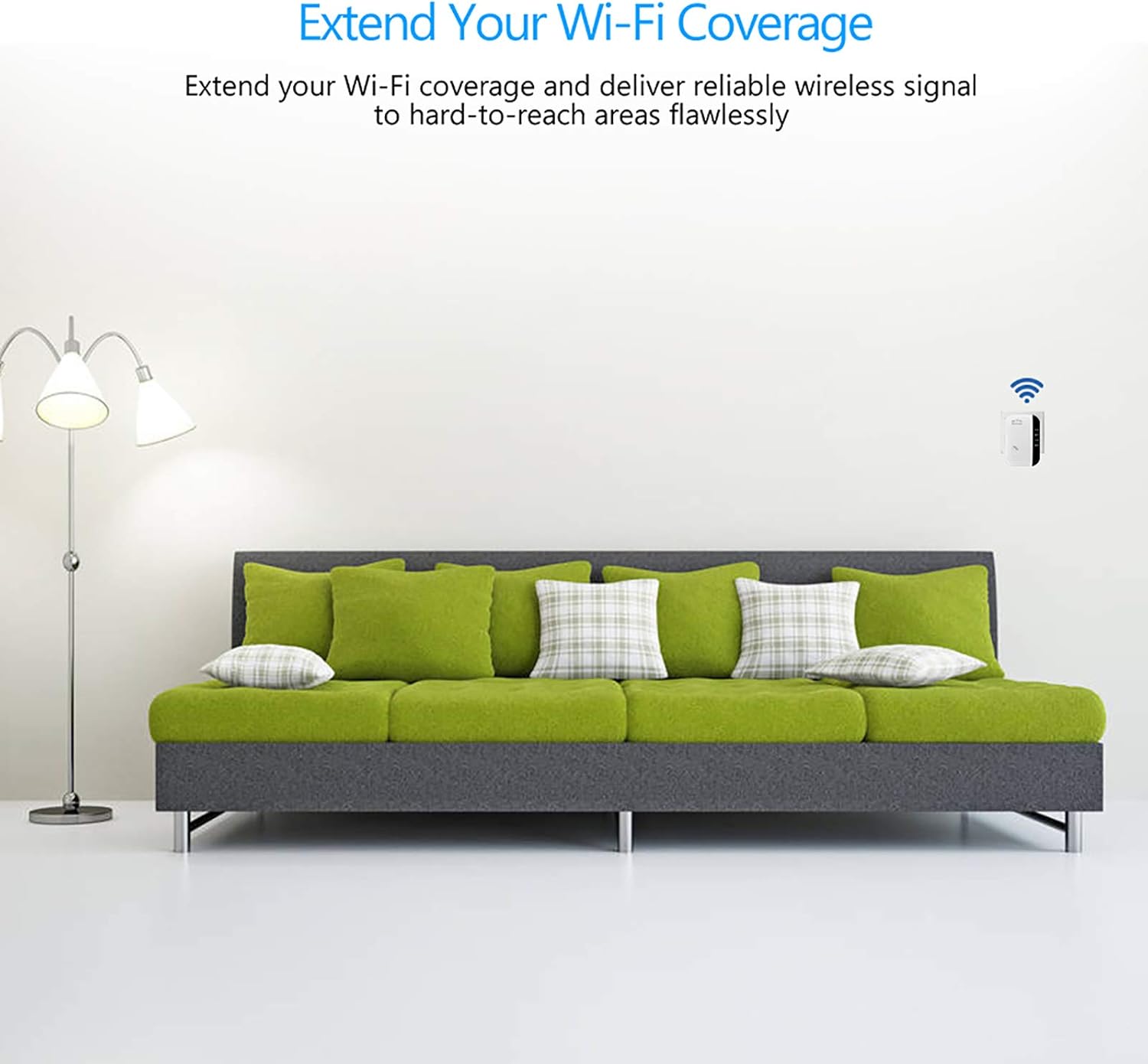
Image: Lifestyle image demonstrating the WiFi Repeater extending coverage in a living room setting, ensuring reliable wireless signal to hard-to-reach areas.
7. Troubleshooting
If you encounter issues with your WiFi Repeater, consider the following:
- Signal Interference: Ensure there is no significant signal interference between the Wi-Fi repeater and your main router. Common sources of interference include microwave ovens, washing machines, air conditioning units, and other electronic devices. If interference is suspected, try adjusting the location of the repeater.
- Distance from Router: Wi-Fi repeaters should not be placed too far away from the wireless router. Place the repeater in an optimal location where it can receive a strong signal from your main router while still being able to extend coverage to the desired area.
- Incorrect Credentials / Reset: If you accidentally mess up the usernames and passwords during setup, or if the device is not functioning as expected, you can reset it. Press the reset button on the side of the device for 10 seconds. This will restore it to its original factory state, allowing you to reconfigure it from scratch.
8. Warranty and Support
For warranty information and technical support, please refer to the documentation included with your product or visit the official Maketheone website. Keep your purchase receipt for warranty claims.