
Introduction
Welcome to the user manual for your RCA Viking Pro 10-inch 2-in-1 Tablet. This device combines the portability of a tablet with the functionality of a laptop, featuring a 10.1-inch touchscreen, a powerful Quad-Core processor, 32GB of internal storage, and the Android 6.0 Marshmallow operating system. This manual provides essential information for setting up, operating, maintaining, and troubleshooting your device to ensure optimal performance and user experience.
Getting Started
Package Contents
- RCA Viking Pro 10-inch Tablet
- Detachable Keyboard
- Power Adapter
- USB Cable
- Quick Start Guide
Component Identification
Familiarize yourself with the various ports and buttons on your tablet.
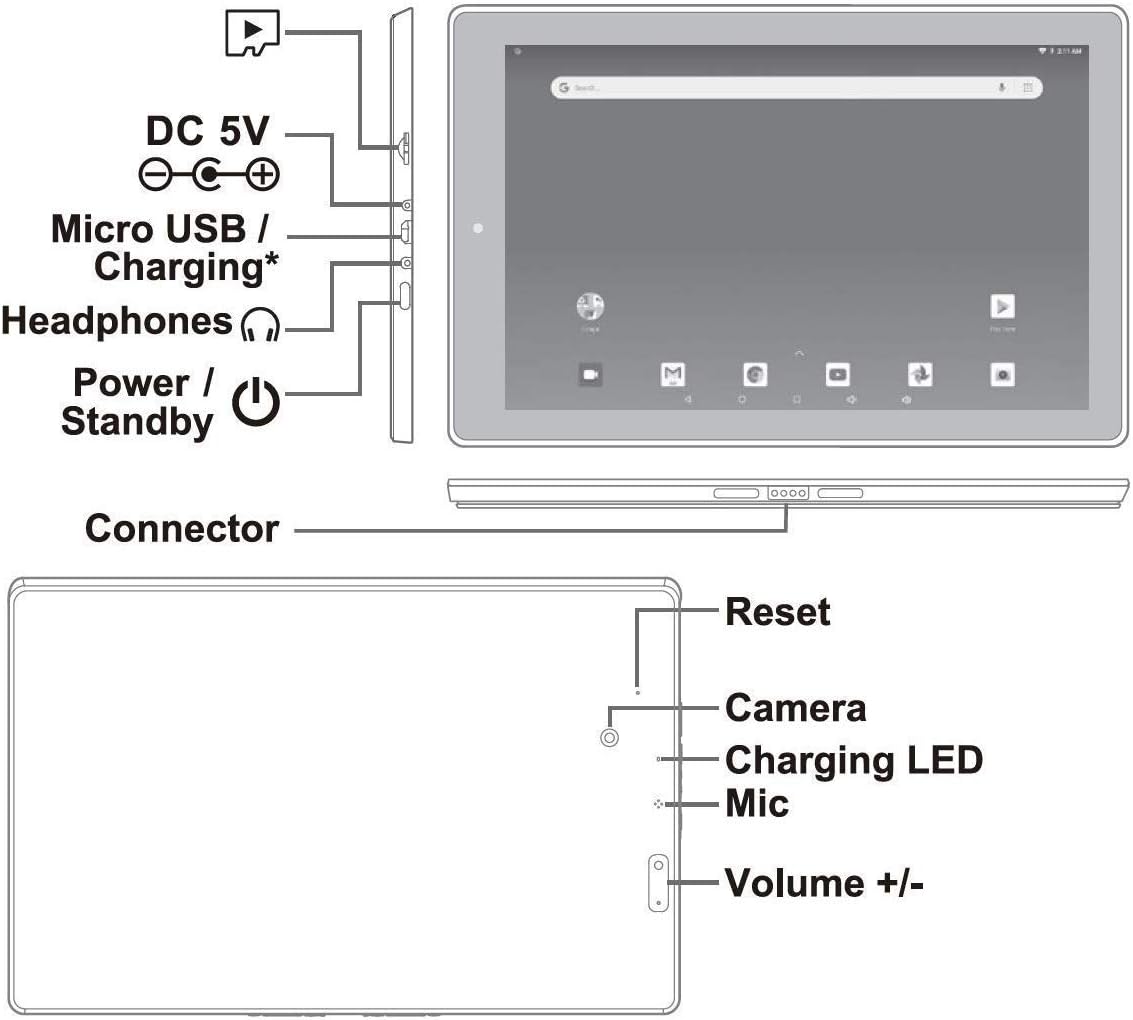
This image displays a diagram of the RCA Viking Pro tablet, highlighting its various ports and buttons. Key features include the DC 5V power input, Micro USB/Charging port, headphone jack, and Power/Standby button on one side. The other side shows the Reset button, Camera, Charging LED, Mic, and Volume +/- buttons. This visual guide is essential for identifying where to connect accessories and control basic functions.
Initial Charging
Before first use, fully charge your tablet. Connect the power adapter to the DC 5V port on the tablet and plug it into a wall outlet. The charging LED will indicate charging status. A full charge may take several hours.
Attaching the Detachable Keyboard
Align the tablet with the magnetic connector on the keyboard dock. Gently press the tablet down until it securely clicks into place. The keyboard connects via a special pin, ensuring a stable and responsive connection.

This image shows the RCA Viking Pro tablet with its detachable keyboard securely attached, forming a compact laptop-like device. The screen displays the Android home interface, demonstrating the 2-in-1 functionality of the product.
Powering On and Initial Setup
Press and hold the Power/Standby button until the RCA logo appears. Follow the on-screen instructions to complete the initial setup, which includes selecting your language, connecting to a Wi-Fi network, and signing in with your Google account. A Google account is required to access the Google Play Store and other Google services.
Operating Your Tablet
Basic Navigation
- Touchscreen Gestures: Tap to select, swipe to scroll, pinch to zoom.
- Home Screen: Access apps, widgets, and notifications. Swipe down from the top for quick settings and notifications.
- Navigation Bar: Use the Back, Home, and Recent Apps buttons at the bottom of the screen.
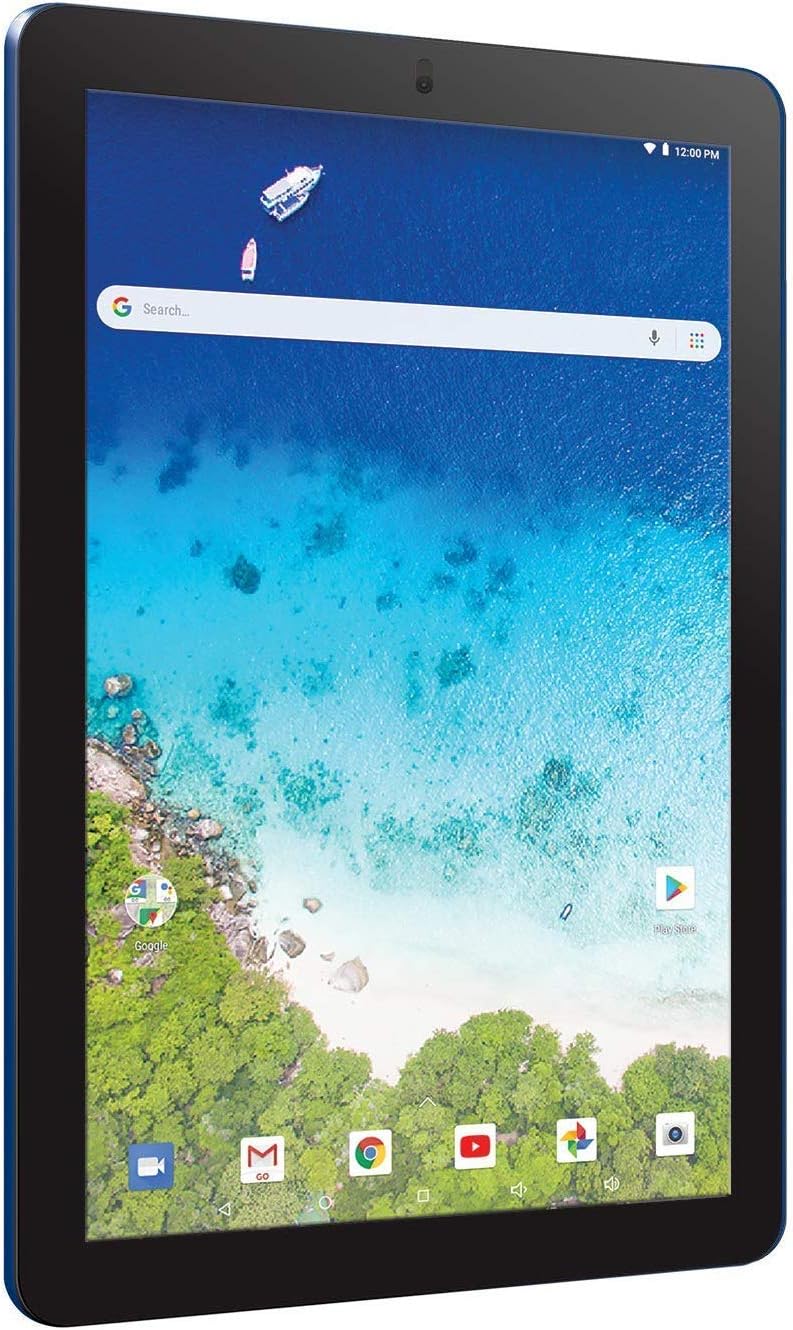
This image shows the RCA Viking Pro tablet in portrait orientation, displaying the Android home screen with a vibrant ocean background. The Google search bar is prominent at the top, along with various app icons at the bottom, illustrating the tablet's user interface.
Using the Detachable Keyboard and Touchpad
Once attached, the keyboard and touchpad function like a standard laptop. Use the keys for typing and the touchpad for cursor control. The touchpad supports multi-touch gestures similar to the tablet's touchscreen.
Connecting to Wi-Fi
- Go to Settings > Wi-Fi.
- Toggle Wi-Fi On.
- Select your desired network from the list.
- Enter the password if prompted and tap Connect.
Installing Applications
Access the Google Play Store app from your home screen or app drawer to browse and install a wide variety of applications, games, movies, and books.
Camera Functionality
Your tablet is equipped with both front and rear cameras. Open the Camera app to take photos or record videos. Tap the screen to focus and use the on-screen shutter button.
Connecting External Devices
The tablet features a full-size USB port for connecting peripherals like USB drives, mice, or external keyboards. It also includes an HDMI output for connecting to external displays.
Maintenance
Cleaning Your Device
Use a soft, lint-free cloth to clean the screen and body of the tablet. Avoid using harsh chemicals or abrasive materials. For stubborn smudges, slightly dampen the cloth with water or a screen cleaner designed for electronics.
Battery Care
- Avoid extreme temperatures, as they can degrade battery life.
- For optimal battery longevity, try to keep the charge level between 20% and 80%.
- If storing the tablet for an extended period, charge it to about 50% before turning it off.
Software Updates
Regularly check for system updates to ensure your tablet has the latest features and security patches. Go to Settings > About tablet > System updates.
Storage Management
Your tablet comes with 32GB of internal storage. To manage storage, go to Settings > Storage & USB. You can also expand storage using a microSD card (not included).
Troubleshooting
Common Issues and Solutions
- Device Not Powering On: Ensure the tablet is charged. Connect the power adapter and wait a few minutes before attempting to power on again. If unresponsive, press and hold the Power button for 10-15 seconds to force a restart.
- Wi-Fi Connection Problems: Check if Wi-Fi is enabled in settings. Restart your router and the tablet. Ensure you are entering the correct password.
- Apps Crashing or Freezing: Close and reopen the app. If the issue persists, clear the app's cache and data in Settings > Apps. As a last resort, uninstall and reinstall the app.
- Keyboard Not Responding: Ensure the keyboard is properly docked and the connection pins are clean. Detach and reattach the keyboard. Restart the tablet.
- Slow Performance: Close unnecessary background apps. Clear cached data from apps. Consider uninstalling unused apps. If performance issues persist, a factory reset may be necessary (see below).
Factory Reset
A factory reset will erase all data from your tablet and restore it to its original factory settings. Back up any important data before proceeding. To perform a factory reset, go to Settings > Backup & reset > Factory data reset.
Specifications
Below are the technical specifications for the RCA Viking Pro 10-inch 2-in-1 Tablet (Model RCT6303W87DK).
| Feature | Specification |
|---|---|
| Model Number | RCT6303W87DK |
| Screen Size | 10.1 Inches |
| Max Screen Resolution | 1280x800 pixels |
| Processor | 1.3 GHz Quad-Core |
| RAM | 32 GB DDR_SDRAM |
| Hard Drive / Storage | 32 GB |
| Operating System | Android 6.0 Marshmallow |
| Wireless Type | 2.4 GHz Radio Frequency, 802.11bgn, Bluetooth |
| Rear Webcam Resolution | 1 MP |
| Item Weight | 2.16 pounds |
| Product Dimensions (LxWxH) | 10.2 x 6.5 x 1.15 inches |
| Batteries | 1 Lithium Polymer battery required |
Warranty and Support
Warranty Information
Your RCA Viking Pro tablet is covered by a limited manufacturer's warranty. Please refer to the warranty card included in your product packaging for specific terms, conditions, and duration. Keep your proof of purchase for warranty claims.
Customer Support
For technical assistance, troubleshooting beyond this manual, or warranty inquiries, please visit the official RCA support website or contact their customer service. You can often find support contact information on the RCA brand's official website or within the documentation provided with your device.
For more information, you may visit the RCA Store on Amazon.


