
1. Introduction
The OMAX A3503S is a 0.3MP USB 2.0 Digital Eyepiece Camera designed to convert traditional microscopes into digital imaging systems. It captures color images with a 640x480 resolution and is compatible with various microscope mounting sizes, including 23.2mm, 30mm, and 30.5mm. This camera allows for real-time viewing and capturing of microscopic images on a personal computer, facilitating documentation, analysis, and sharing of observations.
2. Safety Information
- Electrical Safety: Ensure the USB connection is secure and free from damage. Do not use the camera with damaged cables or ports.
- Handling: Handle the camera with care. Avoid dropping or subjecting it to strong impacts.
- Environment: Operate the camera in a clean, dry environment. Avoid exposure to extreme temperatures, humidity, or corrosive substances.
- Lens Care: Do not touch the lens surface with bare fingers. Use appropriate lens cleaning materials if necessary.
- Disassembly: Do not attempt to disassemble or repair the camera. Refer all servicing to qualified personnel.
3. Package Contents
Verify that all items are present in the package:
- OMAX A3503S Digital Eyepiece Camera
- USB 2.0 Cable
- Software CD (or download instructions)
- 23.2mm to 30mm Adapter
- 23.2mm to 30.5mm Adapter
4. Setup
4.1. Software Installation
- Insert the provided software CD into your computer's optical drive, or download the latest software from the OMAX official website.
- Follow the on-screen instructions to install the camera drivers and imaging software.
- Restart your computer if prompted.
4.2. Camera Mounting
The OMAX A3503S camera is designed to fit into the eyepiece tube of most standard microscopes.
- Remove one of the microscope's eyepieces.
- Determine the diameter of your microscope's eyepiece tube (common sizes are 23.2mm, 30mm, or 30.5mm).
- If your microscope has a 30mm or 30.5mm eyepiece tube, attach the appropriate adapter to the camera. For 23.2mm tubes, no adapter is needed.
- Carefully insert the camera (with adapter if needed) into the eyepiece tube. Ensure it is seated firmly and securely.
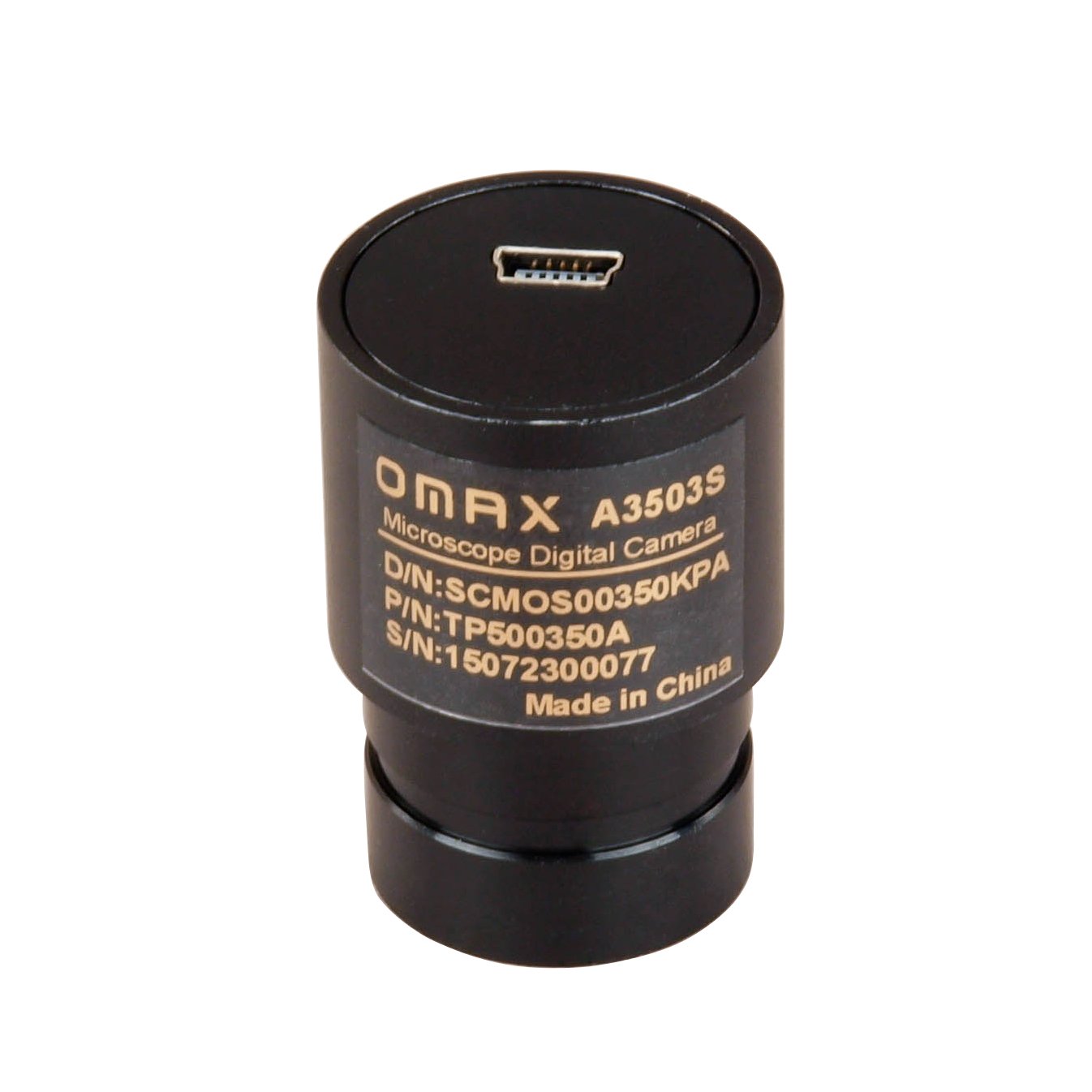
Image: OMAX A3503S Digital Eyepiece Camera unit. This image shows the main camera unit with its USB port and model information.

Image: Microscope eyepiece adapter. This image displays an adapter used to fit the camera into different microscope eyepiece tube diameters.
4.3. Connecting to Computer
- Connect one end of the provided USB 2.0 cable to the camera's USB port.
- Connect the other end of the USB cable to an available USB port on your computer.
- The computer should automatically detect the camera. If not, verify driver installation.

Image: OMAX A3503S camera connected to a microscope and laptop. This image illustrates the complete setup with the camera mounted on a microscope and connected to a laptop displaying the live feed.
5. Operating Instructions
5.1. Launching the Software
After successful installation and connection, launch the OMAX imaging software from your computer's applications menu or desktop shortcut.
5.2. Live View and Focusing
- Once the software is open, select the OMAX A3503S camera from the device list if multiple cameras are detected.
- A live video feed from the microscope should appear on your screen.
- Use the microscope's coarse and fine focus knobs to bring the specimen into sharp focus on your computer screen.
- Adjust the microscope's illumination for optimal brightness and contrast.
5.3. Capturing Images and Videos
The imaging software provides controls for capturing still images and recording video clips.
- Still Image Capture: Locate the 'Capture' or 'Snapshot' button within the software interface. Click it to save a 640x480 resolution image of the current view.
- Video Recording: Look for a 'Record' button. Click once to start recording and again to stop. The software will save the video file to a designated location.
- Settings: Explore the software's settings for options such as exposure, white balance, and image resolution (if adjustable).
5.4. Streaming
The USB 2.0 connection allows for streaming images from the microscope to remote viewers, depending on the capabilities of your operating system and third-party streaming software. The camera is UVC-compatible, meaning it can often be used with generic webcam software.
6. Maintenance
- Cleaning the Camera Body: Use a soft, dry cloth to wipe the exterior of the camera. Do not use harsh chemicals or abrasive materials.
- Cleaning the Lens: For dust on the lens, use a blower brush. For smudges, use a lens cleaning solution specifically designed for optical surfaces and a microfiber cloth. Apply solution to the cloth, not directly to the lens.
- Storage: When not in use, store the camera in a clean, dry place, preferably in its original packaging or a protective case, away from direct sunlight and extreme temperatures.
- Software Updates: Periodically check the OMAX website for software and driver updates to ensure optimal performance and compatibility.
7. Troubleshooting
- No Image on Screen:
- Ensure the USB cable is securely connected to both the camera and the computer.
- Verify that the camera drivers are correctly installed. Check Device Manager (Windows) or System Information (macOS) to see if the camera is recognized.
- Confirm that the correct camera is selected in the imaging software.
- Try connecting to a different USB port or another computer to rule out port or computer issues.
- Poor Image Quality / Blurry Images:
- Adjust the microscope's coarse and fine focus knobs.
- Ensure the microscope's illumination is properly adjusted (brightness, aperture).
- Clean the camera lens and microscope optics if smudges or dust are visible.
- Check software settings for exposure and white balance.
- Software Not Recognizing Camera:
- Reinstall the camera drivers and software.
- Ensure no other applications are using the camera simultaneously.
- Check for operating system compatibility with the provided software.
8. Specifications
| Feature | Specification |
|---|---|
| Model Name | A3503S |
| Resolution | 0.3MP (640x480) |
| Connectivity | USB 2.0 |
| Mounting Sizes | 23.2mm, 30mm, 30.5mm |
| Compatible Devices | Personal Computer |
| Brand | OMAX |
| Material | Plastic |
| Color | Multicolor |
| Power Source | Corded Electric (via USB) |
| UVC Compatibility | Yes |
9. Warranty Information
Specific warranty terms for the OMAX A3503S Digital Eyepiece Camera are provided by the manufacturer or authorized seller at the time of purchase. Please refer to your purchase documentation or contact the seller directly for detailed warranty information, including coverage period and conditions.
10. Support
For technical assistance, troubleshooting beyond this manual, or inquiries regarding your OMAX A3503S camera, please contact OMAX customer support or the authorized retailer from whom you purchased the product. Have your model number (A3503S) and purchase details ready when contacting support.
- Manufacturer: OMAX (a division of United Scope LLC)
- Website: Refer to the official OMAX or AmScope website for support resources, FAQs, and contact information.
