Introduction
Welcome to the user manual for your new havit Gaming Keyboard and Mouse Combo (Model: HV-KB558CM). This combo is designed to enhance your gaming and typing experience with its advanced features and ergonomic design. It includes a backlit keyboard and an RGB gaming mouse, offering both functionality and aesthetic appeal.
Key features include:
- Elegant rainbow backlighting for an immersive experience.
- Comfortable and durable keycaps suitable for long-time use.
- 19 non-conflict keys for precise gaming inputs.
- Adjustable DPI settings (800-4800) for the gaming mouse.
- Customizable RGB lighting and programmable functions on the mouse.
- Wide compatibility with various Windows operating systems.
This manual provides detailed instructions on setting up, operating, and maintaining your new gaming peripherals.

Figure 1: Havit Gaming Keyboard and Mouse Combo (Model: HV-KB558CM)
Setup Guide
Your havit Gaming Keyboard and Mouse Combo is designed for simple plug-and-play functionality, requiring no additional software or firmware installation for basic operation.
Package Contents
Before you begin, please ensure all items are present in the package:
- 1x Gaming Keyboard
- 1x Gaming Mouse
- 1x User Manual (this document)
System Requirements
The keyboard and mouse kit supports the following operating systems:
- Windows 2000
- Windows 2003
- Windows XP
- Windows Vista
- Windows 7
- Windows 8
- Windows 10
Note: The multimedia keys on the keyboard are primarily designed for Windows operating systems and may not be fully compatible with Mac OS systems.
Installation Steps
- Connect the Keyboard: Locate an available USB port on your computer. Insert the USB connector of the gaming keyboard firmly into the USB port.
- Connect the Mouse: Locate another available USB port on your computer. Insert the USB connector of the gaming mouse firmly into the USB port.
- System Recognition: Your operating system should automatically detect and install the necessary drivers for both the keyboard and mouse. This process usually takes a few moments.
- Verify Functionality: Once installed, test the keyboard and mouse to ensure they are working correctly. The keyboard backlight and mouse RGB lighting should activate automatically.

Figure 2: Overview of Keyboard and Mouse Combo Features
Operating Instructions
Keyboard Features
The havit gaming keyboard offers a range of features designed for optimal performance and user comfort.
- Rainbow Backlight: The keyboard features a vibrant rainbow backlight that provides an immersive gaming atmosphere. The colors are preset and cannot be individually changed.
- Backlight Modes: You can adjust the backlight brightness and activate a breathing mode. Refer to the keyboard's function keys for specific controls (e.g., Fn + Scroll Lock for mode changes, Fn + Page Up/Down for brightness).
- Anti-Ghosting: With 19 non-conflict keys, your commands are registered accurately even during intense gaming sessions, preventing missed key presses.
- WASD and Arrow Key Exchange: Easily switch the functionality of the WASD keys with the arrow keys for different gaming preferences. This is typically done by pressing Fn + W.
- Win Lock Function: Prevent accidental interruptions during gameplay by locking the Windows key. Activate this feature by pressing Fn + Win.
- Multimedia Keys: Access common multimedia functions directly using dedicated keys or Fn key combinations (e.g., F5-F8 for media control).

Figure 3: Elegant Keyboard Backlight for Enhanced Visibility
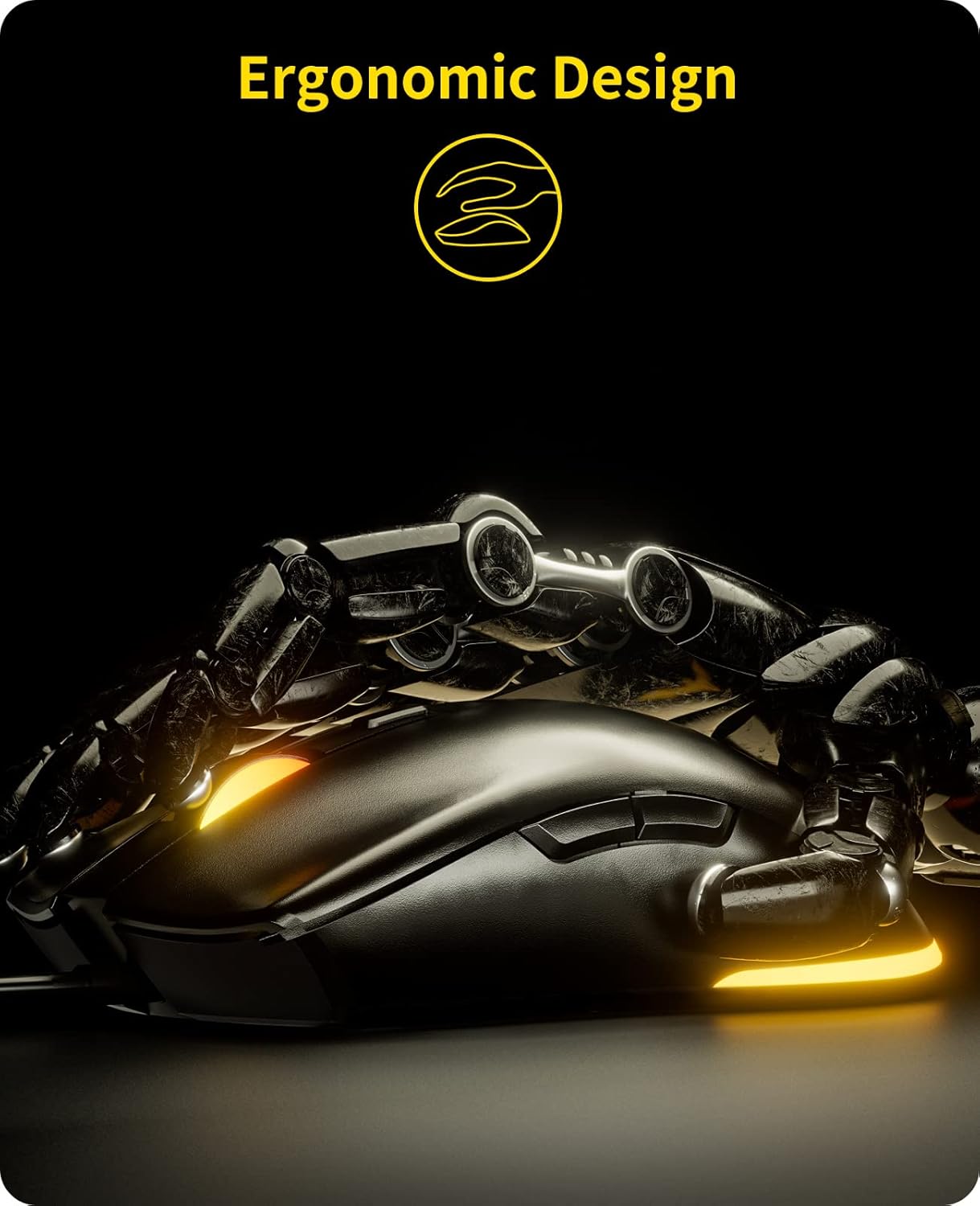
Figure 4: Keyboard Function Keys for Direction Exchange (Fn+W) and Win Lock (Fn+Win)
Mouse Features
The havit RGB gaming mouse provides precision and customization for various gaming styles.
- Adjustable DPI: Cycle through DPI settings from 800 to 4800 to match your preferred sensitivity for different games or tasks. This allows for precise cursor control.
- Customizable RGB Lighting: The mouse features cool adjustable RGB lighting. The light color can be changed by holding and pressing the left-click button simultaneously with the DPI button.
- Programmable Functions: The mouse includes extra programmable functions, allowing you to customize all mouse keys to suit your needs.
- 6 Keys and 7 RGB Light Modes: The mouse is equipped with 6 buttons and offers 7 distinct RGB lighting modes for personalized aesthetics.

Figure 5: Adjustable DPI Mouse with RGB Lighting

Figure 6: Mouse Button Layout and Available RGB Light Modes
Official Product Videos
Watch these official videos from havit for a closer look at the product's features and functionality:
Video 1: Havit Wired Gaming Keyboard Mouse Combo LED Rainbow Backlit. This video demonstrates the keyboard and mouse in action, highlighting their LED lighting effects.
Video 2: Havit wired gaming keyboard and mouse. This video provides another perspective on the keyboard and mouse, showcasing their design and features.
Maintenance
Proper care and maintenance will ensure the longevity and optimal performance of your havit Gaming Keyboard and Mouse Combo.
- Cleaning: Regularly clean the keyboard and mouse with a soft, dry cloth. For stubborn dirt, a slightly damp cloth can be used, ensuring no liquid enters the devices. Avoid harsh chemicals or abrasive materials.
- Keycap Durability: The keycaps are made of high-quality ABS plastic, designed for long-term use. However, excessive force or prying can damage them.
- Cable Care: The devices feature durable braided cords. Avoid sharp bends, kinks, or excessive pulling on the cables to prevent internal damage.
- Storage: When not in use, store the keyboard and mouse in a clean, dry environment away from direct sunlight and extreme temperatures.

Figure 7: Comfortable Typing Experience with Durable Keycaps and Wrist Rest
Troubleshooting
If you encounter any issues with your havit Gaming Keyboard and Mouse Combo, please refer to the following common troubleshooting steps:
- No Response from Keyboard/Mouse:
- Ensure both devices are securely plugged into active USB ports on your computer.
- Try connecting the devices to different USB ports to rule out a faulty port.
- Restart your computer.
- Backlight/RGB Lighting Not Working:
- For the keyboard, ensure the backlight is not turned off or set to minimum brightness. Use the designated function keys (e.g., Fn + Scroll Lock, Fn + Page Up/Down) to adjust.
- For the mouse, try pressing the left-click and DPI buttons simultaneously to cycle through lighting modes.
- Verify that the devices are properly connected to your computer.
- Keys Not Responding or Repeating:
- Ensure the keyboard is clean and free from debris that might obstruct key presses.
- Test the keyboard on another computer to determine if the issue is with the keyboard or your system.
- Mouse Cursor Jumps or is Unresponsive:
- Clean the optical sensor on the bottom of the mouse.
- Ensure you are using the mouse on a suitable surface (a mouse pad is recommended).
- Adjust the DPI settings using the DPI button on the mouse.
If these steps do not resolve your issue, please refer to the "Warranty and Support" section for further assistance.
Specifications
| Feature | Description |
|---|---|
| Brand | havit |
| Model Number | HV-KB558CM |
| Item Weight | 1.67 pounds |
| Product Dimensions | 17.5 x 7.95 x 1.11 inches |
| Operating System Compatibility | Windows 2000 / 2003 / XP / Vista / Win7 / Win8 / Win10 |
| Connectivity Technology | Wired |
| Color | Black |
| Special Feature | Backlit Keyboard and RGB Mouse |
| Mouse DPI Settings | 800-4800 DPI (Adjustable) |
| Keyboard Anti-Ghosting | 19 Non-Conflict Keys |
Warranty and Support
havit is committed to providing high-quality products and excellent customer service. We sincerely hope you enjoy the convenience and fun of your new gaming combo.
For any questions, concerns, or technical assistance regarding your HV-KB558CM Gaming Keyboard and Mouse Combo, please do not hesitate to contact havit customer support. We are dedicated to replying and solving your concerns as soon as possible.
Please refer to the product packaging or the official havit website for the most up-to-date contact information and details regarding warranty coverage.


