
SilverStone SST-ST75F-PT
SilverStone Technology 750W 80 Plus Platinum Certified ATX Power Supply User Manual
Model: SST-ST75F-PT
Brand: SilverStone
Introduction
This manual provides essential information for the installation, operation, and maintenance of your SilverStone Technology 750W 80 Plus Platinum Certified ATX Power Supply (Model: SST-ST75F-PT). Designed for high efficiency and compact systems, this power supply offers reliable performance for your desktop computer.

Image: The SilverStone 750W 80 Plus Platinum power supply unit shown alongside its retail packaging, highlighting its compact design and key features.
Key Features
- 750 Watts Peak DC Power Output
- Compact design with a depth of 140mm for easy integration
- High efficiency with 80 PLUS Platinum certification
- 100% modular cables
- 24/7 continuous power output with 40℃ operating temperature
- Class-leading single +12V rail
- Strict 3% voltage regulation and low ripple & noise
- Ultra silent 120mm fan with intelligent semi-fanless operation
Setup and Installation
Follow these steps for proper installation of your power supply unit (PSU) into your computer system.
- Prepare your system: Ensure your computer is powered off and unplugged from the wall outlet. Open your computer case to access the PSU mounting area.
- Mount the PSU: Carefully slide the SilverStone PSU into the designated bay in your computer case. Secure it with the appropriate screws.
- Connect Modular Cables: This PSU features a fully modular design. Connect only the necessary cables for your components (motherboard, CPU, GPU, storage drives) to the corresponding ports on the PSU. Ensure all connections are firm and secure.
- Connect to Components: Route the connected modular cables to your motherboard (24-pin ATX, 8-pin EPS/CPU), graphics card(s) (PCI-E), and storage devices (SATA, Molex).
- Connect AC Power: Plug the AC power cord into the PSU's power inlet and then into a wall outlet or surge protector.
- Power On: Ensure the power switch on the back of the PSU is in the 'On' position (usually indicated by 'I'). You can now power on your computer.

Image: A detailed view of the modular cable connection ports on the SilverStone power supply, showing various types of connectors.
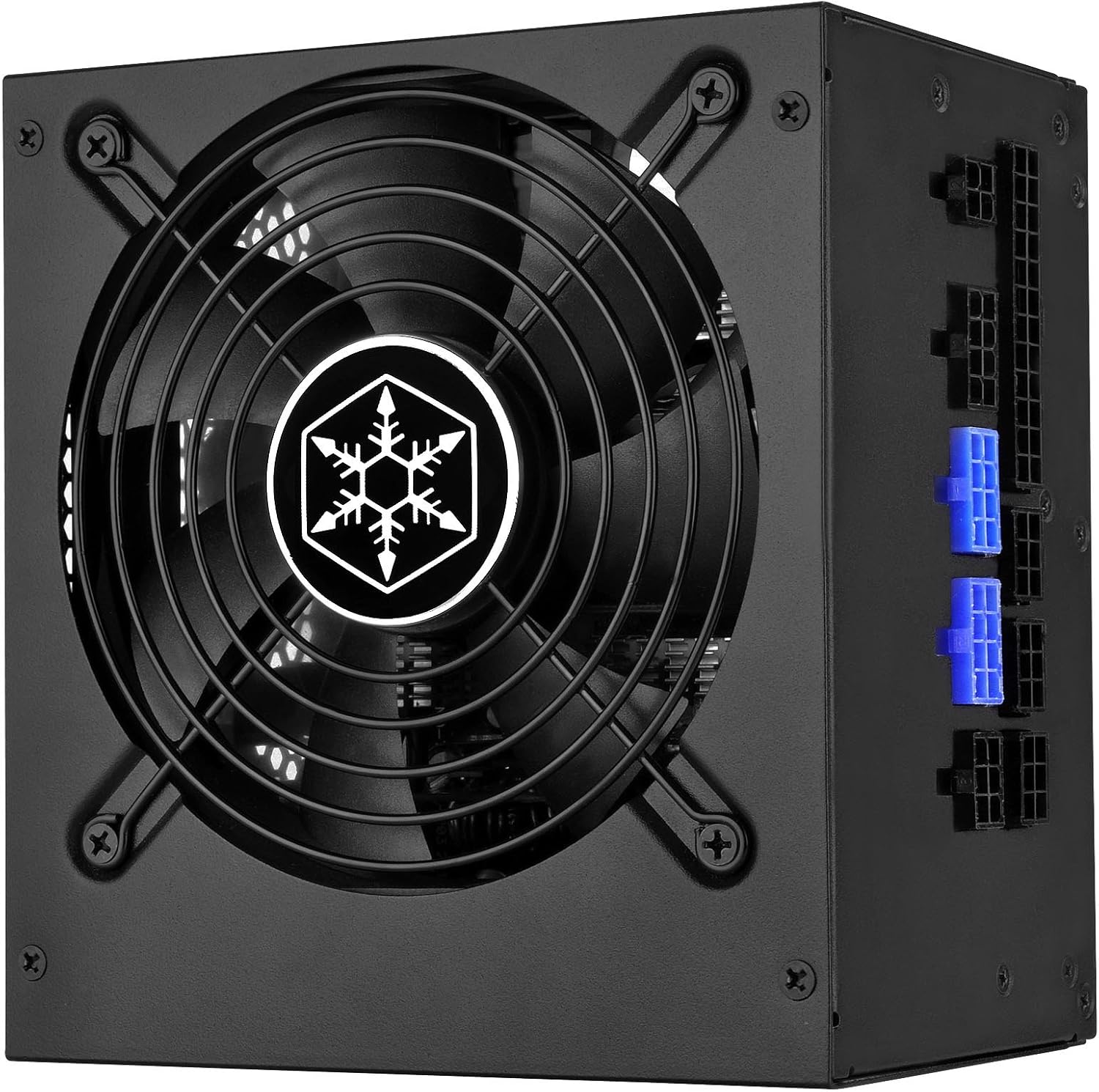
Image: An angled view of the SilverStone power supply, highlighting the modular cable connections on its side.

Image: The rear panel of the SilverStone power supply, showing the main power switch and the AC power input socket.
Operating Instructions
The SilverStone Strider Platinum series power supplies are designed for efficient and quiet operation.
- Semi-Fanless Operation: The 120mm cooling fan is designed to remain off when the power supply load is below 20%. This provides silent operation during idle or low-power computing activities. The fan will automatically activate as the load increases to maintain optimal temperatures.
- Continuous Power Output: This PSU is rated for 24/7 continuous power output at an operating temperature of 40℃, ensuring stable and reliable power delivery under demanding conditions.
Maintenance
To ensure the longevity and optimal performance of your power supply, periodic maintenance is recommended.
- Dust Removal: Regularly clean dust from the PSU's fan grille and vents using compressed air. Ensure the system is powered off and unplugged before cleaning.
- Cable Management: Ensure cables inside your computer case are neatly managed to allow for proper airflow, which helps in cooling the PSU and other components.

Image: Top view of the SilverStone power supply, showing the fan grille and the product information label.
Important Safety Warning: Hazardous Area
Under no circumstances is this case to be opened. This machine is not user serviceable and dangerous high voltage inside this case. In event of difficulty, please notify your dealer for prompt service.

Image: A close-up of the warning label on the SilverStone power supply, indicating a hazardous area and advising against opening the unit.
Troubleshooting
If you encounter issues with your power supply, consider the following common troubleshooting steps:
- No Power: Ensure the AC power cord is securely plugged into both the PSU and the wall outlet. Verify that the power switch on the back of the PSU is in the 'On' position. Check your wall outlet or surge protector.
- System Instability/Crashes: Ensure all modular cables are firmly connected to both the PSU and your components. Loose connections can lead to unstable power delivery.
- Fan Not Spinning: Remember that the PSU operates in a semi-fanless mode at low loads. The fan will only spin when the load exceeds 20%. If the fan does not spin under higher loads, ensure proper airflow around the PSU and check for any obstructions.
- Unusual Noises: If you hear unusual noises (e.g., grinding, buzzing), immediately power off your system and unplug the PSU. Do not attempt to open the unit due to high voltage. Contact SilverStone support or your dealer.
For further assistance, refer to the manufacturer's support resources or contact your dealer.
Specifications
| Attribute | Value |
|---|---|
| Brand | SilverStone |
| Series | PS-ST75F-PT |
| Model Number | SST-ST75F-PT |
| Item Weight | 5 Pounds |
| Product Dimensions | 5.5 x 5.9 x 3.4 inches |
| Color | Platinum |
| Manufacturer | SilverStone Technology |
| Output Wattage | 750 Watts |
| Form Factor | ATX |
| Cooling Method | Air |
| Efficiency Certification | 80 PLUS Platinum |
| Modular Cables | 100% Modular |
| Continuous Power Output | 24/7 at 40℃ |
| +12V Rail | Single |
Warranty and Support
SilverStone Technology products are manufactured to high quality standards. For specific warranty information regarding your PS-ST75F-PT power supply, please refer to the warranty card included with your product or visit the official SilverStone Technology website.
For technical support, troubleshooting assistance beyond this manual, or warranty claims, please contact SilverStone Technology customer service or your authorized dealer.
SilverStone Technology Official Website: www.silverstonetek.com
Related documentsSST-ST75F-PT


Ask a question about this manual
Ask about setup, troubleshooting, compatibility, parts, safety, or missing instructions. Manuals+ will review the question and use this page’s manual context to help answer it.