
Introduction
The PNY GeForce GTX 970 4GB Rev 2 Graphics Card is a high-performance component designed for serious gaming and demanding graphical tasks. Utilizing the NVIDIA Maxwell architecture, this graphics card delivers advanced technologies and class-leading graphics for immersive experiences. It supports features such as NVIDIA G-SYNC for smooth, tear-free visuals and Super Resolution technology for 4K-quality gaming on 1080p displays.
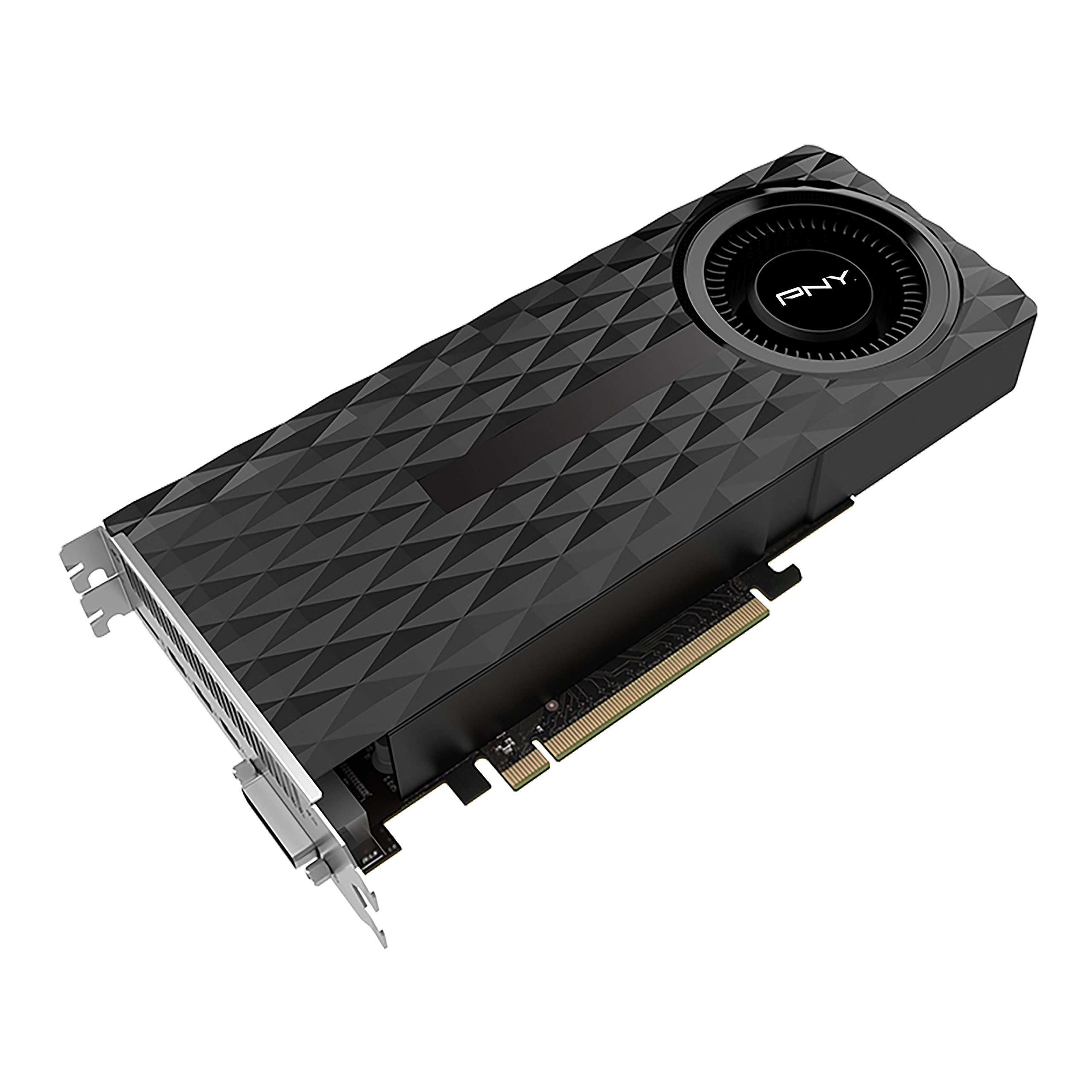
Image: Front view of the PNY GeForce GTX 970 Graphics Card, showcasing its cooling fan and shroud design.
Setup and Installation
Follow these steps to properly install your PNY GeForce GTX 970 graphics card into your computer system.
- Prepare Your System: Power off your computer and unplug all cables. Open your computer case.
- Locate PCIe Slot: Identify an available PCI Express x16 slot on your motherboard.
- Remove Slot Covers: Remove the necessary expansion slot covers from the back of your computer case to accommodate the graphics card.
- Insert Graphics Card: Carefully align the graphics card with the PCIe slot and press it firmly until it is securely seated. Ensure the retention clip on the motherboard engages.
- Secure the Card: Use screws to secure the graphics card to the computer case at the expansion slot bracket.
- Connect Power: Connect the required PCIe power connectors from your power supply to the graphics card. The GTX 970 typically requires one or two 6-pin or 8-pin PCIe power connectors. Refer to your power supply and graphics card for exact requirements.
- Close Case and Connect Peripherals: Close your computer case, reconnect all cables (monitor, keyboard, mouse, power), and power on your system.
- Install Drivers: Once your operating system loads, install the latest NVIDIA drivers for the GeForce GTX 970 from the official NVIDIA website. This is crucial for optimal performance and feature access.

Image: Rear view of the PNY GeForce GTX 970 Graphics Card, showing HDMI, DisplayPort (DP), and DVI output connectors.
Operating Instructions
After successful installation and driver setup, your PNY GeForce GTX 970 is ready for use. Here are some key operational aspects:
- Display Connection: Connect your monitor(s) to the graphics card using the available HDMI, DisplayPort, or DVI outputs. The card supports multiple displays.
- NVIDIA Control Panel: Access the NVIDIA Control Panel (usually found in your system tray or desktop right-click menu) to configure display settings, 3D settings, and other graphics card features.
- Gaming Performance: For optimal gaming, ensure your game settings are configured appropriately for your system's capabilities. The GTX 970 is designed for high-performance gaming at 1080p and can handle 4K resolutions with Super Resolution technology.
- NVIDIA G-SYNC: If you have a G-SYNC compatible monitor, enable G-SYNC in the NVIDIA Control Panel for a smoother, tear-free gaming experience.
- NVIDIA GameStream: Stream your PC games to NVIDIA SHIELD devices for gaming on the go or in other rooms.
- VR Ready: The GTX 970 is capable of handling Virtual Reality (VR) applications. Ensure your system meets the minimum requirements for your chosen VR headset.
Maintenance
Proper maintenance helps ensure the longevity and optimal performance of your graphics card.
- Keep Clean: Periodically clean dust from the graphics card's heatsink and fans using compressed air. Ensure the computer is powered off and unplugged before cleaning.
- Ensure Airflow: Maintain good airflow within your computer case by ensuring proper cable management and that case fans are functioning correctly.
- Driver Updates: Regularly check for and install the latest NVIDIA graphics drivers. Driver updates often include performance improvements, bug fixes, and support for new games and applications.
- Temperature Monitoring: Use monitoring software to keep an eye on your GPU temperatures, especially during heavy loads. Excessive temperatures can indicate poor airflow or dust buildup.
Troubleshooting
If you encounter issues with your graphics card, consider the following troubleshooting steps:
- No Video Output:
- Ensure the monitor cable is securely connected to both the graphics card and the monitor.
- Verify that the graphics card is fully seated in its PCIe slot and that all power connectors are properly attached.
- Test with a different monitor cable or monitor if possible.
- Some users have reported issues with no display output until drivers are loaded, particularly over HDMI or DisplayPort. NVIDIA has released firmware updates for some cards to address this. Check the NVIDIA support forums for specific firmware updates related to your card model if you experience this issue.
- Display Artifacts or Lines:
- Ensure drivers are up to date.
- Check GPU temperatures to rule out overheating.
- Test the card in another PCIe slot if available, or try a different monitor/cable.
- System Crashes or Freezes:
- Verify that your power supply unit (PSU) meets the minimum wattage requirements for your system with the GTX 970 installed.
- Ensure drivers are stable and up to date. Consider rolling back to a previous driver version if issues started after an update.
- Monitor GPU temperatures.
- Poor Performance in Games:
- Ensure your game settings are not excessively high for the card's capabilities.
- Verify that the latest drivers are installed.
- Check for background applications consuming system resources.
For further assistance, consult the NVIDIA support forums or PNY's official support channels.
Specifications
| Feature | Detail |
|---|---|
| Model Number | VCGGTX9704R2XPB |
| Graphics Processor | NVIDIA GeForce GTX 970 |
| CUDA Cores | 1664 |
| Core Clock | 1050 MHz |
| Boost Clock | 1178 MHz |
| Video Memory | 4GB GDDR5 |
| Max Resolution | 4096 × 2160 |
| Output Interfaces | HDMI, DisplayPort, DVI |
| Dimensions (LxWxH) | 11.5 x 2.63 x 6.31 inches |
| Item Weight | 2 pounds |
| DirectX Support | DirectX 12 |
| Other Features | VR Ready, Gamestream to NVIDIA SHIELD, G-SYNC Technology |
Warranty and Support
Warranty Information: Please note that this product is sold as an OEM (Original Equipment Manufacturer) component and may not include a direct manufacturer's warranty. The provided legal disclaimer states: "No Warranty and the card is OEM." It is advisable to check with your retailer regarding any return or limited warranty policies they may offer.
Technical Support:
- For driver updates and general NVIDIA graphics card support, visit the official NVIDIA Drivers website.
- For specific product inquiries or advanced troubleshooting, you may visit the PNY Support page.
- Community forums, such as the NVIDIA GeForce Forums, can also be a valuable resource for troubleshooting and user-shared solutions.


