1. Introduction
The CamFi CF102 is a wireless remote control designed to enhance your DSLR photography experience. It allows for instant capture and transmission of photos, multi-device support, time-lapse shooting, and convenient remote viewing, providing greater flexibility and control over your camera.

Image: CamFi DSLR Remote Controller banner highlighting key features.
2. Product Features
- Instant Capture & Transmit: Achieve faster transmission speeds than built-in camera Wi-Fi. Connect wirelessly to live view on mobile devices (phones, tablets) or computers (PC, Mac).
- Multiple Camera Support: Compatible with a wide range of DSLR cameras (refer to compatibility list). Supports advanced functions like focus stacking and HDR exposure bracketing, time-lapse on camera, and supports Android, iOS, and PC.
- Time-lapse Shooting: Configure time-lapse settings including shooting time, number of shots, and interval. Ideal for bullet time, 3D modeling, and multi-angle shooting.
- Convenient Viewfinder: Use your mobile phone or tablet as a remote viewfinder, enabling easy shooting from various angles without awkward physical positioning.

Image: The CamFi CF102 connected to a DSLR camera, wirelessly transmitting live view to a smartphone and tablet, demonstrating instant capture and multi-device support.
3. Package Contents
The CamFi CF102 package typically includes the following items:
- CamFi Remote Camera Controller (CF102 unit)
- Mini USB cable for camera connection
- Micro USB cable for battery charging
- Double screw for hot shoe adapter
- Quick Start Guide
- Packing box

Image: A visual representation of the CamFi CF102 package contents, including the main unit, various cables, and accessories.
4. Setup
- Charge the CamFi Unit: Connect the Micro USB cable to the CamFi unit and a power source to ensure it is fully charged.
- Install CamFi Software/App: Download and install the CamFi app on your mobile device (Android/iOS) or the software on your PC/Mac.
- Connect CamFi to Camera: Use the Mini USB cable to connect the CamFi unit to your DSLR camera's USB port. Ensure your camera is turned on.
- Power On CamFi: Turn on the CamFi unit. Wait for the network indicator light to stabilize.
- Connect Device to CamFi Network: On your mobile device or computer, disconnect from your regular Wi-Fi network and connect to the Wi-Fi network broadcast by the CamFi unit (e.g., "CAM NETWORK").
- Launch CamFi App/Software: Open the CamFi application. It may prompt for a firmware update; follow on-screen instructions if so (do not connect the camera during firmware update).
- Verify Connection: Once connected, your camera settings and live view should appear in the CamFi app/software.
Video: Demonstrates the setup and connection process of the CamFi Wireless Camera Controller with a PC/phone, showing how to capture and transmit images.
5. Operating Instructions
5.1 Basic Operation
- Live View: Access the live feed from your camera on your connected device.
- Remote Shutter: Tap the shutter button in the app to take a photo.
- Adjust Camera Settings: Modify exposure settings (aperture, shutter speed, ISO) directly from the app interface.
5.2 Advanced Functions
- Focus Stacking: Utilize the app to set parameters for focus stacking, capturing multiple images at different focus points for enhanced depth of field.
- HDR Bracketing: Configure settings for High Dynamic Range (HDR) photography, capturing multiple exposures to combine into a single image with greater dynamic range.
- Time-Lapse: Set the interval, number of shots, and duration for automated time-lapse sequences.

Image: The CamFi application interface displayed on a smartphone, illustrating remote control over camera settings and a gallery of captured images.
Video: A demonstration of live shooting and usage of the CamFi102, showcasing its real-time capabilities.
6. Compatibility
The CamFi CF102 is designed to be compatible with a wide range of DSLR cameras from various manufacturers. Please refer to the detailed compatibility list below to ensure your camera model is supported.
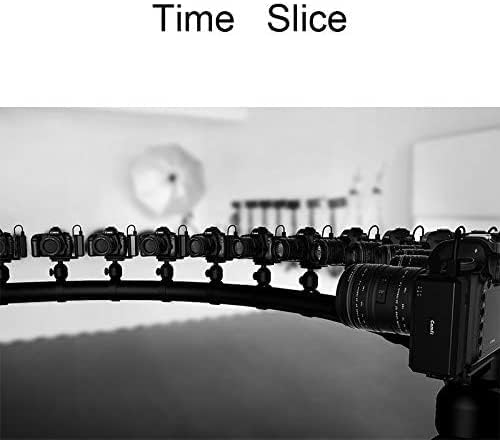
Image: A list detailing compatible Canon and Nikon DSLR camera models for the CamFi CF102. Note: Some cameras may require their original USB cable or may not support live view.
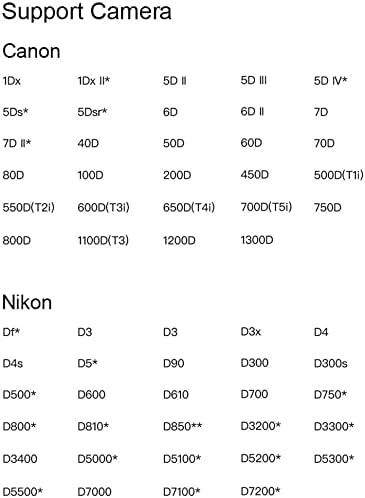
Image: A list detailing compatible Sony DSLR camera models for the CamFi CF102. Note: Some cameras may require their original USB cable or may not support live view.
Important Notes:
- For some cameras, the USB cable included with CamFi may not match. Please use the original USB cable provided with your camera to connect with CamFi.
- Certain camera models may not support live view functionality through the CamFi unit.
- Grayed-out camera models in the compatibility list indicate future support.
7. Maintenance
- Cleaning: Use a soft, dry cloth to clean the CamFi unit. Avoid using liquid cleaners or solvents.
- Storage: Store the unit in a cool, dry place away from direct sunlight and extreme temperatures.
- Battery Care: Recharge the internal Lithium Ion battery regularly, even if not in use, to maintain battery health. Avoid fully discharging the battery for extended periods.
- Cable Management: Handle USB cables carefully to prevent damage. Avoid sharp bends or excessive pulling.
8. Troubleshooting
- Connection Issues:
- Ensure both the camera and CamFi unit are powered on.
- Verify your mobile device/computer is connected to the CamFi's Wi-Fi network.
- Check if the USB cable connecting the CamFi to the camera is securely attached and undamaged. Try using the camera's original USB cable if issues persist.
- Restart both the CamFi unit and your camera.
- App/Software Crashing:
- Ensure your device meets the minimum system requirements for the CamFi app/software.
- Update the CamFi app/software and the CamFi unit's firmware to the latest versions.
- Close other background applications on your device.
- Slow Transmission:
- Reduce the distance between the CamFi unit and your receiving device.
- Minimize interference from other wireless devices.
- Ensure the CamFi unit has a clear line of sight to the receiving device.
9. Specifications
| Model Number | CF102 |
| Brand | CamFi |
| Product Dimensions | 5.98 x 4.02 x 1.61 inches |
| Item Weight | 3.99 ounces |
| Batteries | 1 Lithium Ion battery required (included) |
| Special Feature | Ergonomic |
| Color | Black |
| Max Number of Supported Devices | 1 |
| Compatible Devices | Camera |
10. Warranty and Support
CamFi offers customer support for their products. For any issues or questions regarding your CF102 Remote Control, please refer to the CamFi customer support center for assistance.
- Warranty Information: Specific warranty details may vary. Please consult the product packaging or the official CamFi website for the most up-to-date warranty policy.
- Customer Support: Visit the official CamFi website or contact their support team for technical assistance, troubleshooting, and service inquiries.


