
1. Introduction and Overview
This manual provides essential information for the proper installation, operation, and maintenance of your Antec VSK-4000B U3/U2 computer case. Designed for ATX motherboards, this tower case offers a robust and functional foundation for your personal computer build. Please read these instructions carefully before proceeding with any installation or setup.
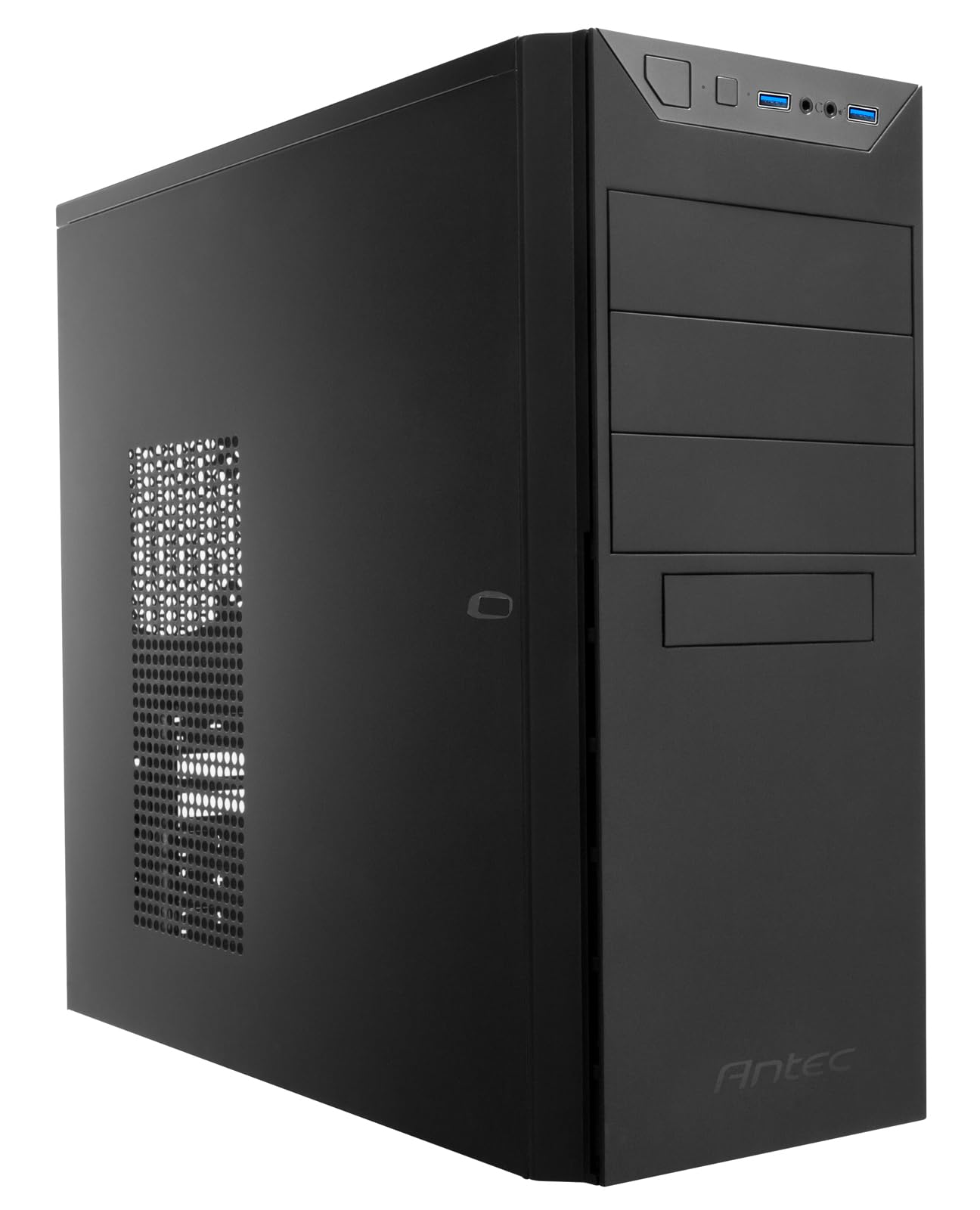
Figure 1.1: Front-side view of the Antec VSK-4000B U3/U2 computer case.
2. Product Features
The Antec VSK-4000B U3/U2 computer case is constructed from galvanized steel and features a classic black finish. It is designed to accommodate ATX form factor motherboards and provides ample space for various components. Key features include front panel connectivity and a ventilated side panel for improved airflow.

Figure 2.1: Front panel with power button, USB 2.0 ports, USB 3.0 port, and audio jacks.
The case includes two USB 2.0 ports and one USB 3.0 port on the front panel for convenient access to peripherals. The rear of the case supports a rear-mounted power supply unit and features multiple expansion slots.

Figure 2.2: Side panel with ventilation for optional cooling.
3. Setup and Installation
Before beginning installation, ensure you have all necessary components, including your motherboard, power supply, storage drives, and expansion cards. Always handle components with care and consider using an anti-static wrist strap to prevent electrostatic discharge.
3.1 Opening the Case
To access the interior, remove the side panel(s) by unscrewing the thumbscrews located at the rear of the case. Gently slide the panel backward and lift it off.
3.2 Component Installation
Install your motherboard onto the pre-installed standoffs. Secure it with screws. Install the power supply unit in the designated rear compartment. Mount storage drives (HDDs/SSDs) in the drive bays using the provided hardware. Install expansion cards (e.g., graphics card) into the PCIe slots and secure them with screws or retention clips.

Figure 3.1: Interior layout of the case, highlighting component mounting areas.
3.3 Cable Management
Route all power and data cables neatly to ensure optimal airflow and a clean build. Utilize the cable tie points and included zip ties to secure cables behind the motherboard tray where possible.
Video 3.1: A closer look at the Antec VSK-4000B U3/U2 case, demonstrating exterior views, interior layout, and included accessories for installation.
4. Operating the Computer Case
Once all components are installed and connected, replace the side panel(s). Connect your monitor, keyboard, mouse, and power cable to the rear of your computer. Press the power button on the front panel to start your system.
4.1 Front Panel Ports
- Power Button: Initiates system startup or shutdown.
- USB 2.0 Ports: For connecting USB 2.0 compatible devices.
- USB 3.0 Port: For connecting high-speed USB 3.0 compatible devices.
- Audio Jacks: For connecting headphones and microphones.
5. Maintenance
Regular maintenance helps ensure optimal performance and longevity of your computer components. Keep the case clean and free of dust.
5.1 Dust Cleaning
Periodically clean dust from the interior of the case and any ventilation areas. Use compressed air to blow out dust from fans and heatsinks. Ensure the system is powered off and unplugged before cleaning.
5.2 Exterior Cleaning
Wipe the exterior surfaces with a soft, damp cloth. Avoid using harsh chemicals or abrasive materials that could damage the finish.
6. Troubleshooting
If you encounter issues with your computer system, consider the following basic troubleshooting steps related to the case:
- No Power: Ensure the power supply is correctly installed and connected to the motherboard and wall outlet. Check all front panel header connections to the motherboard.
- Overheating: Verify that all case fans are properly installed and functioning. Ensure adequate airflow and that ventilation areas are not obstructed by dust.
- Loose Components: If you hear rattling or experience instability, check that all internal components (motherboard, drives, expansion cards) are securely fastened.
7. Specifications
Below are the technical specifications for the Antec VSK-4000B U3/U2 computer case:
| Feature | Detail |
|---|---|
| Brand | Antec |
| Model Number | L741155 |
| Series | VSK4000B-U2/U3 |
| Dimensions (L x W x H) | 42 x 22 x 47 cm |
| Item Weight | 3.8 kg |
| Color | Black |
| Form Factor | ATX |
| Motherboard Compatibility | ATX |
| Case Type | Tower |
| Material | Galvanized Steel |
| Power Supply Mounting | Rear |
| Cooling Method Support | Water |
| USB 2.0 Ports | 2 |
| USB 3.0 Ports | 1 |
| Batteries Included | No |
| First Available Date | January 15, 2020 |
| Discontinued by Manufacturer | No |

Figure 7.1: Dimensions of the Antec VSK-4000B U3/U2 computer case.
8. Warranty and Support
For warranty information and technical support, please refer to the documentation provided with your purchase or visit the official Antec website. Warranty terms may vary by region and retailer.
If you require further assistance, contact your retailer or Antec customer support with your product model number (VSK-4000B U3/U2) and any relevant purchase details.


