
1. Introduction
This manual provides essential information for the Intel Pentium Processor G4400, model number BX80662G4400. It covers product overview, package contents, technical specifications, installation guidelines, operational considerations, maintenance, and troubleshooting.
The Intel Pentium G4400 processor is designed for desktop systems, offering a balance of performance and value for everyday computing needs. Utilizing Intel's 14nm processor technology and a modern microarchitecture, it provides reliable performance for running daily applications efficiently. This processor is suitable for both home and office environments, delivering solid productivity and visual experiences.
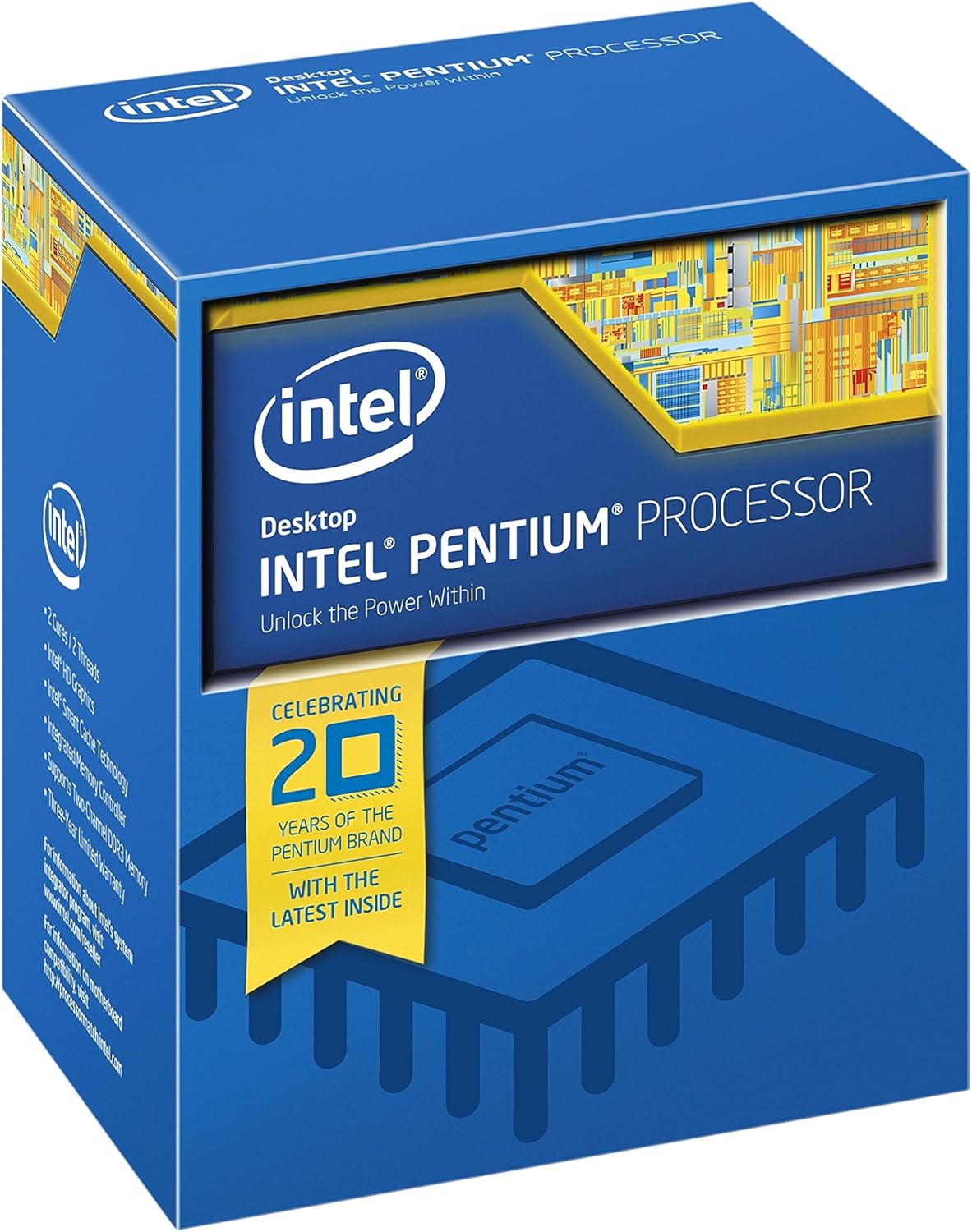
Image 1.1: Retail packaging for the Intel Pentium G4400 Processor.
2. Package Contents
Verify that your Intel Pentium Processor G4400 package contains the following items:
- Intel Pentium G4400 Processor
- Intel Stock CPU Cooler
- Installation Guide and Documentation

Image 2.1: Contents of the Intel Pentium G4400 retail package, including the processor and stock cooler.
3. Technical Specifications
The following table outlines the key technical specifications for the Intel Pentium Processor G4400:
| Feature | Specification |
|---|---|
| Processor Model | Pentium G4400 |
| Processor Speed | 3.3 GHz |
| Processor Brand | Intel |
| CPU Socket | LGA 1151 |
| Number of Processors | 1 |
| Instruction Set | 64 bit |
| Instruction Set Extensions | Intel SSE4.1, Intel SSE4.2 |
| Integrated Graphics | Intel HD Graphics 510 |
| Cache | 3M Cache |
| Computer Memory Type | DDR4 SDRAM |
| Voltage | 1.35 Volts |
| Item Weight | 9.6 ounces |
| Product Dimensions (LxWxH) | 7.1 x 6.6 x 6.6 inches |
4. Installation
Installing a CPU requires careful handling and adherence to specific procedures. It is recommended that installation be performed by an experienced individual or a qualified technician. Always consult your motherboard's manual for detailed, model-specific installation instructions.
4.1. Preparation
- Compatibility: Ensure your motherboard supports the LGA 1151 socket and the Intel Pentium G4400 processor. Check your motherboard's CPU support list.
- Static Electricity: Take anti-static precautions, such as using an anti-static wrist strap or touching a grounded metal object before handling components.
- Work Area: Prepare a clean, well-lit, and organized workspace.
- Tools: You may need a Phillips head screwdriver and thermal paste (if not pre-applied to the cooler or if using an aftermarket cooler).
4.2. CPU Installation Steps
- Open CPU Socket: Locate the CPU socket on your motherboard. Gently push down the small metal lever on the side of the socket and pull it away from the socket to open the retention plate.
- Orient the CPU: Carefully remove the Intel Pentium G4400 processor from its packaging. Observe the gold triangle or notch on one corner of the CPU. Align this with the corresponding mark on the CPU socket.
- Place the CPU: Gently lower the CPU straight down into the socket. Do not force it. If it does not sit perfectly, re-check the orientation.
- Close CPU Socket: Close the retention plate over the CPU and push the metal lever back into its locked position. This will secure the CPU firmly.
- Apply Thermal Paste (if necessary): If your cooler does not have pre-applied thermal paste, apply a small pea-sized amount to the center of the CPU's integrated heat spreader (IHS).
- Install CPU Cooler: Place the Intel stock cooler onto the CPU, aligning the four pins with the holes on the motherboard. Push down firmly on each pin until it clicks into place. Connect the cooler's fan cable to the 'CPU_FAN' header on the motherboard.

Image 4.1: Close-up view of the Intel Pentium G4400 processor chip.
5. Operation
The Intel Pentium G4400 processor functions as the central processing unit (CPU) of your computer system. Once correctly installed and integrated with a compatible motherboard, RAM, storage, and power supply, it will execute instructions and manage data processing for all software applications.
5.1. System Requirements
- Motherboard: Compatible with LGA 1151 socket and supporting the G4400 processor.
- RAM: DDR4 SDRAM is required. Consult motherboard specifications for supported speeds and capacities.
- Power Supply: A stable power supply unit (PSU) with sufficient wattage for all system components.
- Operating System: Compatible with 64-bit instruction sets.
5.2. Integrated Graphics
The G4400 processor includes integrated Intel HD Graphics 510, which can provide display output without the need for a dedicated graphics card. Ensure your motherboard has appropriate video output ports (e.g., HDMI, DisplayPort, DVI, VGA) to utilize the integrated graphics.
6. Maintenance
Proper maintenance ensures the longevity and optimal performance of your processor and computer system.
- Dust Management: Regularly clean the interior of your computer case to prevent dust buildup on the CPU cooler and other components. Dust can impede airflow and lead to overheating.
- Thermal Paste: Over several years, thermal paste can dry out. If you notice increased CPU temperatures, consider reapplying fresh thermal paste. This typically involves removing the CPU cooler, cleaning off old paste, and applying new paste.
- Temperature Monitoring: Use system monitoring software to keep track of CPU temperatures. Ensure temperatures remain within safe operating limits, especially under load.
- BIOS/UEFI Updates: Keep your motherboard's BIOS/UEFI firmware updated. These updates often include performance improvements, bug fixes, and enhanced CPU compatibility.
7. Troubleshooting
If you encounter issues with your system after installing the Intel Pentium G4400 processor, consider the following troubleshooting steps:
7.1. System Not Booting / No Display
- Check Connections: Ensure all power cables (24-pin ATX, 8-pin CPU) are securely connected to the motherboard. Verify that the CPU cooler fan is connected to the 'CPU_FAN' header.
- CPU Seating: Re-open the CPU socket and carefully re-seat the processor, ensuring it is correctly aligned and the retention lever is locked.
- RAM: Ensure RAM modules are properly seated in their slots. Try booting with only one RAM stick if multiple are installed.
- Motherboard Compatibility: Double-check that your motherboard BIOS/UEFI version supports the G4400 processor. An older BIOS might not recognize newer CPUs.
7.2. Overheating Issues
- Cooler Installation: Verify that the CPU cooler is correctly installed and making firm contact with the CPU's IHS. Ensure all four push-pins (for stock cooler) are fully engaged.
- Thermal Paste: Confirm that thermal paste was applied correctly and evenly between the CPU and cooler.
- Airflow: Ensure adequate airflow within the computer case. Check that case fans are functioning and oriented correctly.
7.3. Performance Problems
- Drivers: Ensure all system drivers, especially chipset and integrated graphics drivers, are up to date.
- Background Processes: Check for excessive background applications consuming CPU resources.
- Power Settings: Verify that your operating system's power plan is set to 'High Performance' or a balanced mode that allows the CPU to reach its full clock speed.
8. Warranty and Support
For information regarding the manufacturer's warranty for your Intel Pentium Processor G4400, please refer to the official Intel website or the warranty documentation included with your product. Intel provides various support resources, including:
- Online Support: Access to knowledge bases, FAQs, and troubleshooting guides.
- Driver Downloads: Latest drivers and software updates for your processor and integrated graphics.
- Contact Support: Options to contact Intel customer service for technical assistance.
Always register your product if required to ensure full warranty coverage and access to support services.


