
Google GA00439-US
Google Chromecast User Manual
Model: GA00439-US
Introduction
The Google Chromecast is a streaming device designed to enhance your home entertainment experience by allowing you to cast content from your phone, tablet, or computer directly to your television. It transforms any TV with an HDMI port into a smart TV, enabling access to a wide range of streaming services, photos, and more on a larger screen.
This manual provides essential information on setting up, operating, maintaining, and troubleshooting your Google Chromecast.

Image: The Google Chromecast product packaging, displaying the device and logos of various compatible streaming applications.
What's in the Box
Upon unboxing your Google Chromecast, you should find the following components:
- Google Chromecast device
- USB power cable
- Power adapter

Image: A close-up view of the Google Chromecast device, highlighting its compact design and integrated HDMI connector.
Setup Guide
Setting up your Google Chromecast is a straightforward process. Follow these steps to get started:
- Plug In: Connect the Google Chromecast device into an available HDMI port on your television. Then, connect the USB power cable to the Chromecast and plug the power adapter into a wall outlet. Ensure the Chromecast receives adequate power.
- Connect to Wi-Fi: Download the Google Home app on your smartphone or tablet (available for Android and iOS devices). Open the app and follow the on-screen instructions to set up your Chromecast and connect it to your home Wi-Fi network.
- Start Casting: Once connected, open any cast-enabled application on your mobile device or computer (e.g., YouTube, Netflix, Spotify). Look for the Cast icon (▶ with Wi-Fi signal) within the app, tap it, and select your Chromecast device to begin streaming content to your TV.
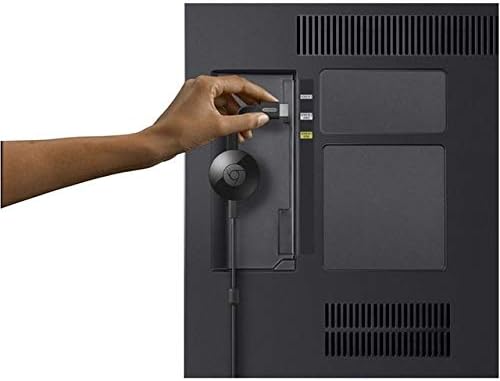
Image: A hand inserting the Google Chromecast into an HDMI port on the back of a television.

Image: A visual guide illustrating the three simple steps for setting up the Google Chromecast: plugging it in, connecting to Wi-Fi, and initiating casting.
Operating Your Chromecast
The Google Chromecast allows you to stream a wide variety of content from your devices to your TV. Here's how to maximize its use:
Streaming Content
Chromecast works with thousands of apps. Simply open your favorite streaming app on your phone, tablet, or computer, and tap the Cast icon. Select your Chromecast, and the content will appear on your TV. You can continue to use your device for other tasks while casting.

Image: A family enjoying content streamed to their television via Google Chromecast, with one person controlling the stream from a smartphone.
Supported Applications
Chromecast supports popular services including, but not limited to:
- YouTube
- Netflix
- Amazon Prime Video
- Hulu
- Spotify
- Disney+
- HBO Max
- Sling TV
- Google Photos
Image: A collection of logos representing popular streaming services compatible with Google Chromecast.
Mirroring Your Screen
You can mirror your entire Android phone or tablet screen to your TV. For computers, you can cast a tab from the Chrome browser. This is useful for displaying presentations, web pages, or content not directly supported by a casting app.
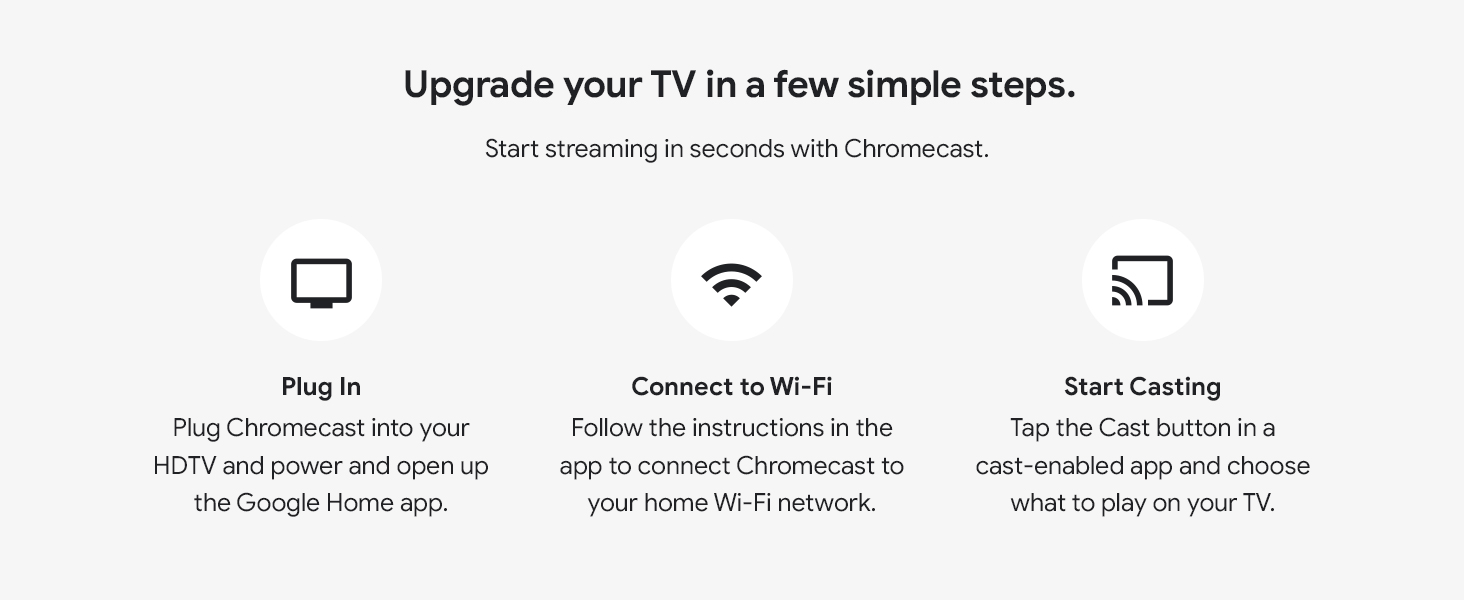
Image: A family relaxing on a couch, with one member casting content from a laptop to the television, which is displaying a Google Photos slideshow.
Smart Home Integration
With the Google Home app, you can integrate your Chromecast with other smart home devices. For example, you can view feeds from your Nest cameras or Nest video doorbell directly on your TV.
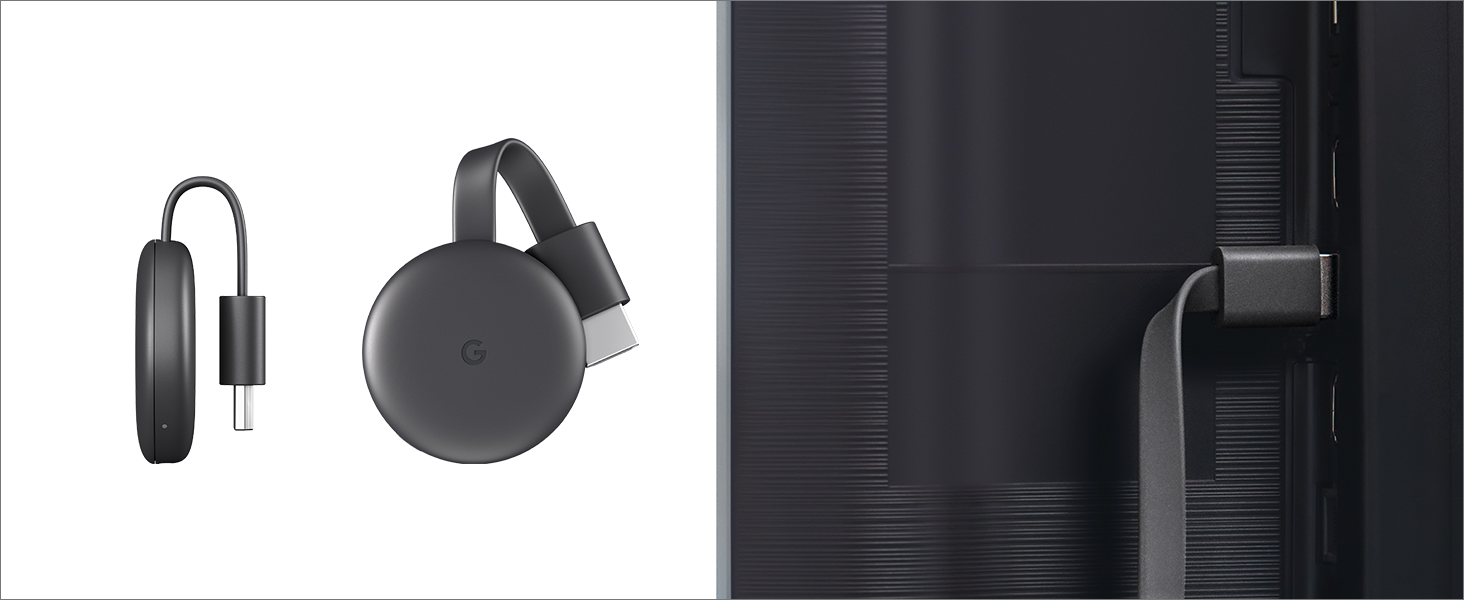
Image: A television screen showing a live video feed from a Nest security camera, demonstrating smart home integration.
Maintenance
The Google Chromecast requires minimal maintenance to ensure optimal performance.
- Cleaning: Use a soft, dry, lint-free cloth to gently wipe the device. Avoid using liquid cleaners, aerosols, or abrasive materials.
- Storage: When not in use for extended periods, store the Chromecast in a cool, dry place away from direct sunlight and extreme temperatures.
- Software Updates: Ensure your Chromecast is connected to the internet regularly to receive automatic software updates, which provide new features and performance improvements.
Troubleshooting
If you encounter issues with your Google Chromecast, try the following common troubleshooting steps:
- No Display on TV:
- Ensure the Chromecast is securely plugged into the HDMI port and the power adapter is connected to a working outlet.
- Verify your TV is set to the correct HDMI input source.
- Try plugging the Chromecast into a different HDMI port on your TV.
- Cannot Connect to Wi-Fi:
- Make sure your Wi-Fi router is on and functioning correctly.
- Restart your Wi-Fi router and the Chromecast device.
- Ensure your mobile device is connected to the same Wi-Fi network you are trying to connect the Chromecast to.
- Check that your Wi-Fi password is entered correctly in the Google Home app.
- Casting Issues (Buffering, Disconnections):
- Ensure your Wi-Fi signal is strong where the Chromecast is located.
- Reduce the distance between your Wi-Fi router and the Chromecast.
- Minimize other devices using the Wi-Fi network heavily during casting.
- Restart the casting app on your device.
- Device Not Found in Google Home App:
- Ensure Bluetooth is enabled on your mobile device during setup.
- Confirm your mobile device and Chromecast are on the same Wi-Fi network.
- Try restarting both your mobile device and the Chromecast.
For more detailed troubleshooting and support, please visit the official Google Chromecast Help Center at g.co/cast/req.
Specifications
| Brand | |
| Model Name | Chromecast |
| Item Model Number | GA00439-US |
| Color | Black |
| Item Weight | 1.41 ounces |
| Product Dimensions | 2.04 x 0.54 x 2.04 inches |
| Connectivity Technology | Wi-Fi (802.11ac 2.4GHz/5GHz) |
| Connector Type | HDMI |
| Resolution | 1080p |
| Supported Internet Services | YouTube, Pandora, Netflix, Amazon Prime Video, and more |
Warranty and Support
Google Chromecast devices typically come with a limited manufacturer's warranty. Please refer to the warranty information provided with your product packaging or visit the official Google support website for details regarding warranty terms and conditions.
For further assistance, technical support, or to access the full user guide, please visit the Google Chromecast Help Center:
- Online Help Center: g.co/cast/req
- User Manual (PDF): Download PDF Manual
Related documentsGA00439-US


Ask a question about this manual
Ask about setup, troubleshooting, compatibility, parts, safety, or missing instructions. Manuals+ will review the question and use this page’s manual context to help answer it.