Introduction
This manual provides comprehensive instructions for the setup, operation, maintenance, and troubleshooting of your TECKNET Omni Small Portable 2.4G Wireless Optical Mouse. Please read this manual thoroughly before using the product to ensure optimal performance and longevity.

Figure 1: TECKNET Omni Wireless Mouse and USB Nano Receiver.
Key Features
- 2.4G Wireless Connectivity: Provides a stable and reliable connection up to 10 meters (33 feet) with virtually no delays or dropouts.
- USB Nano Receiver: A tiny, plug-and-play receiver that can be stored inside the mouse for portability.
- Adjustable DPI Levels: Easily switch between 1000, 1500, and 2000 DPI for precise cursor control.
- Extended Battery Life: Up to 18 months of battery life with smart sleep mode to conserve power.
- TruWave Precision: Ensures smoother tracking on various surfaces.
- Co-Link Technology: Automatically pairs the mouse with the nano receiver.
- Durable Build: Primary TeckNet N-Switches rated to a 5.5-million-click lifespan.
- Compact and Portable Design: Small size fits easily into bags or pockets, ideal for travel.
- Ergonomic Design: Contoured shape with soft rubber grips for comfortable use.

Figure 2: Ergonomic design for comfortable use.

Figure 3: Compact and portable design.
Package Contents
Verify that all items are present in your package:
- 1 x TECKNET Omni Wireless Mouse
- 1 x USB Nano Receiver (stored inside the mouse's battery compartment)
- 1 x User Manual (this document)
- Note: 1 AA battery is NOT included and must be purchased separately.
Setup Guide
- Install Battery:
Locate the battery compartment on the underside of the mouse. Open the cover and insert one (1) AA battery, ensuring correct polarity (+/-). Close the battery compartment cover securely.

Figure 4: Battery compartment and nano receiver storage.
- Retrieve USB Nano Receiver:
The USB nano receiver is conveniently stored within the battery compartment of the mouse. Gently slide it out from its slot.
- Connect Receiver to Computer:
Plug the USB nano receiver into an available USB port on your laptop or desktop computer. Your operating system should automatically detect and install the necessary drivers. No additional software installation is required.

Figure 5: Connecting the USB nano receiver to a laptop.
- Start Using the Mouse:
Once the receiver is plugged in and the battery is installed, the mouse is ready for use. The mouse features smart power management and will activate automatically when moved or a button is clicked.
Operation
Mouse Buttons and Functions

Figure 6: Mouse button layout.
- Left Button: Primary click function.
- Right Button: Secondary click function, typically opens context menus.
- Scroll Wheel: Scrolls documents and web pages vertically. Can also be clicked for middle-click functionality.
- DPI Switch Button: Changes the cursor speed (DPI).
Adjusting DPI (Cursor Speed)
The TECKNET Omni mouse offers three adjustable DPI levels to suit your preference for cursor speed and precision. To change the DPI setting, simply press the DPI Switch Button located on the top of the mouse, just behind the scroll wheel.
- Press once to cycle through the available DPI settings: 1000 DPI (default), 1500 DPI, and 2000 DPI.
- The mouse will indicate the current DPI setting, often with a subtle change in cursor speed or a brief LED flash (refer to the Low Battery Indicator for potential dual function).
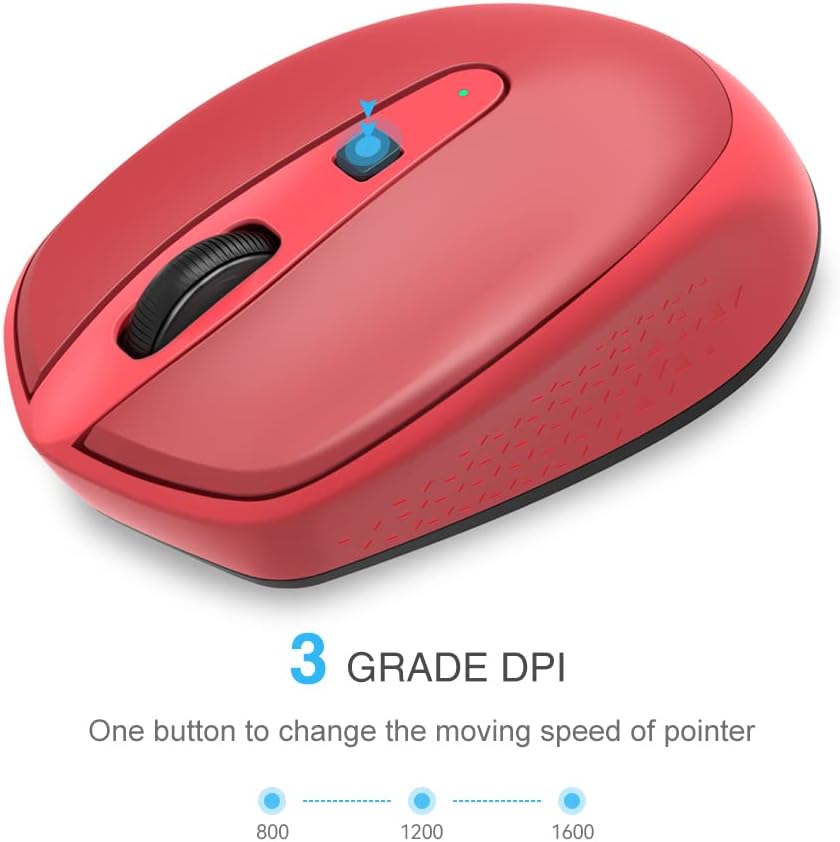
Figure 7: DPI adjustment levels.
Power Management
The mouse is equipped with a smart sleep mode to conserve battery life. If the mouse is inactive for a period, it will automatically enter a low-power sleep state. To wake the mouse, simply move it or click any button. There is no manual on/off switch required.
Maintenance
Battery Replacement
When the mouse's performance degrades or the low battery indicator (if present) illuminates, it's time to replace the battery. The TECKNET Omni mouse uses one (1) AA battery.
- Turn the mouse over and locate the battery compartment cover.
- Slide or lift the cover to open the compartment.
- Remove the old AA battery.
- Insert a new AA battery, ensuring the positive (+) and negative (-) terminals align correctly with the markings inside the compartment.
- Close the battery compartment cover securely.
Dispose of used batteries responsibly according to local regulations.
Cleaning
To maintain optimal performance, periodically clean your mouse:
- Use a soft, lint-free cloth slightly dampened with water or a mild cleaning solution to wipe the exterior of the mouse.
- For the optical sensor on the underside, use a dry cotton swab or compressed air to gently remove any dust or debris.
- Avoid using harsh chemicals, abrasive cleaners, or submerging the mouse in liquid.
Troubleshooting
| Problem | Possible Cause | Solution |
|---|---|---|
| Mouse not responding or cursor not moving. |
|
|
| Cursor movement is erratic or jumpy. |
|
|
| DPI setting does not change. |
|
|
If you continue to experience issues, please refer to the support section or visit the TECKNET website for further assistance.
Specifications
| Model Number | BC69117 |
| Connectivity | 2.4G Wireless (USB Nano Receiver) |
| Movement Detection | Optical |
| DPI Levels | 1000 / 1500 / 2000 DPI (Adjustable) |
| Number of Buttons | 4 (Left, Right, Scroll Wheel, DPI Switch) |
| Battery Type | 1 x AA (not included) |
| Battery Life | Up to 18 months (varies with usage) |
| Click Lifespan | 5.5 Million Clicks |
| Product Dimensions (L x W x H) | 4.0 x 2.44 x 1.42 inches (102 x 62 x 36 mm) |
| Item Weight | 1.92 ounces (approx. 54.4 g) |
| Supported Operating Systems | Windows 10, 8, 7, Vista, XP, 2008 |

Figure 8: Product dimensions.
Warranty and Support
TECKNET products are designed for reliability and performance. For specific warranty details, please refer to the warranty card included with your purchase or visit the official TECKNET website.
For technical support, troubleshooting assistance, or product inquiries, please contact TECKNET customer service through their official website or the contact information provided in your product packaging. When contacting support, please have your product model number (BC69117) and purchase details ready.
Official TECKNET Website: Visit TECKNET Store on Amazon


