
XTRONS OBD02
XTRONS Wireless Bluetooth OBD2 Android OBDII Car Auto Diagnostic Scanner Tool
Model: OBD02
Product Overview
The XTRONS Mini Bluetooth OBD2 scanner is an essential engine performance and diagnostics tool designed for both automotive enthusiasts and professionals. When paired with your Android smartphone or tablet, this compact device enables you to efficiently scan and clear engine codes, view and save real-time engine data, and perform various other diagnostic functions.
This model features an integrated power switch, allowing it to remain plugged into your vehicle's OBD-II port while providing the convenience of turning it off when not in use, thus preventing battery drain.

Image: The XTRONS OBD02 Bluetooth diagnostic scanner, a compact black device designed for vehicle diagnostics.
Key Features
- Universal Compatibility: Compatible with all OBD II compliant vehicles. Ensure your vehicle has a 16-pin DLC (Data Link Connector) and the Vehicle Emission Control Information Label states OBD II compliance.
- Real-time Data Monitoring: View live car data while driving, including engine RPM, coolant temperature, MPH speed, and more.
- Diagnostic Code Management: Read and clear diagnostic trouble codes (DTCs), both generic and manufacturer-specific, with access to over 3000 universal code definitions.
- Multi-Protocol Support: Features the latest multi-protocol support for broad vehicle coverage.
- Integrated Power Switch: Allows the device to remain plugged in without draining the vehicle's battery.

Image: The XTRONS OBD02 scanner, highlighting its support for all OBDII protocols, indicating broad vehicle compatibility.
Setup and Installation
- Locate OBD-II Port: Identify your vehicle's 16-pin OBD-II Data Link Connector (DLC). This port is typically located under the dashboard on the driver's side, but its exact position may vary by vehicle model.
- Connect the Scanner: Plug the XTRONS OBD02 scanner firmly into the vehicle's OBD-II port. Ensure a secure connection.
- Power On: If the device has an integrated power switch, turn it to the 'ON' position.
- Pair with Android Device:
- Enable Bluetooth on your Android smartphone or tablet.
- Search for available Bluetooth devices. The XTRONS OBD02 scanner should appear as a discoverable device.
- Select the scanner to pair. You may be prompted for a pairing code. Common codes include 0000 or 1234. If pairing fails, try both.
- Install Diagnostic App: Download and install a compatible OBD-II diagnostic application (e.g., Torque Pro) from the Google Play Store on your Android device.
- Configure App: Open the diagnostic app and navigate to its settings. Select the XTRONS OBD02 Bluetooth device as your preferred OBD-II adapter.
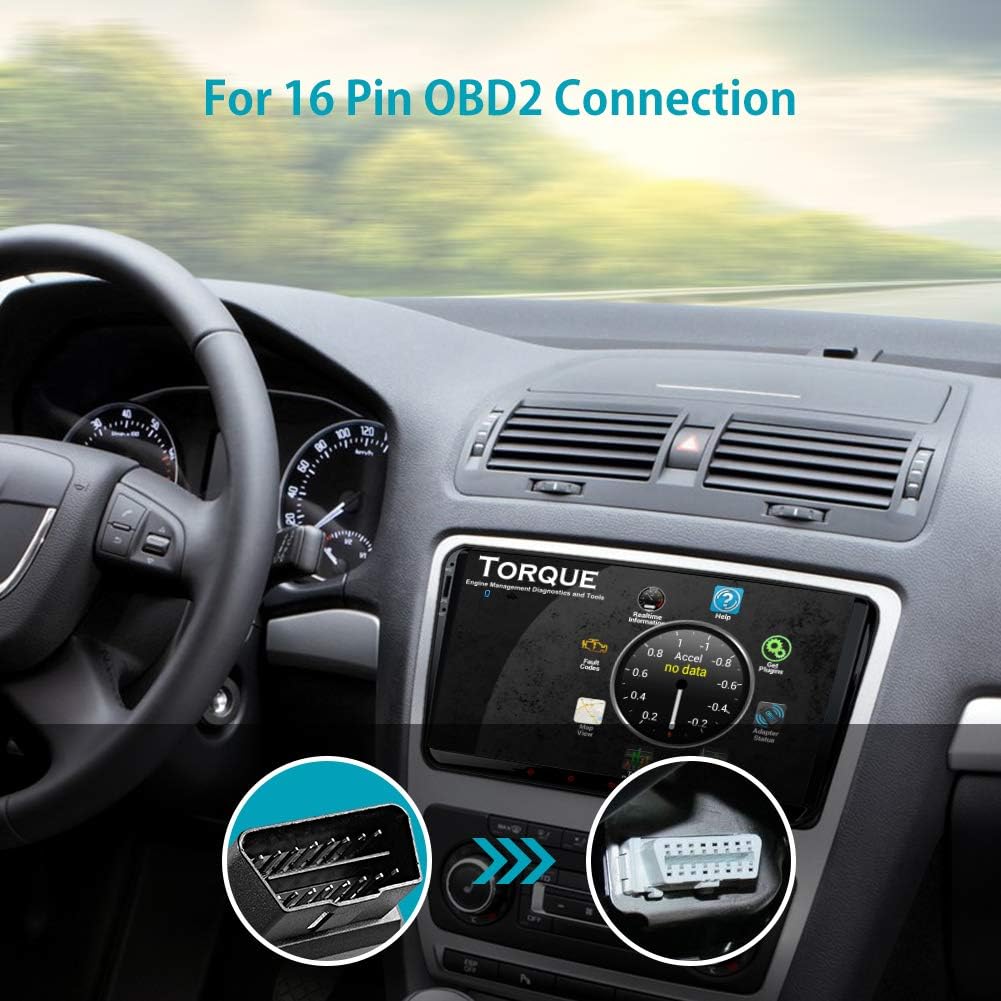
Image: Illustration showing the typical location of a 16-pin OBD2 connection port in a vehicle, usually under the dashboard.

Image: Diagram illustrating the compatibility of the XTRONS OBD02 scanner with both universal and custom-fit XTRONS Android Car Stereos.
Operating Instructions
Once the XTRONS OBD02 scanner is successfully connected and paired with your Android device and diagnostic app, you can perform the following operations:
- Read Diagnostic Trouble Codes (DTCs): Access and display current, pending, and permanent diagnostic trouble codes. The app will provide descriptions for over 3000 universal code definitions.
- Clear Trouble Codes and Check Engine Lights: Erase DTCs from the vehicle's computer and turn off the Check Engine Light (MIL).
- Display Real-time Sensor Data: Monitor live data streams from various vehicle sensors. This includes:
- Engine RPM
- Coolant Temperature
- Calculated Load Value
- MPH Speed
- Short Term Fuel Trim
- Long Term Fuel Trim
- Intake Air Temperature
- Air Flow Rate
- Absolute Throttle Position
- Oxygen Sensor Voltages/Associated Short Term Fuel Trims
- Fuel System Status
- Fuel Pressure
- Freeze Frame Data: View a snapshot of sensor readings at the moment a DTC was set.
- I/M Readiness Status: Check the status of emission-related monitors to ensure the vehicle is ready for an emissions test.

Image: A visual representation of the various diagnostic operations that can be performed with the XTRONS OBD02 scanner and a compatible app, such as reading trouble codes and displaying real-time sensor data.
Maintenance
To ensure the longevity and optimal performance of your XTRONS OBD02 scanner, follow these maintenance guidelines:
- Cleaning: Wipe the device with a soft, dry cloth. Avoid using harsh chemicals or abrasive cleaners, which can damage the casing or internal components.
- Storage: When not in use, store the scanner in a cool, dry place away from direct sunlight and extreme temperatures.
- Integrated Power Switch: Utilize the integrated power switch to turn off the device when it's not actively being used, even if it remains plugged into the OBD-II port. This prevents unnecessary power consumption from your vehicle's battery.
- Connection Integrity: Periodically check the pins on the OBD-II connector for any signs of damage or corrosion. Ensure a clean and secure connection when plugging into the vehicle.
Troubleshooting
If you encounter issues with your XTRONS OBD02 scanner, refer to the following common troubleshooting steps:
| Problem | Possible Cause / Solution |
|---|---|
| Device does not power on. |
|
| Cannot pair via Bluetooth. |
|
| Diagnostic app shows "No Data" or "Connection Error". |
|
| Inaccurate or inconsistent data readings. |
|
Specifications
| Attribute | Detail |
|---|---|
| Brand | XTRONS |
| Model Number | OBD02 |
| Item Weight | 0.704 ounces (approx. 20 grams) |
| Product Dimensions | 1.89 x 0.98 x 1.26 inches (approx. 48 x 25 x 32 mm) |
| Power Source | Corded Electric (via OBD-II port) |
| Operating System Compatibility | Android |
| Connectivity | Bluetooth |
| OBD-II Protocols Supported | All standard OBD-II protocols |

Image: Technical drawing showing the dimensions of the XTRONS OBD02 scanner in both inches and millimeters.
Warranty Information
This XTRONS OBD02 diagnostic scanner comes with a 3-month warranty from the date of purchase. This warranty covers manufacturing defects and malfunctions under normal use. Please retain your proof of purchase for warranty claims.
The warranty does not cover damage caused by misuse, accident, unauthorized modification, or improper installation.
Support and Contact
For technical assistance, troubleshooting beyond this manual, or warranty inquiries, please contact XTRONS customer support.
- Online Support: Visit the official XTRONS website for FAQs, software updates, and additional resources.
- Email Support: Refer to your product packaging or the XTRONS website for the most current customer service email address.
- XTRONS Store: You can also visit the XTRONS Store on Amazon for more product information and support options.
When contacting support, please have your product model (OBD02) and purchase details ready to expedite the process.
Related documentsOBD02

Ask a question about this manual
Ask about setup, troubleshooting, compatibility, parts, safety, or missing instructions. Manuals+ will review the question and use this page’s manual context to help answer it.