
Behringer XTOUCH
Behringer X-TOUCH Universal Control Surface Instruction Manual
Model: XTOUCH
1. Introduction
The Behringer X-TOUCH Universal Control Surface is a versatile remote control designed for seamless integration with Digital Audio Workstations (DAWs) in both studio and live environments. It supports industry-standard HUI and Mackie Control protocols, ensuring compatibility with a wide range of music production software.
Key features include:
- 9 fully automated and touch-sensitive 100 mm motorized faders for precise control.
- 8 dynamic LCD Scribble Strips providing instant visual feedback on track names and parameters.
- Ethernet interface for RTP (Real-Time Protocol) MIDI and future BEHRINGER X32 remote control capabilities.
- Comprehensive control over your DAW with dedicated buttons for transport, automation, and utility functions.
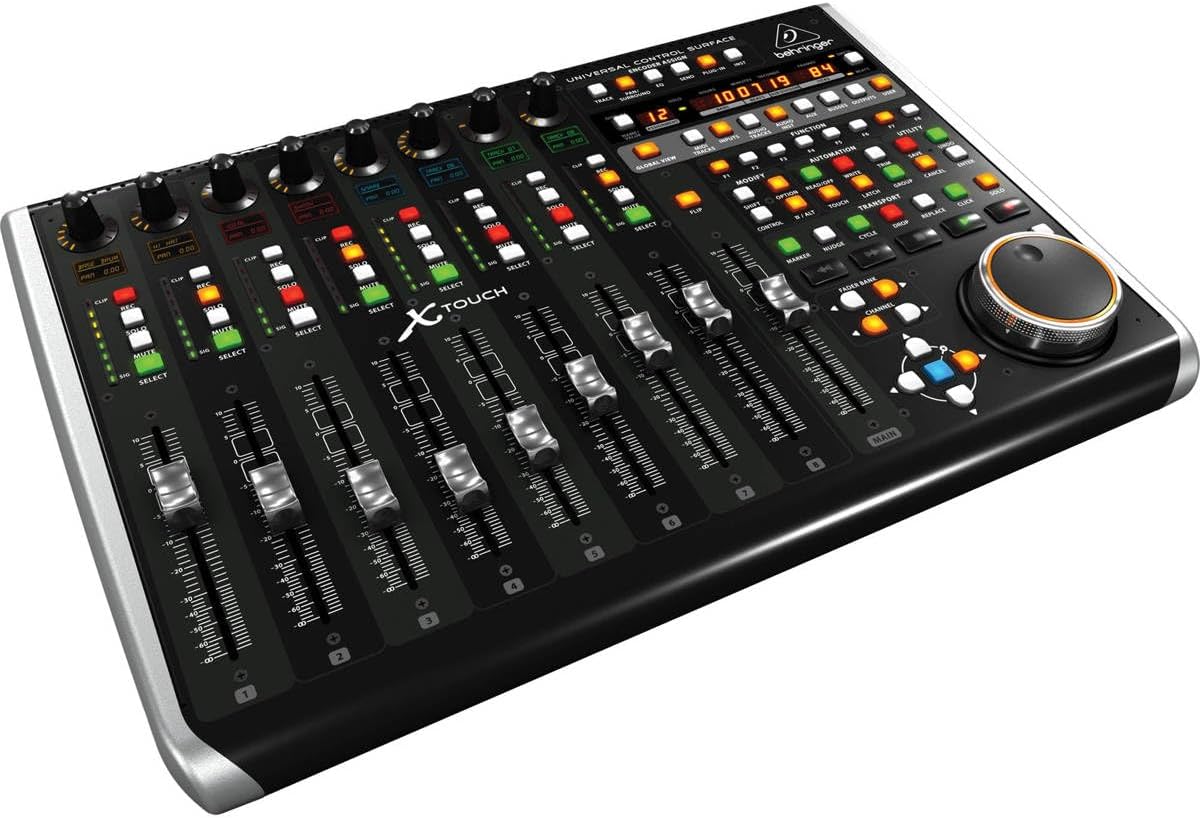
Figure 1.1: Front angled view of the Behringer X-TOUCH Universal Control Surface, showcasing its faders, rotary encoders, and LCD scribble strips.
2. Setup
Before operating your X-TOUCH, ensure proper connection to your computer and power source. The unit supports USB, Ethernet, and MIDI connectivity for versatile integration with your studio setup.
2.1 Power Connection
Connect the supplied power cable to the AC IN port on the rear panel of the X-TOUCH and then to a suitable power outlet. Ensure the power switch is in the OFF position before connecting.
2.2 Computer and DAW Connection
For direct computer control, connect the X-TOUCH via a standard USB cable to an available USB port on your computer. Alternatively, for network-based control, use an Ethernet cable to connect the unit to your network. MIDI connections are also available for traditional MIDI setups.

Figure 2.1: Rear view of the X-TOUCH, highlighting the AC IN, POWER switch, ETHERNET, USB HUB, and MIDI IN/OUT ports for connectivity.
For detailed setup instructions, including driver installation and DAW configuration, please refer to the official Installation Manual (PDF).
Video 2.1: A brief product demonstration video showcasing the Behringer X-TOUCH Universal Control Surface, including its physical features and basic operation.
3. Operating
The X-TOUCH provides intuitive hands-on control over your DAW. Familiarize yourself with the main control sections to optimize your workflow.
3.1 Faders and Rotary Encoders
The 9 motorized faders offer precise level control for individual tracks. The corresponding rotary encoders above each fader can be assigned to various parameters such as pan, send levels, or plug-in controls. The LCD Scribble Strips dynamically display the current assignment and value.
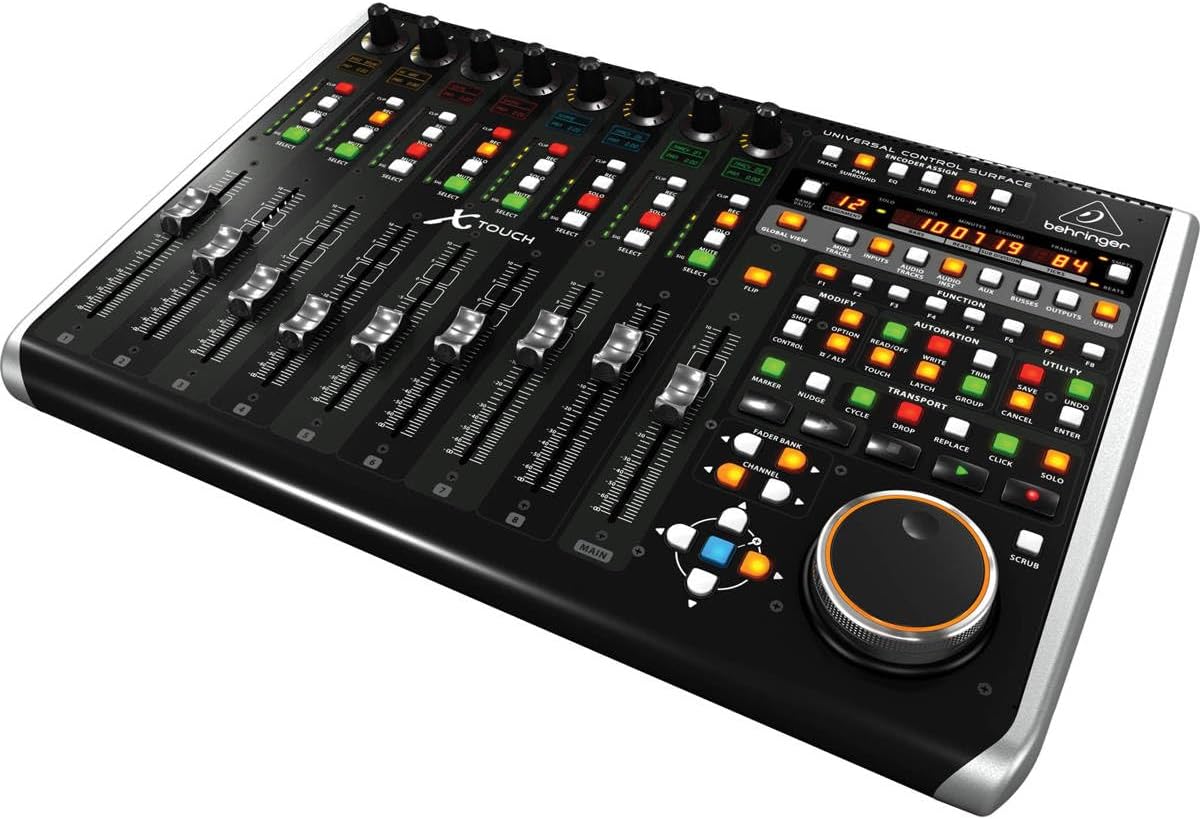
Figure 3.1: Angled view of the X-TOUCH's control surface, showing the layout of faders, rotary encoders, and illuminated buttons.

Figure 3.2: Close-up view of the touch-sensitive motorized faders, essential for dynamic mixing and automation.
3.2 Transport and Function Controls
Dedicated transport controls (Play, Stop, Record, etc.) allow for intuitive navigation within your DAW project. A variety of illuminated buttons provide quick access to functions like Mute, Solo, Record Arm, and track selection. The large jog/shuttle wheel facilitates precise scrubbing and navigation.

Figure 3.3: Top-down view of the X-TOUCH, showing the comprehensive layout of controls including the transport section and function buttons.

Figure 3.4: Close-up of the dynamic LCD Scribble Strips and their associated rotary encoders, providing visual feedback for track parameters.

Figure 3.5: Close-up of the transport controls and various function buttons, designed for efficient DAW navigation and command execution.
For comprehensive operational details and advanced features, please consult the official User Manual (PDF).
4. Maintenance
Proper maintenance ensures the longevity and optimal performance of your Behringer X-TOUCH.
4.1 Cleaning
Regularly wipe the surface of the unit with a soft, dry, lint-free cloth. Avoid using abrasive cleaners, solvents, or waxes, as these can damage the finish and electronic components. For stubborn grime, a slightly damp cloth with mild soap can be used, followed by immediate drying.
4.2 Fader and Button Care
Keep the fader tracks free from dust and debris. While the faders are motorized and designed for durability, excessive force or obstruction can cause damage. Avoid spilling liquids near the faders or buttons. If any controls feel sticky or unresponsive, consult the troubleshooting section or a qualified service technician.
5. Troubleshooting
If you encounter issues with your X-TOUCH, try the following common troubleshooting steps:
- No Power: Ensure the power cable is securely connected to both the unit and the power outlet. Check if the power switch is in the ON position.
- No DAW Recognition: Verify that the USB or Ethernet cable is properly connected. Check your computer's device manager (Windows) or System Information (macOS) to see if the X-TOUCH is recognized. Ensure your DAW's control surface settings are correctly configured for HUI or Mackie Control.
- Faders Not Moving/Responding: Confirm that the X-TOUCH is in the correct mode for your DAW. Check for any physical obstructions on the fader tracks. If automation is enabled in your DAW, ensure it's not overriding manual control.
- Buttons Unresponsive: Press the button firmly. If multiple buttons are unresponsive, try restarting the X-TOUCH and your DAW.
- Intermittent Connectivity: Try using a different USB or Ethernet cable. Ensure there are no other devices causing interference on the USB bus or network.
For more in-depth troubleshooting and error codes, refer to the comprehensive User Manual (PDF).
6. Specifications
| Attribute | Detail |
|---|---|
| Model Name | X-TOUCH |
| Item Model Number | XTOUCH |
| Product Dimensions | 21.9"D x 14.9"W x 6.5"H |
| Item Weight | 9.41 pounds |
| Connector Type | USB |
| Hardware Interface | USB |
| Supported Software | Ableton Live, Avid Pro Tools, FL Studio |
| Mixer Channel Quantity | 9 |
| Hardware Platform | PC/Mac |
7. Warranty and Support
The Behringer X-TOUCH Universal Control Surface comes with a 1-year extended warranty, as specified in the product packaging.
7.1 Additional Protection Plans
Optional protection plans are available for extended coverage:
- 3-Year Protection Plan
- 4-Year Protection Plan
- Complete Protect (monthly billing option)
For detailed terms and conditions of these plans, please refer to the respective product pages or contact your retailer.
7.2 Documentation and Further Assistance
For comprehensive information and support, please refer to the following official documents:
For technical support or service inquiries, please visit the official Behringer support website or contact their customer service.
Related documentsXTOUCH


Ask a question about this manual
Ask about setup, troubleshooting, compatibility, parts, safety, or missing instructions. Manuals+ will review the question and use this page’s manual context to help answer it.