
FOXWELL NT716 Car Scanner
FOXWELL NT716 OBD2 Scanner User Manual
Model: NT716 Car Scanner | Brand: FOXWELL
1. Introduction
The FOXWELL NT716 OBD2 Scanner is a professional bidirectional scan tool designed for comprehensive vehicle diagnostics. It offers advanced functionalities including active testing, 4-system diagnostics (ABS, SRS, Transmission, Engine), 9 essential reset functions, and full OBD2 capabilities. This manual provides detailed instructions for setting up, operating, maintaining, and troubleshooting your NT716 scanner.

Figure 1.1: FOXWELL NT716 OBD2 Scanner Overview
2. What's in the Box
Upon unboxing your FOXWELL NT716 scanner, please verify that all the following components are included:
- 1 x NT716 Elite OBD2 Scanner
- 1 x Protection Carrying Bag
- 1 x Quick Start Guide
- 1 x USB TYPE C Cable
- 1 x Diagnostic Cable

Figure 2.1: Package Contents
3. Setup and Initial Use
3.1 Charging the Device
The NT716 scanner comes with a built-in 4000mAh battery. Before first use, it is recommended to fully charge the device using the provided USB Type-C cable and a compatible power adapter (not included).
3.2 Connecting to Your Vehicle
- Locate the OBD2 diagnostic port in your vehicle. This is typically found under the dashboard on the driver's side.
- Connect the diagnostic cable to the NT716 scanner.
- Plug the other end of the diagnostic cable into your vehicle's OBD2 port.
- The scanner will power on automatically once connected to the vehicle's power supply.
3.3 Software Update and Registration
For optimal performance and access to all features, including active test functions, it is crucial to update the software immediately upon receiving the device. The NT716 runs on Android 9.0 and supports one-click WiFi updates and direct registration without needing to log in to a website.
- Connect the NT716 scanner to a stable Wi-Fi network.
- Navigate to the 'Update' section on the scanner's main menu.
- Follow the on-screen prompts to register your device and download all available software updates.
- Allow the update process to complete without interruption. The device may restart multiple times.

Figure 3.1: Initial Setup and Update Process
4. Operating the FOXWELL NT716 Scanner
4.1 General Navigation
The NT716 features a 5.5-inch HD touchscreen for intuitive navigation. Tap on icons and menus to select functions and input data. The interface is designed for ease of use, similar to a tablet device.
4.2 4-System Diagnostic Functions
The NT716 provides comprehensive diagnostics for four core vehicle systems: Engine, Anti-lock Braking System (ABS), Supplemental Restraint System (SRS/Airbag), and Transmission. This includes:
- Read/Clear Error Codes: Retrieve Diagnostic Trouble Codes (DTCs) and clear them after repairs.
- ECU Information: Access Electronic Control Unit information.
- Live Data Streams: View real-time sensor data in text or graph format (4-in-1 display).
- Freeze Frame Data: Capture a snapshot of vehicle conditions when a fault code is triggered.

Figure 4.1: 4-System Diagnostic Capabilities
4.3 Bidirectional Control (Active Test)
The bidirectional control feature allows the scanner to send commands to vehicle systems and components to perform active tests. This helps in quickly identifying faulty components without disassembling parts. Examples include:
- Injector Test
- Cooling Fan Test
- Fuel Pump Test
- Shift Solenoid Test
- ABS Pump Test
- Air Conditioning Relay Test
Note: The active test function requires a software upgrade before use. Please ensure your device is fully updated as described in Section 3.3.
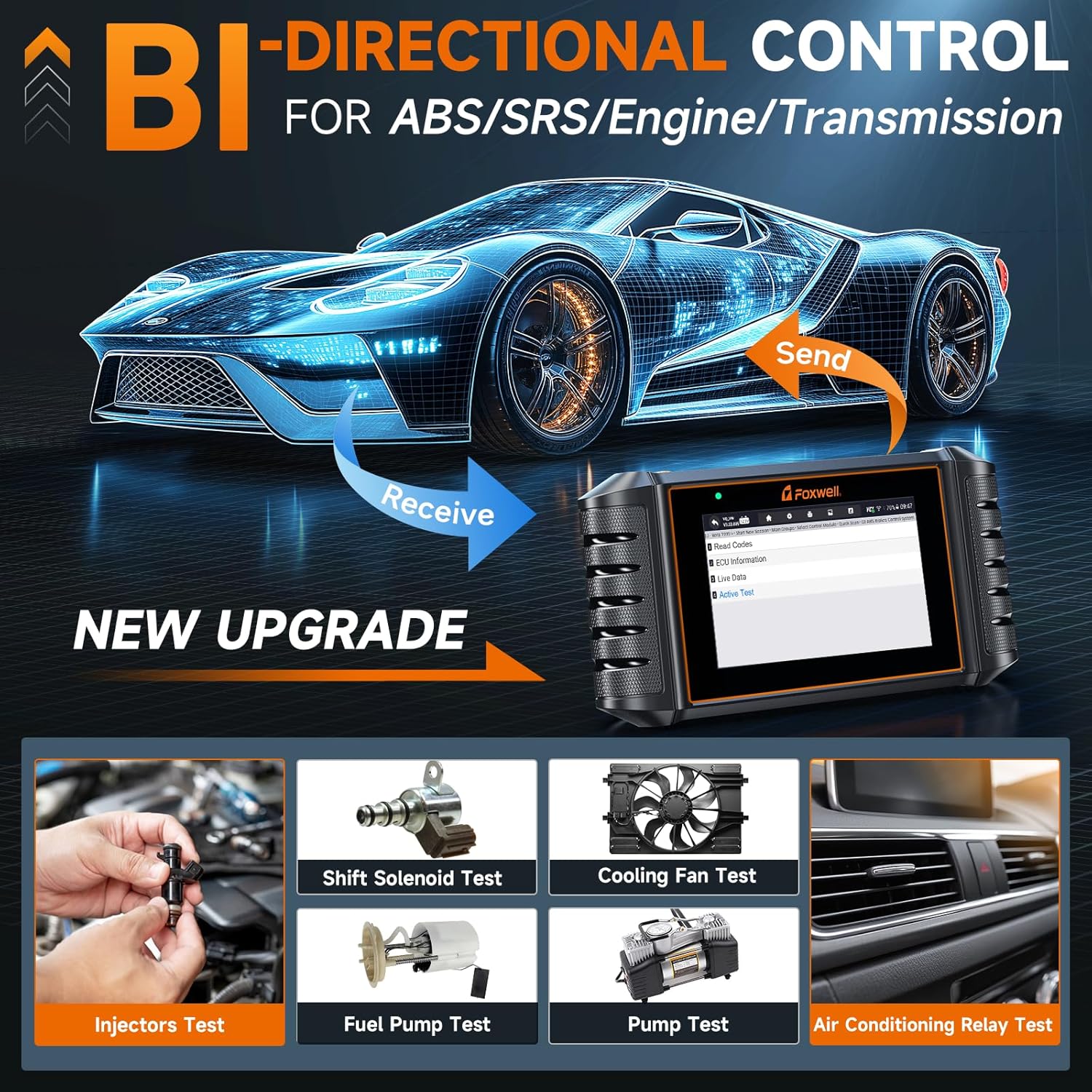
Figure 4.2: Bidirectional Control and Active Tests
4.4 Full OBD2 Functions
The NT716 supports all 10 OBD2 test modes, providing comprehensive engine diagnostics for emissions-related issues:
- Read Codes: Display Diagnostic Trouble Codes (DTCs).
- Erase Codes: Clear DTCs and reset monitors.
- Live Data: View real-time data from vehicle sensors.
- Freeze Frame: View vehicle parameters recorded when an emission-related fault occurs.
- I/M Readiness: Check the readiness of the emission monitoring system.
- O2 Monitor Test: Retrieve O2 sensor monitor test results.
- On-Board Monitor Test: Retrieve results for emission-related powertrain components and systems.
- Component Test: Initiate a leak test for the vehicle's EVAP system.
- Vehicle Information: Retrieve vehicle identification number (VIN), calibration ID, and calibration verification number (CVN).
- DTC Lookup: Built-in DTC library for code explanations.

Figure 4.3: Full OBD2 Functions and Interface
4.5 9 Reset Functions
The NT716 supports 9 commonly used maintenance reset functions:
- ABS Bleeding: Bleeds air from the brake system to restore ABS brake sensitivity.
- SAS (Steering Angle Sensor) Reset: Calibrates the steering angle sensor after replacement or repair.
- Oil Light Reset: Resets the oil service light and calculates the optimal oil life change interval.
- EPB (Electronic Parking Brake) Reset: Resets the electronic parking brake system after brake pad replacement.
- BMS (Battery Management System) Reset: Registers the new battery to the ECU after replacement.
- DPF (Diesel Particulate Filter) Regeneration: Clears particulate matter from the DPF filter to maintain engine performance.
- Throttle Relearn: Relearns the throttle body position after cleaning or replacement.
- Injector Coding: Codes new injector numbers to the ECU after replacement.
- TPMS (Tire Pressure Monitoring System) Reset: Resets tire pressure sensors after tire rotation or replacement.
Note: This product does NOT support car key programming.

Figure 4.4: ABS Bleeding Function

Figure 4.5: Oil Light Reset and EPB Reset

Figure 4.6: SAS Reset and BMS Reset

Figure 4.7: DPF Reset and Throttle Reset
5. Maintenance
5.1 Cleaning the Device
To maintain the scanner's performance and appearance, wipe the screen and body with a soft, damp cloth. Avoid using abrasive cleaners or solvents that could damage the device.
5.2 Software Updates
Regular software updates are released to improve functionality, add new vehicle models, and fix bugs. Connect the device to Wi-Fi and use the one-click update feature to ensure your scanner is always running the latest software. Updates are free for life.
5.3 Storage
When not in use, store the NT716 scanner in its portable, shockproof, and waterproof carrying case to protect it from dust, moisture, and physical damage. Store in a cool, dry place away from direct sunlight and extreme temperatures.
6. Troubleshooting
6.1 Common Issues and Solutions
- Active Test Function Not Available: This function requires a software upgrade before use. Ensure you have performed a one-click WiFi update as described in Section 3.3.
- Product Cannot Be Registered: The NT716 uses an Android 9.0 system and does not require website login for registration. Simply connect to WiFi and register directly through the device's interface.
- Device Not Powering On: Ensure the diagnostic cable is securely connected to both the scanner and the vehicle's OBD2 port. Check the vehicle's battery status.
- Communication Error with Vehicle: Verify the vehicle's ignition is on. Check for loose connections. Ensure the vehicle model is supported by the scanner.
- Inaccurate Readings/Codes: Ensure the software is up to date. Verify the vehicle's VIN is correctly recognized.
6.2 Vehicle Compatibility Notes
Compatibility for diagnostic and special functions may vary by vehicle model and year. Always check compatibility before purchasing or attempting specific functions.
- For Maserati models produced after 2018, a 12+8 adapter cable may be required.
- For BMW models produced before 1996, a 20-pin adapter may be required.
- In some older vehicle models, the transmission ECU might be integrated into the engine ECU. For example, for older Toyota models with a 4AT transmission, the transmission temperature data might be found under the Engine menu (e.g., Diagnostic > Asia > Toyota > SmartVIN > Quick Scan > Engine > Live Data/Active Test). Ensure the car has a functional transmission sensor for diagnosis.
7. Specifications
| Feature | Specification |
|---|---|
| Model | NT716 Car Scanner |
| Operating System | Android 9.0 |
| Display | 5.5" HD Touchscreen |
| Battery | 4000mAh Lithium Ion (included) |
| Supported Languages | 24+ (including English, German, French, Spanish, etc.) |
| Vehicle Coverage | 100+ car brands, 1996 to 2025 models |
| Item Weight | 2.51 pounds |
| Package Dimensions | 10.39 x 6.1 x 3.9 inches |
| Update Method | One-click WiFi Update (Lifetime Free) |

Figure 7.1: NT716 Key Specifications

Figure 7.2: Rear Panel Information
8. Warranty and Technical Support
The FOXWELL NT716 OBD2 Scanner comes with a 1-Year Warranty from the date of purchase. FOXWELL also provides Lifetime Technical Support for this product.
If you encounter any quality issues, missing parts, defective parts, or require technical assistance, please contact FOXWELL customer support directly. You can reach out via email at amazonsupport@foxwelltech.com.
Related documentsNT716 Car Scanner


Ask a question about this manual
Ask about setup, troubleshooting, compatibility, parts, safety, or missing instructions. Manuals+ will review the question and use this page’s manual context to help answer it.