
1. Introduction
The FiiO Q1 is a versatile portable USB Digital-to-Analog Converter (DAC) and headphone amplifier designed to enhance your audio experience. It can be used with various devices, including computers and mobile phones, to deliver high-fidelity sound.
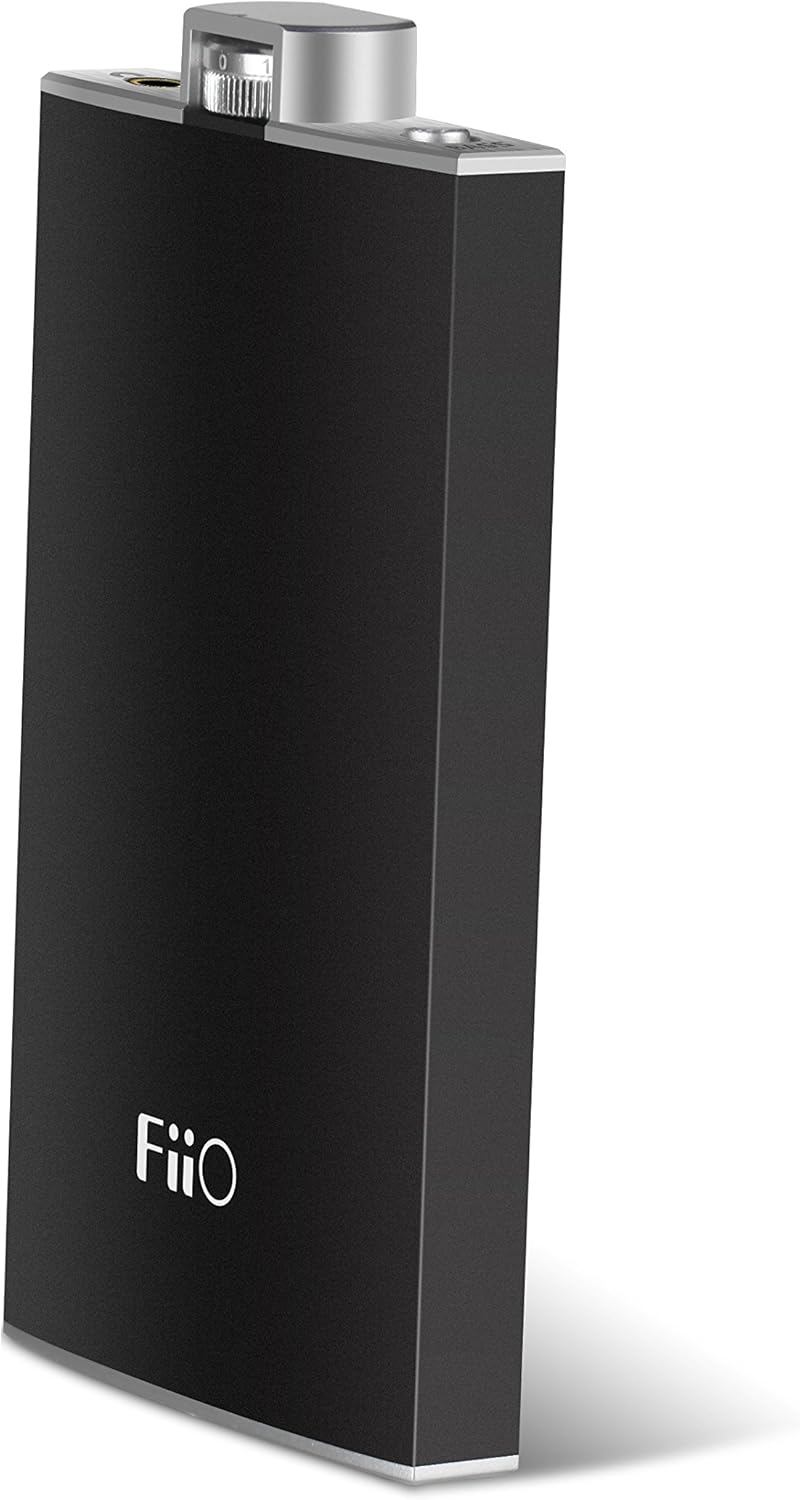
Figure 1: FiiO Q1 Portable USB DAC Amplifier. This image shows the sleek black casing of the device with the FiiO logo prominently displayed on the front.
Key Features:
- Output power: Greater Than 190mW (32Ω loaded)
- Recommended headphone impedance: 16-150 Ohms
- Max. supported sample rate (USB decoding): 96kHz/24bit
- Battery capacity: 1400mAh
- Play time: Greater Than 30 hours (32Ω earphones, normal listening levels)
2. Setup
Before using your FiiO Q1, ensure it is properly charged and connected to your audio source.
2.1 Charging the Device
Connect the FiiO Q1 to a USB power source (e.g., computer USB port, USB wall adapter) using the provided USB cable. The LED indicator will show the charging status:
- Red: Charging
- Magenta: On and Charging
- Green: Fully Charged
2.2 Connecting to an Audio Source
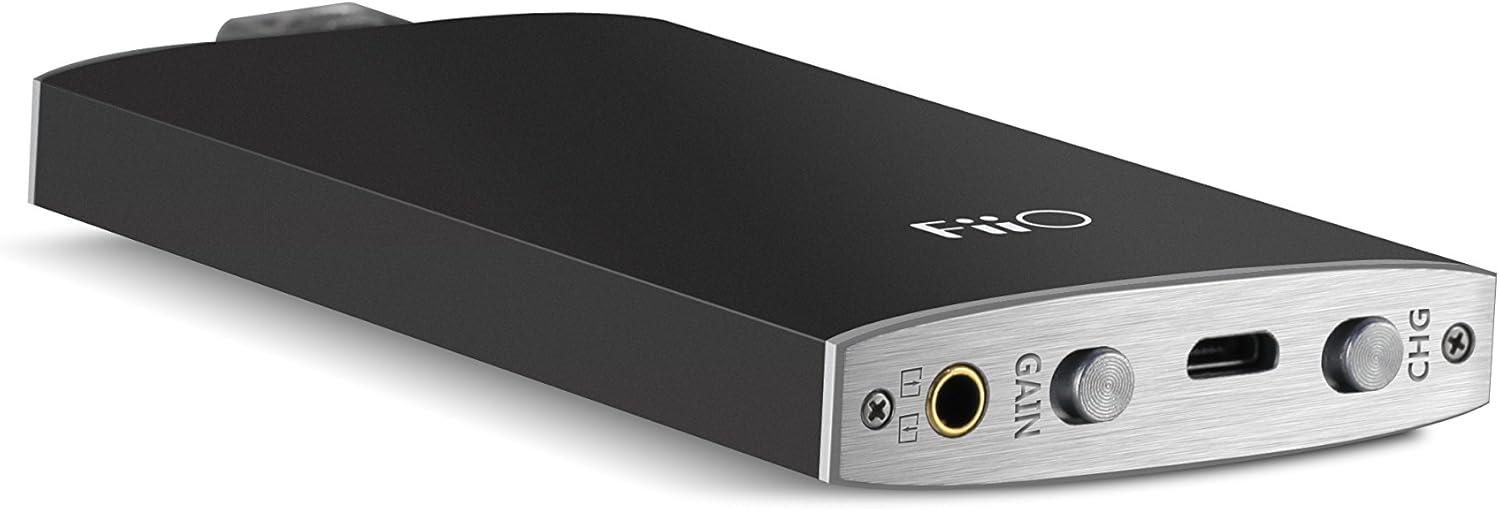
Figure 2: FiiO Q1 Ports and Controls. This image highlights the various input and output ports, including the 3.5mm audio jack, USB port, and control switches.
2.2.1 USB DAC Mode (for Computers/Smartphones)
To use the FiiO Q1 as a DAC, connect it to your computer or smartphone via the USB port. The device will bypass your source's internal sound card for improved audio quality.
- For Computers: Connect the FiiO Q1 to your computer's USB port using the supplied USB cable. The computer should automatically recognize the device. Select the FiiO Q1 as the audio output device in your operating system's sound settings.
- For Smartphones: Connect the FiiO Q1 to your smartphone using an appropriate USB On-The-Go (OTG) cable (not included). Ensure your smartphone supports USB audio output.
2.2.2 Amplifier Mode (for Analog Sources)
To use the FiiO Q1 solely as an amplifier, connect your audio source (e.g., MP3 player, smartphone headphone jack) to the 3.5mm audio input port on the FiiO Q1 using a 3.5mm audio cable (not included). Connect your headphones to the 3.5mm headphone output port.
3. Operating the Device
Familiarize yourself with the controls and indicators for optimal use.
3.1 Controls
- Volume Knob: Located at the top of the device, this knob controls the audio output volume. Rotate clockwise to increase volume, counter-clockwise to decrease. Turning the knob fully counter-clockwise will also power off the device.
- Gain Switch: This switch allows you to select between high and low gain settings. Use the low gain setting for sensitive headphones or when high volume is not required. Switch to high gain for less sensitive headphones or when more power is needed.
- Bass Boost Switch: Activate this switch to enhance the bass frequencies in your audio. Deactivate it for a flatter frequency response.
3.2 LED Indicator
The LED indicator provides visual feedback on the device's status:
- Blue: Device is powered on and operating.
- Red: Device is charging.
- Magenta: Device is powered on and charging simultaneously.
- Green: Battery is fully charged.
4. Maintenance
Proper care and maintenance will ensure the longevity of your FiiO Q1.
- Cleaning: Use a soft, dry cloth to clean the exterior of the device. Do not use liquid cleaners or solvents.
- Battery Care: To preserve battery life, avoid fully discharging the battery frequently. If storing the device for an extended period, charge it to approximately 50% before storage.
- Storage: Store the device in a cool, dry place away from direct sunlight, extreme temperatures, and high humidity.
5. Troubleshooting
If you encounter issues with your FiiO Q1, refer to the following common problems and solutions.
| Problem | Possible Cause | Solution |
|---|---|---|
| No sound output | Device is off; Volume is too low; Incorrect input/output connection; Source device not playing audio; Incorrect audio output selected on source. | Ensure device is powered on (blue LED); Increase volume; Check all cable connections; Verify audio playback on source; Select FiiO Q1 as audio output on computer/smartphone. |
| Device not recognized by computer/smartphone | Device not powered on; Faulty USB cable; USB port issue; Driver issue (rare for plug-and-play devices). | Power on the FiiO Q1; Try a different USB cable; Use a different USB port on your computer; Restart your computer/smartphone. |
| Battery not charging or holding charge | Faulty USB cable/charger; Device defect; Battery degradation. | Try a different USB cable and power adapter; Ensure the charging LED illuminates; If issues persist, contact FiiO support. |
| Distorted or poor sound quality | Source audio quality is low; Incorrect gain setting; Faulty cables; Headphone impedance mismatch. | Ensure high-quality audio source; Adjust gain switch (try low gain first); Replace audio cables; Ensure headphone impedance is within recommended range (16-150 Ohms). |
6. Specifications
| Feature | Specification |
|---|---|
| Model Number | FIO_Q1_BLK |
| Output Power | Greater Than 190mW (32Ω loaded) |
| Recommended Headphone Impedance | 16-150 Ohms |
| Max. Supported Sample Rate (USB Decoding) | 96kHz/24bit |
| Battery Capacity | 1400mAh |
| Play Time | Greater Than 30 hours (32Ω earphones, normal listening levels) |
| Connector Type | USB Type A |
| Cable Type | USB |
| Compatible Devices | Headphone |
| Special Feature | Portable |
| Color | Black |
| Item Weight | 100 Grams (3.53 ounces) |
| Product Dimensions | 0.22 x 0.51 x 3.82 inches |
| Manufacturer | FiiO |
| UPC | 602519848847, 702534722877 |
| Date First Available | April 11, 2015 |
7. Warranty and Support
For warranty information, please refer to the documentation included with your product or visit the official FiiO website. Warranty terms and conditions may vary by region and retailer.
Customer Support:
For technical support, product inquiries, or service requests, please visit the official FiiO website or contact their customer service department directly. Contact information can typically be found on the FiiO website or product packaging.
Note: No official product videos from the seller were found for embedding.