
1. Introduction
The Sony SBH54 is a versatile Stereo Bluetooth Headset designed for wireless communication and audio playback. It offers both handset and headset functionalities, allowing you to take and make calls, view messages, listen to music, and tune into FM radio directly from its display. Crafted from premium metal with a splash-proof design, it combines elegance with durability.
Key features include Bluetooth Wireless 3.0, NFC technology for easy pairing, an OLED display, and built-in noise cancellation for clear audio during calls. The headset supports A2DP profile and can connect to two devices simultaneously.
2. Product Overview
The SBH54 features a compact design that fits comfortably in your hand. It includes an OLED display for information at a glance and physical controls for media and call management.
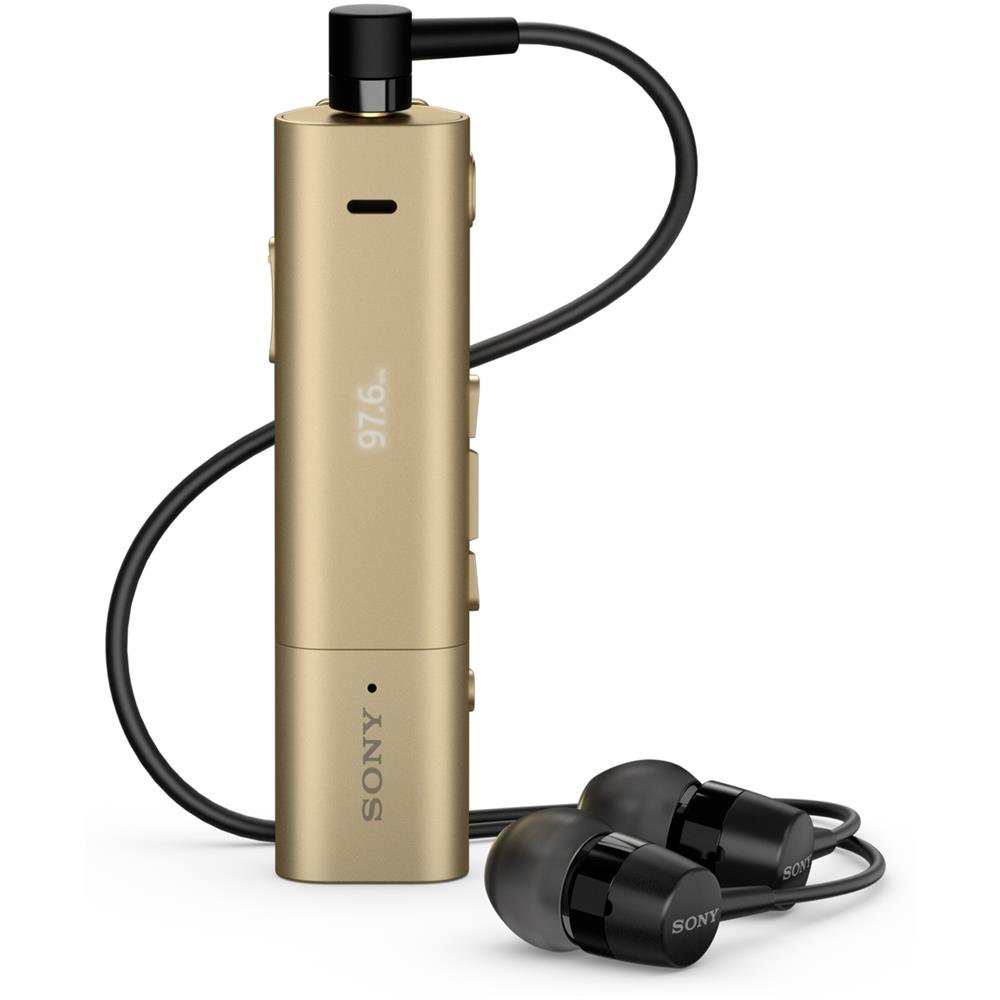
Image: Sony SBH54 Gold Stereo Bluetooth Headset. This image displays the compact, gold-colored headset with its integrated clip and display screen.
Controls and Indicators:
- OLED Display: Shows caller ID, messages, music track information, and FM radio frequency.
- Multi-function Button: For call answering/ending, play/pause music.
- Volume Buttons: Adjust audio volume.
- Navigation Buttons: For menu navigation and track skipping.
- Microphone: Integrated for voice calls.
- Headphone Jack: 3.5mm port for connecting the included premium headphones.
- Charging Port: Micro USB port for charging the device.
3. Setup
3.1 Charging the Headset
- Connect the supplied USB cable to the headset's charging port and to a USB power adapter or a computer's USB port.
- The battery indicator on the display will show charging status.
- Charge the headset fully before first use.
3.2 Pairing with a Device (Bluetooth)
- Ensure the headset is charged and turned off.
- Press and hold the power button until the headset enters pairing mode (indicated by a specific light pattern or message on the display).
- On your smartphone or other Bluetooth-enabled device, enable Bluetooth and search for available devices.
- Select "SBH54" from the list of found devices.
- If prompted, enter the passcode "0000" (four zeros).
- Once paired, the headset will indicate a successful connection.
3.3 Pairing with a Device (NFC)
For devices with NFC (Near Field Communication):
- Ensure NFC is enabled on your smartphone and the screen is unlocked.
- Touch the NFC detection area of your smartphone to the NFC detection area on the SBH54 headset.
- Follow any on-screen prompts to complete the pairing process.
4. Operating the Headset
4.1 Power On/Off
- To Power On: Press and hold the power button until the display lights up.
- To Power Off: Press and hold the power button until the display turns off.
4.2 Making and Receiving Calls
- Answering a Call: When a call comes in, press the multi-function button.
- Ending a Call: During a call, press the multi-function button.
- Rejecting a Call: Press and hold the multi-function button when a call comes in.
- Making a Call: Dial the number on your phone. The call will automatically route to the headset. You can also use voice commands if supported by your phone.
- Handset Function: The compact SBH54 can be used as an unobtrusive handset for calls.
- Noise Cancellation: The headset features echo, wind, and noise cancellation for clear voice transmission.
- HD Voice: Enhances voice clarity for both parties during a call.
4.3 Music Playback
- Play/Pause: Press the multi-function button.
- Next Track: Press the forward navigation button.
- Previous Track: Press the backward navigation button.
- Volume Control: Use the volume up/down buttons.
4.4 FM Radio
- Activate FM Radio: Navigate through the headset menu to select the FM Radio function.
- Tune Stations: Use the navigation buttons to scan or manually tune to FM frequencies.
- Save Presets: The headset may allow saving favorite stations (refer to on-screen prompts).
5. Maintenance
- Cleaning: Wipe the headset with a soft, dry cloth. Avoid using harsh chemicals or abrasive materials.
- Water Resistance: The SBH54 has a splash-proof design. This means it can withstand light splashes of water but should not be submerged or exposed to heavy rain. Ensure the charging port cover is securely closed.
- Storage: Store the headset in a cool, dry place away from direct sunlight and extreme temperatures.
- Battery Care: To prolong battery life, avoid fully discharging the battery frequently. Charge it regularly.
6. Troubleshooting
Common Issues and Solutions:
- Headset does not power on: Ensure the battery is charged. Connect to a power source and try again.
- Cannot pair with a device:
- Ensure the headset is in pairing mode.
- Make sure Bluetooth is enabled on your device.
- Move the headset closer to your device.
- Restart both the headset and your device.
- Clear previous Bluetooth connections on your device and try pairing again.
- No audio or poor audio quality:
- Check the volume levels on both the headset and your connected device.
- Ensure the headset is within range of your device.
- Disconnect and reconnect the Bluetooth connection.
- Ensure the headphones are properly plugged into the 3.5mm jack.
- FM Radio not working: Ensure you are in an area with good FM signal reception.
7. Specifications
| Feature | Detail |
|---|---|
| Brand | Sony |
| Model Number | SBH54GD |
| Color | Gold |
| Ear Placement | In Ear |
| Form Factor | In Ear |
| Noise Control | Active Noise Cancellation |
| Item Weight | 0.1 Kilograms |
| Audio Driver Type | Dynamic Driver |
| Frequency Range | 20 Hz - 20,000 Hz |
| Enclosure Material | Metal |
| Compatible Devices | Smartphones, Laptops, Tablets, Bluetooth-enabled Devices |
| Water Resistance Level | Water Resistant (Splash-proof) |
| Connectivity Technology | Bluetooth, NFC |
| Wireless Technology | Bluetooth, NFC |
| Bluetooth Version | 3.0 |
| Control Type | Media Control |
| Control Method | Remote |
8. Warranty and Support
For warranty information and customer support, please refer to the documentation included with your purchase or visit the official Sony support website. Specific warranty terms may vary by region and retailer.
Online Support: www.sony.com/electronics/support


