
Product Overview
The Cinolink SATA IDE to USB 3.0 Adapter is a versatile tool designed to connect various types of hard drives and optical drives to your computer via a USB 3.0 interface. It supports 2.5-inch and 3.5-inch IDE and SATA hard drives, as well as 5.25-inch SATA or IDE optical drives.
Key Features
- Integrated ON-OFF switch on the power adapter for convenient control.
- Includes a 4-foot (1.2 meters) USB 3.0 A-Male to B-Male cable, UL/FCC certified power supply.
- Capable of operating up to three drives simultaneously.
- Compatible with 2.5-inch and 3.5-inch SATA/IDE hard drives and SSDs.
- Supports 5.25-inch optical drives with SATA or IDE interfaces, including CD/DVD-ROM, CD/DVD-RW, Blu-Ray DVD, MO, ZIP, and Combo devices.
- LED indicators display power status and USB 3.0/IDE/SATA activity.
- Compatible with Windows PC or Mac systems with available USB 3.0/2.0/1.1 ports.
- Super-Speed USB 3.0 interface for fast data transfer.

The Cinolink SATA IDE to USB 3.0 Adapter, showing its compact design and LED indicators for power, USB 3.0, IDE, and SATA.
Package Contents
- Cinolink SATA IDE to USB 3.0 Adapter
- USB 3.0 A-Male to B-Male Cable (4 ft / 1.2 m)
- 12V 2A Power Adapter with ON-OFF Switch
- 4-pin IDE Power Cable

An image displaying the Cinolink SATA IDE to USB 3.0 Adapter, the USB 3.0 cable, the 12V 2A power adapter with an ON/OFF switch, and a 4-pin IDE power cable, alongside a connected 3.5-inch SATA hard drive.
Setup Instructions
Refer to the connection diagram below for a visual guide to setting up your adapter with various drive types.

Diagram illustrating how to connect 3.5-inch IDE, 2.5-inch IDE, and 3.5-inch/2.5-inch SATA drives, including optical drives, to the Cinolink adapter and power supply.
Connecting a SATA Drive
- Ensure the power adapter is disconnected from the power source.
- Connect the SATA data and power connectors from the adapter to your 2.5-inch or 3.5-inch SATA hard drive or SSD.
- Connect the USB 3.0 cable from the adapter to an available USB 3.0 port on your computer.
- Plug the 12V 2A power adapter into a power outlet and connect it to the adapter. Ensure the ON-OFF switch is in the OFF position before plugging into the wall.
- Flip the ON-OFF switch to the ON position. The power LED on the adapter should illuminate.
- Your operating system should detect the drive automatically.
A 3.5-inch SATA hard drive connected to the Cinolink adapter, which is then connected to a laptop via USB. The power adapter is also shown connected.
Connecting an IDE Drive
- Ensure the power adapter is disconnected from the power source.
- For 3.5-inch IDE drives, connect the 40-pin IDE connector from the adapter to the IDE port on your hard drive. For 2.5-inch IDE drives, use the smaller 44-pin IDE connector.
- Connect the included 4-pin IDE power cable to the IDE drive's power input and to the corresponding port on the adapter.
- Connect the USB 3.0 cable from the adapter to an available USB 3.0 port on your computer.
- Plug the 12V 2A power adapter into a power outlet and connect it to the adapter. Ensure the ON-OFF switch is in the OFF position before plugging into the wall.
- Flip the ON-OFF switch to the ON position. The power LED on the adapter should illuminate.
- Your operating system should detect the drive automatically.

A 3.5-inch IDE hard drive connected to the Cinolink adapter, which is then connected to a laptop via USB. The power adapter and 4-pin IDE power cable are also shown connected.

A 2.5-inch IDE hard drive and a 2.5-inch SATA SSD connected simultaneously to the Cinolink adapter, which is connected to a laptop via USB. The power adapter is also shown.
Video Guide: Connecting Drives
This video illustrates how to connect 3.5-inch IDE, 2.5-inch IDE, and 3.5-inch SATA hard drives to the Cinolink USB 3.0 adapter, including power and USB connections.
Operating Instructions
Once connected and powered on, the drive will appear as an external storage device on your computer. You can access, transfer, and manage files as you would with any other external drive.
Important Notes
- For optimal performance: Connect the adapter to a USB 3.0 port on your computer. It is backward compatible with USB 2.0 and 1.1, but speeds will be limited.
- Power Requirements: Always ensure the power adapter is connected when using 3.5-inch drives or 5.25-inch optical drives, as they require external power. 2.5-inch drives may draw sufficient power from the USB port, but external power is recommended for stability.
- Safe Ejection: Always safely eject the drive from your operating system before disconnecting the adapter or turning off the power to prevent data corruption.
- IDE Jumper Settings: For older IDE drives, you may need to adjust jumper settings (Master/Slave/Cable Select) on the drive itself for proper detection. Refer to your IDE drive's documentation for specific jumper configurations.
Compatibility
- Operating Systems: Windows XP, Vista, 7, 8, 8.1, 10, macOS, Linux, Chrome OS.
- Drive Types: 2.5-inch and 3.5-inch SATA I/II/III HDDs/SSDs, 2.5-inch and 3.5-inch IDE HDDs.
- Optical Drives: 5.25-inch SATA or IDE CD/DVD-ROM, CD/DVD-RW, Blu-Ray DVD, MO, ZIP, Combo devices.
- USB Interface: USB 3.0 (backward compatible with USB 2.0/1.1).
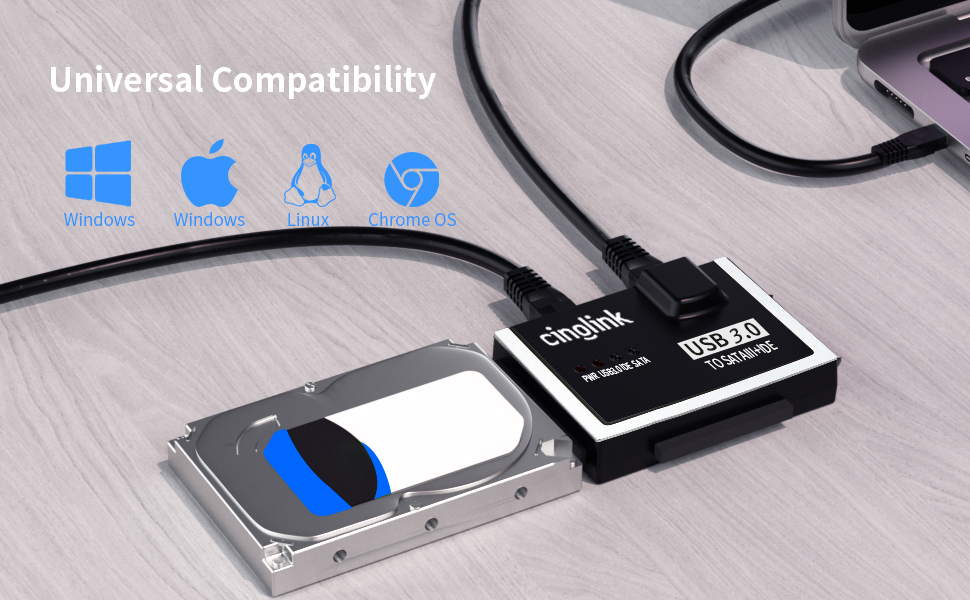
An image illustrating the universal compatibility of the Cinolink adapter with various operating systems including Windows, macOS, Linux, and Chrome OS, connected to a 2.5-inch IDE drive.
Specifications
| Feature | Detail |
|---|---|
| Model | HA007 |
| Connector Type | USB Type A |
| Compatible Devices | Laptops, Desktops |
| Dimensions (L x W x H) | 6.4 x 5.1 x 2.3 inches |
| Item Weight | 0.02 Pounds |
| Input Voltage | 12 Volts |
| Current Rating | 2 Amps |
| Nominal Power | 24 Watts |
| Power Plug Type | Type A - 2 pin (North American) |
Troubleshooting
Drive Not Detected
- Check Power: Ensure the 12V 2A power adapter is securely connected to both the wall outlet and the Cinolink adapter, and the ON-OFF switch is in the ON position. The power LED should be lit.
- Check Connections: Verify that the data and power cables are firmly connected to both the drive and the adapter. For IDE drives, ensure the 4-pin IDE power cable is also connected.
- IDE Jumper Settings: For older IDE drives, incorrect jumper settings (Master/Slave/Cable Select) can prevent detection. Try adjusting the jumpers on the IDE drive. Consult the drive's manufacturer documentation for correct settings.
- USB Port: Try connecting the USB cable to a different USB port on your computer. Sometimes, certain USB ports may have issues.
- Drive Health: If the drive is old or has been stored for a long time, it might be faulty. Test the drive with another enclosure or directly connect it to a computer if possible.
- Disk Management (Windows) / Disk Utility (macOS): Check your operating system's disk management tools. The drive might be detected but not initialized or formatted.
Slow Transfer Speeds
- USB 3.0 Port: Ensure the adapter is connected to a USB 3.0 port on your computer. Connecting to a USB 2.0 or 1.1 port will limit speeds.
- Drive Speed: The actual transfer speed is limited by the slowest component, which is often the hard drive itself. Older IDE drives or slower SATA HDDs will not achieve USB 3.0 maximum speeds.
- Other USB Devices: Disconnect other high-bandwidth USB devices to ensure sufficient bandwidth for the adapter.
Warranty Information
The Cinolink SATA IDE to USB 3.0 Adapter (Model HA007) comes with a 2-year warranty from the date of purchase. This warranty covers manufacturing defects and malfunctions under normal use. It does not cover damage caused by misuse, accidents, unauthorized modifications, or natural disasters.
Please retain your proof of purchase for warranty claims.
Customer Support
For technical assistance, troubleshooting, or warranty inquiries, please contact Cinolink customer support.
Website: Visit the official Cinolink website for FAQs and support resources.
Email: Refer to your product packaging or the Cinolink website for the most current support email address.
Phone: Refer to your product packaging or the Cinolink website for the most current support phone number.