
Targus ACP110US
Targus VersaLink Universal Travel Laptop Dock User Manual
Model: DOCK110USZ / ACP110US
1. Introduction
This manual provides detailed instructions for the setup, operation, and maintenance of your Targus VersaLink Universal Travel Laptop Dock. Please read this manual thoroughly before using the product to ensure proper functionality and to prevent damage.
2. Product Overview
2.1 Key Features
- Compact, smartphone-size design for portability.
- VGA video port with up to 2048 x 1152 at 60 FPS resolution.
- HDMI video port with up to 2560 x 1440 at 50 FPS resolution.
- Gigabit Ethernet port for secure, wired internet access.
- Two USB 3.0 SuperSpeed ports for connecting peripherals.
- Integrated USB power cable for convenient connection to laptops, 2-in-1s, and Microsoft Surface devices.
- Compatible with Microsoft Windows 7, 8, 8.1, 10 (32/64-bit), Mac OS X v10.8, v10.9, v10.10, and Android 5.0, 5.1.
2.2 What's in the Box
- Targus VersaLink Universal Travel Laptop Dock (DOCK110USZ)
- User Guide (this document)
2.3 Product Diagram

Figure 1: Top-down view of the Targus VersaLink Universal Travel Laptop Dock.

Figure 2: Side view displaying the USB 3.0, HDMI, and VGA ports.
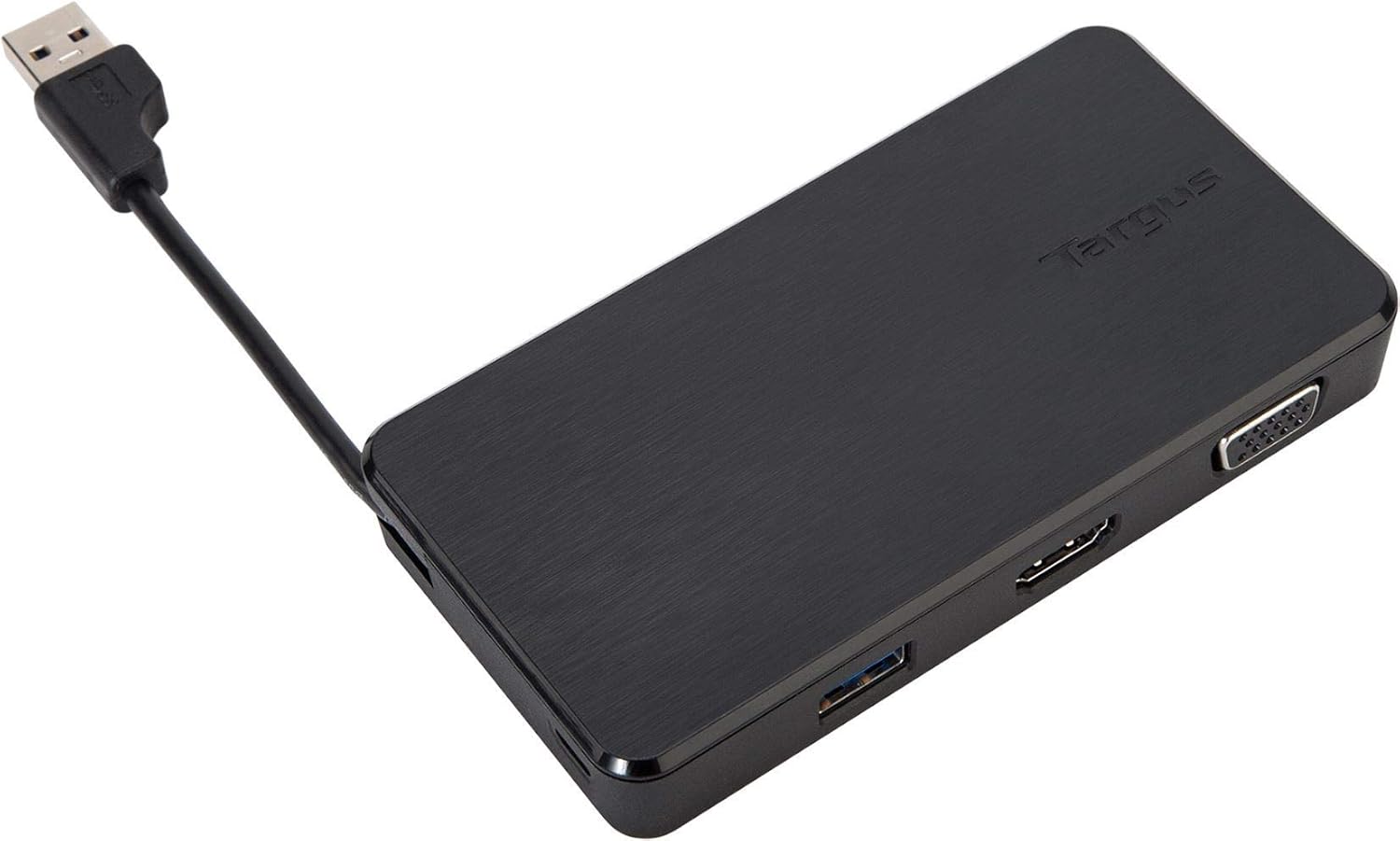
Figure 3: Side view displaying the Gigabit Ethernet port.

Figure 4: The integrated USB cable extended from the dock.

Figure 5: Example setup showing the dock connecting a laptop to multiple peripherals.
3. Setup Instructions
Follow these steps to set up your Targus VersaLink Universal Travel Laptop Dock:
- Connect the Dock to Your Laptop: Extend the integrated USB power cable from the dock. Plug the USB connector into an available USB 3.0 port on your laptop, 2-in-1 device, or Microsoft Surface.
- Install Drivers (if necessary): For optimal performance, ensure your operating system has the necessary DisplayLink drivers. In most cases, these drivers will install automatically upon connecting the dock. If not, you may need to download them from the Targus support website.
- Connect External Display:
- For VGA connection: Connect a VGA cable from your monitor or projector to the VGA port on the dock.
- For HDMI connection: Connect an HDMI cable from your monitor or projector to the HDMI port on the dock.
- Connect Network Cable: For wired internet access, connect an Ethernet cable from your router or network jack to the Gigabit Ethernet port on the dock.
- Connect USB Peripherals: Plug your USB devices (e.g., mouse, keyboard, flash drives, external hard drives) into the two available USB 3.0 SuperSpeed ports on the dock.
Video: Demonstrates connecting the Targus VersaLink Travel Dock to a laptop and various peripherals, including a VGA monitor, Ethernet cable, and USB devices. It highlights the ease of extending connectivity for presentations and productivity.
4. Operating Instructions
Once the dock is connected and drivers are installed, your connected devices should be recognized automatically by your operating system.
- Display Configuration:
For Windows: Right-click on the desktop, select "Display settings" or "Screen resolution" to configure your external monitor(s). You can extend, duplicate, or use only the second screen.
For Mac OS: Go to System Preferences > Displays to arrange or mirror your displays.
- Network Access: The Gigabit Ethernet port provides a stable wired network connection. Verify network connectivity through your operating system's network settings.
- USB Device Usage: Connected USB devices will function as if directly connected to your laptop. Ensure proper ejection procedures for storage devices before disconnecting.
5. Troubleshooting
| Problem | Possible Cause | Solution |
|---|---|---|
| No display on external monitor. |
|
|
| USB devices not recognized. |
|
|
| No internet connection via Ethernet. |
|
|
6. Specifications
| Feature | Detail |
|---|---|
| Model Number | ACP110US (DOCK110USZ) |
| Brand | Targus |
| Connectivity | USB 3.0 (integrated cable) |
| Video Ports | 1 x HDMI, 1 x VGA |
| USB Ports | 2 x USB 3.0 SuperSpeed |
| Network Port | 1 x Gigabit Ethernet (RJ-45) |
| VGA Resolution | Up to 2048 x 1152 @ 60 FPS |
| HDMI Resolution | Up to 2560 x 1440 @ 50 FPS |
| Hardware Platform Compatibility | PC, Mac, Android |
| Operating System Compatibility | Microsoft Windows 7/8/8.1/10 (32/64-bit), Mac OS X v10.8/v10.9/v10.10, Android 5.0/5.1 |
| Dimensions (LxWxH) | 2.52 x 4.76 x 0.69 inches (6.4 x 12.1 x 1.75 cm) |
| Weight | 5.3 ounces (150 grams) |
| Color | Black |

Figure 6: Overview of specifications and features for Targus docking stations (features may vary by model).
7. Warranty and Support
7.1 Warranty Information
For detailed warranty information regarding your Targus VersaLink Universal Travel Laptop Dock, please refer to the warranty card included with your product or visit the official Targus website.
7.2 Technical Support
If you encounter any issues or have questions not covered in this manual, please contact Targus Technical Support. Support contact information can be found on the official Targus website or on your product packaging.
Online resources and driver downloads are available at: www.targus.com
Ask a question about this manual
Ask about setup, troubleshooting, compatibility, parts, safety, or missing instructions. Manuals+ will review the question and use this page’s manual context to help answer it.