
Introduction
This manual provides detailed instructions for the installation, operation, and maintenance of your Zmodo ZH-IXU1D-WAC 720p HD Wi-Fi EZCam Camera. This device is designed for home monitoring, offering high-definition video, two-way audio, and remote access capabilities via Wi-Fi. Please read this manual thoroughly before using the product to ensure proper setup and functionality.
Package Contents
Verify that all items listed below are present in your package. If any items are missing or damaged, please contact Zmodo customer support.
- Zmodo ZH-IXU1D-WAC EZCam Camera
- Power Adapter
- Mounting Kit (screws and wall anchors)
- Quick Start Guide (refer to this manual for full details)

Image: Front view of the Zmodo ZH-IXU1D-WAC EZCam Camera. The camera is white with a prominent black circular lens housing at the top, featuring the Zmodo logo printed below it. The camera is mounted on a white adjustable stand.
Setup
1. Powering On the Camera
- Connect the power adapter to the camera's power input port.
- Plug the power adapter into a standard electrical outlet.
- Wait for the camera's indicator light to flash, indicating it is ready for setup.
2. Downloading the Zsight App
The Zsight mobile application is required to set up and manage your EZCam. It is compatible with Android devices.
- Search for "Zsight" in your device's app store.
- Download and install the application.
- Create a new account or log in if you already have one.
3. Connecting to Wi-Fi
Follow the in-app instructions to connect your camera to your home Wi-Fi network.
- Open the Zsight app and tap the "+" icon to add a new device.
- Select "EZCam" or the appropriate camera model.
- Follow the on-screen prompts to enter your Wi-Fi network details. The app will guide you through the pairing process, which may involve scanning a QR code or using an audio pairing method.
- Once connected, the camera's indicator light will change to a solid color (refer to app for specific status).
4. Mounting the Camera (Optional)
The EZCam can be placed on a flat surface or mounted to a wall or ceiling. The camera's adjustable stand allows for flexible positioning.
- Choose a location with a clear view and strong Wi-Fi signal.
- Use the provided mounting kit to secure the camera base to the desired surface.
- Adjust the camera's angle to cover the desired monitoring area.
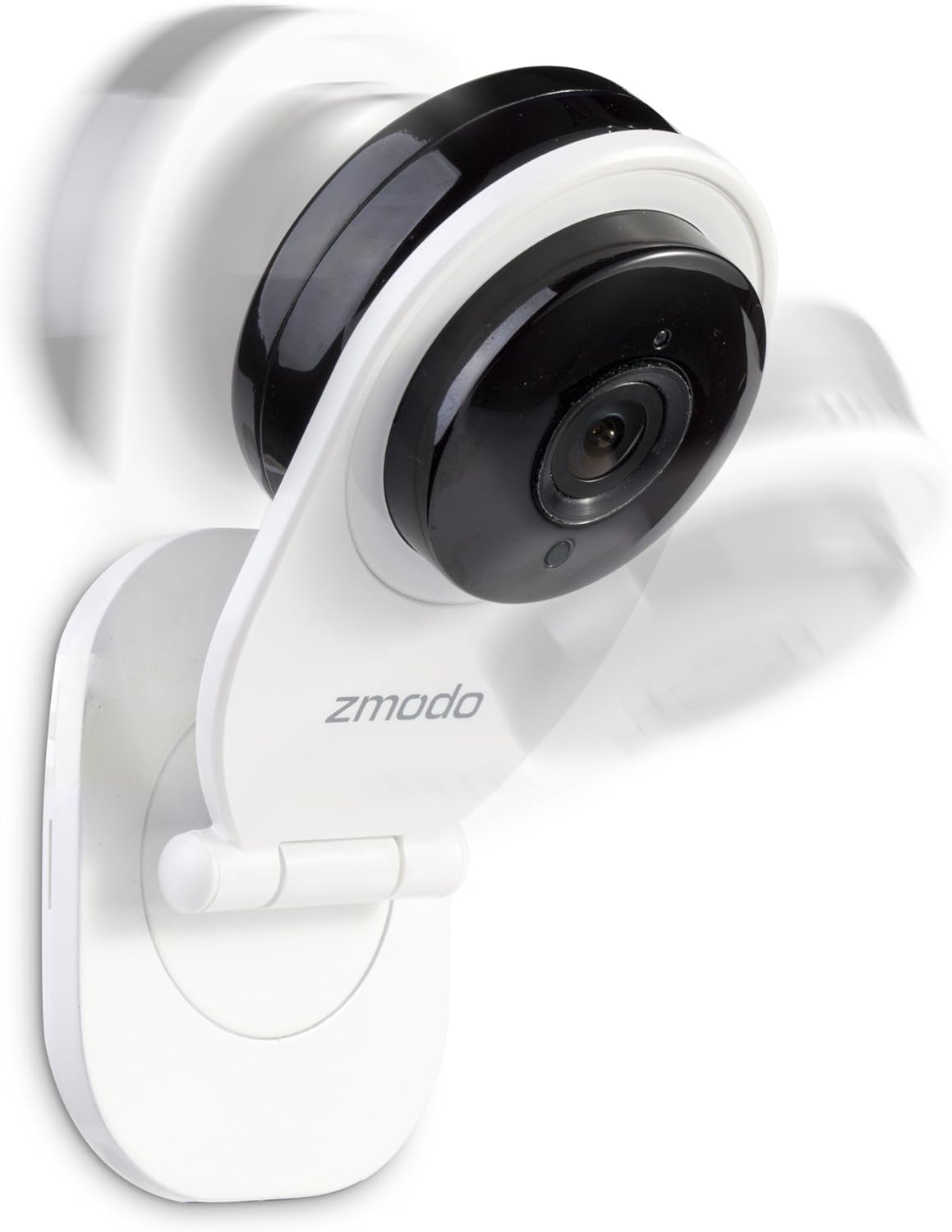
Image: Side view of the Zmodo EZCam camera. The image illustrates the camera's adjustable stand, allowing the camera head to pivot. Motion blur around the camera head suggests its rotational capability for optimal viewing angles.

Image: Another side view of the Zmodo EZCam camera, further demonstrating its adjustable mounting and viewing angle. The camera head is tilted, and motion blur indicates its flexibility in positioning.
5. Installing a Micro SD Card (Optional)
To enable local recording, insert a micro SD card (not included) into the camera's designated slot.
- Locate the micro SD card slot on the camera (usually on the side or back).
- Gently insert the micro SD card until it clicks into place.
- Format the SD card via the Zsight app settings for optimal performance.
Operating the Camera
Live View
Access real-time video feed from your camera through the Zsight app.
- Open the Zsight app.
- Tap on your EZCam from the device list to view the live feed.
Two-Way Audio
Communicate through the camera using the built-in microphone and speaker.
- While in live view, tap the microphone icon to speak.
- Tap the speaker icon to listen to audio from the camera's location.
Motion Detection Alerts
Receive notifications on your smartphone when motion is detected.
- Enable motion detection in the camera settings within the Zsight app.
- Adjust sensitivity and alert schedules as needed.
Night Vision
The camera automatically switches to night vision mode in low-light conditions, providing clear video up to 30 feet.
- Ensure the camera lens is unobstructed for optimal night vision performance.
Local Recording (Micro SD Card)
If a micro SD card is installed and formatted, the camera can record video locally.
- Configure recording settings (e.g., continuous, motion-triggered) in the Zsight app.
- Access recorded footage through the app's playback feature.
Maintenance
Cleaning the Camera
To maintain optimal image quality, keep the camera lens clean.
- Gently wipe the lens with a soft, lint-free cloth.
- Avoid using harsh chemicals or abrasive materials that could scratch the lens.
Firmware Updates
Periodically check the Zsight app for available firmware updates to ensure your camera has the latest features and security enhancements.
- Follow the in-app instructions to perform any recommended updates.
Troubleshooting
If you encounter issues with your Zmodo EZCam, refer to the following common solutions:
- Camera Not Connecting to Wi-Fi:
- Ensure your Wi-Fi network is 2.4GHz (5GHz is not supported).
- Verify the Wi-Fi password is entered correctly in the app.
- Move the camera closer to your Wi-Fi router.
- Restart your router and the camera.
- Poor Video Quality:
- Check your Wi-Fi signal strength in the camera's location.
- Clean the camera lens.
- Ensure adequate lighting for optimal daytime video.
- No Motion Detection Alerts:
- Verify motion detection is enabled in the Zsight app settings.
- Check alert schedules and sensitivity settings.
- Ensure the app has notification permissions on your smartphone.
- Micro SD Card Not Recording:
- Ensure the SD card is properly inserted.
- Format the SD card through the Zsight app.
- Check if the SD card is full or corrupted. Try a different compatible SD card.
For further assistance, please contact Zmodo customer support.
Specifications
| Feature | Detail |
|---|---|
| Model | ZH-IXU1D-WAC |
| Video Capture Resolution | 720p HD |
| Connectivity Technology | Wireless (Wi-Fi) |
| Power Source | Corded Electric |
| Night Vision Range | Up to 30 feet |
| Viewing Angle | 105 Degrees |
| Two-Way Audio | Yes (Built-in mic and speaker) |
| Local Storage | Micro SD card slot (card not included) |
| Motion Detection | Yes (Alerts to smartphone) |
| Compatible Devices | Smartphone (Android) |
| Dimensions (L x W x H) | 4.25 x 2.75 x 7.25 inches |
| Item Weight | 14.4 ounces |
| IP Rating | IP54 |
Warranty and Support
For warranty information and technical support, please refer to the official Zmodo website or contact their customer service directly. Keep your purchase receipt for warranty claims.
Zmodo Customer Support: Please visit www.zmodo.com/support for contact details and online resources.


